
Widget types
- iOS
- 🤖 Android
Homescreen Widgets
Progress Chains
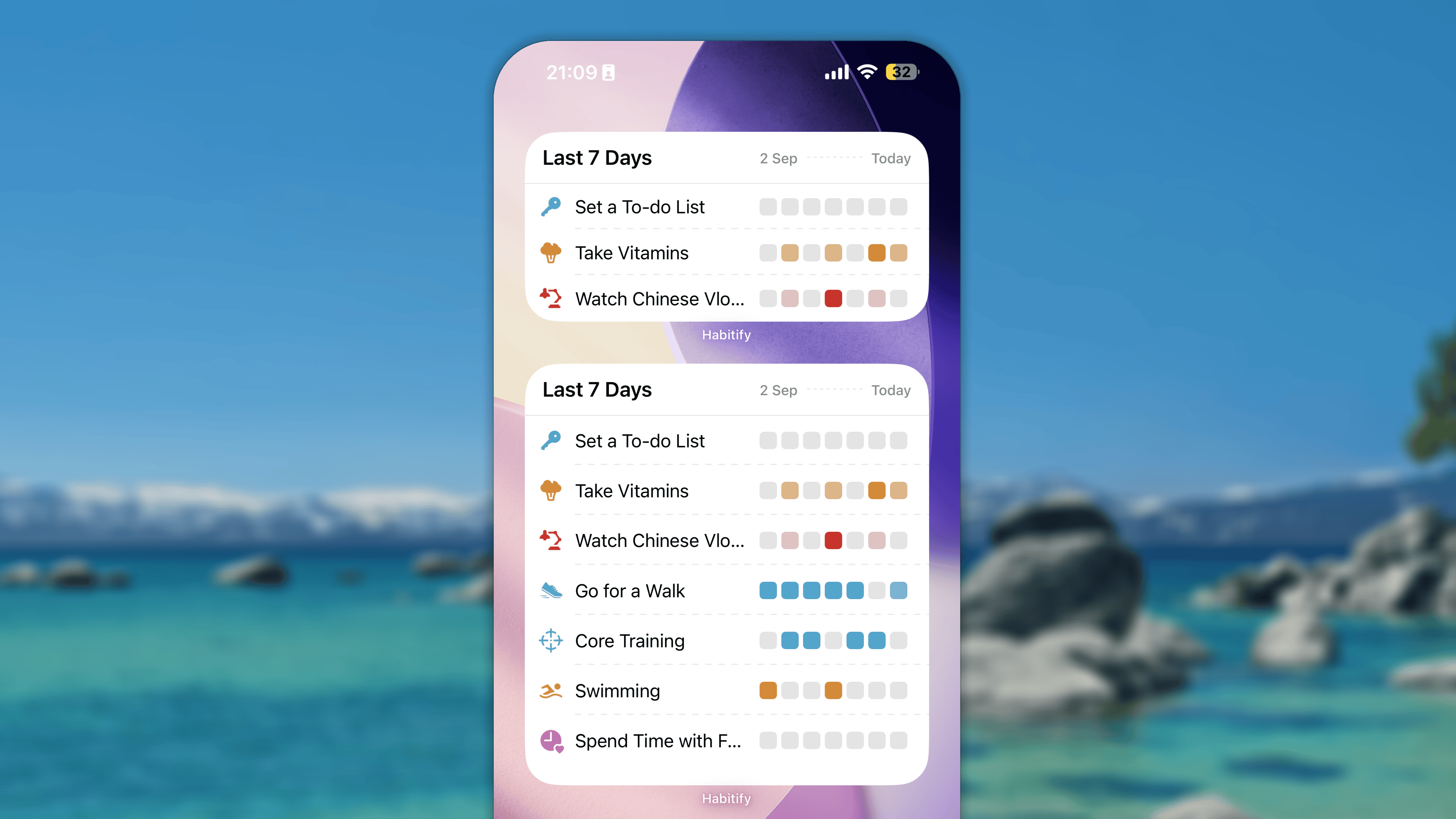
- Small size shows 3 habits at most.
- Medium size shows 3 habits at most.
- Large size shows 8 habits at most.
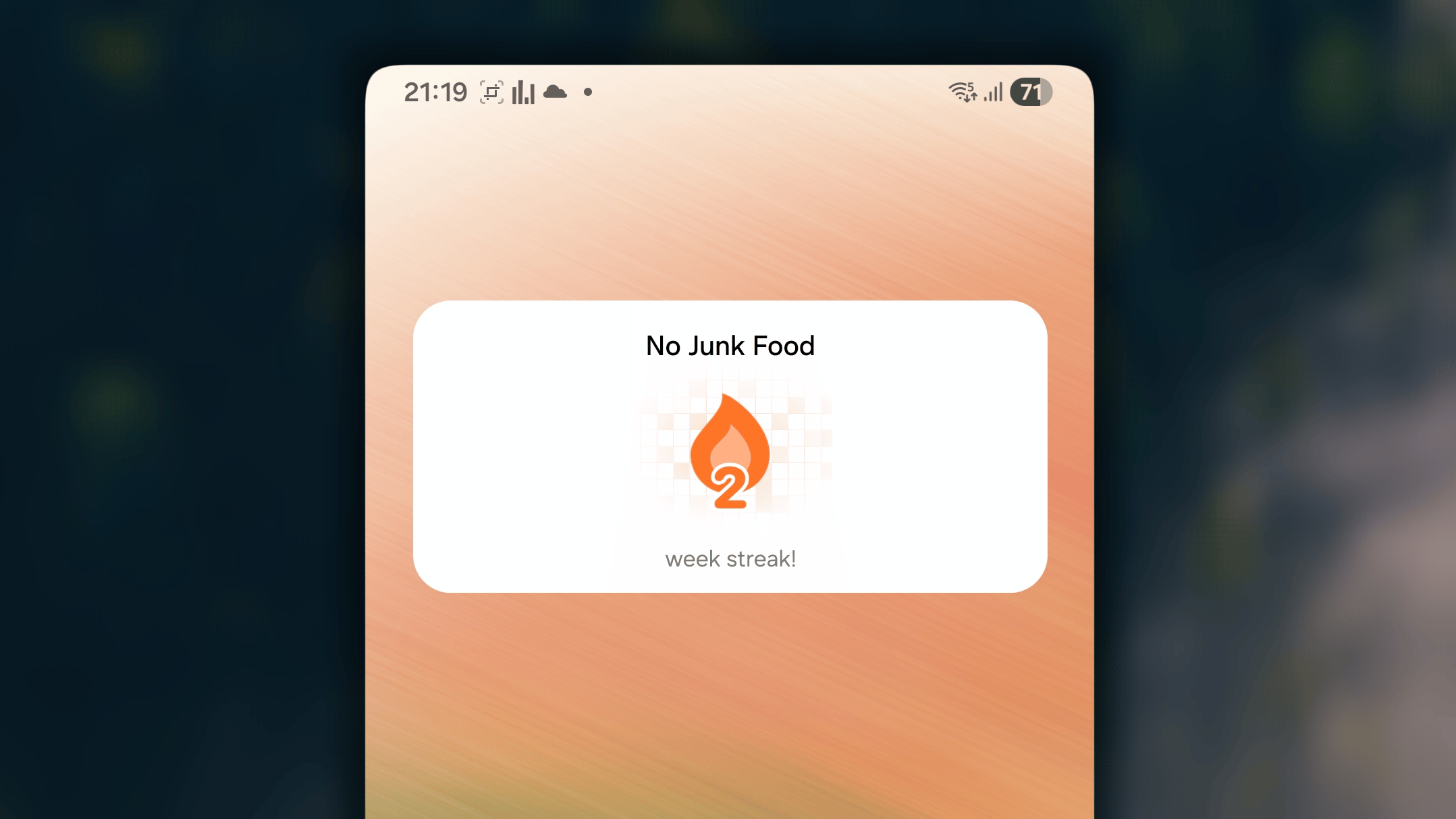
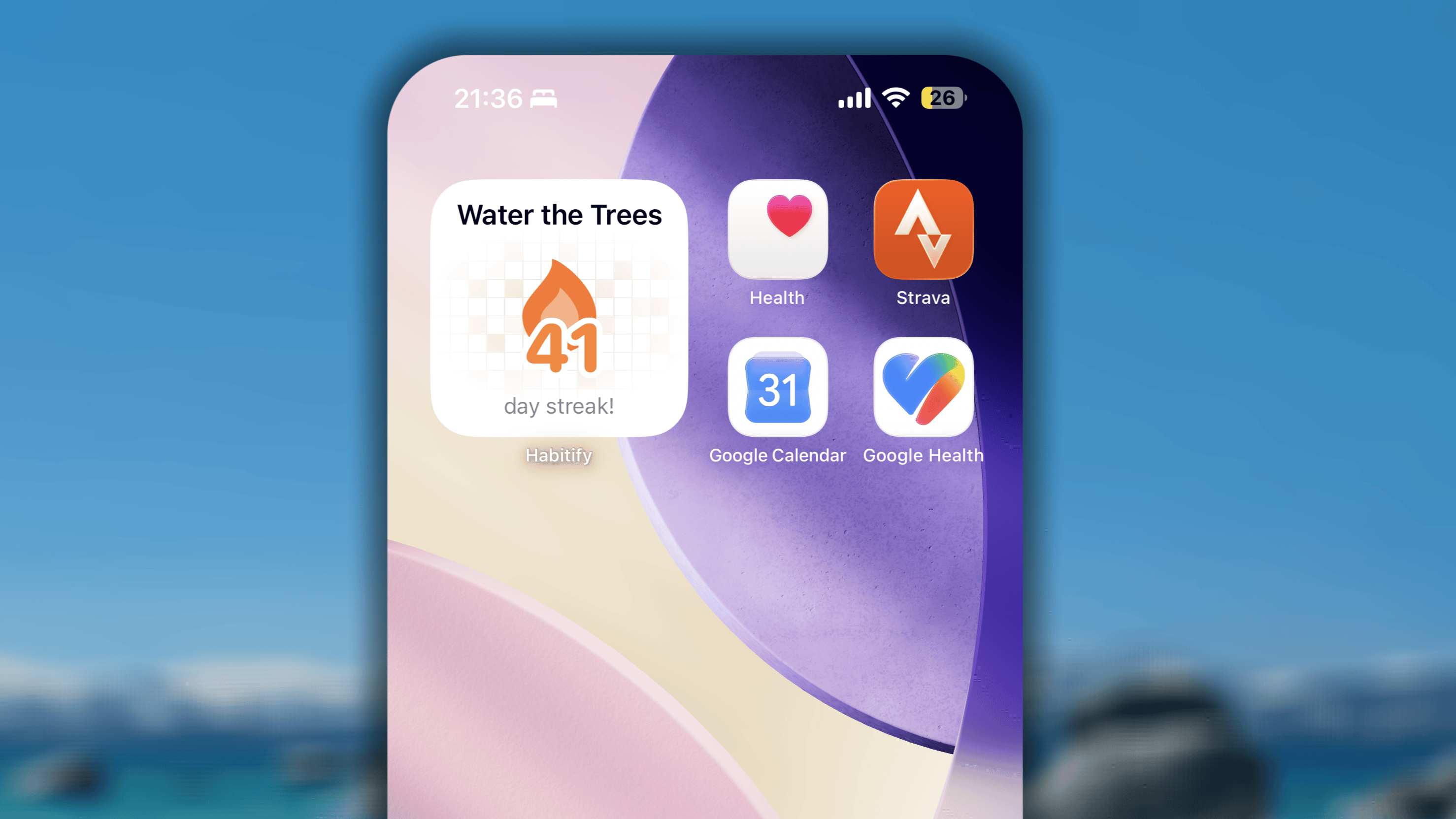
Current Streak
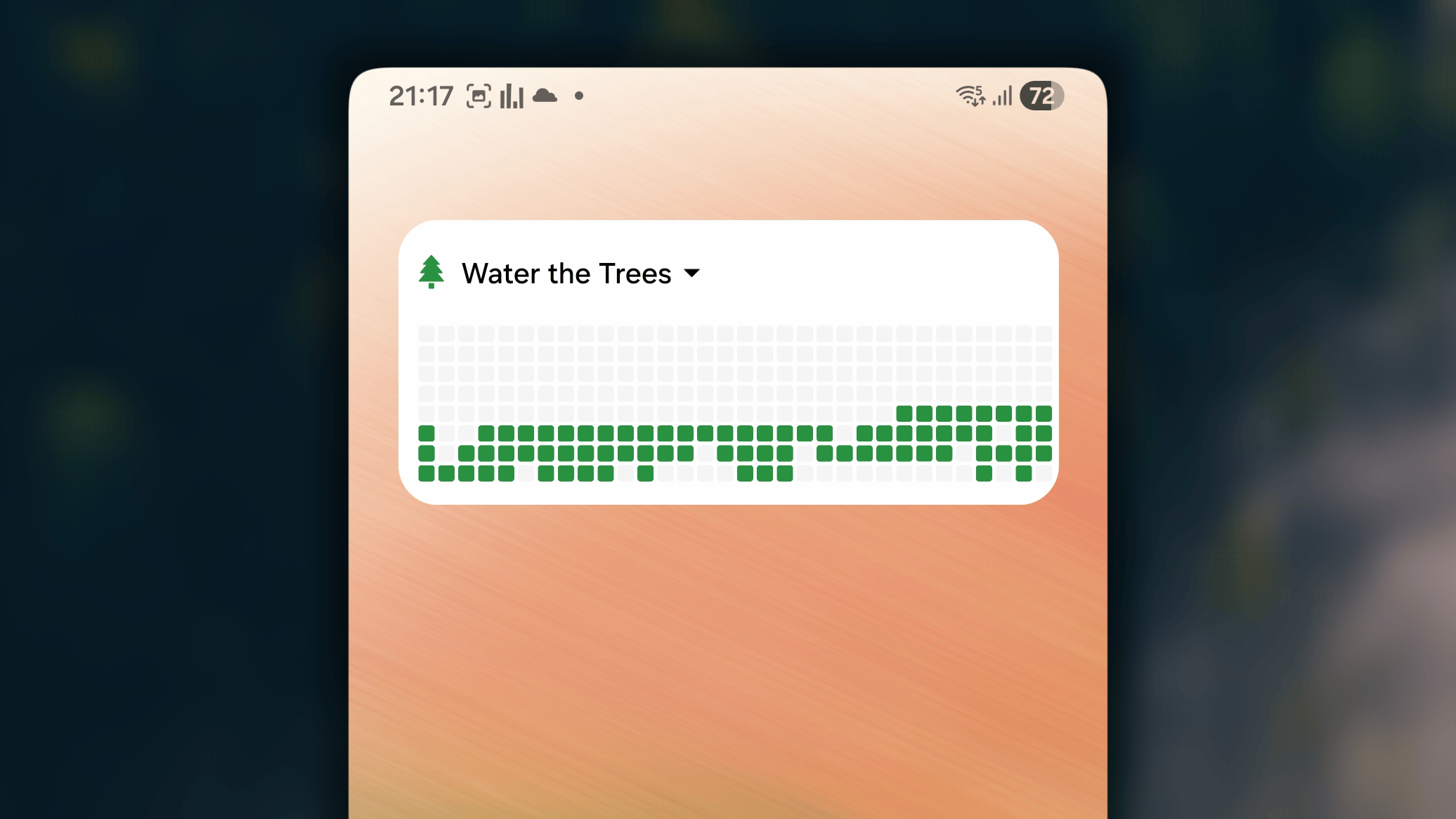
Consistency Grid
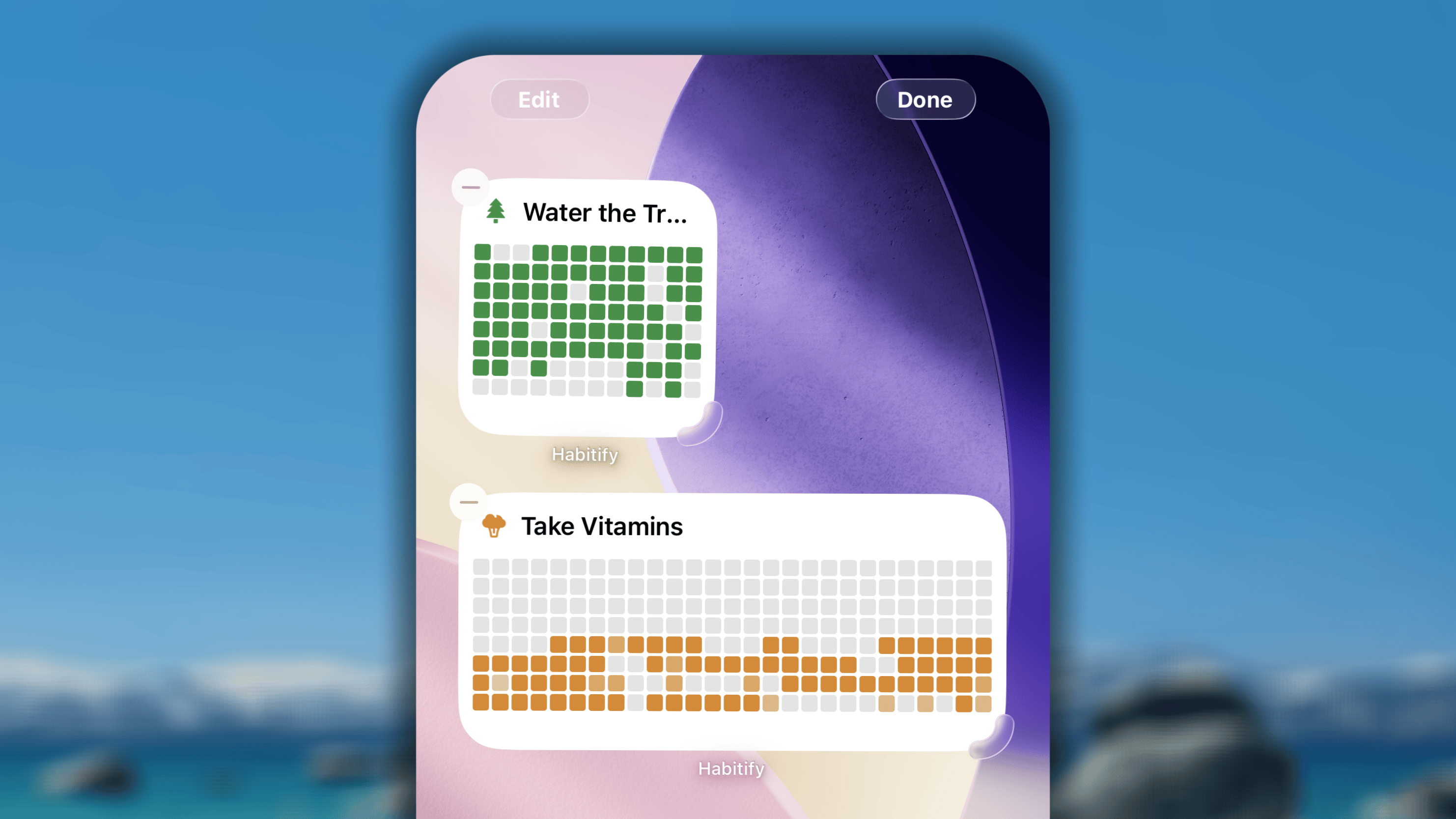
- The Small-sized widget shows progress of the last 96 days
- The Medium-sized widget shows progress of the last 216 days
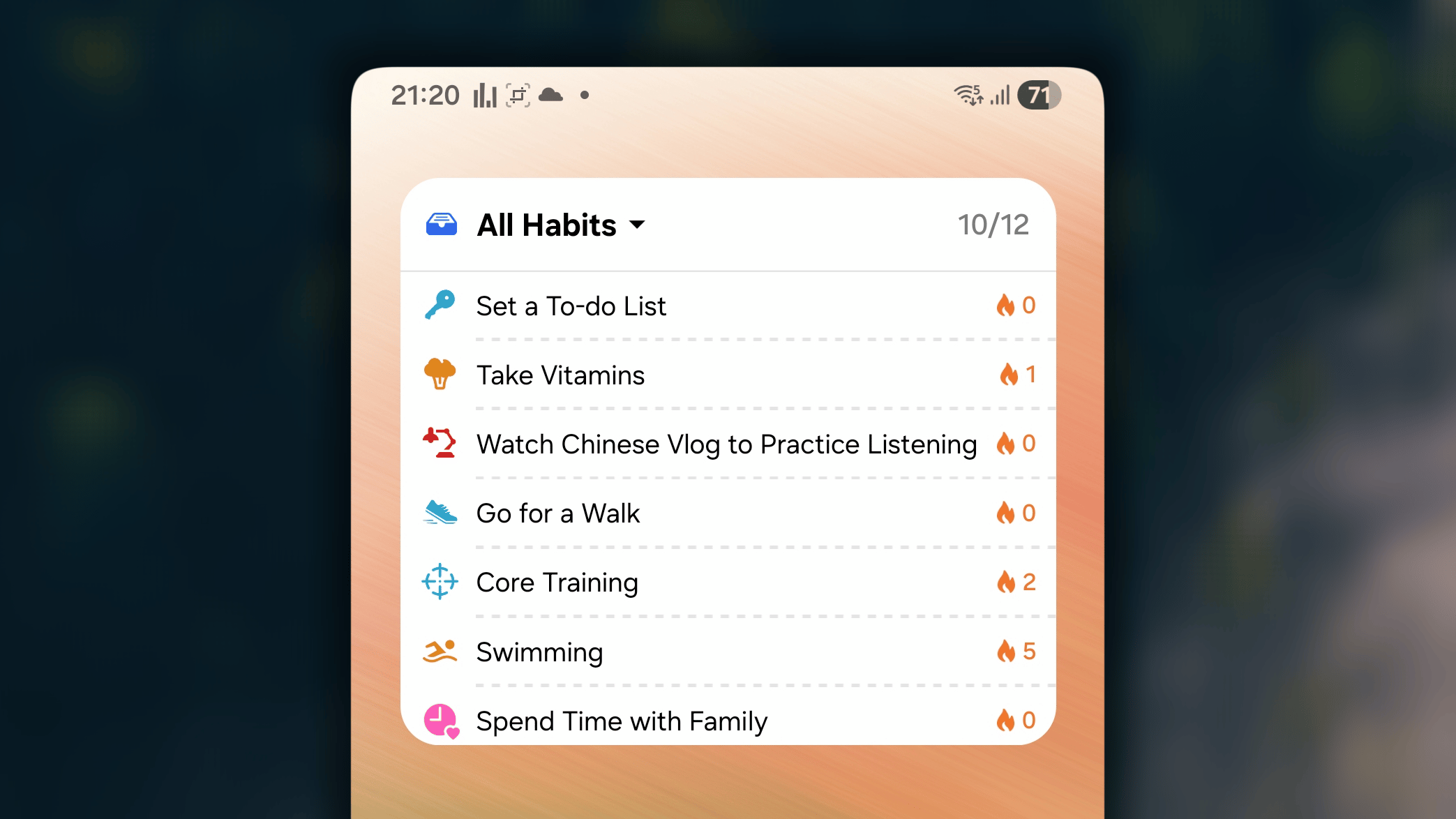
Today’s Habits
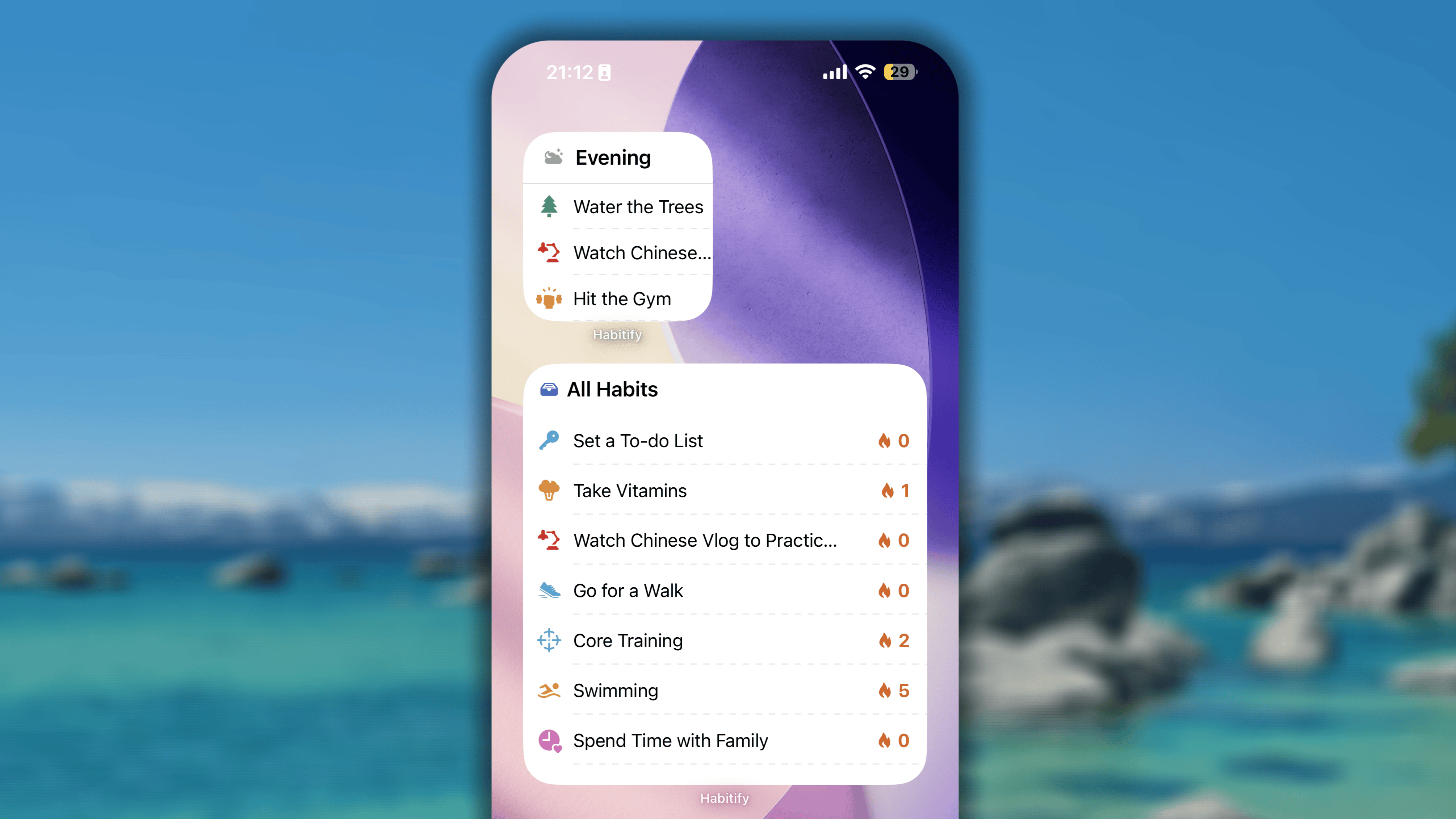
- Small size shows 3 habits at most.
- Medium size shows 3 habits at most.
- Large size shows 8 habits at most.
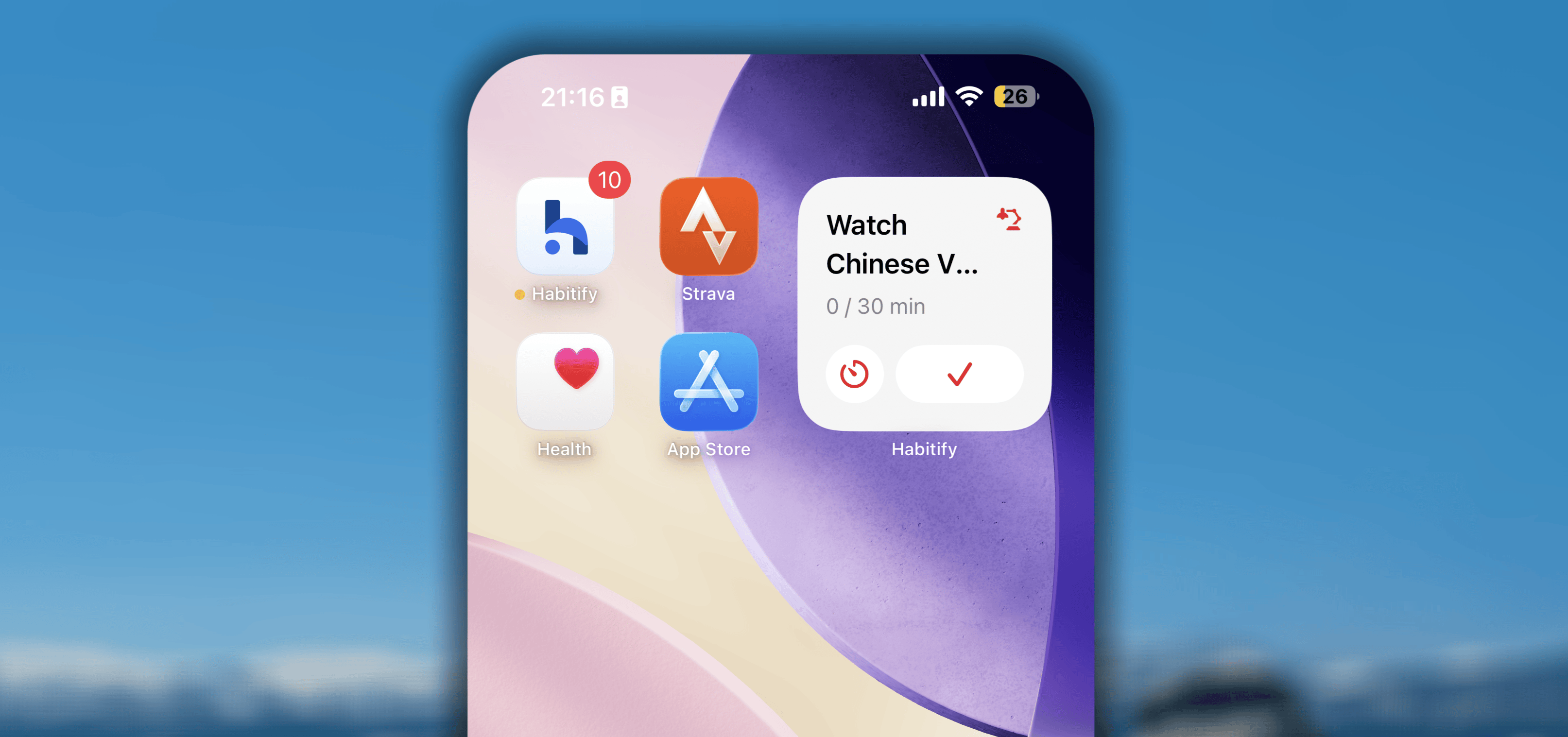
Tap to Track
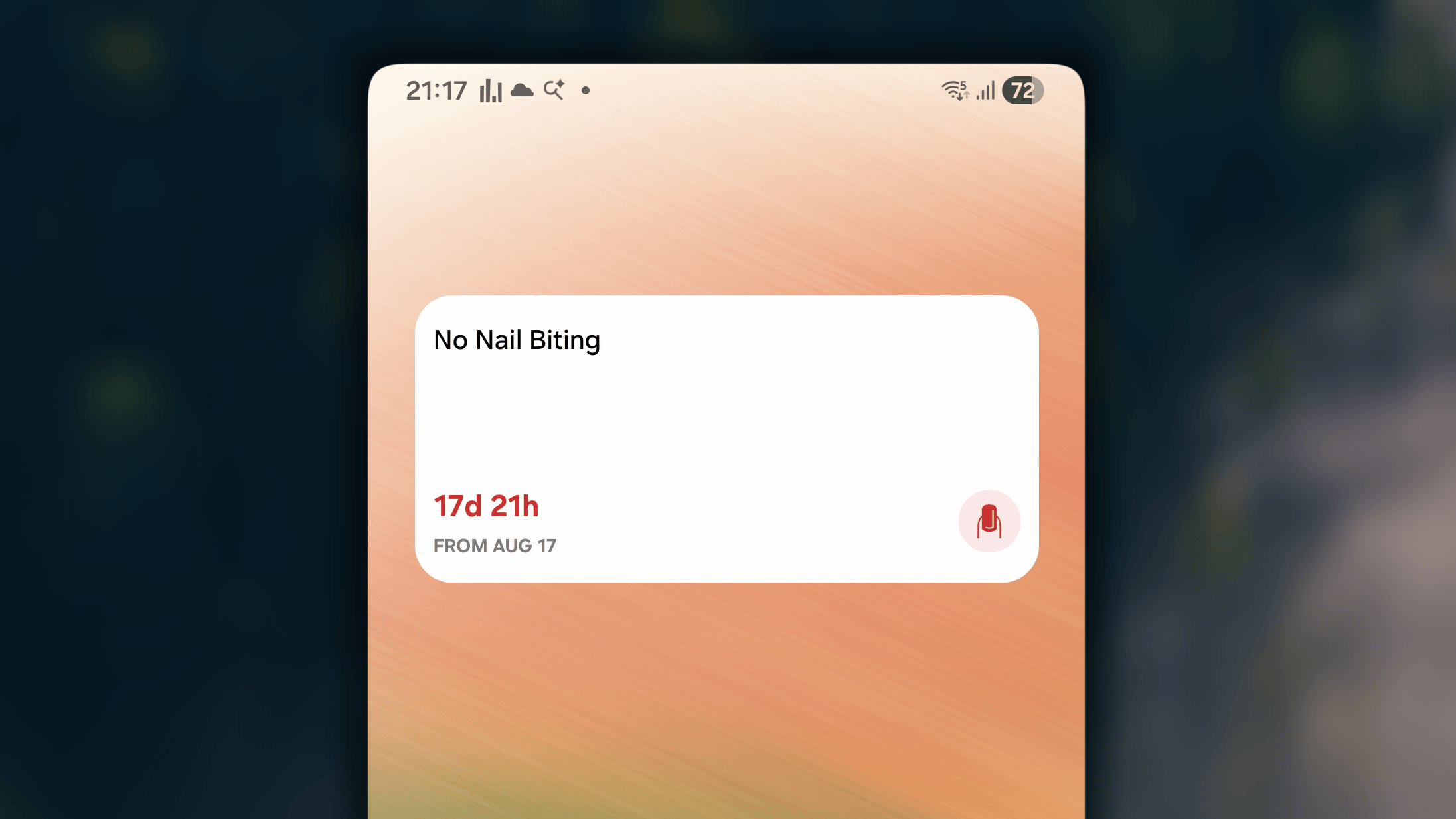
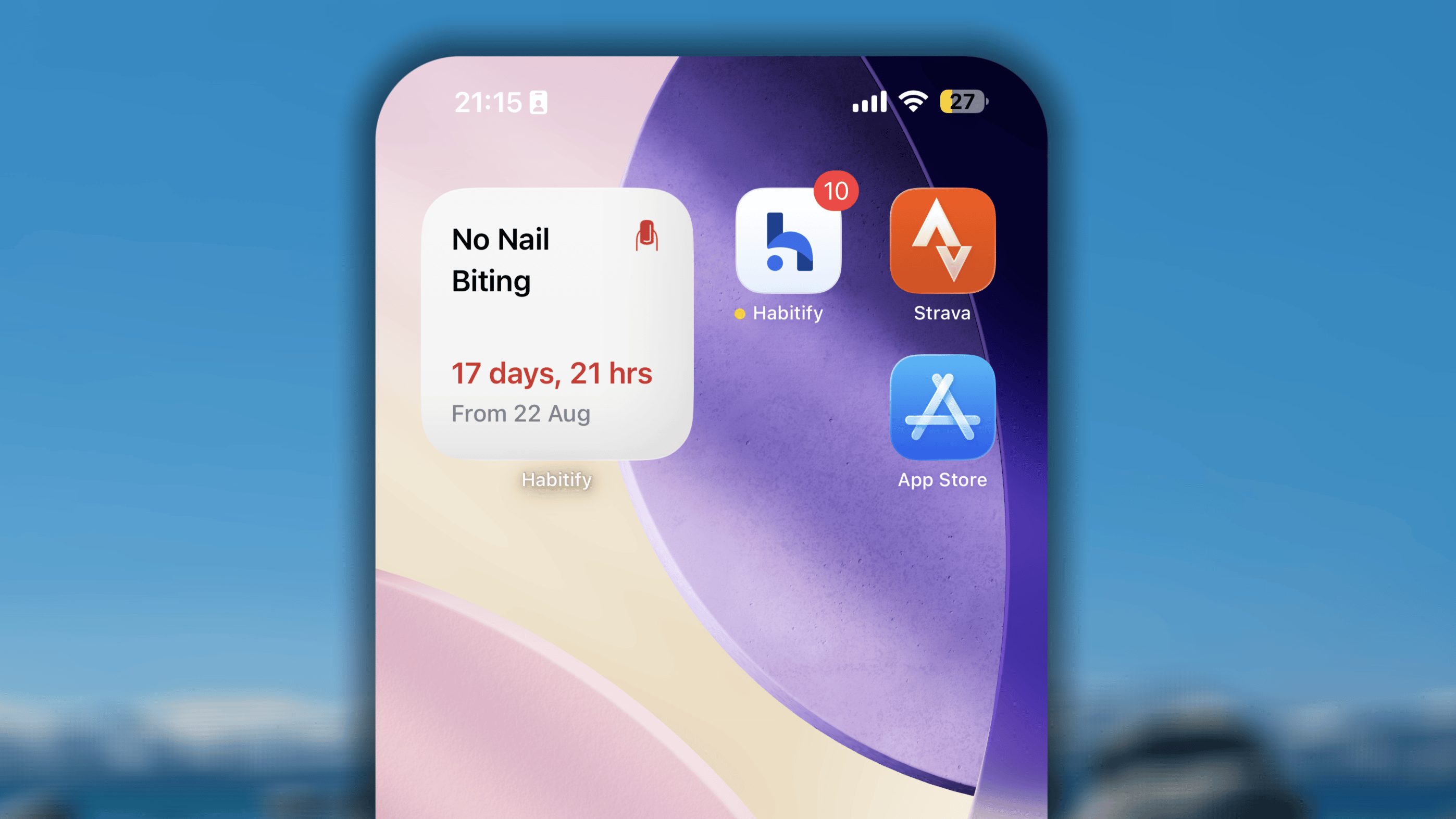
Days Since
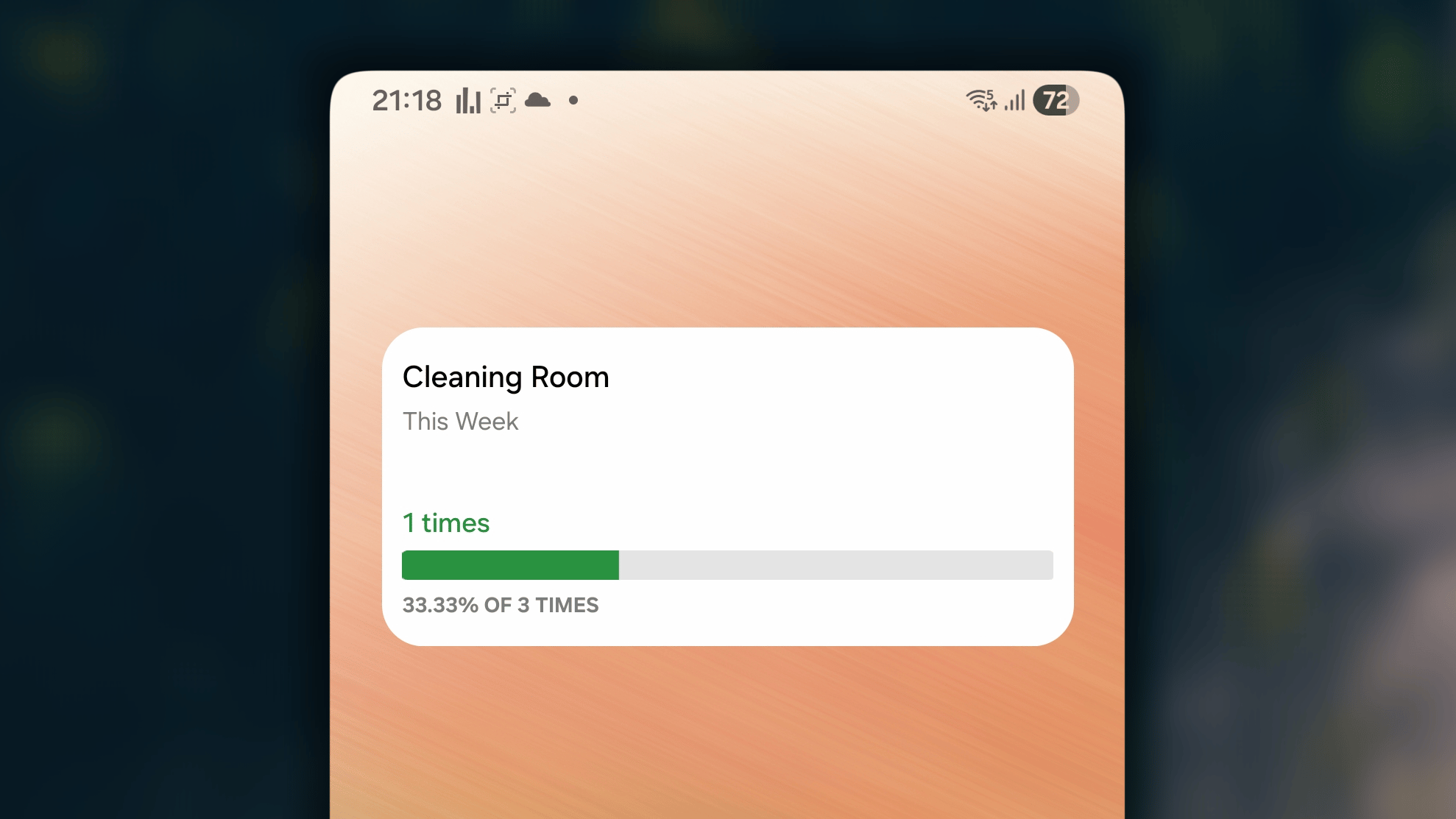
Goal Progress
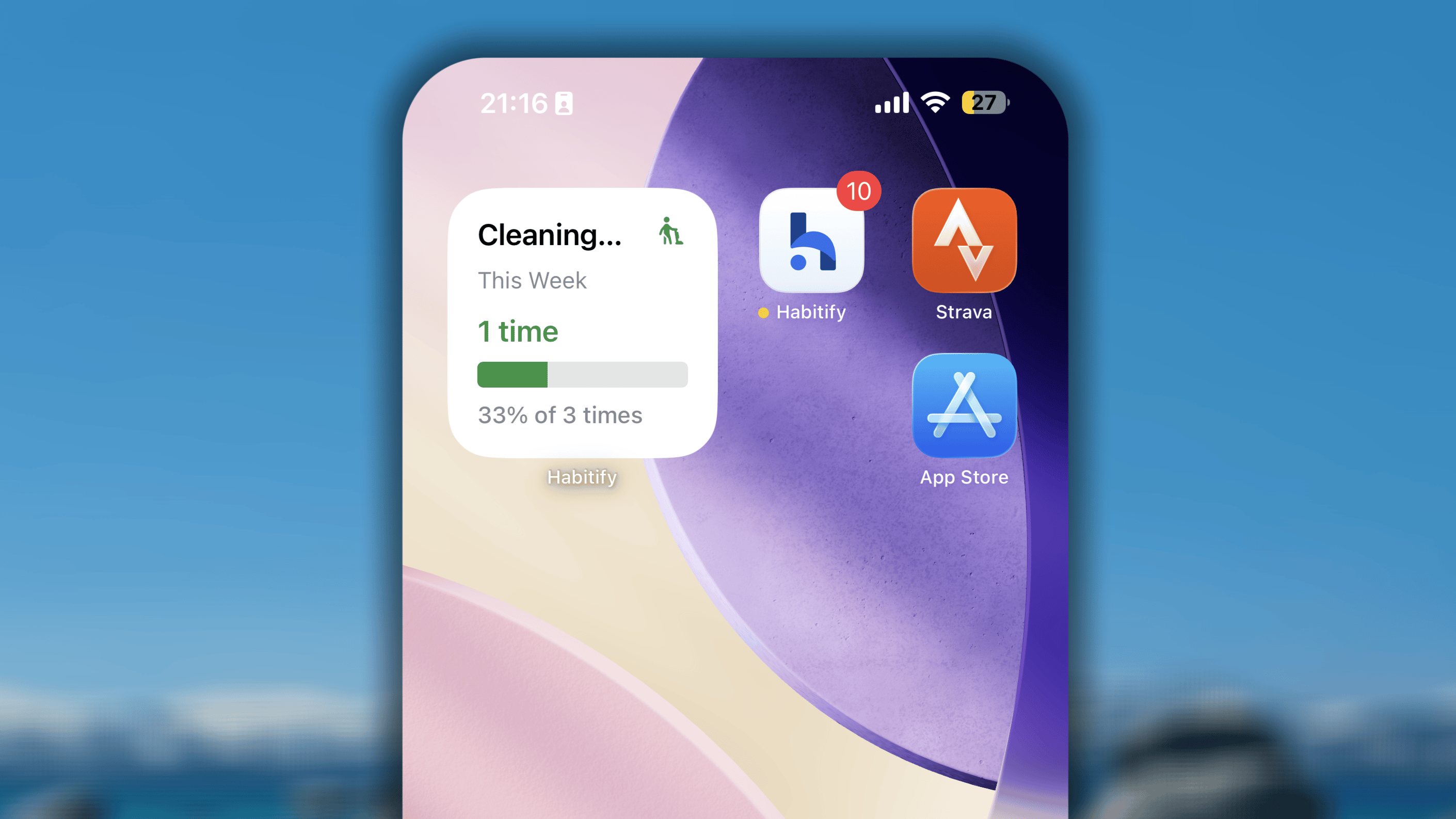
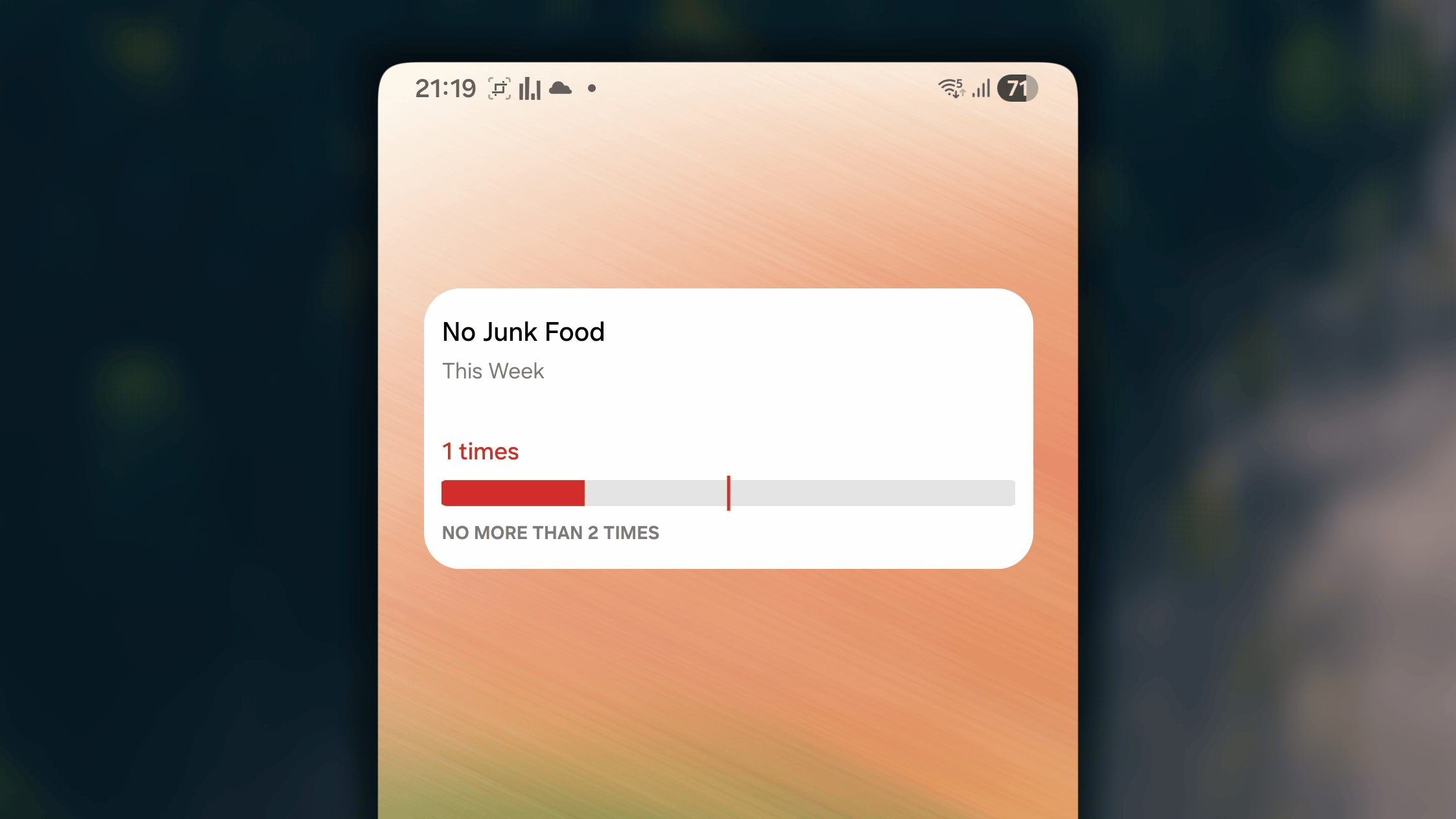
Limit Tracker
The Limit Tracker widget represents the progress bar of your bad habit with the goal to limit. In the middle of the progress bar, you can see a red vertical line. It marks the limitation you should not go over. Once you go over, the surpassed value will be represent in red.The widget is available in Small size only.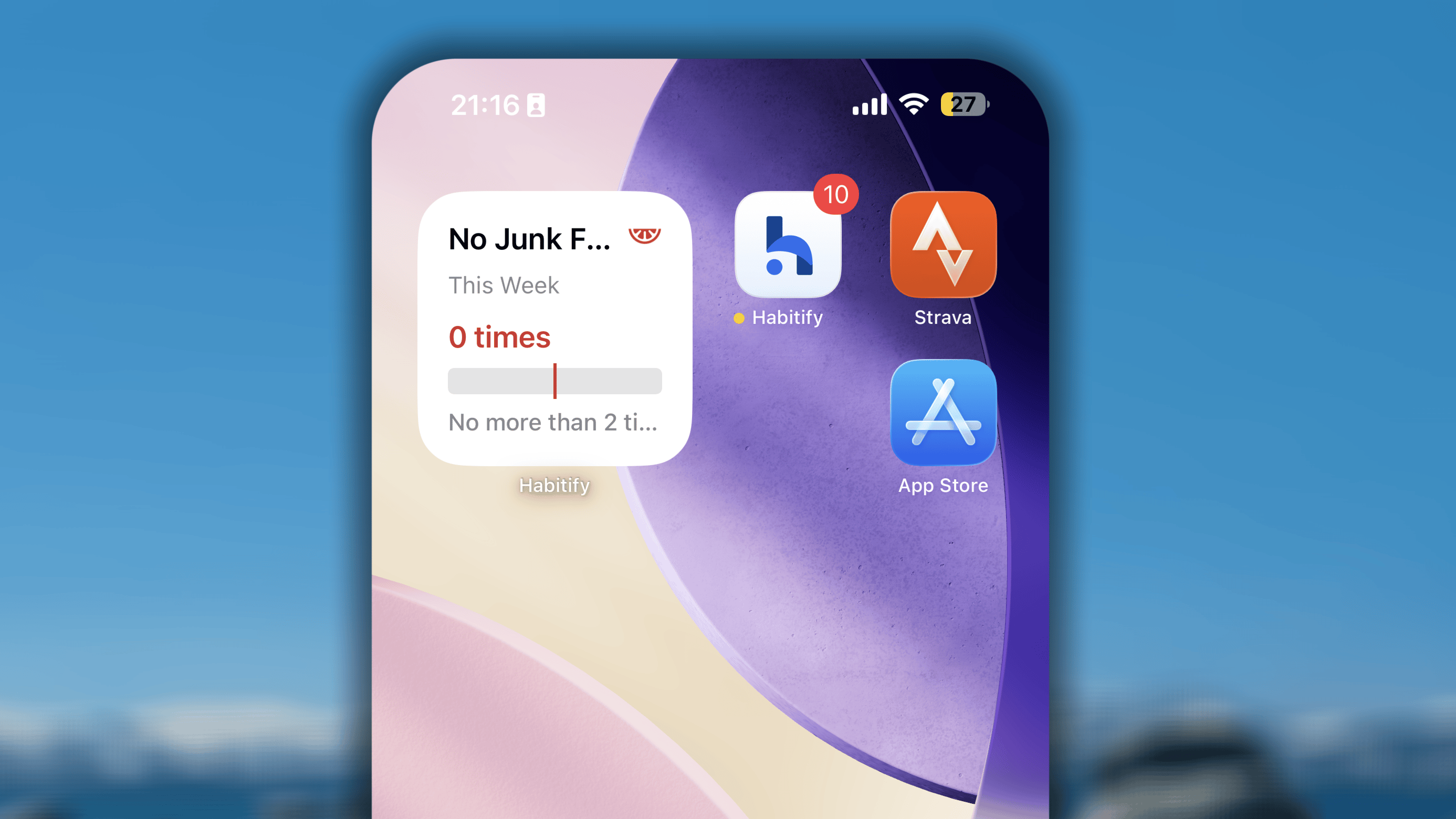
Lockscreen widgets
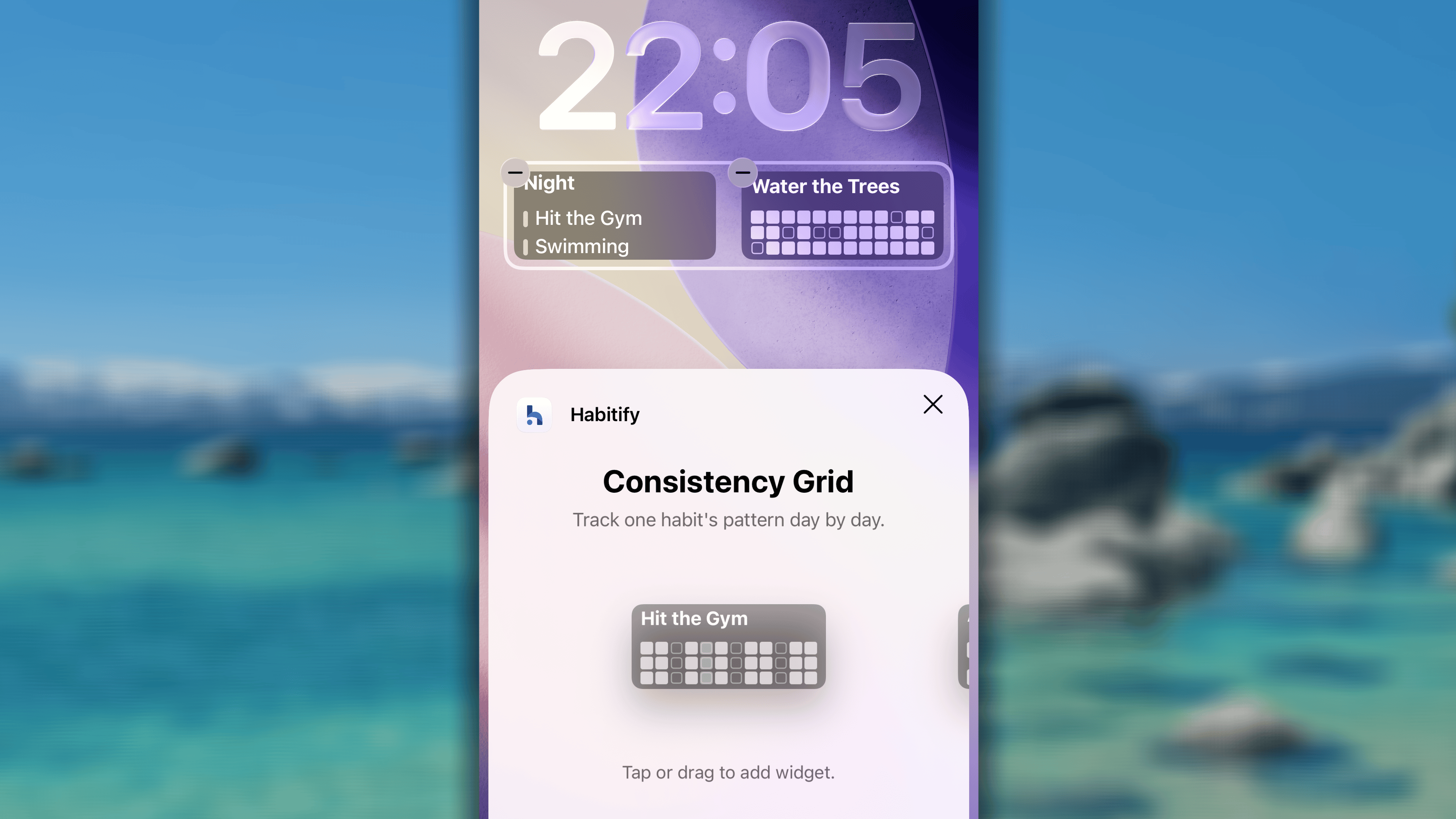
Since iOS 16, Apple has supported widgets directly on the Lock Screen, and Habitify offers a set of widgets (Today’s Habits, Consistency Grid, and Tap to Track), designed specifically for that space, so you can see your habit progress before even unlocking your phone.How to add a Lockscreen Widget:- Touch and hold your Lock Screen until the Customize button appears.
- Tap Customize.
- Select Lock Screen.
- Tap the widget area on your Lock Screen to open the widget gallery.
- Find Habitify in the list, and choose the widget you want to add.
-
Tap outside the customization screen to save your changes.
Check in with widgets
When you tap a habit on the widget, consequently, the app will open to Journal view and highlight your habit. It means to help you navigate to your habit through the list and check in your progress easier.Especially, for the Tap to Track widget:- When you tap on the button to Complete, Skip, or Fail, your check in will be processed and saved right in your homescreen.
- When you tap on the Timer, the app will open and lead you to the Timer right away.
Resizing Widgets: Ability and Limitations
Apple’s iOS has a stricter design for its home screen. You cannot freely resize widgets by dragging their corners. Instead, your ability to “resize” is limited to choosing from the predefined, standard sizes.How to Resize
If you using the kinds of widgets that are available in multiple size, you can freely switch among different sizes with these simple steps:- Long-press on the widget
- If the size is available, you can choose it from the dragged context menu.
Limitation
For other widgets which are designed in one size only, you can resize it into the app icon. However, you cannot resize it back later but re-add it again from the widget gallery.FAQs
Cannot find the Habitify widgets, what should I do?
Cannot find the Habitify widgets, what should I do?
First of all, ensure that you have the latest version of Habitify installed on your device. To check for updates:
- Open the App Store.
- Tap on your profile icon at the top right corner.
- Scroll down to see if Habitify has an available update.
- If an update is available, tap Update.
- Open Settings.
- Go to Screen Time → Content & Privacy Restrictions.
- Make sure that widgets are allowed.
- Press and hold the power button until the slider appears.
- Slide to power off.
- After the device turns off, press and hold the power button again until you see the Apple logo.
- Long-press on the Habitify app icon and select Remove App.
- Go to the App Store and reinstall Habitify.
Widget does not update the changes on the habit, what should I do?
Widget does not update the changes on the habit, what should I do?
Here are the main reasons for delays:
- Aggressive Battery Optimization: This is the #1 reason. To give you all-day battery life, your phone’s operating system (both iOS and Android) actively limits how often background processes, like widgets, can “wake up” to ask for new data. It may decide to delay an update by several minutes or longer.
- Widgets are Separate Processes: A widget is a mini-app on your home screen. It needs to communicate with the main Habitify app to get the latest information. If the main app has been forced to sleep by the OS (especially common on Android), the widget can’t get new data and will display the last information it had.
- Open the Habitify App: The simplest first step is to open the main Habitify app and leave it in the foreground for 30-60 seconds. This often forces the widget to sync the latest data.
- Remove and Re-add the Widget: If that doesn’t work, try removing the widget from your home screen and adding it back again. This forces the widget to completely reload its configuration.
- Restart Your Device: A full restart of your phone is a classic for a reason—it can clear out temporary system glitches that may be affecting the widgets.
- Edit the Widget: Long-press the Habitify widget and tap “Edit Widget.” Try toggling the data source (e.g., switch from “All Habits” to an “Area,” then switch back) or re-select the specific habit from the list. This action often forces the widget’s data to reload.
- Enable Background App Refresh: Ensure iOS can update the widget in the background. Go to your iPhone’s Settings → General → Background App Refresh and make sure the setting is on and the toggle for Habitify is enabled.
Why don't the bad habits appear on some widgets?
Why don't the bad habits appear on some widgets?
Bad Habits are not supported to apear in Today’s Habits widget and Progress Chains widget. The main reason for this design is to keep your daily to-do list focused and motivating.
- Your “Today’s List” is for Taking Action. This widget is designed to be your daily checklist, reminding you of the positive actions you need to take. Including a bad habit like “Don’t Smoke” on a list of things to do can be counter-productive. The goal is to avoid and forget about the bad habit, not be reminded of it alongside your positive tasks.
- The “Progress Chain” is for Celebrating Success. This widget’s purpose is to create a satisfying, visual chain of your accomplishments. For bad habits, success is achieved through inaction or avoidance. If we included bad habits here, the widget would just show a series of blank or failed (“X”) blocks, which isn’t very motivating to see on your home screen every day.
Why does my Habitify widget disappear when my iPhone is locked?
Why does my Habitify widget disappear when my iPhone is locked?
This is not a bug — it’s an iOS privacy feature. By default, iOS hides all widget content when your phone is locked to protect sensitive information from being seen without authentication.If you’d like your Habitify habits to stay visible on the lock screen at all times, you can change this setting. Follow these steps:
- Open your iPhone Settings
- Scroll down and tap Face ID & Passcode (or Touch ID & Passcode, depending on your iPhone model)
- Enter your screen passcode
- Scroll down to the Allow Access When Locked section
- Toggle ON the option for Lock Screen Widgets (on older iOS versions, this may be labeled Today View and Search)