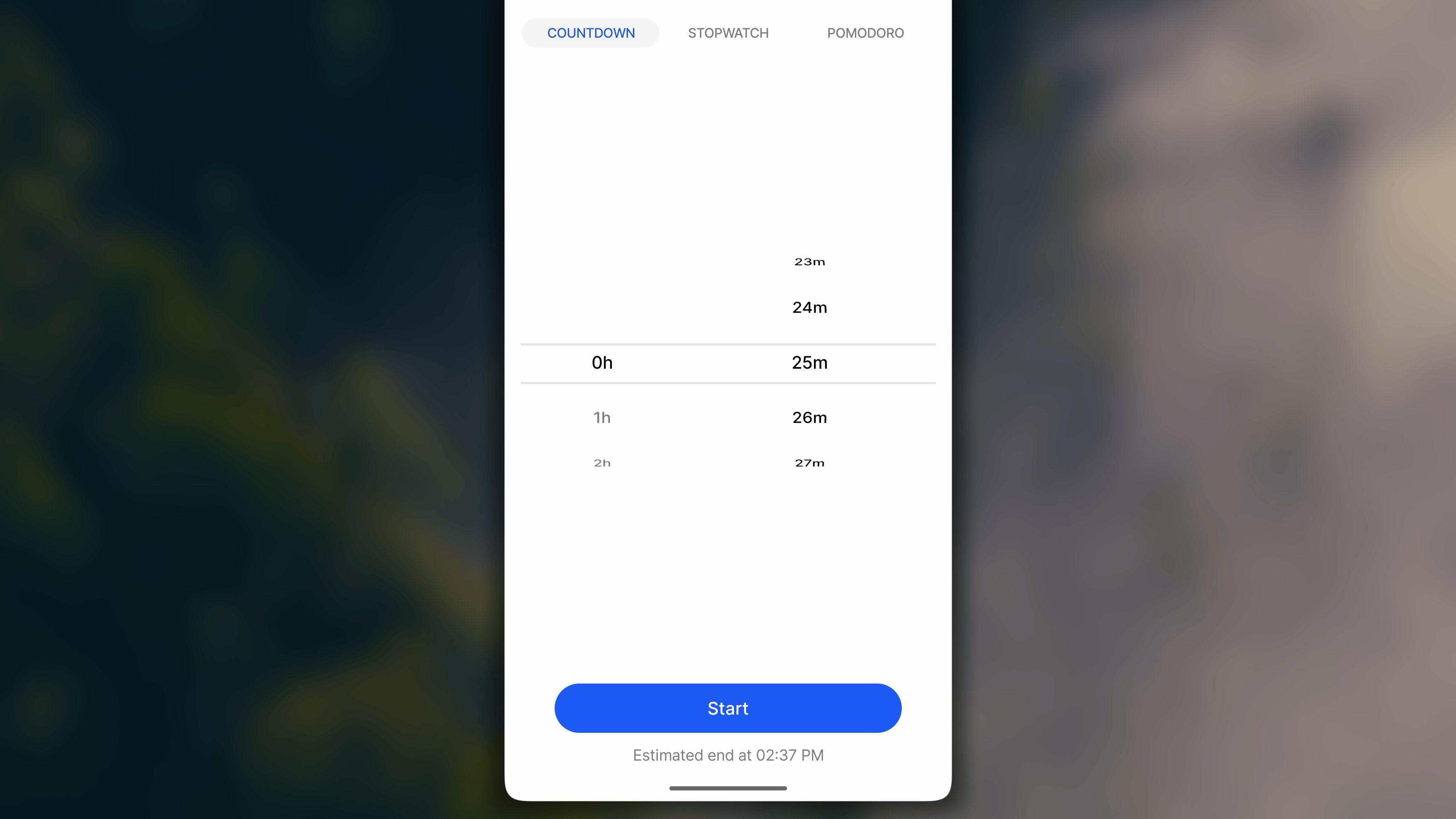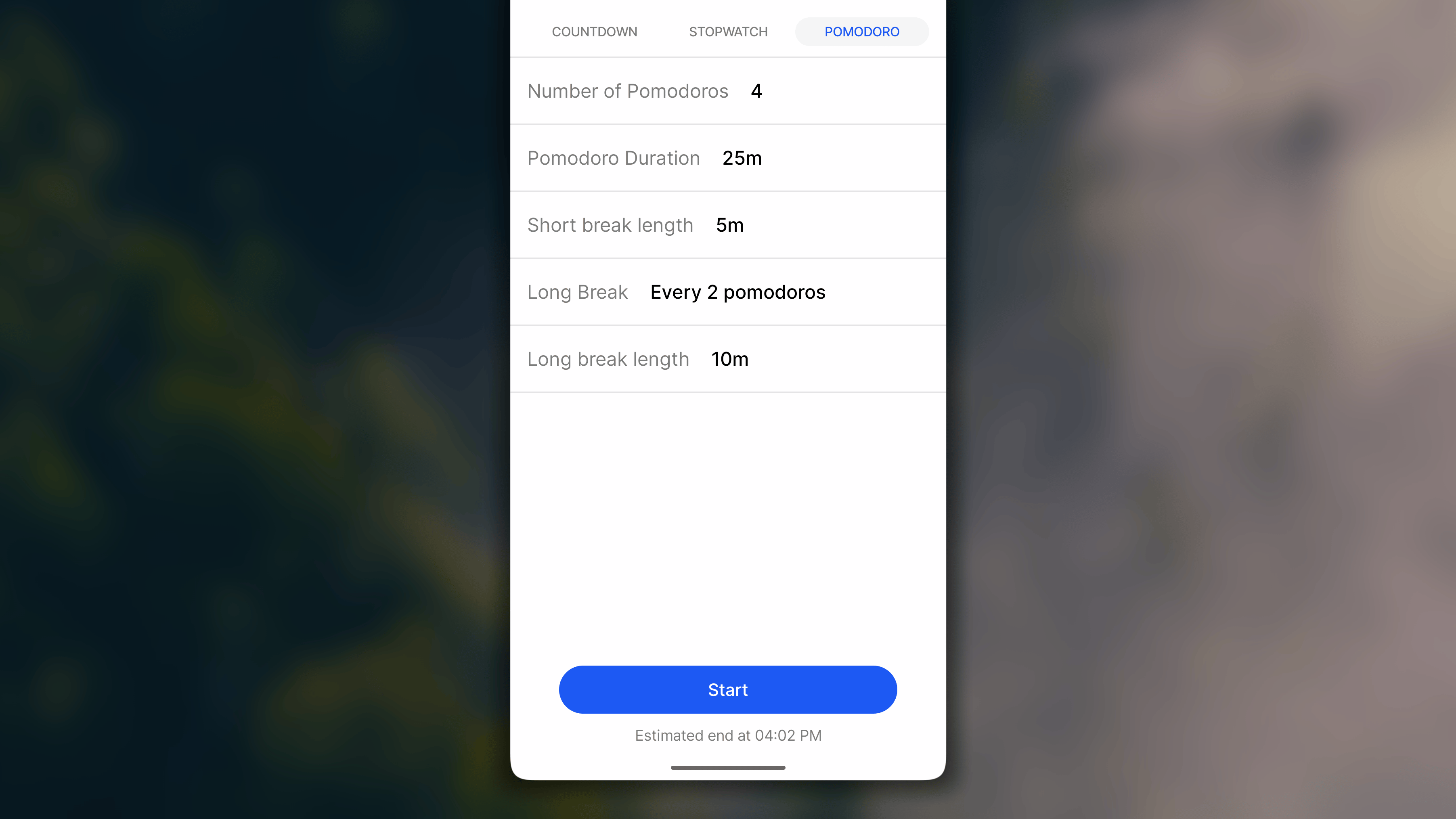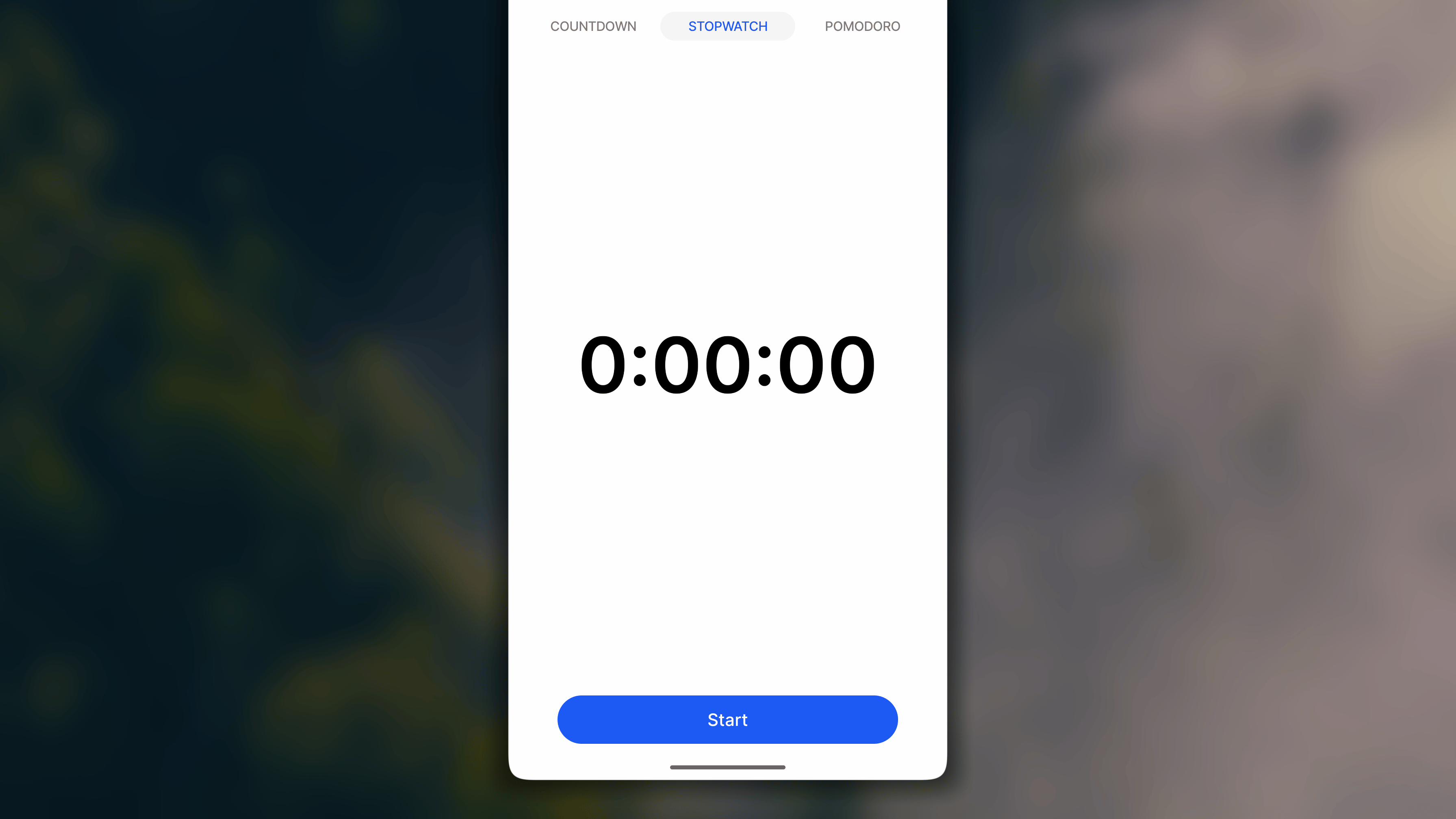

- Countdown: counts down from a set duration, ideal when you know exactly how long you want to spend on something.
- Stopwatch: counts up with no fixed end, ideal when you don’t know in advance how long the activity will take.
- Pomodoro: alternates focused work intervals with short breaks, ideal for tasks that benefit from structured bursts of concentration.
Timer is available on any habit with a goal measured in based-unit as ‘minute’ or ‘hour’.
- iOS
- 🤖 Android
- 🖥️ Website & Desktop
Starting a Timer session
Starting a Countdown session
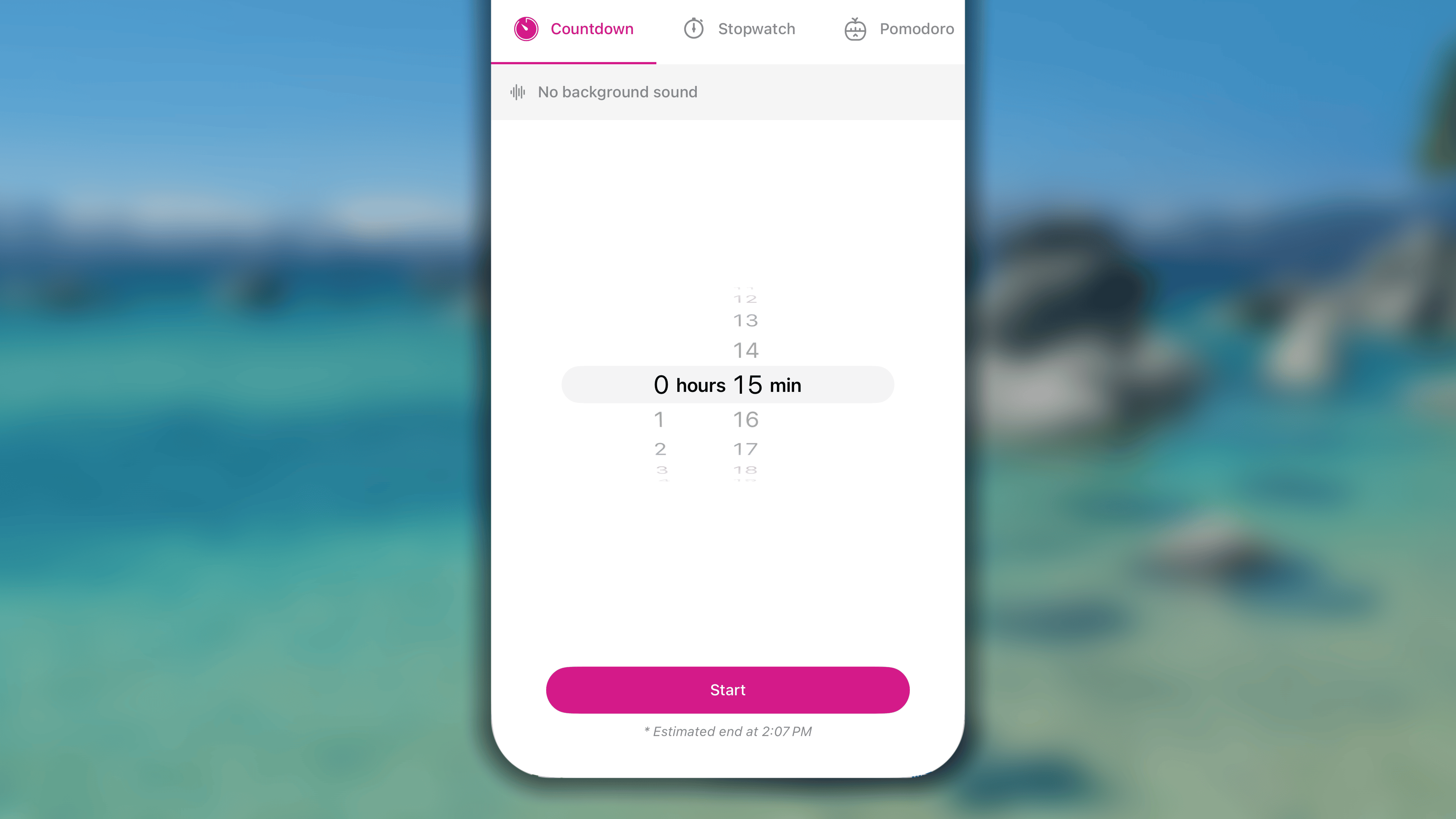
- In Journal, navigate to the habit, and tap the ‘⏱️ Timer’ smart button next to it.
- In the screen of Timer, Tap to open ‘Countdown’ tab.
- Adjust the duration length for your session.
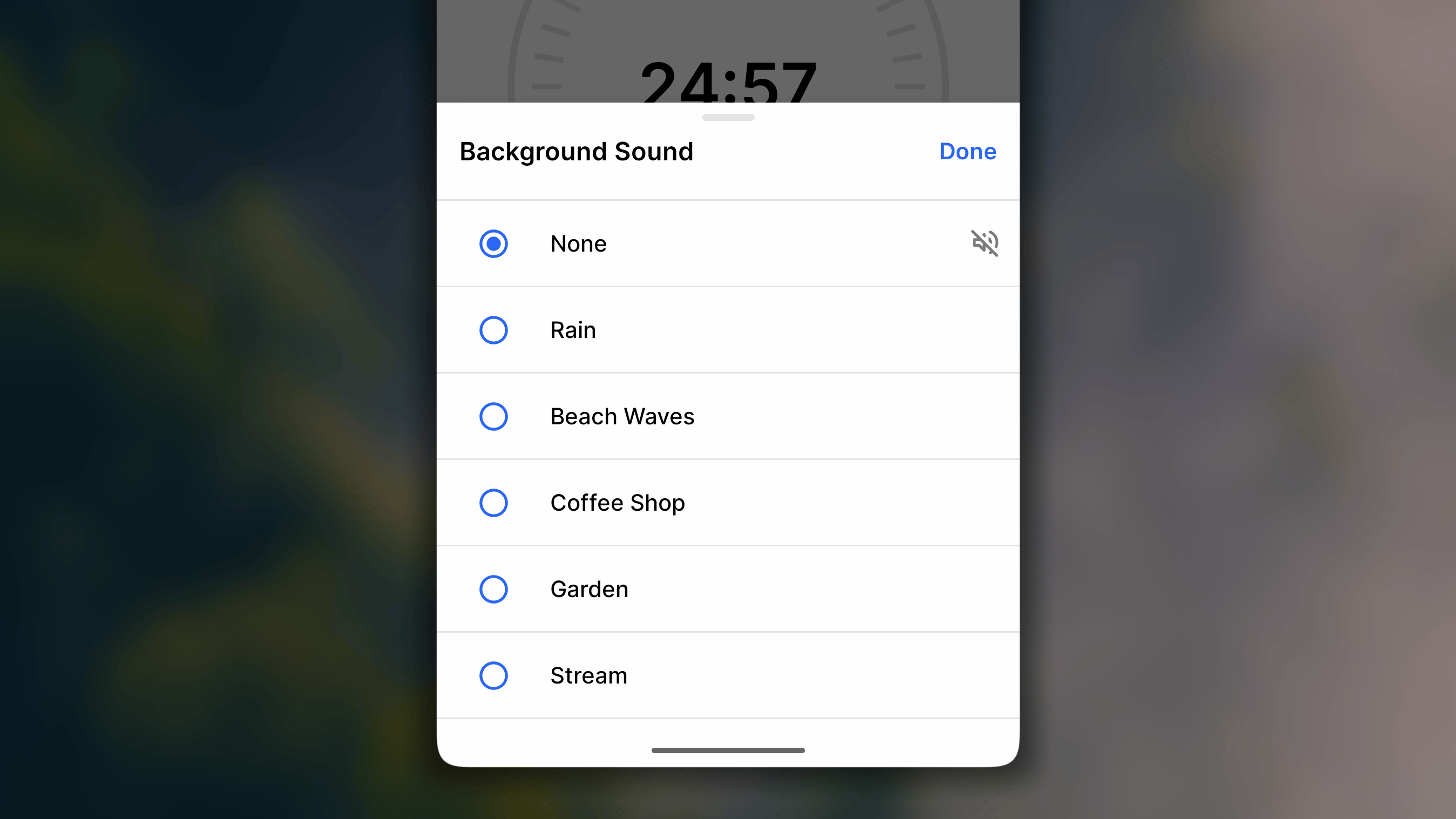
Optionally, in case you want some white noise, tap ’၊၊||၊ No background sound’ and choose one from the list, then tap ‘Done’ button in the top right corner. Otherwise, tap ‘Cancel’. - Tap the ‘Start’ button to begin your session.
Starting a Pomodoro session
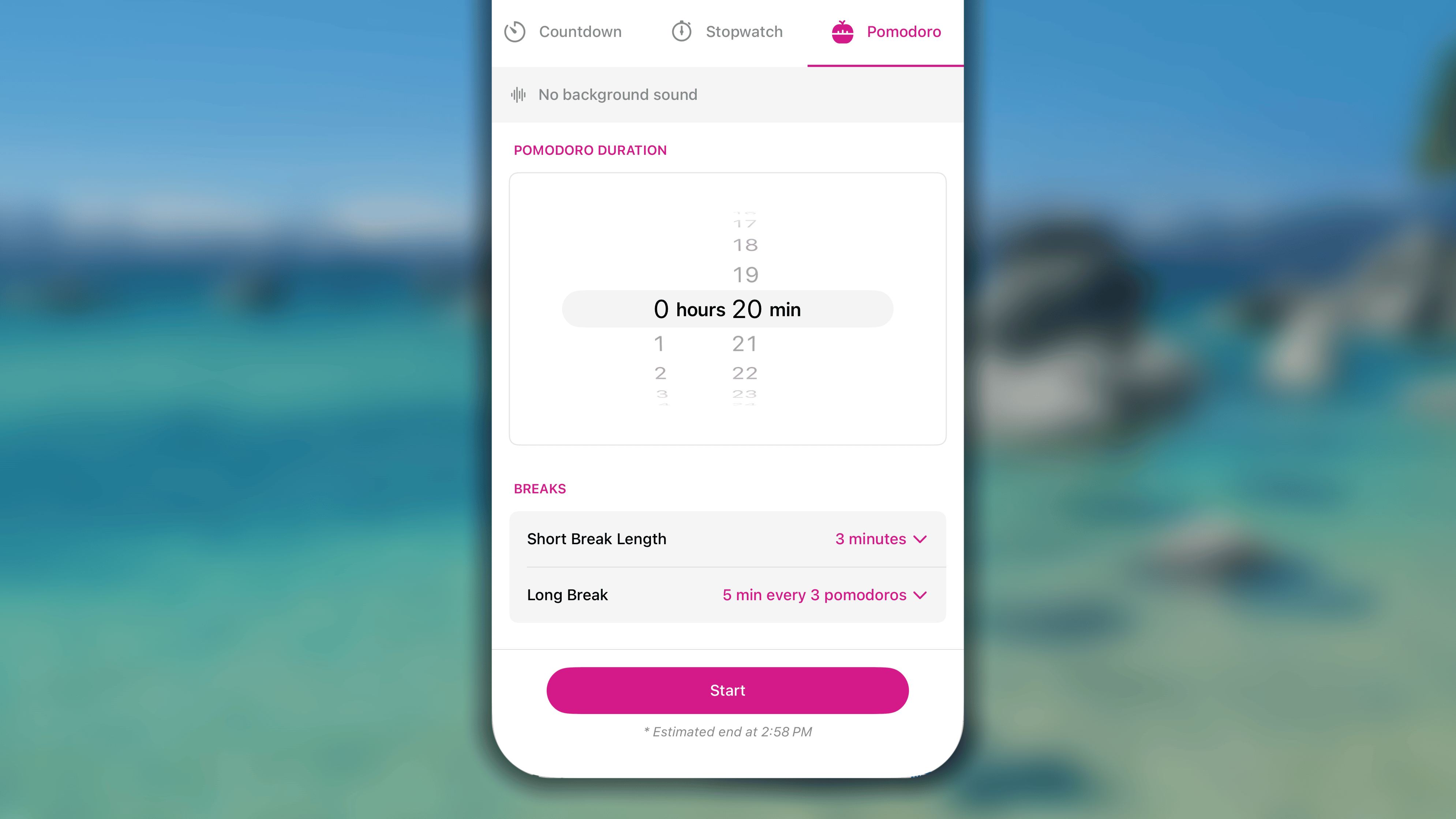
- In Journal, navigate to the habit, and tap the ‘⏱️ Timer’ smart button next to it.
- In the screen of Timer, tap to open ‘Pomodoro’ tab.
- Adjust the duration length for your session.
- Number of Pomodoros: Choose the number of working intervals during the session. The maximum is 30.
- Pomodoro Duration: Set the duration of each working interval. Maximum is 23 hours 59 minutes per interval.
- Breaks:
- Short Break Length: Define the length of each short break between 2 working intervals
- Long Break: Configure the below settings and tap ‘Done’ to save.
- Pomodoros before long break: Set the number of working interval to complete before reaching the long break.
- Long break length: Defind the length of each long break.
- Optionally, in case you want some white noise, tap ’၊၊||၊ No background sound*’* under the habit name, and choose one from the list.
Tap ‘Done’ button in the top right corner to save the change. Otherwise, tap *‘*Cancel’. - When everything is set, tap ‘Start’ button to begin the focus session.
Starting a Stopwatch session
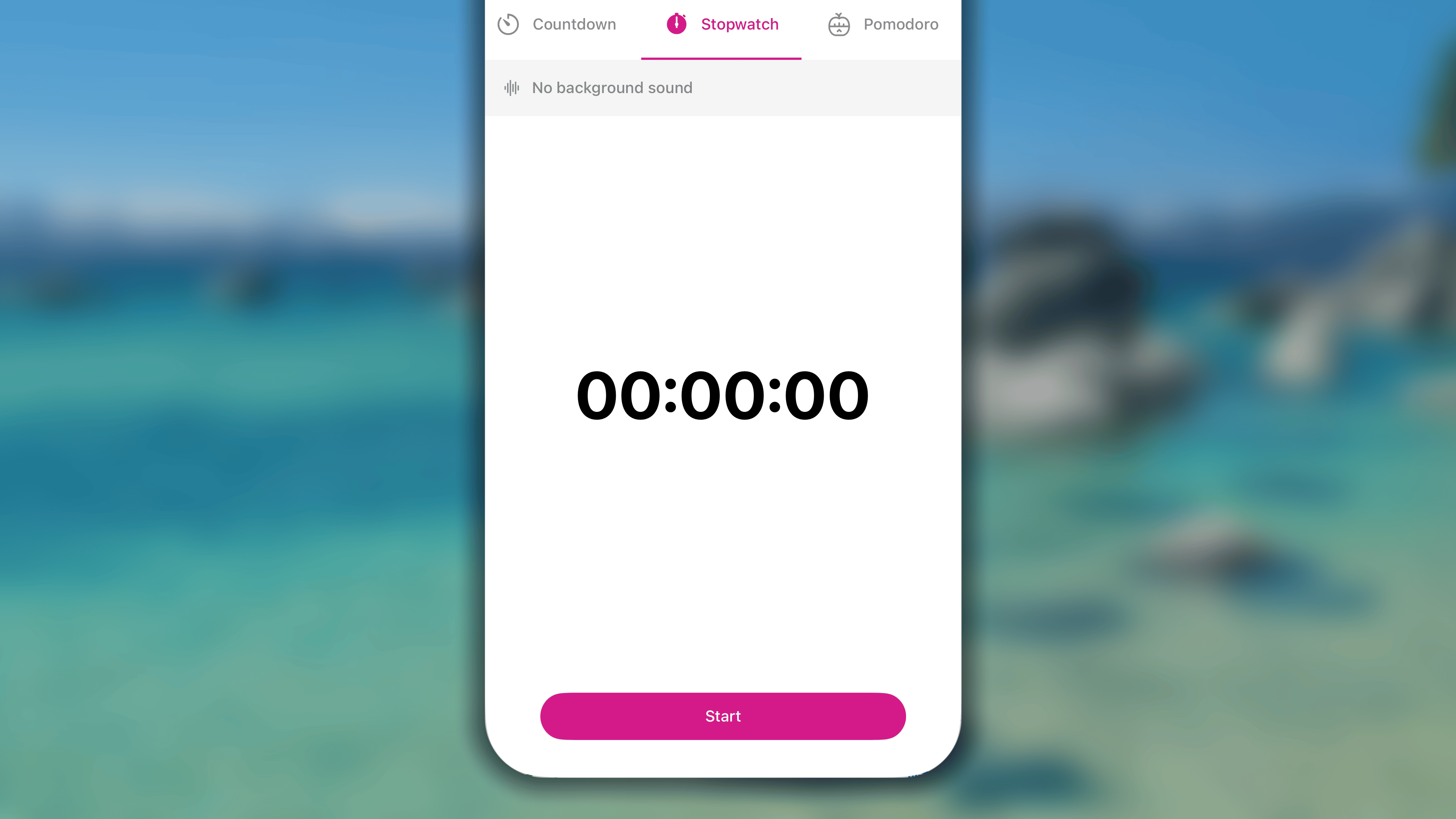
- In Journal, navigate to the habit, and tap the ‘⏱️ Timer’ smart button next to it.
- In the screen of Timer, Tap to open ‘Stopwatch’ tab.
- Optionally, in case you want some white noise, tap ’၊၊||၊ No background sound’ and choose one from the list.
Then tap ‘Done’ button in the top right corner to save the change. Otherwise, tap ‘Cancel’. - Tap the ‘Start’ button to begin your session.
During a Timer session
Pausing or stopping the session
- To pause the running session, tap the ’⏸ Pause’ button under the time counter.
Later, tap the ‘▶︎ Resume’ button to let it continue counting the time, - To stop the running session, tap the ‘◼Stop’ button in the top right corner, tap ‘Stop’ again to confirm, then choose between:
- ‘Save’: to log the counted time to your habit’s progress
- ‘Enter Different Duration’: to log a custom value of your own to the habit’s progress.
- ‘Discard’ (in the top left corner): to save nothing.
- Optionally, tap ‘Notes (optional)’ to conveniently add a note to your habit.
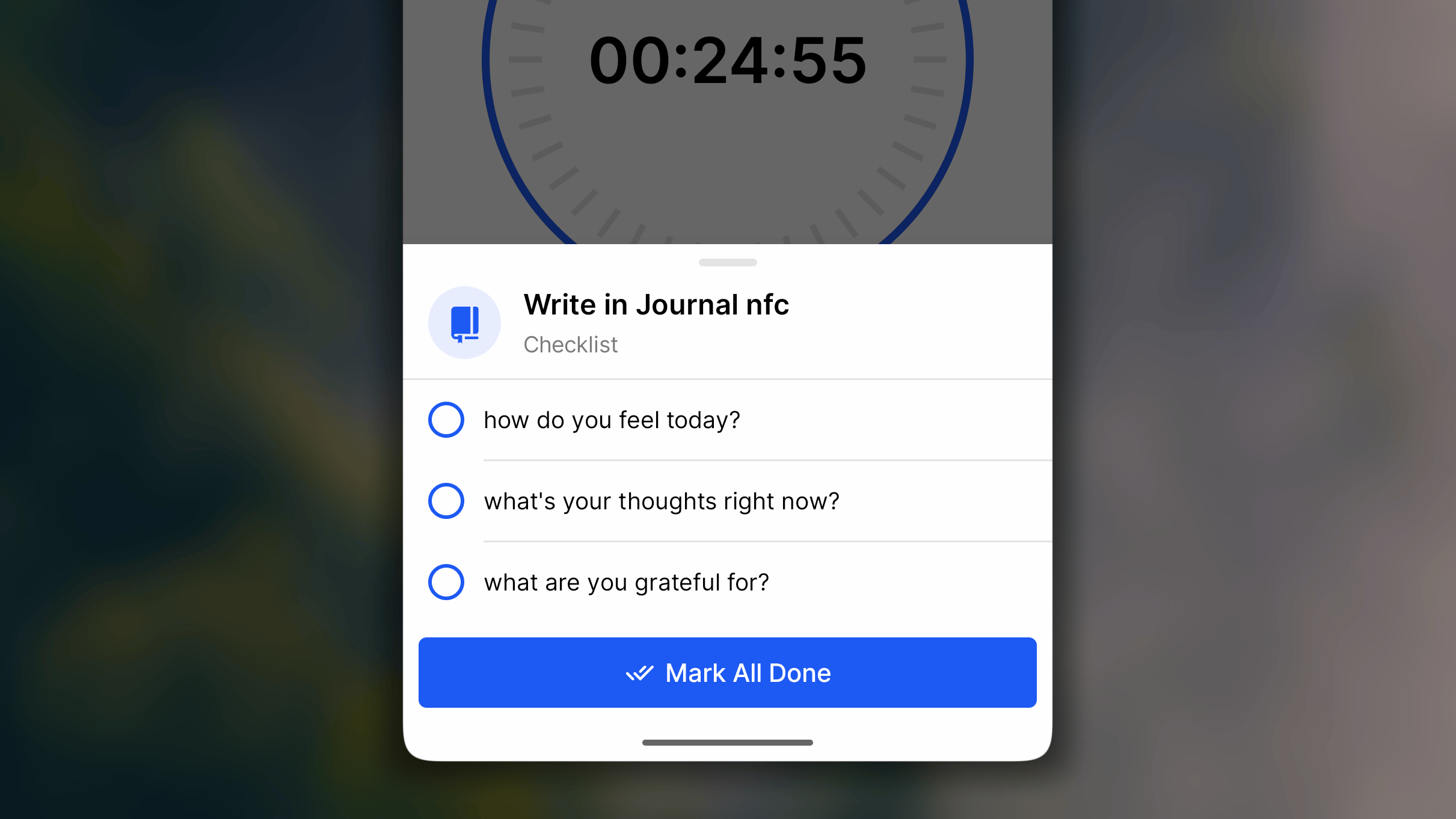
Following habit’s checklist
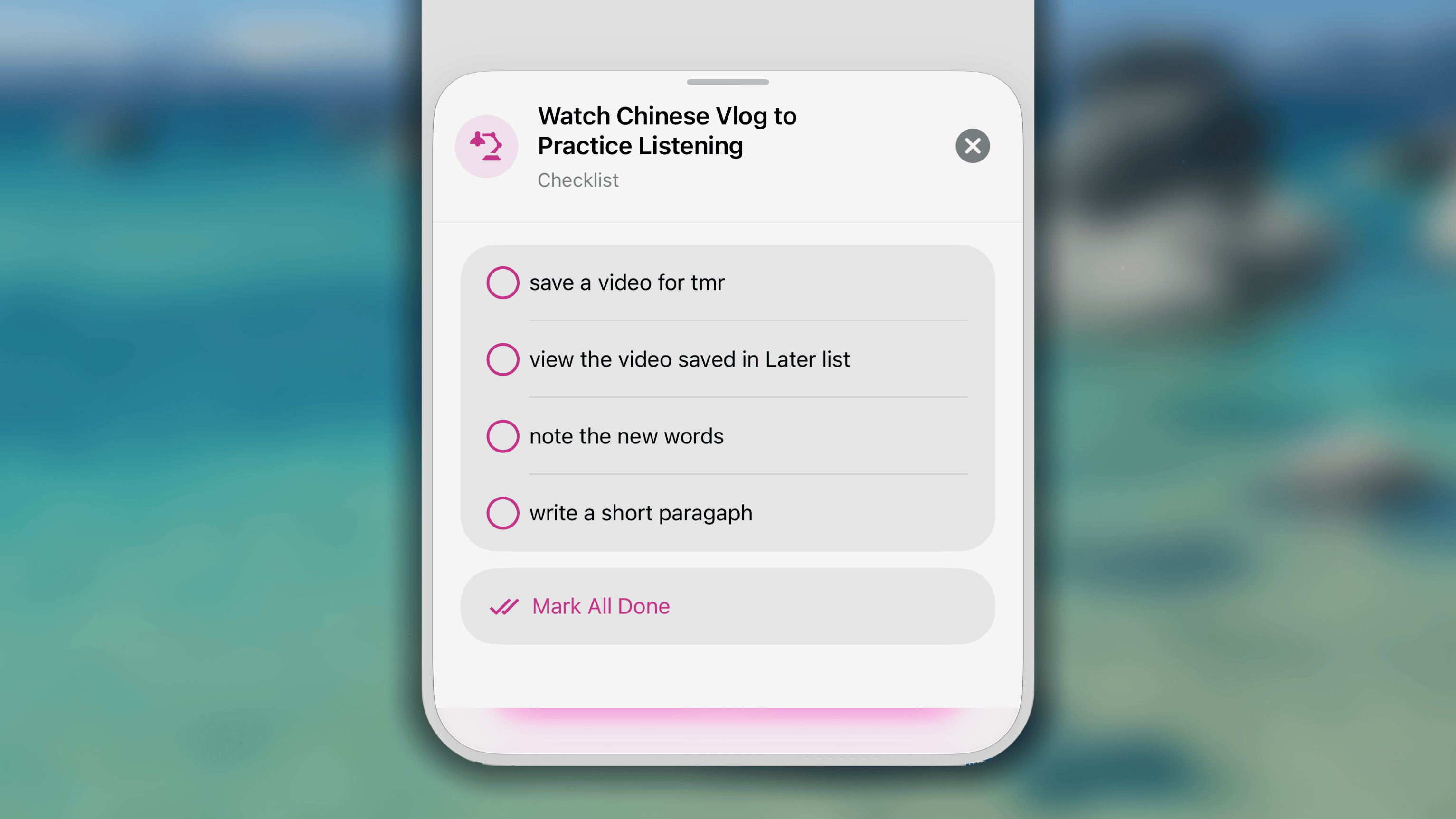
- Tap the ’⫶☰ #/# tasks’ under the habit name
- View and check in your checklist.
- Tap ⨂ button in the top right corner of the checklist to close.
Controling background sound
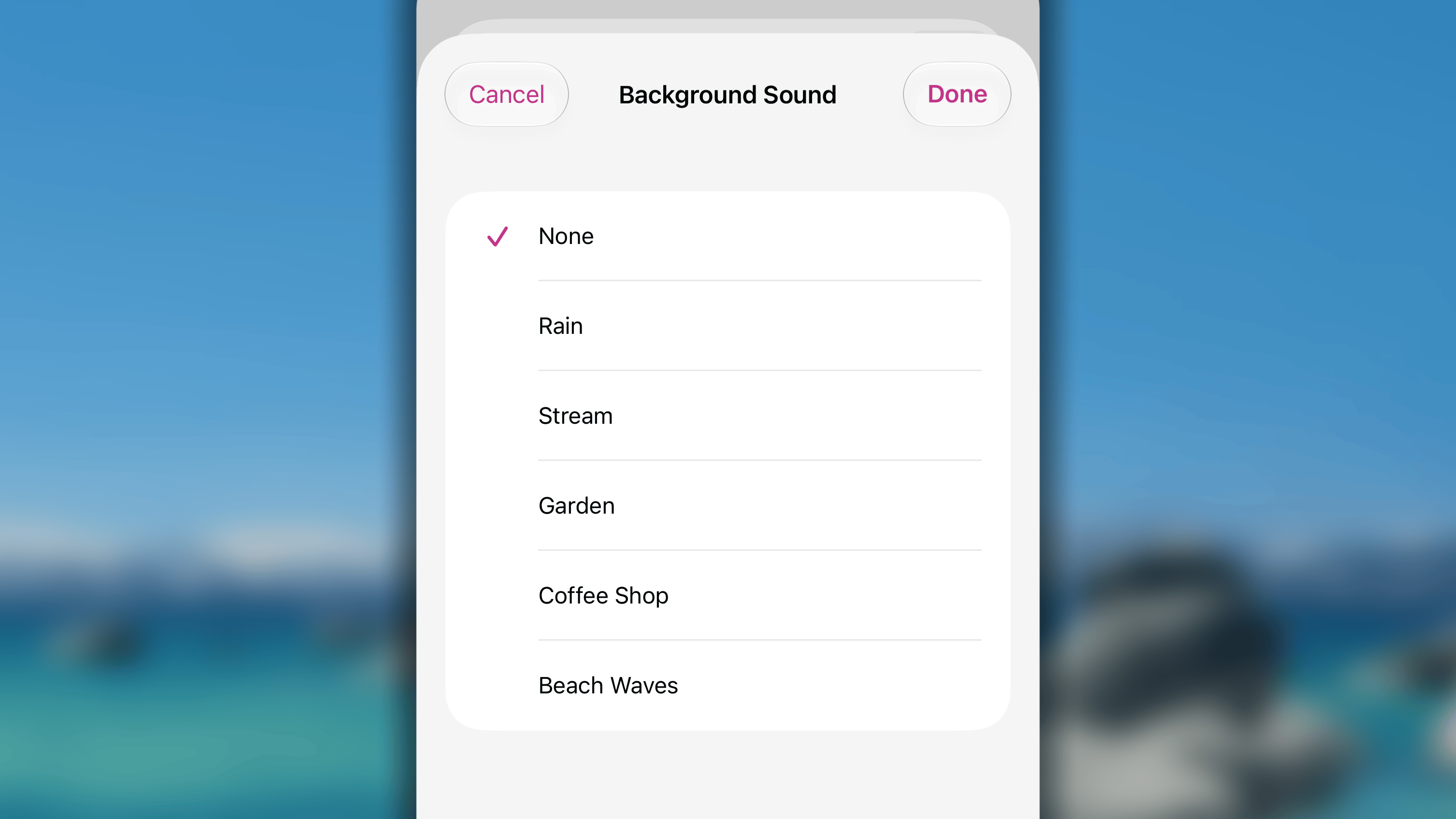
- Tap the ၊၊||၊ button under the habit name,
- Choose ‘None’ (to turn it off), or choose a white noise from the list
- Tap ‘Save’ to save the change.
Otherwise, tap ‘Cancel’ to discard any changes.
FAQs
How to change the sound at the end of a session?
How to change the sound at the end of a session?
Currently, it is impossible to change or customize the ending sound of a timer session.
How to turn off the sound when a session ends?
How to turn off the sound when a session ends?
To turn off the sound of timer, please turn your phone to silent mode, or just switch the button on the left side of the phone.
The timer suddenly stops. How to fix it?
The timer suddenly stops. How to fix it?
You may once experience sudden stops with the timer session. Here are the steps to troubleshoot & resolve this issue.1/ Check App PermissionsEnsure that Habitify has the necessary permissions to run uninterrupted:
- Open Settings.
- Scroll down and tap on Habitify.
- Ensure that all relevant permissions, such as Background App Refresh and Notifications, are enabled.
- Open the App Store
- Search for Habitify and open the app page
- If an update is available, tap Update.
- Additionally, check for any available iOS or Android updates by going to Settings > General > Software Update.
- Open Settings.
- Go to Battery.
- Ensure that Low Power Mode is turned off.