A Bad Habit is a behavior you’d rather do less of, or quit entirely, because it works against the life you’re trying to build. It can be something small and easy to overlook, like checking your phone the moment you wake up, or something bigger, like smoking or staying up too late.In Habitify, tracking a Bad Habit isn’t about guilt, it’s about awareness. Seeing the pattern clearly is often the first step to breaking it. This article covers everything you need to know to work with Bad Habits in Habitify - from adding one, to logging your progress as you cut back.
Goal of a bad habit defines what “success” means for the habit, and it comes in two types:
No More Than (limit-type): you set a maximum, and your goal is to stay at or under it each day. Go over, and the day is marked Failed once your logged total exceeds the limit.
Quit This Habit (quit-type) : there’s no numeric limit; the goal is zero occurrences. A single instance of the habit fails the day.
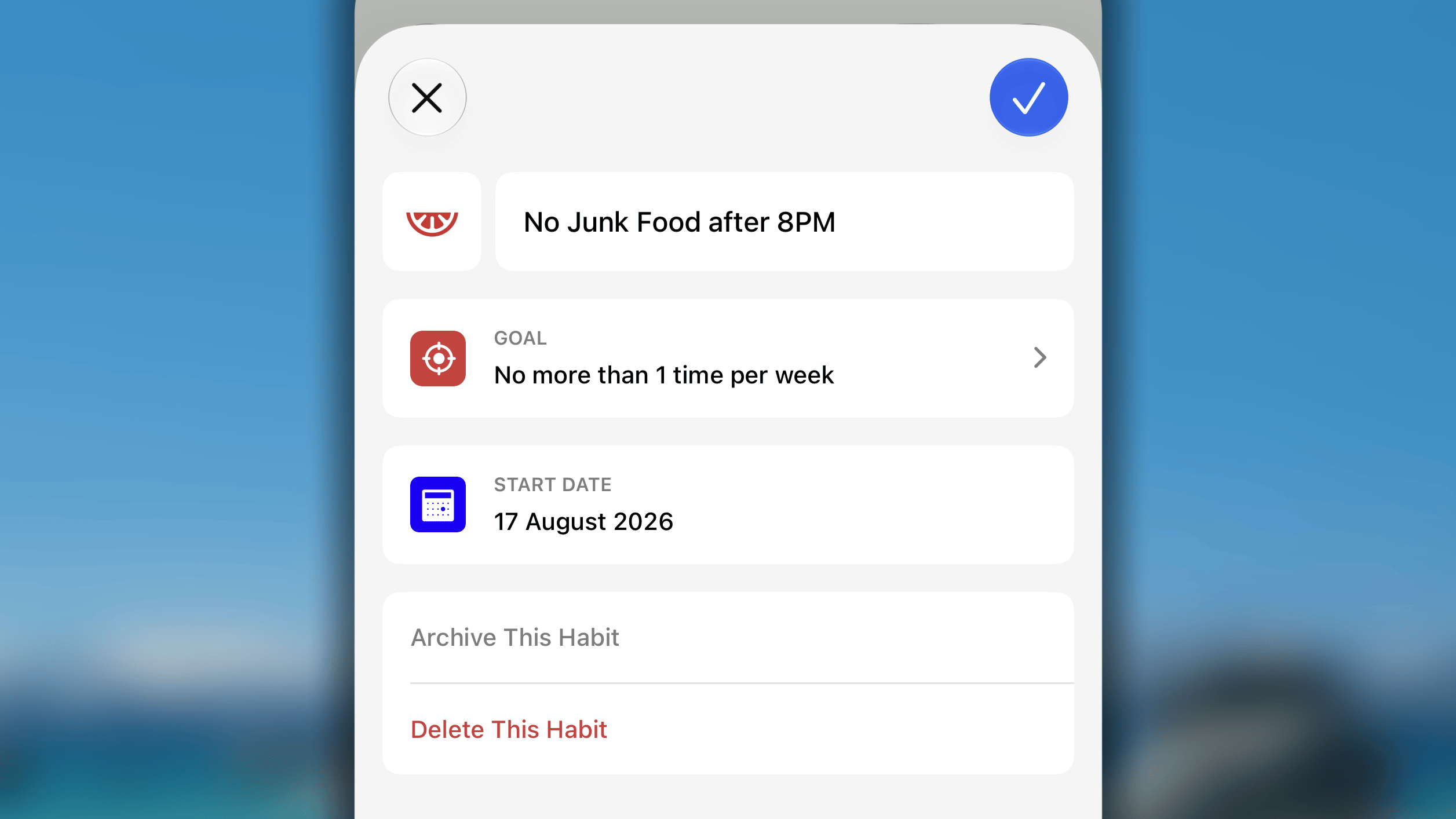
The date from which your progress on this habit is saved in Habitif. It’s also the date the habit begins appearing on your Journal view.
Auto-Succeed on days in pastIf you set the ‘Start from…’ to a day in the past, every day from that date up through yesterday is automatically marked as Succeeded.
The bad habit will start showing in your Journal since its start date.Since there is no settings of Repeat, Area, and Time of Day for the bad habits, these ones always appear in the ‘All habits’ list and the ‘Time of Day’ list.Where a bad habit lands in within each list in the view depends on its goal type:
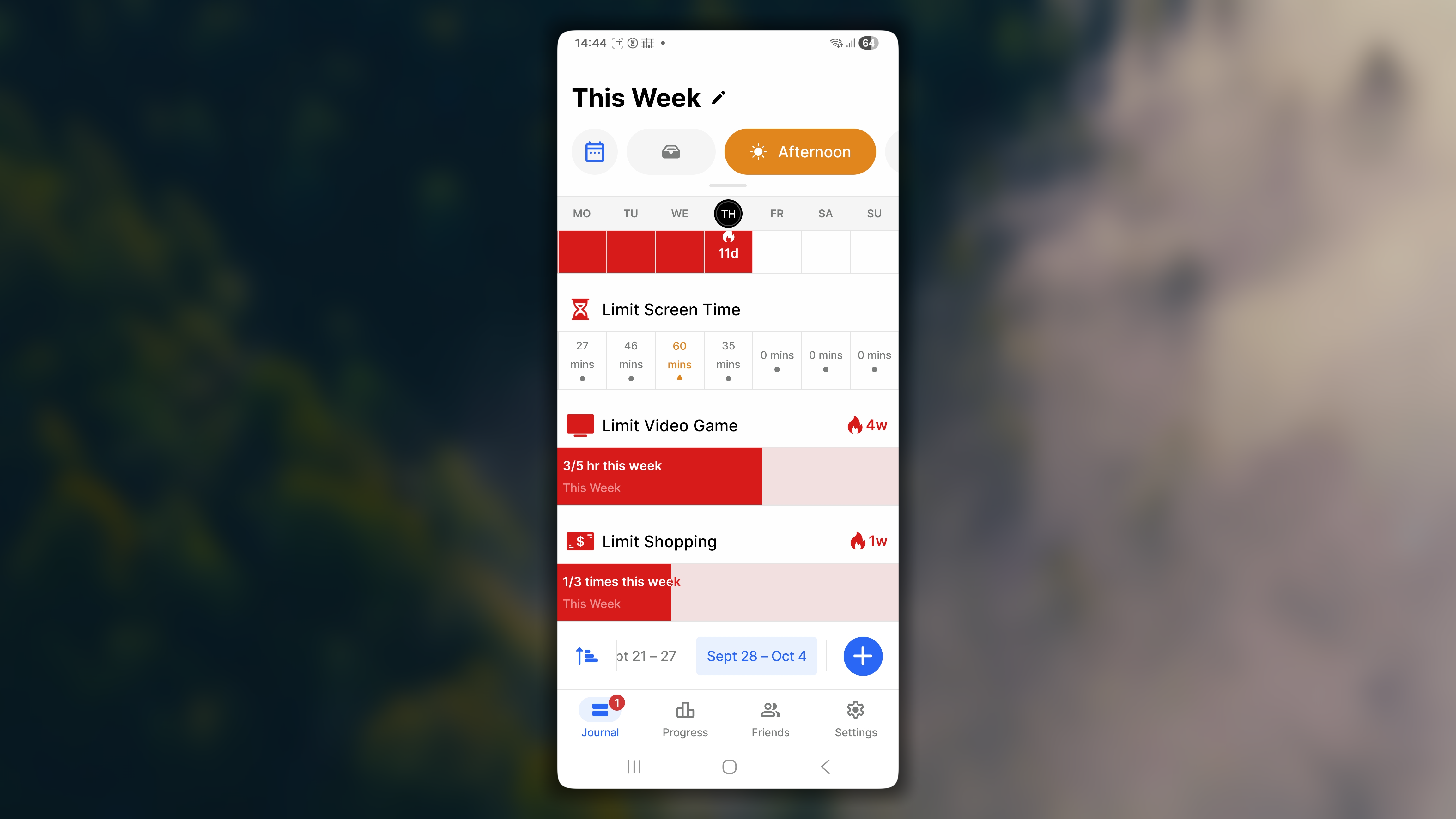
Limit-type habits with a daily goal sit together with your Good Habits that also have a daily goal; both are core, everyday actions expected of you today, so they’re grouped as one.
Quit-type habits get their own separate sub-category, ‘Quit Habit(s)’, since there’s no daily numeric goal to hit, just a day to get through without the behavior happening at all.
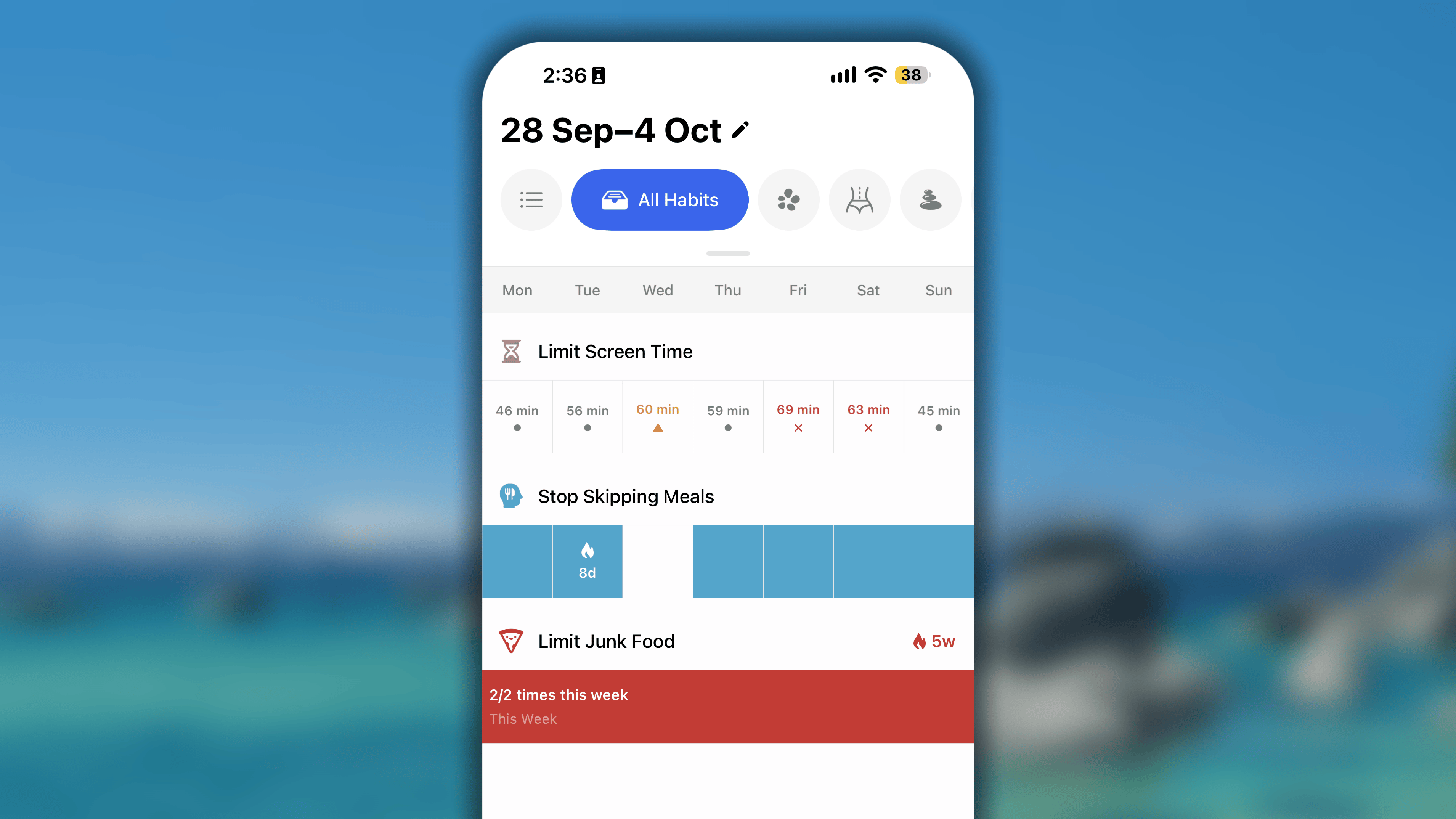
Limit-type habits with a weekly, monthly, or yearly goal are categorized followingly to the section ‘This Week’, ‘This Month’, ‘This Year’ together with the good habits.
Like any habit, once it’s checked in for the day, it moves into the ‘Completed’, ‘Skipped’, or ‘ Failed’ groups depending on the outcome, keeping what’s still open clearly separate from what’s already resolved.
When a quitting habit is checked with “Mark as Done”When a habit to quit is marked as Done for the current day, it stays where it is in the Day view of Journal. Under its name, there is a tag line “Secured day [current streak]”.
Otherwise, in Week view, your habit always appeard in the view as long as it is not archieved, being sorted equally regardless of their goal type and current day’s status.
A bad habit can possibly carry one of three statuses: Succeeded, Skipped or Failed.
Succeeded: your total logged value for the day is 0, or within your set limit.
Skipped: you went over the limit or did the habit, but chose to treat it as a cheat day rather than break your streak. A skipped day freezes your streak instead of resetting it.
Failed : your total logged value exceeds the limit (or, for a quit-type habit, any occurrence at all).
For quit-type habits:Hold on today’s cell to check in Succeed, Skip, or Fail.For limit-type habits with a goal per day:
Tap on today’s cell to log a progress value.
Hold on today’s cell to mark the day with Skip or Fail
For limit-type habits with a goal per week, month, or year:
Tap on the habit’s progress stripe to open the Log Progress box.
Auto-Succeed by the end of the dayAt the end of the day, if your logged value is still 0 or under the limit, the habit is automatically marked as successful.
What happens when marking a habit as “Failed”What gets logged behind the scenes depends on the habit’s goal type:
Quit-type habits: marking Failed automatically logs “1” as the progress value for the current period, since a single occurrence is the entire event.
Limit-type habits: marking Failed flags the day as failed, but logs a progress value of zero. Habitify doesn’t know how much you actually did, so it doesn’t guess. If you want the real amount reflected, log it yourself using Log Progress.
From Journal, tap on the habit to open its single progress view.
Tap the ••• button in the top right corner, and choose ‘Edit’.
If your habit does not appear in the today’s list:
Go to Settings.
Tap All Habits.
Tap on the habit, and choose ‘Edit’.
How to undo a wrong log added for a bad habit?
If the habit already has a status for the day:
In Journal, swipe the habit right and choose ‘Undo’
Pick either ‘Remove Today Data’ (resets today’s value to 0) or ‘Edit Log Manually’ (swipe left on the specific log entry and choose Delete).
If the habit is still in progress:
In Journal, tap on the habit
In next screen, tap the (•••) button in the top right corner, and choose ‘Log History’
In the Log History, swipe left the log you want to remove and tap ‘Delete’
How to change the status of a bad habit on a date in past?
To log progress for a past date, tap on the bad habit, then tap the (•••) button in the top right corner, choose Log Progress, then select the date and enter your value.
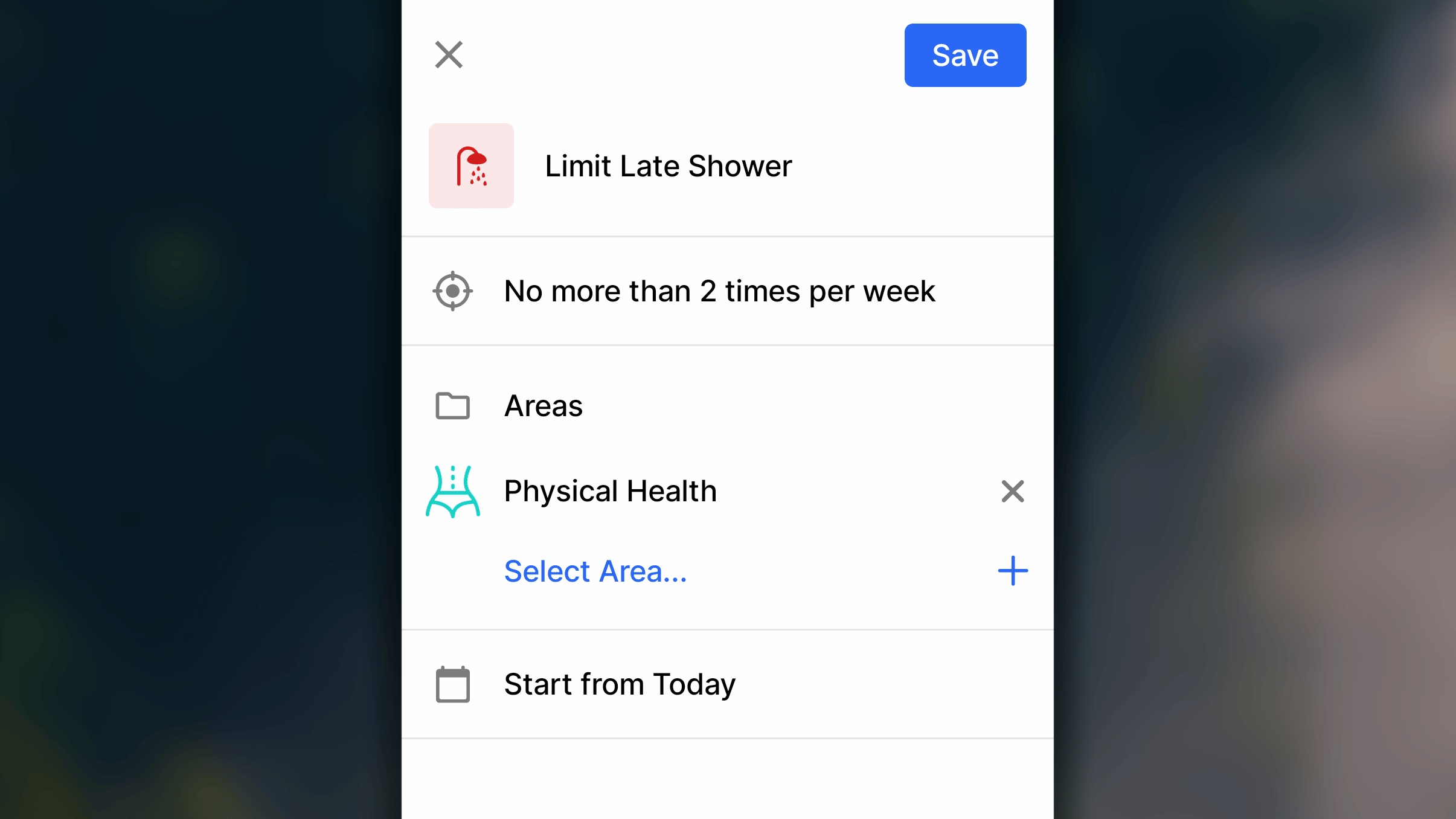
Goal of a bad habit defines what “success” means for the habit, and it comes in two types:
No More Than (limit-type): you set a maximum, and your goal is to stay at or under it each day. Go over, and the day is marked Failed once your logged total exceeds the limit.
Quit This Habit (quit-type): there’s no numeric limit; the goal is zero occurrences. A single instance of the habit fails the day.
You can assign a Bad Habit to one or more Areas, like “Health” or “Personal Growth”, so it shows up alongside your Good Habits when you’re reviewing that part of your life, instead of being visible only in a separate Bad Habits view.A single habit isn’t limited to one Area; assign it to as many as make sense.
This is the date from which your progress on this habit is saved in Habitify. it’s also the date the habit begins appearing in your habit lists in Journal.
Auto-Succeed on days in pastIf you set the ‘Start from…’ to a day in the past, every day from that date up through yesterday is automatically marked as Succeeded.
Since there is no ‘Repeat’ and ‘Time of Day’ settings for bad habits, the bad habits will appear in the ‘All Habits’, ‘Time of Day’ lists, and the list of its areas everyday.With Day view of Journal, where a Bad Habit lands in within each list in the view depends on its goal type:
Limit-type habits with a daily goal sit together with your Good Habits that also have a daily goal; both are core, everyday actions expected of you today, so they’re grouped as one.
Quit-type habits get their own separate sub-category, ‘Quit Habit(s)’, since there’s no daily numeric goal to hit, just a day to get through without the behavior happening at all.
Limit-type habits with a weekly, monthly, or yearly goal are categorized followingly to the section ‘This Week’, ‘This Month’, ‘This Year’ together with the good habits.
Like any habit, once it’s checked in for the day, it moves into the ‘Completed’, ‘Skipped’, or ‘ Failed’ groups depending on the outcome, keeping what’s still open clearly separate from what’s already resolved.
When a quitting habit is checked with “Mark as Done”When a habit to quit is marked as Done for the current day, it stays where it is in the Day view of Journal. Under its name, there is a tag line “Secured day [current streak]”.
Otherwise, in Week view, your habit always appeard in the view as long as it is not archieved, being sorted equally regardless of their goal type and current day’s status.
A bad habit can possibly carry one of three statuses: Succeeded, Skipped or Failed.
Succeeded: your total logged value for the day is 0, or within your set limit.
Skipped: you went over the limit or did the habit, but chose to treat it as a cheat day rather than break your streak. A skipped day freezes your streak instead of resetting it.
Failed : your total logged value exceeds the limit (or, for a quit-type habit, any occurrence at all).
For quit-type habits:Hold on today’s cell to check in Succeed, Skip, or Fail.For limit-type habits with a goal per day:
Tap on today’s cell to log a progress value.
Hold on today’s cell to mark the day with Skip or Fail
For limit-type habits with a goal per week, month, or year:
Tap on the habit’s progress stripe to open the Log Value box.
Auto-Succeed by the end of the dayAt the end of the day, if your logged value is still 0 or under the limit, the habit is automatically marked as successful.
Note on marking a limit-type habit as “Failed”Marking Failed flags the day as failed, but logs a progress value of zero.Habitify doesn’t know how much you actually did, so it doesn’t guess; if you want the real amount reflected, log it yourself using the ”+” or “+1” button.
This defines what “success” means for the habit, and it comes in two types:
Quit: there’s no numeric limit; the goal is zero occurrences. A single instance of the habit fails the day.
Limit: choose this mode and set a goal as limitation, and your goal is to stay at or under it each day. Go over, and the day is marked Failed once your logged total exceeds the limit.
In Grid layout, your bad habit is added to the view immediately once it is created. For the dates before the start date, their cells are crossed off and unavailable for progress checking in.In List layout, your bad habit will appears the first time on its ‘Start Date’ then repeats everyday, being categorized based on its goal type:
For the quit-type habits and the limit-type ones with goal per day: categorized under ‘Negative Habit(s)’ section within the list.
For the limit-type habits with goal per week, per month, or per year: categorized followingly under ‘This Week’, ‘This Month’, ‘This Year’ sections.
Since there is no settings of ‘Time of Day’ and ‘Area’, the bad habits just shows when you view the ‘All Habits’ list.
Bad Habits carry one of three end-of-day statuses: Succeeded/Completed, Skipped, or Failed.
Succeeded/Completed: your total logged value for the day is 0, or within your set limit.
Skipped: you went over the limit or did the habit, but chose to treat it as a cheat day rather than break your streak. A skipped day freezes your streak instead of resetting it.
Failed : your total logged value exceeds the limit (or, for a quit-type habit, any occurrence at all).
Option 1: Click to select the habit, then choose an action from the bottom action bar.
Option 2: Right-click the habit, then choose an action from the context menu.
Option 3: Hover on the habit, then click the (•••) button on the left end, then choose an action from the context menu.
At the end of the day, if your logged value is still 0 or under the limit, the habit is automatically marked as Succeeded/ Completed.
If you set the Start Date to a day in the past, every day from that date up through yesterday is automatically marked as Succeeded
When marking a bad habit as ‘Failed’: what gets logged behind the scenes depends on the habit’s goal type:
Quit-type habits: marking a slip automatically logs “1” as the progress value for the current period, since a single occurrence is the entire event.
Limit-type habits: marking Failed flags the day as failed, but logs a progress value of zero. Habitify doesn’t know how much you actually did, so it doesn’t guess. If you want the real amount reflected, log it yourself using the ‘Add Log’ from the context menu.
Click on your habit to open its single progress view.
Navigate to the top right corner, and click the 🖊 button.
How to undo a wrong log added for a bad habit?
To remove a wrong log that’ve added for the bad habit:
Access the single progress view of the bad habit:
in Grid layout: double-click on the habit name.
in List layout: single-click on the habit name.
Navigate to the top right corner, and click the toggle sidebar button.
On the right sidebar, switch to ‘Log History’ tab.
Select the log(s) you want to remove.
Click the ‘Delete’ button near the bottom right corner.
How to change the status of a bad habit on a date in past?
To log progress for a past date:
Access the single progress view of the bad habit:
in Grid layout: double-click on the habit name.
in List layout: single-click on the habit name.
Navigate to the top right corner, and click the ⌨️ button.
Enter a value in the input field, and choose a date on the calendar.
Click the ‘Add Log’ button.
{"docsConfig":{"theme":"aspen","$schema":"https://mintlify.com/docs.json","name":"Habitify","description":"This is the official knowledge base of Habitify, the habit tracker app for iOS, Android, desktop, and web. Find step-by-step guides on creating and tracking your habits, setting up integrations and automations for advanced tracking, and exploring Habitify's AI features, including Habitify MCP, Habi AI, and Siri AI-supported.","colors":{"primary":"#164AF2","light":"#164AF2","dark":"#1D45C9"},"logo":{"light":"https://mintcdn.com/habitify/6ubuIYTR9HqwJmST/images/Group3.png?fit=max\u0026auto=format\u0026n=6ubuIYTR9HqwJmST\u0026q=85\u0026s=19d2ca75b3476d732425d7ae3a079d41","dark":"https://mintcdn.com/habitify/79szqEEvHCts8PIA/images/Group1.png?fit=max\u0026auto=format\u0026n=79szqEEvHCts8PIA\u0026q=85\u0026s=aa244f00b99bdfebc0839912c4fadfbd"},"favicon":{"light":"https://mintcdn.com/habitify/6mDwR9tnCNQh0nLA/images/64-Desktop.png?fit=max\u0026auto=format\u0026n=6mDwR9tnCNQh0nLA\u0026q=85\u0026s=1a92045ea4ab8565691f7db03ebccb55","dark":"https://mintcdn.com/habitify/6mDwR9tnCNQh0nLA/images/64-Desktop.png?fit=max\u0026auto=format\u0026n=6mDwR9tnCNQh0nLA\u0026q=85\u0026s=1a92045ea4ab8565691f7db03ebccb55"},"navbar":{"links":[{"href":"mailto:contact@habitify.me","label":"Contact Us"}],"primary":{"type":"button","label":"Download App","href":"https://habitify.me/download"}},"footer":{"socials":{"x":"https://x.com/usehabitify","instagram":"https://instagram.com/habitify.me","facebook":"https://facebook.com/habitify","website":"https://habitify.me"}},"contextual":{"options":["copy","view","chatgpt","claude","perplexity","mcp","cursor","vscode"],"display":"header"},"styling":{"latex":false},"navigation":{"pages":[]}},"deployment":{"deploymentMetadataValue":{"subdomain":"habitify","hasAudioNarration":false,"actualSubdomain":"habitify","customDomains":["docs.habitify.me"],"gitSource":{"type":"github","owner":"unstatic-co","repo":"habitify-public-docs","deployBranch":"main","contentDirectory":"","isPrivate":false,"mountPath":"","label":""},"chroma":{"latestBuiltDeploymentHistoryId":"6ad97767e2e889d7781ddf13","collectionId":"6068df77-ee1d-4d32-b116-279e1ecbb741","liveDeploymentHistoryId":"6ad97767e2e889d7781ddf13","schemaVersion":"v3"},"feedback":{"thumbs":false,"issues":false},"entitlements":{},"buildId":"6ad97767e2e889d7781ddf13","clientVersion":"0.0.3966","searchFilterCounts":[{"language":"default","tag":"Documentation","count":41},{"language":"default","tag":"API Documentation","count":24},{"language":"default","tag":"Integration","count":9},{"language":"default","tag":"Features","count":8},{"language":"default","tag":"Habits","count":8},{"language":"default","tag":"Habit Logs","count":7},{"language":"default","tag":"Tools","count":6},{"language":"default","tag":"Plans \u0026 Billing","count":5},{"language":"default","tag":"Areas","count":5},{"language":"default","tag":"Automation","count":4}]},"assistantConfig":{"enableAskAiButton":false,"enableStarterQuestions":false,"enableContextualStarterQuestions":false,"enableAskAiSearchBar":true},"hasChatPermissions":false,"hasWebMcpPermissions":false,"toggles":[{"name":"kill-isr","enabled":true,"variant":{"name":"disabled","enabled":false,"feature_enabled":true},"impressionData":false},{"name":"agent-mintlify-slack","enabled":true,"variant":{"name":"disabled","enabled":false,"feature_enabled":true},"impressionData":false},{"name":"editor-v7-file-tree","enabled":true,"variant":{"name":"disabled","enabled":false,"feature_enabled":true},"impressionData":false},{"name":"agent-integrations-settings","enabled":true,"variant":{"name":"disabled","enabled":false,"feature_enabled":true},"impressionData":false},{"name":"automations-pr-grouping","enabled":true,"variant":{"name":"disabled","enabled":false,"feature_enabled":true},"impressionData":false},{"name":"custom-prefix","enabled":true,"variant":{"name":"disabled","enabled":false,"feature_enabled":true},"impressionData":false},{"name":"analytics-v7","enabled":true,"variant":{"name":"disabled","enabled":false,"feature_enabled":true},"impressionData":false},{"name":"user-flows-analytics","enabled":true,"variant":{"name":"disabled","enabled":false,"feature_enabled":true},"impressionData":false},{"name":"no-publish-flow","enabled":true,"variant":{"name":"disabled","enabled":false,"feature_enabled":true},"impressionData":false},{"name":"workos-onboarding","enabled":true,"variant":{"name":"disabled","enabled":false,"feature_enabled":true},"impressionData":false},{"name":"llms-txt-v2","enabled":true,"variant":{"name":"disabled","enabled":false,"feature_enabled":true},"impressionData":false},{"name":"pause-universal-search-reconcile","enabled":true,"variant":{"name":"disabled","enabled":false,"feature_enabled":true},"impressionData":false},{"name":"snapshot-serving-live","enabled":true,"variant":{"name":"disabled","enabled":false,"feature_enabled":true},"impressionData":false},{"name":"stripTemperatureMiddleware","enabled":true,"variant":{"name":"disabled","enabled":false,"feature_enabled":true},"impressionData":false},{"name":"per-site-search-delta","enabled":true,"variant":{"name":"disabled","enabled":false,"feature_enabled":true},"impressionData":false},{"name":"support-platform-pylon-zendesk","enabled":true,"variant":{"name":"disabled","enabled":false,"feature_enabled":true},"impressionData":false},{"name":"snapshot-serving","enabled":true,"variant":{"name":"disabled","enabled":false,"feature_enabled":true},"impressionData":false},{"name":"instant-rollback","enabled":true,"variant":{"name":"disabled","enabled":false,"feature_enabled":true},"impressionData":false},{"name":"granular-notifications-server","enabled":true,"variant":{"name":"disabled","enabled":false,"feature_enabled":true},"impressionData":false},{"name":"granular-notifications","enabled":true,"variant":{"name":"disabled","enabled":false,"feature_enabled":true},"impressionData":false},{"name":"editor-private-page-search","enabled":true,"variant":{"name":"disabled","enabled":false,"feature_enabled":true},"impressionData":false},{"name":"automations-fable","enabled":true,"variant":{"name":"disabled","enabled":false,"feature_enabled":true},"impressionData":false},{"name":"fixed-ai-action-pricing","enabled":true,"variant":{"name":"disabled","enabled":false,"feature_enabled":true},"impressionData":false},{"name":"automation-resolve-merge-conflict","enabled":true,"variant":{"name":"disabled","enabled":false,"feature_enabled":true},"impressionData":false},{"name":"scoped-publishing","enabled":true,"variant":{"name":"disabled","enabled":false,"feature_enabled":true},"impressionData":false},{"name":"mintql","enabled":true,"variant":{"name":"disabled","enabled":false,"feature_enabled":true},"impressionData":false},{"name":"page-level-analytics","enabled":true,"variant":{"name":"disabled","enabled":false,"feature_enabled":true},"impressionData":false},{"name":"editor-version-history-v2","enabled":true,"variant":{"name":"disabled","enabled":false,"feature_enabled":true},"impressionData":false},{"name":"editor-nav-generations","enabled":true,"variant":{"name":"disabled","enabled":false,"feature_enabled":true},"impressionData":false},{"name":"billing-page-v2","enabled":true,"variant":{"name":"disabled","enabled":false,"feature_enabled":true},"impressionData":false},{"name":"workspace-projects","enabled":true,"variant":{"name":"disabled","enabled":false,"feature_enabled":true},"impressionData":false},{"name":"assistant-v5","enabled":true,"variant":{"name":"disabled","enabled":false,"feature_enabled":true},"impressionData":false},{"name":"byok-sep-25","enabled":true,"variant":{"name":"disabled","enabled":false,"feature_enabled":true},"impressionData":false},{"name":"fork-pr-previews","enabled":true,"variant":{"name":"disabled","enabled":false,"feature_enabled":true},"impressionData":false},{"name":"revalidation-jwt","enabled":true,"variant":{"name":"disabled","enabled":false,"feature_enabled":true},"impressionData":false},{"name":"vite-origin","enabled":true,"variant":{"name":"disabled","enabled":false,"feature_enabled":true},"impressionData":false},{"name":"editor-agent-model-picker","enabled":true,"variant":{"name":"disabled","enabled":false,"feature_enabled":true},"impressionData":false},{"name":"billing-updated-9-15","enabled":true,"variant":{"name":"disabled","enabled":false,"feature_enabled":true},"impressionData":false},{"name":"hobby-abuse-scan","enabled":true,"variant":{"name":"disabled","enabled":false,"feature_enabled":true},"impressionData":false},{"name":"dashboard-inbox","enabled":true,"variant":{"name":"disabled","enabled":false,"feature_enabled":true},"impressionData":false}],"isAtlas":false,"googleFontsInlined":false},"customCss":[],"page":{"pagePath":"bad-habits","slug":"/bad-habits","pageMetadata":{"title":"Bad habits","description":null,"href":"/bad-habits"},"pageType":"default","mdx":{"mdxSource":{"compiledSource":"\"use strict\";const{Fragment:_Fragment,jsx:_jsx,jsxs:_jsxs}=arguments[0];const{useMDXComponents:_provideComponents}=arguments[0];function _createMdxContent(props){const _components={em:`em`,li:`li`,ol:`ol`,p:`p`,strong:`strong`,ul:`ul`,..._provideComponents(),...props.components},{Accordion,Heading,Info,Note,OptimizedFrame,OptimizedImage,Tab,Tabs}=_components;if(!Accordion)_missingMdxReference(`Accordion`,true);if(!Heading)_missingMdxReference(`Heading`,true);if(!Info)_missingMdxReference(`Info`,true);if(!Note)_missingMdxReference(`Note`,true);if(!OptimizedFrame)_missingMdxReference(`OptimizedFrame`,true);if(!OptimizedImage)_missingMdxReference(`OptimizedImage`,true);if(!Tab)_missingMdxReference(`Tab`,true);if(!Tabs)_missingMdxReference(`Tabs`,true);return _jsxs(_Fragment,{children:[_jsx(_components.p,{children:`A Bad Habit is a behavior you’d rather do less of, or quit entirely, because it works against the life you’re trying to build. It can be something small and easy to overlook, like checking your phone the moment you wake up, or something bigger, like smoking or staying up too late.`}),`\n`,_jsx(_components.p,{children:`In Habitify, tracking a Bad Habit isn’t about guilt, it’s about awareness. Seeing the pattern clearly is often the first step to breaking it. This article covers everything you need to know to work with Bad Habits in Habitify - from adding one, to logging your progress as you cut back.`}),`\n`,_jsxs(Tabs,{children:[_jsxs(Tab,{title:` iOS`,id:`%EF%A3%BF-ios`,\"data-child-heading-ids\":`[\"adding-a-bad-habit\",\"details-of-a-bad-habit\",\"icon-%26-name\",\"goal\",\"start-date\",\"how-a-bad-habit-appears-in-the-list\",\"recording-progress-of-a-bad-habit\",\"status-of-a-bad-habit\",\"checking-in-bad-habits-in-day-view\",\"checking-in-bad-habits-in-week-view\",\"faqs\"]`,children:[_jsx(OptimizedFrame,{src:`https://drive.google.com/file/d/1JXACNA-nd9Mx7n2um5IUahZSxCSxRiGq/preview`,width:`640`,height:`360`}),_jsx(Heading,{level:`2`,id:`adding-a-bad-habit`,children:`Adding a bad habit`}),_jsxs(_components.ol,{children:[`\n`,_jsxs(_components.li,{children:[`In `,_jsx(_components.strong,{children:`Journal`}),`, tap the `,_jsx(_components.strong,{children:`+ button`}),` at the bottom right corner.`]}),`\n`,_jsxs(_components.li,{children:[`Choose ‘`,_jsx(_components.strong,{children:`Break Bad Habit`}),`’.`]}),`\n`,_jsxs(_components.li,{children:[`Choose a `,_jsx(_components.strong,{children:`pre-defined habit template`}),`, or tap ‘`,_jsx(_components.strong,{children:`Custom Habit`}),`’ to set everything from scratch.`]}),`\n`,_jsx(_components.li,{children:`Configure the details of the bad habit.`}),`\n`,_jsxs(_components.li,{children:[`Once everthing is set, `,_jsx(_components.strong,{children:`tap ✓ button`}),` to save the bad habit to your tracking list.`]}),`\n`]}),_jsx(Heading,{level:`2`,id:`details-of-a-bad-habit`,children:`Details of a bad habit`}),_jsx(OptimizedImage,{src:`https://mintcdn.com/habitify/enmgtvLM6ls7WDyH/images/BadHabitDetails_iOS.png?fit=max\u0026auto=format\u0026n=enmgtvLM6ls7WDyH\u0026q=85\u0026s=e8c153f802bf63445b70e4b14edf673c`,alt:`Bad Habit Details I OS`,\"data-og-width\":`2513`,width:`2513`,\"data-og-height\":`1414`,height:`1414`,\"data-path\":`images/BadHabitDetails_iOS.png`,\"data-optimize\":`true`,\"data-opv\":`3`,srcset:`https://mintcdn.com/habitify/enmgtvLM6ls7WDyH/images/BadHabitDetails_iOS.png?w=280\u0026fit=max\u0026auto=format\u0026n=enmgtvLM6ls7WDyH\u0026q=85\u0026s=cbd92813ba833ad51ee1ecdc653c4580 280w, https://mintcdn.com/habitify/enmgtvLM6ls7WDyH/images/BadHabitDetails_iOS.png?w=560\u0026fit=max\u0026auto=format\u0026n=enmgtvLM6ls7WDyH\u0026q=85\u0026s=82df6bfe69f5afada78e08a9b82061e5 560w, https://mintcdn.com/habitify/enmgtvLM6ls7WDyH/images/BadHabitDetails_iOS.png?w=840\u0026fit=max\u0026auto=format\u0026n=enmgtvLM6ls7WDyH\u0026q=85\u0026s=f7bf9dedd224ba33ae7d4389a14644b9 840w, https://mintcdn.com/habitify/enmgtvLM6ls7WDyH/images/BadHabitDetails_iOS.png?w=1100\u0026fit=max\u0026auto=format\u0026n=enmgtvLM6ls7WDyH\u0026q=85\u0026s=165f65aaed685fedae376b058014e5ea 1100w, https://mintcdn.com/habitify/enmgtvLM6ls7WDyH/images/BadHabitDetails_iOS.png?w=1650\u0026fit=max\u0026auto=format\u0026n=enmgtvLM6ls7WDyH\u0026q=85\u0026s=0826f05974bc154c68b4b44ce68fcdfc 1650w, https://mintcdn.com/habitify/enmgtvLM6ls7WDyH/images/BadHabitDetails_iOS.png?w=2500\u0026fit=max\u0026auto=format\u0026n=enmgtvLM6ls7WDyH\u0026q=85\u0026s=dff4117cf7967ec6c52a1315edc7b8ae 2500w`}),_jsx(Heading,{level:`3`,id:`icon-\u0026-name`,children:`Icon \u0026 Name`}),_jsx(_components.p,{children:`The icon and name of your bad habit helps it easily be identified across your Journal, Progress view, and everywhere else in the app.`}),_jsx(Heading,{level:`3`,id:`goal`,children:`Goal`}),_jsx(_components.p,{children:`Goal of a bad habit defines what “success” means for the habit, and it comes in two types:`}),_jsxs(_components.ul,{children:[`\n`,_jsxs(_components.li,{children:[_jsx(_components.strong,{children:`No More Than (limit-type)`}),`: you set a maximum, and your goal is to stay at or under it each day. Go over, and the day is marked Failed once your logged total exceeds the limit.`]}),`\n`,_jsxs(_components.li,{children:[_jsx(_components.strong,{children:`Quit This Habit (quit-type)`}),` : there’s no numeric limit; the goal is zero occurrences. A single instance of the habit fails the day.`]}),`\n`]}),_jsx(Heading,{level:`3`,id:`start-date`,children:`Start date`}),_jsx(_components.p,{children:`The date from which your progress on this habit is saved in Habitif. It’s also the date the habit begins appearing on your Journal view.`}),_jsxs(Note,{children:[_jsx(_components.p,{children:_jsx(_components.strong,{children:`Auto-Succeed on days in past`})}),_jsxs(_components.p,{children:[`If you set the ‘`,_jsx(_components.strong,{children:`Start from…`}),`’ to a day in the past, every day from that date up through yesterday is automatically marked as Succeeded.`]})]}),_jsx(Heading,{level:`2`,id:`how-a-bad-habit-appears-in-the-list`,children:`How a bad habit appears in the list`}),_jsx(_components.p,{children:`The bad habit will start showing in your Journal since its start date.`}),_jsxs(_components.p,{children:[`Since there is no settings of `,_jsx(_components.em,{children:`Repeat`}),`, `,_jsx(_components.em,{children:`Area`}),`, and `,_jsx(_components.em,{children:`Time of Day`}),` for the bad habits, these ones always appear in the `,_jsx(_components.strong,{children:`‘All habits’ list`}),` and the `,_jsx(_components.strong,{children:`‘Time of Day’ list.`})]}),_jsx(OptimizedImage,{src:`https://mintcdn.com/habitify/enmgtvLM6ls7WDyH/images/BadHabits_Journal_iOS.png?fit=max\u0026auto=format\u0026n=enmgtvLM6ls7WDyH\u0026q=85\u0026s=a9efad57daf88e34d5ef8b0d967be932`,alt:`Bad Habits Journal I OS`,\"data-og-width\":`2995`,width:`2995`,\"data-og-height\":`1684`,height:`1684`,\"data-path\":`images/BadHabits_Journal_iOS.png`,\"data-optimize\":`true`,\"data-opv\":`3`,srcset:`https://mintcdn.com/habitify/enmgtvLM6ls7WDyH/images/BadHabits_Journal_iOS.png?w=280\u0026fit=max\u0026auto=format\u0026n=enmgtvLM6ls7WDyH\u0026q=85\u0026s=36947b50c5e4386a9788fa38827a1e09 280w, https://mintcdn.com/habitify/enmgtvLM6ls7WDyH/images/BadHabits_Journal_iOS.png?w=560\u0026fit=max\u0026auto=format\u0026n=enmgtvLM6ls7WDyH\u0026q=85\u0026s=8124fc2dd784b2bfd326ff4ba7b5d08c 560w, https://mintcdn.com/habitify/enmgtvLM6ls7WDyH/images/BadHabits_Journal_iOS.png?w=840\u0026fit=max\u0026auto=format\u0026n=enmgtvLM6ls7WDyH\u0026q=85\u0026s=033c5a9adfaae7942eab62e3431a50b8 840w, https://mintcdn.com/habitify/enmgtvLM6ls7WDyH/images/BadHabits_Journal_iOS.png?w=1100\u0026fit=max\u0026auto=format\u0026n=enmgtvLM6ls7WDyH\u0026q=85\u0026s=9c0647f8c955b5cd720475d6f52beddd 1100w, https://mintcdn.com/habitify/enmgtvLM6ls7WDyH/images/BadHabits_Journal_iOS.png?w=1650\u0026fit=max\u0026auto=format\u0026n=enmgtvLM6ls7WDyH\u0026q=85\u0026s=a749d33c4ab907935f1f47e9e5d074b3 1650w, https://mintcdn.com/habitify/enmgtvLM6ls7WDyH/images/BadHabits_Journal_iOS.png?w=2500\u0026fit=max\u0026auto=format\u0026n=enmgtvLM6ls7WDyH\u0026q=85\u0026s=33f7fa0202206345430e30d2337208ab 2500w`}),_jsx(_components.p,{children:`Where a bad habit lands in within each list in the view depends on its goal type:`}),_jsxs(_components.ul,{children:[`\n`,_jsxs(_components.li,{children:[_jsx(_components.strong,{children:`Limit-type habits with a daily goal`}),` sit together with your Good Habits that also have a daily goal; both are core, everyday actions expected of you today, so they’re grouped as one.`]}),`\n`,_jsxs(_components.li,{children:[_jsx(_components.strong,{children:`Quit-type habits`}),` get their own separate sub-category, ‘`,_jsx(_components.strong,{children:`Quit Habit(s)’`}),`, since there’s no daily numeric goal to hit, just a day to get through without the behavior happening at all.`]}),`\n`,_jsxs(_components.li,{children:[_jsx(_components.strong,{children:`Limit-type habits with a weekly, monthly, or yearly goal`}),` are categorized followingly to the section `,_jsx(_components.strong,{children:`‘This Week’`}),`, ‘`,_jsx(_components.strong,{children:`This Month’`}),`, `,_jsx(_components.strong,{children:`‘This Year’`}),` together with the good habits.`]}),`\n`]}),_jsxs(_components.p,{children:[`Like any habit, `,_jsx(_components.strong,{children:`once it’s checked`}),` in for the day, it moves into the `,_jsx(_components.strong,{children:`‘Completed’`}),`, `,_jsx(_components.strong,{children:`‘Skipped’`}),`, or `,_jsx(_components.strong,{children:`‘\u001dFailed’`}),` groups depending on the outcome, keeping what’s still open clearly separate from what’s already resolved.`]}),_jsxs(Note,{children:[_jsx(_components.p,{children:_jsx(_components.strong,{children:`When a quitting habit is checked with “Mark as Done”`})}),_jsxs(_components.p,{children:[`When a habit to quit is marked as Done for the current day, it stays where it is in the Day view of Journal. Under its name, there is a tag line “`,_jsx(_components.em,{children:`Secured day [current streak]`}),`”.`]})]}),_jsxs(_components.p,{children:[`Otherwise, in `,_jsx(_components.strong,{children:`Week view`}),`, your habit always appeard in the view as long as it is not archieved, being sorted equally regardless of their goal type and current day’s status.`]}),_jsx(OptimizedImage,{src:`https://mintcdn.com/habitify/EMlAUxZBcz1LG4JZ/images/WeekView_BadHabit_iOS-1.png?fit=max\u0026auto=format\u0026n=EMlAUxZBcz1LG4JZ\u0026q=85\u0026s=6a1fae0f6bf1247b83e3663d2ec0a609`,alt:`Week View Bad Habit I OS 1`,\"data-og-width\":`3819`,width:`3819`,\"data-og-height\":`2148`,height:`2148`,\"data-path\":`images/WeekView_BadHabit_iOS-1.png`,\"data-optimize\":`true`,\"data-opv\":`3`,srcset:`https://mintcdn.com/habitify/EMlAUxZBcz1LG4JZ/images/WeekView_BadHabit_iOS-1.png?w=280\u0026fit=max\u0026auto=format\u0026n=EMlAUxZBcz1LG4JZ\u0026q=85\u0026s=ff0fc7bbc0a68c33ef1aa16534317e53 280w, https://mintcdn.com/habitify/EMlAUxZBcz1LG4JZ/images/WeekView_BadHabit_iOS-1.png?w=560\u0026fit=max\u0026auto=format\u0026n=EMlAUxZBcz1LG4JZ\u0026q=85\u0026s=d2f877122d5cde47832963181c8f07b1 560w, https://mintcdn.com/habitify/EMlAUxZBcz1LG4JZ/images/WeekView_BadHabit_iOS-1.png?w=840\u0026fit=max\u0026auto=format\u0026n=EMlAUxZBcz1LG4JZ\u0026q=85\u0026s=e61fe636e68b22dfa100344b4f30f462 840w, https://mintcdn.com/habitify/EMlAUxZBcz1LG4JZ/images/WeekView_BadHabit_iOS-1.png?w=1100\u0026fit=max\u0026auto=format\u0026n=EMlAUxZBcz1LG4JZ\u0026q=85\u0026s=96945085c8aacd04704e7e0dd8df0b02 1100w, https://mintcdn.com/habitify/EMlAUxZBcz1LG4JZ/images/WeekView_BadHabit_iOS-1.png?w=1650\u0026fit=max\u0026auto=format\u0026n=EMlAUxZBcz1LG4JZ\u0026q=85\u0026s=c72b3a563a132cd4e9946bbf1af65278 1650w, https://mintcdn.com/habitify/EMlAUxZBcz1LG4JZ/images/WeekView_BadHabit_iOS-1.png?w=2500\u0026fit=max\u0026auto=format\u0026n=EMlAUxZBcz1LG4JZ\u0026q=85\u0026s=3dc922ba137b8f14e846eea437e17c33 2500w`}),_jsx(Heading,{level:`2`,id:`recording-progress-of-a-bad-habit`,children:`Recording progress of a bad habit`}),_jsx(Heading,{level:`3`,id:`status-of-a-bad-habit`,children:`Status of a bad habit`}),_jsxs(_components.p,{children:[`A bad habit can possibly carry one of three statuses: `,_jsx(_components.strong,{children:`Succeeded, Skipped`}),` or `,_jsx(_components.strong,{children:`Failed`}),`.`]}),_jsxs(_components.ul,{children:[`\n`,_jsxs(_components.li,{children:[_jsx(_components.strong,{children:`Succeeded`}),`: your total logged value for the day is 0, or within your set limit.`]}),`\n`,_jsxs(_components.li,{children:[_jsx(_components.strong,{children:`Skipped`}),`: you went over the limit or did the habit, but chose to treat it as a cheat day rather than break your streak. A skipped day freezes your streak instead of resetting it.`]}),`\n`,_jsxs(_components.li,{children:[_jsx(_components.strong,{children:`Failed`}),` : your total logged value exceeds the limit (or, for a quit-type habit, any occurrence at all).`]}),`\n`]}),_jsx(Heading,{level:`3`,id:`checking-in-bad-habits-in-day-view`,children:_jsx(_components.strong,{children:`Checking in bad habits in Day View`})}),_jsx(OptimizedFrame,{src:`https://drive.google.com/file/d/1NmlvYlsNKuYYOBJQ-OLSpgKhQhpL5LSf/preview`,width:`640`,height:`360`}),_jsx(_components.p,{children:_jsx(_components.strong,{children:`For quit-type habits:`})}),_jsxs(_components.ul,{children:[`\n`,_jsxs(_components.li,{children:[`Tap the ••• `,_jsx(_components.strong,{children:`button`}),` on the right of the bad habit and choose between`,`\n`,_jsxs(_components.ul,{children:[`\n`,_jsxs(_components.li,{children:[_jsx(_components.strong,{children:`Mark as Done`}),`: confirm you successfully avoided it for the day (Succeeded).`]}),`\n`,_jsxs(_components.li,{children:[_jsx(_components.strong,{children:`Reset my Streak:`}),` log a slip and start over (Failed).`]}),`\n`]}),`\n`]}),`\n`,_jsxs(_components.li,{children:[_jsx(_components.strong,{children:`Swipe the habit left`}),` for the `,_jsx(_components.strong,{children:`Skip`}),` option.`]}),`\n`]}),_jsx(_components.p,{children:_jsx(_components.strong,{children:`For limit-type habits:`})}),_jsxs(_components.ul,{children:[`\n`,_jsxs(_components.li,{children:[`Tap the `,_jsx(_components.strong,{children:`smart button ⌨️`}),` to add a progress log`]}),`\n`,_jsxs(_components.li,{children:[`Swipe the habit `,_jsx(_components.strong,{children:`left`}),` for `,_jsx(_components.strong,{children:`Skip`}),` or `,_jsx(_components.strong,{children:`Fail`}),`.`]}),`\n`,_jsxs(_components.li,{children:[`Swipe the habit `,_jsx(_components.strong,{children:`right`}),` for `,_jsx(_components.strong,{children:`Succeed`}),` or `,_jsx(_components.strong,{children:`Log Value`}),`.`]}),`\n`]}),_jsx(Heading,{level:`3`,id:`checking-in-bad-habits-in-week-view`,children:_jsx(_components.strong,{children:`Checking in bad habits in Week View`})}),_jsx(OptimizedFrame,{src:`https://drive.google.com/file/d/1K2LKctsJpkbitevgJm_jAqDl2054iWT5/preview`,width:`640`,height:`360`}),_jsx(_components.p,{children:_jsx(_components.strong,{children:`For quit-type habits:`})}),_jsxs(_components.p,{children:[`Hold on today’s cell to check in `,_jsx(_components.strong,{children:`Succeed`}),`, `,_jsx(_components.strong,{children:`Skip`}),`, or `,_jsx(_components.strong,{children:`Fail`}),`.`]}),_jsx(_components.p,{children:_jsx(_components.strong,{children:`For limit-type habits with a goal per day:`})}),_jsxs(_components.ul,{children:[`\n`,_jsx(_components.li,{children:`Tap on today’s cell to log a progress value.`}),`\n`,_jsx(_components.li,{children:`Hold on today’s cell to mark the day with Skip or Fail`}),`\n`]}),_jsx(_components.p,{children:_jsx(_components.strong,{children:`For limit-type habits with a goal per week, month, or year:`})}),_jsxs(_components.ul,{children:[`\n`,_jsxs(_components.li,{children:[`Tap on the habit’s progress stripe to open the `,_jsx(_components.strong,{children:`Log Progress`}),` box.`]}),`\n`]}),_jsxs(Note,{children:[_jsx(_components.p,{children:_jsx(_components.strong,{children:`Auto-Succeed by the end of the day`})}),_jsx(_components.p,{children:`At the end of the day, if your logged value is still 0 or under the limit, the habit is automatically marked as successful.`})]}),_jsxs(Note,{children:[_jsx(_components.p,{children:_jsx(_components.strong,{children:`What happens when marking a habit as “Failed”`})}),_jsx(_components.p,{children:`What gets logged behind the scenes depends on the habit’s goal type:`}),_jsxs(_components.ul,{children:[`\n`,_jsxs(_components.li,{children:[_jsx(_components.strong,{children:`Quit-type habits`}),`: marking Failed automatically logs “1” as the progress value for the current period, since a single occurrence is the entire event.`]}),`\n`,_jsxs(_components.li,{children:[_jsx(_components.strong,{children:`Limit-type habits`}),`: marking Failed flags the day as failed, but logs a progress value of zero. Habitify doesn’t know how much you actually did, so it doesn’t guess. If you want the real amount reflected, log it yourself using `,_jsx(_components.strong,{children:`Log Progress`}),`.`]}),`\n`]})]}),_jsx(Heading,{level:`2`,id:`faqs`,children:`FAQs`}),_jsxs(Accordion,{title:_jsx(_Fragment,{children:_jsx(_components.strong,{className:`font-extrabold`,children:`How to edit a bad habit?`})}),id:`how-to-edit-a-bad-habit`,children:[_jsx(_components.p,{children:`To edit a bad habit:`}),_jsxs(_components.ul,{children:[`\n`,_jsx(_components.li,{children:`From Journal, tap on the habit to open its single progress view.`}),`\n`,_jsxs(_components.li,{children:[`Tap the\\xA0••• button in the top right corner, and choose ‘`,_jsx(_components.strong,{children:`Edit`}),`’.`]}),`\n`]}),_jsx(_components.p,{children:`If your habit does not appear in the today’s list:`}),_jsxs(_components.ul,{children:[`\n`,_jsxs(_components.li,{children:[`Go to `,_jsx(_components.strong,{children:`Settings`}),`.`]}),`\n`,_jsxs(_components.li,{children:[`Tap `,_jsx(_components.strong,{children:`All Habits`}),`.`]}),`\n`,_jsxs(_components.li,{children:[`Tap on the habit, and choose ‘`,_jsx(_components.strong,{children:`Edit`}),`’.`]}),`\n`]})]}),_jsxs(Accordion,{title:_jsx(_Fragment,{children:_jsx(_components.strong,{className:`font-extrabold`,children:`How to undo a wrong log added for a bad habit?`})}),id:`how-to-undo-a-wrong-log-added-for-a-bad-habit`,children:[_jsx(_components.p,{children:`If the habit already has a status for the day:`}),_jsxs(_components.ul,{children:[`\n`,_jsxs(_components.li,{children:[`In `,_jsx(_components.em,{children:`Journal`}),`, swipe the habit right and choose ‘`,_jsx(_components.strong,{children:`Undo’`})]}),`\n`,_jsxs(_components.li,{children:[`Pick either ‘`,_jsx(_components.strong,{children:`Remove Today Data’`}),` (resets today’s value to 0) or ‘`,_jsx(_components.strong,{children:`Edit Log Manually’`}),` (swipe left on the specific log entry and choose `,_jsx(_components.strong,{children:`Delete`}),`).`]}),`\n`]}),_jsx(_components.p,{children:`If the habit is still in progress:`}),_jsxs(_components.ul,{children:[`\n`,_jsxs(_components.li,{children:[`In `,_jsx(_components.em,{children:`Journal`}),`, tap on the habit`]}),`\n`,_jsxs(_components.li,{children:[`In next screen, tap the (•••) button in the top right corner, and choose ‘`,_jsx(_components.strong,{children:`Log History`}),`’`]}),`\n`,_jsxs(_components.li,{children:[`In the `,_jsx(_components.em,{children:`Log History`}),`, swipe left the log you want to remove and tap ‘`,_jsx(_components.strong,{children:`Delete`}),`’`]}),`\n`]})]}),_jsx(Accordion,{title:_jsx(_Fragment,{children:_jsx(_components.strong,{className:`font-extrabold`,children:`How to change the status of a bad habit on a date in past?`})}),id:`how-to-change-the-status-of-a-bad-habit-on-a-date-in-past`,children:_jsxs(_components.p,{children:[`To log progress for a past date, tap on the bad habit, then tap the (•••) button in the top right corner, choose `,_jsx(_components.strong,{children:`Log Progress`}),`, then select the date and enter your value.`]})})]}),_jsxs(Tab,{title:`🤖 Android`,id:`%F0%9F%A4%96-android`,\"data-child-heading-ids\":`[\"adding-a-bad-habit-2\",\"details-of-a-bad-habit-2\",\"icon-%26-name-2\",\"goal-2\",\"areas\",\"start-from%E2%80%A6\",\"how-a-bad-habit-appears-in-the-list-2\",\"recording-progress-on-a-bad-habit\",\"status-of-a-bad-habit-2\",\"checking-in-bad-habits-in-day-view-2\",\"checking-in-bad-habits-in-week-view-2\",\"faqs-2\"]`,children:[_jsx(OptimizedFrame,{src:`https://drive.google.com/file/d/1ZrL5VHuGdFN-NG4dF4HeHAsKgzENeDmZ/preview`,width:`640`,height:`360`}),_jsx(Heading,{level:`2`,id:`adding-a-bad-habit-2`,children:`Adding a bad habit`}),_jsxs(_components.ol,{children:[`\n`,_jsxs(_components.li,{children:[`In `,_jsx(_components.em,{children:`Journal`}),`, tap on the `,_jsx(_components.strong,{children:`+ button`}),` on the date bar, near the bottom right corner.`]}),`\n`,_jsxs(_components.li,{children:[`Choose `,_jsx(_components.strong,{children:`‘Break Bad Habit’.`})]}),`\n`,_jsxs(_components.li,{children:[`Choose `,_jsx(_components.strong,{children:`a pre-defined habit template`}),`, `,_jsx(`br`,{}),`or tap the `,_jsx(_components.strong,{children:`‘Create Your Own’ button`}),` to create with a blank form.`]}),`\n`,_jsx(_components.li,{children:`Configure the details of the bad habit.`}),`\n`,_jsxs(_components.li,{children:[`When everything is set, tap the `,_jsx(_components.strong,{children:`‘Save’ button`}),` in the top right corner.`]}),`\n`]}),_jsx(Heading,{level:`2`,id:`details-of-a-bad-habit-2`,children:`Details of a bad habit`}),_jsx(OptimizedImage,{src:`https://mintcdn.com/habitify/jDfEnDasfFN_oBFP/images/BadHabitDetails_Android.png?fit=max\u0026auto=format\u0026n=jDfEnDasfFN_oBFP\u0026q=85\u0026s=1e32e59632c14aec19e0f4ece892f33a`,alt:`Bad Habit Details Android`,\"data-og-width\":`2411`,width:`2411`,\"data-og-height\":`1356`,height:`1356`,\"data-path\":`images/BadHabitDetails_Android.png`,\"data-optimize\":`true`,\"data-opv\":`3`,srcset:`https://mintcdn.com/habitify/jDfEnDasfFN_oBFP/images/BadHabitDetails_Android.png?w=280\u0026fit=max\u0026auto=format\u0026n=jDfEnDasfFN_oBFP\u0026q=85\u0026s=390cb89c7d17327a1c10e50eb3718d43 280w, https://mintcdn.com/habitify/jDfEnDasfFN_oBFP/images/BadHabitDetails_Android.png?w=560\u0026fit=max\u0026auto=format\u0026n=jDfEnDasfFN_oBFP\u0026q=85\u0026s=21445cf8964bcb13abc5479b717346b5 560w, https://mintcdn.com/habitify/jDfEnDasfFN_oBFP/images/BadHabitDetails_Android.png?w=840\u0026fit=max\u0026auto=format\u0026n=jDfEnDasfFN_oBFP\u0026q=85\u0026s=a1410ff0e10aa38a5f30c06eea627047 840w, https://mintcdn.com/habitify/jDfEnDasfFN_oBFP/images/BadHabitDetails_Android.png?w=1100\u0026fit=max\u0026auto=format\u0026n=jDfEnDasfFN_oBFP\u0026q=85\u0026s=36803f2360dd41d8cf6941d8dd1f5238 1100w, https://mintcdn.com/habitify/jDfEnDasfFN_oBFP/images/BadHabitDetails_Android.png?w=1650\u0026fit=max\u0026auto=format\u0026n=jDfEnDasfFN_oBFP\u0026q=85\u0026s=ebf488ccbe68973794b21a2a54e26e4e 1650w, https://mintcdn.com/habitify/jDfEnDasfFN_oBFP/images/BadHabitDetails_Android.png?w=2500\u0026fit=max\u0026auto=format\u0026n=jDfEnDasfFN_oBFP\u0026q=85\u0026s=525745c8d9acfddce97550af28b8654b 2500w`}),_jsx(Heading,{level:`3`,id:`icon-\u0026-name-2`,children:`Icon \u0026 name`}),_jsx(_components.p,{children:`The icon and name of your bad habit helps it easily be identified across your Journal, Progress view, and everywhere else in the app.`}),_jsx(Heading,{level:`3`,id:`goal-2`,children:`Goal`}),_jsx(_components.p,{children:`Goal of a bad habit defines what “success” means for the habit, and it comes in two types:`}),_jsxs(_components.ul,{children:[`\n`,_jsxs(_components.li,{children:[_jsx(_components.strong,{children:`No More Than (limit-type)`}),`: you set a maximum, and your goal is to stay at or under it each day. Go over, and the day is marked Failed once your logged total exceeds the limit.`]}),`\n`,_jsxs(_components.li,{children:[_jsx(_components.strong,{children:`Quit This Habit (quit-type)`}),`: there’s no numeric limit; the goal is zero occurrences. A single instance of the habit fails the day.`]}),`\n`]}),_jsx(Heading,{level:`3`,id:`areas`,children:`Areas`}),_jsx(_components.p,{children:`You can assign a Bad Habit to one or more Areas, like “Health” or “Personal Growth”, so it shows up alongside your Good Habits when you’re reviewing that part of your life, instead of being visible only in a separate Bad Habits view.`}),_jsx(_components.p,{children:`A single habit isn’t limited to one Area; assign it to as many as make sense.`}),_jsx(Heading,{level:`3`,id:`start-from…`,children:`Start from…`}),_jsx(_components.p,{children:`This is the date from which your progress on this habit is saved in Habitify. it’s also the date the habit begins appearing in your habit lists in Journal.`}),_jsxs(Note,{children:[_jsx(_components.p,{children:_jsx(_components.strong,{children:`Auto-Succeed on days in past`})}),_jsxs(_components.p,{children:[`If you set the ‘`,_jsx(_components.strong,{children:`Start from…`}),`’ to a day in the past, every day from that date up through yesterday is automatically marked as Succeeded.`]})]}),_jsx(Heading,{level:`2`,id:`how-a-bad-habit-appears-in-the-list-2`,children:`How a bad habit appears in the list`}),_jsxs(_components.p,{children:[`Since there is no `,_jsx(_components.em,{children:`‘Repeat’`}),` and `,_jsx(_components.em,{children:`‘Time of Day’`}),` settings for bad habits, the bad habits will appear in the `,_jsx(_components.strong,{children:`‘All Habits’`}),`, `,_jsx(_components.strong,{children:`‘Time of Day’ lists`}),`, and `,_jsx(_components.strong,{children:`the list of its areas`}),` everyday.`]}),_jsxs(_components.p,{children:[`With `,_jsx(_components.strong,{children:`Day view`}),` of Journal, where a Bad Habit lands in within each list in the view depends on its goal type:`]}),_jsxs(_components.ul,{children:[`\n`,_jsxs(_components.li,{children:[`\n`,_jsxs(_components.p,{children:[_jsx(_components.strong,{children:`Limit-type habits with a daily goal`}),` sit together with your Good Habits that also have a daily goal; both are core, everyday actions expected of you today, so they’re grouped as one.`]}),`\n`]}),`\n`,_jsxs(_components.li,{children:[`\n`,_jsxs(_components.p,{children:[_jsx(_components.strong,{children:`Quit-type habits`}),` get their own separate sub-category, ‘`,_jsx(_components.strong,{children:`Quit Habit(s)’`}),`, since there’s no daily numeric goal to hit, just a day to get through without the behavior happening at all.`]}),`\n`]}),`\n`,_jsxs(_components.li,{children:[`\n`,_jsxs(_components.p,{children:[_jsx(_components.strong,{children:`Limit-type habits with a weekly, monthly, or yearly goal`}),` are categorized followingly to the section `,_jsx(_components.strong,{children:`‘This Week’`}),`, ‘`,_jsx(_components.strong,{children:`This Month’`}),`, `,_jsx(_components.strong,{children:`‘This Year’`}),` together with the good habits.`]}),`\n`,_jsx(OptimizedImage,{src:`https://mintcdn.com/habitify/jDfEnDasfFN_oBFP/images/BadHabit_Dayview_Android.png?fit=max\u0026auto=format\u0026n=jDfEnDasfFN_oBFP\u0026q=85\u0026s=10d3e5ddfab2e0d76b2d7354d906c7eb`,alt:`Bad Habit Dayview Android`,\"data-og-width\":`4608`,width:`4608`,\"data-og-height\":`2592`,height:`2592`,\"data-path\":`images/BadHabit_Dayview_Android.png`,\"data-optimize\":`true`,\"data-opv\":`3`,srcset:`https://mintcdn.com/habitify/jDfEnDasfFN_oBFP/images/BadHabit_Dayview_Android.png?w=280\u0026fit=max\u0026auto=format\u0026n=jDfEnDasfFN_oBFP\u0026q=85\u0026s=a9a919cbe2f9c358fcd20af841e64ca7 280w, https://mintcdn.com/habitify/jDfEnDasfFN_oBFP/images/BadHabit_Dayview_Android.png?w=560\u0026fit=max\u0026auto=format\u0026n=jDfEnDasfFN_oBFP\u0026q=85\u0026s=e7925d396c15bf5f47e717d7d02a3a9e 560w, https://mintcdn.com/habitify/jDfEnDasfFN_oBFP/images/BadHabit_Dayview_Android.png?w=840\u0026fit=max\u0026auto=format\u0026n=jDfEnDasfFN_oBFP\u0026q=85\u0026s=50e8d701c022fd7cc2781710149eb7c6 840w, https://mintcdn.com/habitify/jDfEnDasfFN_oBFP/images/BadHabit_Dayview_Android.png?w=1100\u0026fit=max\u0026auto=format\u0026n=jDfEnDasfFN_oBFP\u0026q=85\u0026s=609d0f2fd330ce0a620166aa60d989da 1100w, https://mintcdn.com/habitify/jDfEnDasfFN_oBFP/images/BadHabit_Dayview_Android.png?w=1650\u0026fit=max\u0026auto=format\u0026n=jDfEnDasfFN_oBFP\u0026q=85\u0026s=0eeb24b795b3666c7ca0fe2291f5311f 1650w, https://mintcdn.com/habitify/jDfEnDasfFN_oBFP/images/BadHabit_Dayview_Android.png?w=2500\u0026fit=max\u0026auto=format\u0026n=jDfEnDasfFN_oBFP\u0026q=85\u0026s=4b484918566fc62cf06569bf33aa17d0 2500w`}),`\n`]}),`\n`]}),_jsxs(_components.p,{children:[`Like any habit, `,_jsx(_components.strong,{children:`once it’s checked`}),` in for the day, it moves into the `,_jsx(_components.strong,{children:`‘Completed’`}),`, `,_jsx(_components.strong,{children:`‘Skipped’`}),`, or `,_jsx(_components.strong,{children:`‘\u001dFailed’`}),` groups depending on the outcome, keeping what’s still open clearly separate from what’s already resolved.`]}),_jsxs(Note,{children:[_jsx(_components.p,{children:_jsx(_components.strong,{children:`When a quitting habit is checked with “Mark as Done”`})}),_jsxs(_components.p,{children:[`When a habit to quit is marked as Done for the current day, it stays where it is in the Day view of Journal. Under its name, there is a tag line “`,_jsx(_components.em,{children:`Secured day [current streak]`}),`”.`]})]}),_jsxs(_components.p,{children:[`Otherwise, in `,_jsx(_components.strong,{children:`Week view`}),`, your habit always appeard in the view as long as it is not archieved, being sorted equally regardless of their goal type and current day’s status.`]}),_jsx(OptimizedImage,{src:`https://mintcdn.com/habitify/jDfEnDasfFN_oBFP/images/BadHabit_Weekview_Android.png?fit=max\u0026auto=format\u0026n=jDfEnDasfFN_oBFP\u0026q=85\u0026s=c9124186c0e39783cacf43d3688e2711`,alt:`Bad Habit Weekview Android`,\"data-og-width\":`4608`,width:`4608`,\"data-og-height\":`2592`,height:`2592`,\"data-path\":`images/BadHabit_Weekview_Android.png`,\"data-optimize\":`true`,\"data-opv\":`3`,srcset:`https://mintcdn.com/habitify/jDfEnDasfFN_oBFP/images/BadHabit_Weekview_Android.png?w=280\u0026fit=max\u0026auto=format\u0026n=jDfEnDasfFN_oBFP\u0026q=85\u0026s=c397e4894c4dfd801022ba00073ea8a4 280w, https://mintcdn.com/habitify/jDfEnDasfFN_oBFP/images/BadHabit_Weekview_Android.png?w=560\u0026fit=max\u0026auto=format\u0026n=jDfEnDasfFN_oBFP\u0026q=85\u0026s=a0b43c4421955dcdf430575b40a0737e 560w, https://mintcdn.com/habitify/jDfEnDasfFN_oBFP/images/BadHabit_Weekview_Android.png?w=840\u0026fit=max\u0026auto=format\u0026n=jDfEnDasfFN_oBFP\u0026q=85\u0026s=ac0b21e200f4ee2d0dcd0b0c067a8605 840w, https://mintcdn.com/habitify/jDfEnDasfFN_oBFP/images/BadHabit_Weekview_Android.png?w=1100\u0026fit=max\u0026auto=format\u0026n=jDfEnDasfFN_oBFP\u0026q=85\u0026s=190a41e9a9b1c248c269926679e533b2 1100w, https://mintcdn.com/habitify/jDfEnDasfFN_oBFP/images/BadHabit_Weekview_Android.png?w=1650\u0026fit=max\u0026auto=format\u0026n=jDfEnDasfFN_oBFP\u0026q=85\u0026s=ce8a83e4196172ec3825eefcfa6d4a05 1650w, https://mintcdn.com/habitify/jDfEnDasfFN_oBFP/images/BadHabit_Weekview_Android.png?w=2500\u0026fit=max\u0026auto=format\u0026n=jDfEnDasfFN_oBFP\u0026q=85\u0026s=12ac689678c5be5f6e1993433346a1d2 2500w`}),_jsx(Heading,{level:`2`,id:`recording-progress-on-a-bad-habit`,children:`Recording progress on a bad habit`}),_jsx(Heading,{level:`3`,id:`status-of-a-bad-habit-2`,children:`Status of a bad habit`}),_jsx(_components.p,{children:`A bad habit can possibly carry one of three statuses: Succeeded, Skipped or Failed.`}),_jsxs(_components.ul,{children:[`\n`,_jsxs(_components.li,{children:[_jsx(_components.strong,{children:`Succeeded`}),`: your total logged value for the day is 0, or within your set limit.`]}),`\n`,_jsxs(_components.li,{children:[_jsx(_components.strong,{children:`Skipped`}),`: you went over the limit or did the habit, but chose to treat it as a cheat day rather than break your streak. A skipped day freezes your streak instead of resetting it.`]}),`\n`,_jsxs(_components.li,{children:[_jsx(_components.strong,{children:`Failed`}),` : your total logged value exceeds the limit (or, for a quit-type habit, any occurrence at all).`]}),`\n`]}),_jsx(Heading,{level:`3`,id:`checking-in-bad-habits-in-day-view-2`,children:`Checking in bad habits in Day View`}),_jsx(OptimizedFrame,{src:`https://drive.google.com/file/d/189jfRYtYVd0qdl_BnCsXaZb9Bv7MXsgU/preview`,width:`640`,height:`360`}),_jsx(_components.p,{children:_jsx(_components.strong,{children:`For quit-type habits:`})}),_jsxs(_components.ul,{children:[`\n`,_jsxs(_components.li,{children:[`Tap the ••• `,_jsx(_components.strong,{children:`button`}),` on the right of the bad habit and choose between`,`\n`,_jsxs(_components.ul,{children:[`\n`,_jsxs(_components.li,{children:[_jsx(_components.strong,{children:`Mark as Done`}),`: confirm you successfully avoided it for the day (Succeeded).`]}),`\n`,_jsxs(_components.li,{children:[_jsx(_components.strong,{children:`Reset my Streak:`}),` log a slip and start over (Failed).`]}),`\n`]}),`\n`]}),`\n`,_jsxs(_components.li,{children:[`Swipe the habit left for the `,_jsx(_components.strong,{children:`Skip`}),` option.`]}),`\n`]}),_jsx(_components.p,{children:_jsx(_components.strong,{children:`For limit-type habits:`})}),_jsxs(_components.ul,{children:[`\n`,_jsxs(_components.li,{children:[`Tap the smart button to add a progress log, the smart button shows as:`,`\n`,_jsxs(_components.ul,{children:[`\n`,_jsxs(_components.li,{children:[_jsx(_components.strong,{children:`button +`}),` for habits with the limit as 1 time`]}),`\n`,_jsxs(_components.li,{children:[_jsx(_components.strong,{children:`button +1`}),` for habits with any limit set.`]}),`\n`]}),`\n`]}),`\n`,_jsxs(_components.li,{children:[`Swipe the habit left for `,_jsx(_components.strong,{children:`Skip`}),` or `,_jsx(_components.strong,{children:`Fail`}),`.`]}),`\n`,_jsxs(_components.li,{children:[`Swipe the habit right for `,_jsx(_components.strong,{children:`Succeed`}),` or `,_jsx(_components.strong,{children:`Log Value`}),`.`]}),`\n`]}),_jsx(Heading,{level:`3`,id:`checking-in-bad-habits-in-week-view-2`,children:`Checking in bad habits in Week View`}),_jsx(OptimizedFrame,{src:`https://drive.google.com/file/d/1ca3j2CU9yJLAqvWBtmpsfRPJyXQ1GO5c/preview`,width:`640`,height:`360`}),_jsx(_components.p,{children:_jsx(_components.strong,{children:`For quit-type habits:`})}),_jsxs(_components.p,{children:[`Hold on today’s cell to check in `,_jsx(_components.strong,{children:`Succeed`}),`, `,_jsx(_components.strong,{children:`Skip`}),`, or `,_jsx(_components.strong,{children:`Fail`}),`.`]}),_jsx(_components.p,{children:_jsx(_components.strong,{children:`For limit-type habits with a goal per day:`})}),_jsxs(_components.ul,{children:[`\n`,_jsx(_components.li,{children:`Tap on today’s cell to log a progress value.`}),`\n`,_jsx(_components.li,{children:`Hold on today’s cell to mark the day with Skip or Fail`}),`\n`]}),_jsx(_components.p,{children:_jsx(_components.strong,{children:`For limit-type habits with a goal per week, month, or year:`})}),_jsxs(_components.ul,{children:[`\n`,_jsxs(_components.li,{children:[`Tap on the habit’s progress stripe to open the `,_jsx(_components.strong,{children:`Log Value`}),` box.`]}),`\n`]}),_jsxs(Note,{children:[_jsx(_components.p,{children:_jsx(_components.strong,{children:`Auto-Succeed by the end of the day`})}),_jsx(_components.p,{children:`At the end of the day, if your logged value is still 0 or under the limit, the habit is automatically marked as successful.`})]}),_jsxs(Note,{children:[_jsx(_components.p,{children:_jsx(_components.strong,{children:`Note on marking a limit-type habit as “Failed”`})}),_jsx(_components.p,{children:`Marking Failed flags the day as failed, but logs a progress value of zero.`}),_jsxs(_components.p,{children:[`Habitify doesn’t know how much you actually did, so it doesn’t guess; if you want the real amount reflected, log it yourself using the `,_jsx(_components.strong,{children:`”+”`}),` or `,_jsx(_components.strong,{children:`“+1”`}),` button.`]})]}),_jsx(Heading,{level:`2`,id:`faqs-2`,children:`FAQs`}),_jsxs(Accordion,{title:_jsx(_Fragment,{children:_jsx(_components.strong,{className:`font-extrabold`,children:`How to edit a bad habit?`})}),id:`how-to-edit-a-bad-habit-1`,children:[_jsx(_components.p,{children:`There are several ways to access the Edit Habit screen in Habitify:`}),_jsx(_components.p,{children:`From the Day view layout of Journal:`}),_jsxs(_components.ul,{children:[`\n`,_jsx(_components.li,{children:`Tap on your habit to open its single progress view.`}),`\n`,_jsx(_components.li,{children:`Tap the\\xA0⫶ button in the top right corner.`}),`\n`,_jsxs(_components.li,{children:[`Choose ‘`,_jsx(_components.strong,{children:`Edit`}),`’.`]}),`\n`]}),_jsx(_components.p,{children:`From the Week view layout of Journal`}),_jsxs(_components.ul,{children:[`\n`,_jsx(_components.li,{children:`Navigate through your list to find the bad habit you want to edit.`}),`\n`,_jsx(_components.li,{children:`Hold on anywhere on the habit’s progress`}),`\n`,_jsxs(_components.li,{children:[`Choose ‘`,_jsx(_components.strong,{children:`Edit`}),`’`]}),`\n`]}),_jsx(_components.p,{children:`Remember to tap ‘Save’ button in the top right corner to save all the changes you’ve made to your habit.`})]}),_jsxs(Accordion,{title:_jsx(_Fragment,{children:_jsx(_components.strong,{className:`font-extrabold`,children:`How to undo a wrong log added for a bad habit?`})}),id:`how-to-undo-a-wrong-log-added-for-a-bad-habit-1`,children:[_jsx(_components.p,{children:`If the habit already has a status for the day:`}),_jsxs(_components.ul,{children:[`\n`,_jsxs(_components.li,{children:[`In the Day view of\\xA0`,_jsx(_components.em,{children:`Journal`}),`, `,_jsx(_components.strong,{children:`swipe right`}),` the habit, and choose ‘`,_jsx(_components.strong,{children:`Undo`}),`’.`]}),`\n`,_jsxs(_components.li,{children:[`Pick either ‘`,_jsx(_components.strong,{children:`Remove Today Data`}),`’ (resets today’s value to 0),`]}),`\n`,_jsxs(_components.li,{children:[`or ‘`,_jsx(_components.strong,{children:`Edit Log Manually`}),`’ (then in `,_jsx(_components.em,{children:`Log History`}),`, swipe left on the specific log entry and choose Delete).`]}),`\n`]}),_jsx(_components.p,{children:`If the habit is still in progress:`}),_jsxs(_components.ul,{children:[`\n`,_jsxs(_components.li,{children:[`From\\xA0`,_jsx(_components.em,{children:`Journal`}),`, tap on the habit’s name.`]}),`\n`,_jsxs(_components.li,{children:[`In next screen, tap the `,_jsx(_components.strong,{children:`(⋮) button`}),` in the top right corner, and choose ‘`,_jsx(_components.strong,{children:`Log History`}),`’`]}),`\n`,_jsxs(_components.li,{children:[`In the `,_jsx(_components.em,{children:`Log History`}),`, `,_jsx(_components.strong,{children:`swipe left`}),` the log you want to remove and tap ‘`,_jsx(_components.strong,{children:`Delete`}),`’`]}),`\n`]})]}),_jsxs(Accordion,{title:_jsx(_Fragment,{children:_jsx(_components.strong,{className:`font-extrabold`,children:`How to change the status of a bad habit on a date in past?`})}),id:`how-to-change-the-status-of-a-bad-habit-on-a-date-in-past-1`,children:[_jsx(_components.p,{children:`To mark the habit as Skip or Fail for a day in past:`}),_jsxs(_components.ul,{children:[`\n`,_jsxs(_components.li,{children:[`In the Day view of\\xA0`,_jsx(_components.em,{children:`Journal,`}),`\\xA0navigate to the date using the bottom date bar.`]}),`\n`,_jsx(_components.li,{children:`Locate your bad habit, it might be among the Completed.`}),`\n`,_jsx(_components.li,{children:`Swipe right your habit, and choose between Skip or Fail.`}),`\n`]}),_jsx(_components.p,{children:`To log a progress value for a past date:`}),_jsxs(_components.ul,{children:[`\n`,_jsxs(_components.li,{children:[`In `,_jsx(_components.em,{children:`Journal,`}),` tap on the bad habit.`]}),`\n`,_jsxs(_components.li,{children:[`Tap the `,_jsx(_components.strong,{children:`(⋮) button`}),` in the top right corner.`]}),`\n`,_jsxs(_components.li,{children:[`Choose ‘`,_jsx(_components.strong,{children:`Log Progress’.`})]}),`\n`,_jsx(_components.li,{children:`Enter the value and pick a date.`}),`\n`,_jsxs(_components.li,{children:[`Tap ‘`,_jsx(_components.strong,{children:`Save`}),`’`]}),`\n`]})]})]}),_jsxs(Tab,{title:`🖥️ Website \u0026 Desktop`,id:`%F0%9F%96%A5%EF%B8%8F-website-%26-desktop`,\"data-child-heading-ids\":`[\"adding-a-bad-habit-3\",\"details-of-a-bad-habit-3\",\"icon-%26-name-3\",\"quit%2Flimit\",\"start-date-2\",\"how-a-bad-habit-appears-in-the-list-3\",\"recording-progress-on-a-bad-habit-2\",\"status-of-a-bad-habit-3\",\"how-to-check-in-on-a-bad-habit\",\"in-grid-layout\",\"in-list-layout\",\"faqs-3\"]`,children:[_jsx(OptimizedFrame,{src:`https://drive.google.com/file/d/1bS8_yZNGcvvpUC7lfniZip9lnKWDVlxu/preview`,width:`640`,height:`360`}),_jsx(Heading,{level:`2`,id:`adding-a-bad-habit-3`,children:`Adding a bad habit`}),_jsxs(_components.ul,{children:[`\n`,_jsxs(_components.li,{children:[`On the left side bar, access `,_jsx(_components.strong,{children:`‘All Habits’.`})]}),`\n`,_jsxs(_components.li,{children:[`Click `,_jsx(_components.strong,{children:`’+ Add habit’`}),` under the last habit in the list, or on the bottom action bar.`]}),`\n`,_jsxs(_components.li,{children:[`Click to choose `,_jsx(_components.strong,{children:`‘Break Bad Habit’.`})]}),`\n`,_jsxs(_components.li,{children:[`In `,_jsx(_components.em,{children:`‘New Habit’`}),`, click on the `,_jsx(_components.strong,{children:`name field`}),`.`]}),`\n`,_jsxs(_components.li,{children:[`Choose a pre-defined habit from the list,`,_jsx(`br`,{}),`or enter your own one.`]}),`\n`,_jsx(_components.li,{children:`Configure the details of the bad habit.`}),`\n`,_jsxs(_components.li,{children:[`When everything is set, click the `,_jsx(_components.strong,{children:`‘Save’ button`}),` in the bottom right corner.`]}),`\n`]}),_jsx(Heading,{level:`2`,id:`details-of-a-bad-habit-3`,children:`Details of a bad habit`}),_jsx(Heading,{level:`3`,id:`icon-\u0026-name-3`,children:`Icon \u0026 name`}),_jsx(_components.p,{children:`Choose an icon and name your habit. This is how it’s identified across your lists, Progress, and everywhere else in the app.`}),_jsx(Heading,{level:`3`,id:`quit/limit`,children:`Quit/Limit`}),_jsx(_components.p,{children:`This defines what “success” means for the habit, and it comes in two types:`}),_jsxs(_components.ul,{children:[`\n`,_jsxs(_components.li,{children:[_jsx(_components.strong,{children:`Quit:`}),` there’s no numeric limit; the goal is zero occurrences. A single instance of the habit fails the day.`]}),`\n`,_jsxs(_components.li,{children:[_jsx(_components.strong,{children:`Limit`}),`: choose this mode and set a goal as limitation, and your goal is to stay at or under it each day. Go over, and the day is marked Failed once your logged total exceeds the limit.`]}),`\n`]}),_jsx(Heading,{level:`3`,id:`start-date-2`,children:`Start Date`}),_jsx(_components.p,{children:`The date from which your progress on this habit is saved in Habitify.`}),_jsx(Heading,{level:`2`,id:`how-a-bad-habit-appears-in-the-list-3`,children:`How a bad habit appears in the list`}),_jsxs(_components.p,{children:[_jsx(_components.strong,{children:`In Grid layout,`}),` your bad habit is added to the view immediately once it is created. For the dates before the start date, their cells are crossed off and unavailable for progress checking in.`]}),_jsxs(_components.p,{children:[_jsx(_components.strong,{children:`In List layout`}),`, your bad habit will appears the first time on its `,_jsx(_components.em,{children:`‘Start Date’`}),` then repeats everyday, being categorized based on its goal type:`]}),_jsxs(_components.ul,{children:[`\n`,_jsxs(_components.li,{children:[_jsx(_components.strong,{children:`For the quit-type habits and the limit-type ones with goal per day`}),`: categorized under ‘`,_jsx(_components.em,{children:`Negative Habit(s)`}),`’ section within the list.`]}),`\n`,_jsxs(_components.li,{children:[_jsx(_components.strong,{children:`For the limit-type habits with goal per week, per month, or per year`}),`: categorized followingly under ‘`,_jsx(_components.em,{children:`This Week`}),`’, ‘`,_jsx(_components.em,{children:`This Month`}),`’, ‘`,_jsx(_components.em,{children:`This Year`}),`’ sections.`]}),`\n`]}),_jsxs(_components.p,{children:[`Since there is no settings of `,_jsx(_components.em,{children:`‘Time of Day’`}),` and `,_jsx(_components.em,{children:`‘Area’,`}),` the bad habits just shows when you view the `,_jsx(_components.strong,{children:`‘All Habits’`}),` list.`]}),_jsx(Heading,{level:`2`,id:`recording-progress-on-a-bad-habit-2`,children:`Recording progress on a bad habit`}),_jsx(OptimizedFrame,{src:`https://drive.google.com/file/d/1G4XMR8nlo8NgsXCxtxtQicU8WorOfvTQ/preview`,width:`640`,height:`360`}),_jsx(Heading,{level:`3`,id:`status-of-a-bad-habit-3`,children:`Status of a bad habit`}),_jsxs(_components.p,{children:[`Bad Habits carry one of three end-of-day statuses: `,_jsx(_components.strong,{children:`Succeeded/Completed`}),`, `,_jsx(_components.strong,{children:`Skipped`}),`, or `,_jsx(_components.strong,{children:`Failed`}),`.`]}),_jsxs(_components.ul,{children:[`\n`,_jsxs(_components.li,{children:[_jsx(_components.strong,{children:`Succeeded/Completed`}),`: your total logged value for the day is 0, or within your set limit.`]}),`\n`,_jsxs(_components.li,{children:[_jsx(_components.strong,{children:`Skipped`}),`: you went over the limit or did the habit, but chose to treat it as a cheat day rather than break your streak. A skipped day freezes your streak instead of resetting it.`]}),`\n`,_jsxs(_components.li,{children:[_jsx(_components.strong,{children:`Failed`}),` : your total logged value exceeds the limit (or, for a quit-type habit, any occurrence at all).`]}),`\n`]}),_jsx(Heading,{level:`3`,id:`how-to-check-in-on-a-bad-habit`,children:`How to check in on a bad habit`}),_jsx(Heading,{level:`4`,id:`in-grid-layout`,children:`In Grid layout`}),_jsxs(_components.ul,{children:[`\n`,_jsxs(_components.li,{children:[_jsx(_components.strong,{children:`Option 1`}),`: Click to select the cell of the current day, then choose an action from the bottom action bar.`]}),`\n`,_jsxs(_components.li,{children:[_jsx(_components.strong,{children:`Option 2`}),`: Right-click the cell of the current day, then choose actions from the context menu.`]}),`\n`]}),_jsx(Heading,{level:`4`,id:`in-list-layout`,children:`In List layout`}),_jsxs(_components.ul,{children:[`\n`,_jsxs(_components.li,{children:[_jsx(_components.strong,{children:`Option 1`}),`: Click to select the habit, then choose an action from the bottom action bar.`]}),`\n`,_jsxs(_components.li,{children:[_jsx(_components.strong,{children:`Option 2`}),`: Right-click the habit, then choose an action from the context menu.`]}),`\n`,_jsxs(_components.li,{children:[_jsx(_components.strong,{children:`Option 3`}),`: Hover on the habit, then click the (•••) button on the left end, then choose an action from the context menu.`]}),`\n`]}),_jsx(Info,{children:_jsx(_components.p,{children:`At the end of the day, if your logged value is still 0 or under the limit, the habit is automatically marked as Succeeded/ Completed.`})}),_jsx(Info,{children:_jsx(_components.p,{children:`If you set the Start Date to a day in the past, every day from that date up through yesterday is automatically marked as Succeeded`})}),_jsxs(Note,{children:[_jsxs(_components.p,{children:[_jsx(_components.strong,{children:`When marking a bad habit as ‘Failed’:`}),` what gets logged behind the scenes depends on the habit’s goal type:`]}),_jsxs(_components.ul,{children:[`\n`,_jsxs(_components.li,{children:[_jsx(_components.strong,{children:`Quit-type habits`}),`: marking a slip automatically logs “1” as the progress value for the current period, since a single occurrence is the entire event.`]}),`\n`,_jsxs(_components.li,{children:[_jsx(_components.strong,{children:`Limit-type habits`}),`: marking Failed flags the day as failed, but logs a progress value of zero. Habitify doesn’t know how much you actually did, so it doesn’t guess. If you want the real amount reflected, log it yourself using the `,_jsx(_components.strong,{children:`‘Add Log’`}),` from the context menu.`]}),`\n`]})]}),_jsx(Heading,{level:`2`,id:`faqs-3`,children:`FAQs`}),_jsxs(Accordion,{title:_jsx(_Fragment,{children:_jsx(_components.strong,{className:`font-extrabold`,children:`How to edit a bad habit?`})}),id:`how-to-edit-a-bad-habit-2`,children:[_jsx(_components.p,{children:`To edit a bad habit:`}),_jsxs(_components.ul,{children:[`\n`,_jsx(_components.li,{children:`Open your habit list in Grid layout.`}),`\n`,_jsx(_components.li,{children:`Click on your habit to open its single progress view.`}),`\n`,_jsx(_components.li,{children:`Navigate to the top right corner, and click the\\xA0🖊 button.`}),`\n`]})]}),_jsxs(Accordion,{title:_jsx(_Fragment,{children:_jsx(_components.strong,{className:`font-extrabold`,children:`How to undo a wrong log added for a bad habit?`})}),id:`how-to-undo-a-wrong-log-added-for-a-bad-habit-2`,children:[_jsx(_components.p,{children:`To remove a wrong log that’ve added for the bad habit:`}),_jsxs(_components.ol,{children:[`\n`,_jsxs(_components.li,{children:[`Access the `,_jsx(_components.strong,{children:`single progress view`}),` of the bad habit:`,`\n`,_jsxs(_components.ol,{children:[`\n`,_jsxs(_components.li,{children:[`in `,_jsx(_components.em,{children:`Grid`}),` layout: `,_jsx(_components.strong,{children:`double-click`}),` on the habit name.`]}),`\n`,_jsxs(_components.li,{children:[`in `,_jsx(_components.em,{children:`List`}),` layout: `,_jsx(_components.strong,{children:`single-click`}),` on the habit name.`]}),`\n`]}),`\n`]}),`\n`,_jsxs(_components.li,{children:[`Navigate to `,_jsx(_components.em,{children:`the top right corner`}),`, and click `,_jsx(_components.strong,{children:`the toggle sidebar button`}),`.`]}),`\n`,_jsxs(_components.li,{children:[`On the `,_jsx(_components.em,{children:`right sidebar`}),`, switch to `,_jsx(_components.strong,{children:`‘Log History’`}),` tab.`]}),`\n`,_jsx(_components.li,{children:`Select the log(s) you want to remove.`}),`\n`,_jsxs(_components.li,{children:[`Click the `,_jsx(_components.strong,{children:`‘Delete’ button`}),` near the bottom right corner.`]}),`\n`]})]}),_jsxs(Accordion,{title:_jsx(_Fragment,{children:_jsx(_components.strong,{className:`font-extrabold`,children:`How to change the status of a bad habit on a date in past?`})}),id:`how-to-change-the-status-of-a-bad-habit-on-a-date-in-past-2`,children:[_jsx(_components.p,{children:`To log progress for a past date:`}),_jsxs(_components.ol,{children:[`\n`,_jsxs(_components.li,{children:[`Access `,_jsx(_components.strong,{children:`the single progress view`}),` of the bad habit:`,`\n`,_jsxs(_components.ol,{children:[`\n`,_jsxs(_components.li,{children:[`in `,_jsx(_components.em,{children:`Grid`}),` layout: `,_jsx(_components.strong,{children:`double-click`}),` on the habit name.`]}),`\n`,_jsxs(_components.li,{children:[`in `,_jsx(_components.em,{children:`List`}),` layout: `,_jsx(_components.strong,{children:`single-click`}),` on the habit name.`]}),`\n`]}),`\n`]}),`\n`,_jsxs(_components.li,{children:[`Navigate to the top right corner, and click `,_jsx(_components.strong,{children:`the ⌨️ button`}),`.`]}),`\n`,_jsx(_components.li,{children:`Enter a value in the input field, and choose a date on the calendar.`}),`\n`,_jsxs(_components.li,{children:[`Click the `,_jsx(_components.strong,{children:`‘Add Log’ button.`})]}),`\n`]})]})]})]})]})}function MDXContent(props={}){const{wrapper:MDXLayout}={..._provideComponents(),...props.components};return MDXLayout?_jsx(MDXLayout,{...props,children:_jsx(_createMdxContent,{...props})}):_createMdxContent(props)}return{default:MDXContent};function _missingMdxReference(id,component){throw new Error(`Expected `+(component?`component`:`object`)+\" `\"+id+\"` to be defined: you likely forgot to import, pass, or provide it.\")}","frontmatter":{},"scope":{"config":{},"pageMetadata":{"title":"Bad habits","description":null,"href":"/bad-habits"}}},"mdxSourceWithNoJs":null},"mdxExtracts":{"tableOfContents":[{"title":"Adding a bad habit","slug":"adding-a-bad-habit","depth":2,"children":[],"tabId":"%EF%A3%BF-ios"},{"title":"Details of a bad habit","slug":"details-of-a-bad-habit","depth":2,"children":[{"title":"Icon \u0026 Name","slug":"icon-\u0026-name","depth":3,"children":[],"tabId":"%EF%A3%BF-ios"},{"title":"Goal","slug":"goal","depth":3,"children":[],"tabId":"%EF%A3%BF-ios"},{"title":"Start date","slug":"start-date","depth":3,"children":[],"tabId":"%EF%A3%BF-ios"}],"tabId":"%EF%A3%BF-ios"},{"title":"How a bad habit appears in the list","slug":"how-a-bad-habit-appears-in-the-list","depth":2,"children":[],"tabId":"%EF%A3%BF-ios"},{"title":"Recording progress of a bad habit","slug":"recording-progress-of-a-bad-habit","depth":2,"children":[{"title":"Status of a bad habit","slug":"status-of-a-bad-habit","depth":3,"children":[],"tabId":"%EF%A3%BF-ios"},{"title":"Checking in bad habits in Day View","slug":"checking-in-bad-habits-in-day-view","depth":3,"children":[],"tabId":"%EF%A3%BF-ios"},{"title":"Checking in bad habits in Week View","slug":"checking-in-bad-habits-in-week-view","depth":3,"children":[],"tabId":"%EF%A3%BF-ios"}],"tabId":"%EF%A3%BF-ios"},{"title":"FAQs","slug":"faqs","depth":2,"children":[],"tabId":"%EF%A3%BF-ios"},{"title":"Adding a bad habit","slug":"adding-a-bad-habit-2","depth":2,"children":[],"tabId":"%F0%9F%A4%96-android"},{"title":"Details of a bad habit","slug":"details-of-a-bad-habit-2","depth":2,"children":[{"title":"Icon \u0026 name","slug":"icon-\u0026-name-2","depth":3,"children":[],"tabId":"%F0%9F%A4%96-android"},{"title":"Goal","slug":"goal-2","depth":3,"children":[],"tabId":"%F0%9F%A4%96-android"},{"title":"Areas","slug":"areas","depth":3,"children":[],"tabId":"%F0%9F%A4%96-android"},{"title":"Start from…","slug":"start-from…","depth":3,"children":[],"tabId":"%F0%9F%A4%96-android"}],"tabId":"%F0%9F%A4%96-android"},{"title":"How a bad habit appears in the list","slug":"how-a-bad-habit-appears-in-the-list-2","depth":2,"children":[],"tabId":"%F0%9F%A4%96-android"},{"title":"Recording progress on a bad habit","slug":"recording-progress-on-a-bad-habit","depth":2,"children":[{"title":"Status of a bad habit","slug":"status-of-a-bad-habit-2","depth":3,"children":[],"tabId":"%F0%9F%A4%96-android"},{"title":"Checking in bad habits in Day View","slug":"checking-in-bad-habits-in-day-view-2","depth":3,"children":[],"tabId":"%F0%9F%A4%96-android"},{"title":"Checking in bad habits in Week View","slug":"checking-in-bad-habits-in-week-view-2","depth":3,"children":[],"tabId":"%F0%9F%A4%96-android"}],"tabId":"%F0%9F%A4%96-android"},{"title":"FAQs","slug":"faqs-2","depth":2,"children":[],"tabId":"%F0%9F%A4%96-android"},{"title":"Adding a bad habit","slug":"adding-a-bad-habit-3","depth":2,"children":[],"tabId":"%F0%9F%96%A5%EF%B8%8F-website-%26-desktop"},{"title":"Details of a bad habit","slug":"details-of-a-bad-habit-3","depth":2,"children":[{"title":"Icon \u0026 name","slug":"icon-\u0026-name-3","depth":3,"children":[],"tabId":"%F0%9F%96%A5%EF%B8%8F-website-%26-desktop"},{"title":"Quit/Limit","slug":"quit/limit","depth":3,"children":[],"tabId":"%F0%9F%96%A5%EF%B8%8F-website-%26-desktop"},{"title":"Start Date","slug":"start-date-2","depth":3,"children":[],"tabId":"%F0%9F%96%A5%EF%B8%8F-website-%26-desktop"}],"tabId":"%F0%9F%96%A5%EF%B8%8F-website-%26-desktop"},{"title":"How a bad habit appears in the list","slug":"how-a-bad-habit-appears-in-the-list-3","depth":2,"children":[],"tabId":"%F0%9F%96%A5%EF%B8%8F-website-%26-desktop"},{"title":"Recording progress on a bad habit","slug":"recording-progress-on-a-bad-habit-2","depth":2,"children":[{"title":"Status of a bad habit","slug":"status-of-a-bad-habit-3","depth":3,"children":[],"tabId":"%F0%9F%96%A5%EF%B8%8F-website-%26-desktop"},{"title":"How to check in on a bad habit","slug":"how-to-check-in-on-a-bad-habit","depth":3,"children":[],"tabId":"%F0%9F%96%A5%EF%B8%8F-website-%26-desktop"},{"title":"In Grid layout","slug":"in-grid-layout","depth":4,"children":[],"tabId":"%F0%9F%96%A5%EF%B8%8F-website-%26-desktop"},{"title":"In List layout","slug":"in-list-layout","depth":4,"children":[],"tabId":"%F0%9F%96%A5%EF%B8%8F-website-%26-desktop"}],"tabId":"%F0%9F%96%A5%EF%B8%8F-website-%26-desktop"},{"title":"FAQs","slug":"faqs-3","depth":2,"children":[],"tabId":"%F0%9F%96%A5%EF%B8%8F-website-%26-desktop"}],"codeExamples":{}},"jsLinks":[],"subdomain":"habitify","siteName":"Habitify","title":"Bad habits - Habitify","navMaps":{"firstHrefInVersion":{},"firstHrefInLanguage":{}},"lastModified":"2026-10-22T02:36:14.749Z","originalFileLocation":"bad-habits.mdx"},"headHtml":"\u003cscript data-mint-head>(function(){var d=document.documentElement,p=null;if(!p){try{p=localStorage.getItem(\"isDarkMode\")}catch(e){}if(p==='true')p='dark';else if(p==='false')p='light';if(p!=='light'\u0026\u0026p!=='dark'\u0026\u0026p!=='system')p=\"system\"}var r=p==='system'?(matchMedia(\"(prefers-color-scheme: dark)\").matches?'dark':'light'):p;d.classList.remove(r==='dark'?'light':'dark');d.classList.add(r);d.setAttribute(\"data-theme-preference\",p)})();\u003c/script>\u003cmeta data-mint-head name=\"application-name\" content=\"Habitify\">\u003cmeta data-mint-head name=\"generator\" content=\"Mintlify\">\u003clink data-mint-head rel=\"icon\" type=\"image/png\" sizes=\"192x192\" href=\"/mintlify-assets/_mintlify/favicons/habitify/V_6sSIuXd9KCLw9s/_generated/favicon/android-chrome-192x192.png\" media=\"(prefers-color-scheme: light)\">\u003clink data-mint-head rel=\"apple-touch-icon\" type=\"image/png\" sizes=\"180x180\" href=\"/mintlify-assets/_mintlify/favicons/habitify/V_6sSIuXd9KCLw9s/_generated/favicon/apple-touch-icon.png\">\u003clink data-mint-head rel=\"icon\" type=\"image/png\" sizes=\"16x16\" href=\"/mintlify-assets/_mintlify/favicons/habitify/V_6sSIuXd9KCLw9s/_generated/favicon/favicon-16x16.png\" media=\"(prefers-color-scheme: light)\">\u003clink data-mint-head rel=\"icon\" type=\"image/png\" sizes=\"32x32\" href=\"/mintlify-assets/_mintlify/favicons/habitify/V_6sSIuXd9KCLw9s/_generated/favicon/favicon-32x32.png\" media=\"(prefers-color-scheme: light)\">\u003clink data-mint-head rel=\"shortcut icon\" type=\"image/x-icon\" href=\"/mintlify-assets/_mintlify/favicons/habitify/V_6sSIuXd9KCLw9s/_generated/favicon/favicon.ico\" media=\"(prefers-color-scheme: light)\">\u003clink data-mint-head rel=\"icon\" type=\"image/png\" sizes=\"192x192\" href=\"/mintlify-assets/_mintlify/favicons/habitify/V_6sSIuXd9KCLw9s/_generated/favicon-dark/android-chrome-192x192.png\" media=\"(prefers-color-scheme: dark)\">\u003clink data-mint-head rel=\"icon\" type=\"image/png\" sizes=\"16x16\" href=\"/mintlify-assets/_mintlify/favicons/habitify/V_6sSIuXd9KCLw9s/_generated/favicon-dark/favicon-16x16.png\" media=\"(prefers-color-scheme: dark)\">\u003clink data-mint-head rel=\"icon\" type=\"image/png\" sizes=\"32x32\" href=\"/mintlify-assets/_mintlify/favicons/habitify/V_6sSIuXd9KCLw9s/_generated/favicon-dark/favicon-32x32.png\" media=\"(prefers-color-scheme: dark)\">\u003clink data-mint-head rel=\"shortcut icon\" type=\"image/x-icon\" href=\"/mintlify-assets/_mintlify/favicons/habitify/V_6sSIuXd9KCLw9s/_generated/favicon-dark/favicon.ico\" media=\"(prefers-color-scheme: dark)\">\u003cmeta data-mint-head property=\"og:title\" content=\"Bad habits - Habitify\">\u003cmeta data-mint-head property=\"og:site_name\" content=\"Habitify\">\u003cmeta data-mint-head property=\"og:url\" content=\"https://docs.habitify.me/bad-habits\">\u003cmeta data-mint-head property=\"og:type\" content=\"website\">\u003cmeta data-mint-head property=\"og:image\" content=\"https://habitify.mintlify.app/_mintlify/api/og/v2?division=Features\u0026amp;title=Bad+habits\u0026amp;theme=7442d8443a4f400eb6dadc2d\u0026amp;signature=e3d9611b3b94bc78e6103b1e1294f7edb2ead858acabc2a47bd31dda4313dc5f\">\u003cmeta data-mint-head property=\"og:image:width\" content=\"1200\">\u003cmeta data-mint-head property=\"og:image:height\" content=\"630\">\u003cmeta data-mint-head name=\"twitter:card\" content=\"summary_large_image\">\u003cmeta data-mint-head name=\"twitter:title\" content=\"Bad habits - Habitify\">\u003cmeta data-mint-head name=\"twitter:image\" content=\"https://habitify.mintlify.app/_mintlify/api/og/v2?division=Features\u0026amp;title=Bad+habits\u0026amp;theme=7442d8443a4f400eb6dadc2d\u0026amp;signature=e3d9611b3b94bc78e6103b1e1294f7edb2ead858acabc2a47bd31dda4313dc5f\">\u003cmeta data-mint-head name=\"twitter:image:width\" content=\"1200\">\u003cmeta data-mint-head name=\"twitter:image:height\" content=\"630\">\u003cmeta data-mint-head name=\"msapplication-config\" content=\"/mintlify-assets/_mintlify/favicons/habitify/V_6sSIuXd9KCLw9s/_generated/favicon/browserconfig.xml\">\u003cmeta data-mint-head name=\"apple-mobile-web-app-title\" content=\"Habitify\">\u003cmeta data-mint-head name=\"msapplication-TileColor\" content=\"#164AF2\">\u003clink data-mint-head rel=\"canonical\" href=\"https://docs.habitify.me/bad-habits\">\u003clink data-mint-head rel=\"alternate\" type=\"application/xml\" href=\"/sitemap.xml\">\u003clink data-mint-head rel=\"alternate\" type=\"text/markdown\" href=\"/bad-habits.md\">\u003cscript data-mint-head type=\"application/ld+json\">{\"@context\":\"https://schema.org\",\"@graph\":[{\"@type\":\"Organization\",\"@id\":\"https://docs.habitify.me/#organization\",\"name\":\"Habitify\",\"url\":\"https://docs.habitify.me\",\"logo\":{\"@type\":\"ImageObject\",\"url\":\"https://mintcdn.com/habitify/6ubuIYTR9HqwJmST/images/Group3.png?fit=max\u0026auto=format\u0026n=6ubuIYTR9HqwJmST\u0026q=85\u0026s=19d2ca75b3476d732425d7ae3a079d41\"}},{\"@type\":\"WebSite\",\"@id\":\"https://docs.habitify.me#website\",\"name\":\"Habitify\",\"url\":\"https://docs.habitify.me\",\"publisher\":{\"@id\":\"https://docs.habitify.me/#organization\"}},{\"@type\":\"WebPage\",\"@id\":\"https://docs.habitify.me/bad-habits#webpage\",\"url\":\"https://docs.habitify.me/bad-habits\",\"name\":\"Bad habits\",\"dateModified\":\"2026-10-22T02:36:14.749Z\",\"isPartOf\":{\"@id\":\"https://docs.habitify.me#website\"},\"breadcrumb\":{\"@id\":\"https://docs.habitify.me/bad-habits#breadcrumb\"}},{\"@type\":\"BreadcrumbList\",\"@id\":\"https://docs.habitify.me/bad-habits#breadcrumb\",\"itemListElement\":[{\"@type\":\"ListItem\",\"position\":1,\"name\":\"Features\",\"item\":\"https://docs.habitify.me/good-habits\"},{\"@type\":\"ListItem\",\"position\":2,\"name\":\"Bad habits\",\"item\":\"https://docs.habitify.me/bad-habits\"}]},{\"@type\":[\"Article\",\"TechArticle\"],\"@id\":\"https://docs.habitify.me/bad-habits#article\",\"headline\":\"Bad habits\",\"name\":\"Bad habits\",\"url\":\"https://docs.habitify.me/bad-habits\",\"mainEntityOfPage\":{\"@id\":\"https://docs.habitify.me/bad-habits#webpage\"},\"dateModified\":\"2026-10-22T02:36:14.749Z\",\"publisher\":{\"@id\":\"https://docs.habitify.me/#organization\"},\"isPartOf\":{\"@id\":\"https://docs.habitify.me#website\"}}]}\u003c/script>\u003cscript data-mint-head type=\"application/ld+json\">{\"@context\":\"https://schema.org\",\"@type\":\"WebSite\",\"name\":\"Habitify\",\"creator\":{\"@type\":\"Organization\",\"name\":\"Mintlify\",\"url\":\"https://mintlify.com\"}}\u003c/script>","siteName":"Habitify","nav":{"global":null,"tabs":[{"tab":"Documentation","icon":"life-ring","pages":[{"group":"Get Started","pages":[{"title":"Introduction","href":"/habitify-introduction"},{"title":"Quick Start","href":"/habitify-quick-start"}]},{"group":"Features","pages":[{"title":"Good habits","description":null,"href":"/good-habits"},{"title":"Bad habits","href":"/bad-habits"},{"title":"Journal","description":null,"href":"/journal"},{"title":"Single progress","href":"/single-progress"},{"title":"Progress","href":"/untitled-page-5"},{"title":"Reflection","href":"/reflection"},{"title":"Circle","href":"/circle"},{"title":"Challenge","href":"/challenge"}]},{"group":"Tools","pages":[{"title":"Area","href":"/area"},{"title":"Reminder","href":"/reminder"},{"title":"Habit Gate","hidden":true,"href":"/habit-gate"},{"title":"Note","href":"/note"},{"title":"Widget","href":"/widget"},{"title":"Task","href":"/task"},{"title":"Timer","href":"/timer"}]},{"group":"App Settings","pages":[{"title":"Off Mode","href":"/off-mode"},{"title":"App Behaviors","href":"/app-behavior"}]},{"group":"Automation","pages":[{"title":"Status Update","href":"/automation-status-update"},{"title":"Shortcuts","href":"/ios-shortcuts"},{"title":"NFC Tags","href":"/nfc-tags"},{"title":"Zapier \u0026 IFTTT","href":"/zapier-ifttt"}]},{"group":"Integration","pages":[{"title":"Google Calendar","href":"/google-calendar-integration"},{"title":"Outlook Calendar","href":"/outlook-calendar-integration"},{"title":"Apple Calendar","href":"/apple-calendar-integration"},{"title":"Apple Health","href":"/apple-health-integration"},{"title":"Health Connect","href":"/health-connect-integration"},{"title":"Strava","href":"/strava-integration"},{"title":"Google Health (Fitbit)","href":"/fitbit-integration"},{"title":"Rescue Time","href":"/rescue-time-integration"},{"title":"Screen Time","href":"/screen-time-integration"}]},{"group":"Habitify MCP \u0026 AI","pages":[{"title":"Habitify MCP","href":"/habitify-mcp"},{"title":"Habi AI","href":"/habi-ai"},{"title":"Siri AI","href":"/untitled-page"}]},{"group":"Plans \u0026 Billing","pages":[{"title":"Plans \u0026 Payments","href":"/plans"},{"title":"Purchases \u0026 Billings","href":"/billings"},{"title":"Habitify Family","href":"/habitify-family"},{"title":"Habitify Team","href":"/habitify-team"},{"title":"Habitify Student","href":"/habitify-student"}]},{"group":"Account \u0026 Data","pages":[{"title":"Account","href":"/manage-account"},{"title":"Data","href":"/manage-data"}]}]},{"tab":"API Documentation","icon":"rectangle-api","pages":[{"title":"API Documentation","href":"/api-reference/habits/get-all-habits"}]},{"tab":"Changelog","icon":"bullhorn","href":"https://feedback.habitify.me/changelog"}]},"title":"Bad habits - Habitify","buildId":"dpl_cadrRc5H9XQiJQbDFN5mcYRs2PAj","deploymentId":"dpl_cadrRc5H9XQiJQbDFN5mcYRs2PAj","dynamics":["a74be98ba7"],"chunks":["zoom-image-lightbox-B0E5HDf_.js","lightbox-handle-r17bVUz3.js"]}