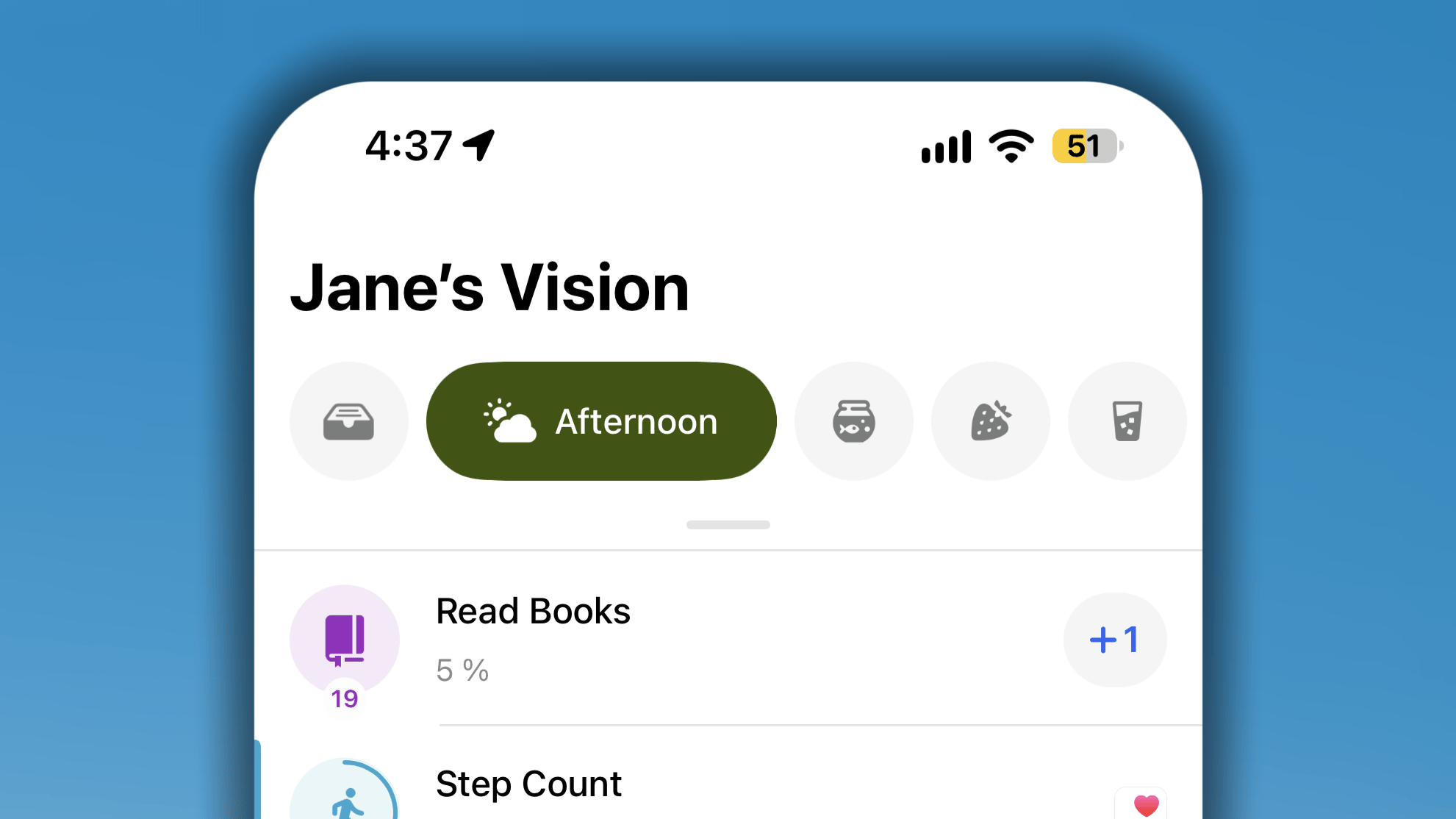
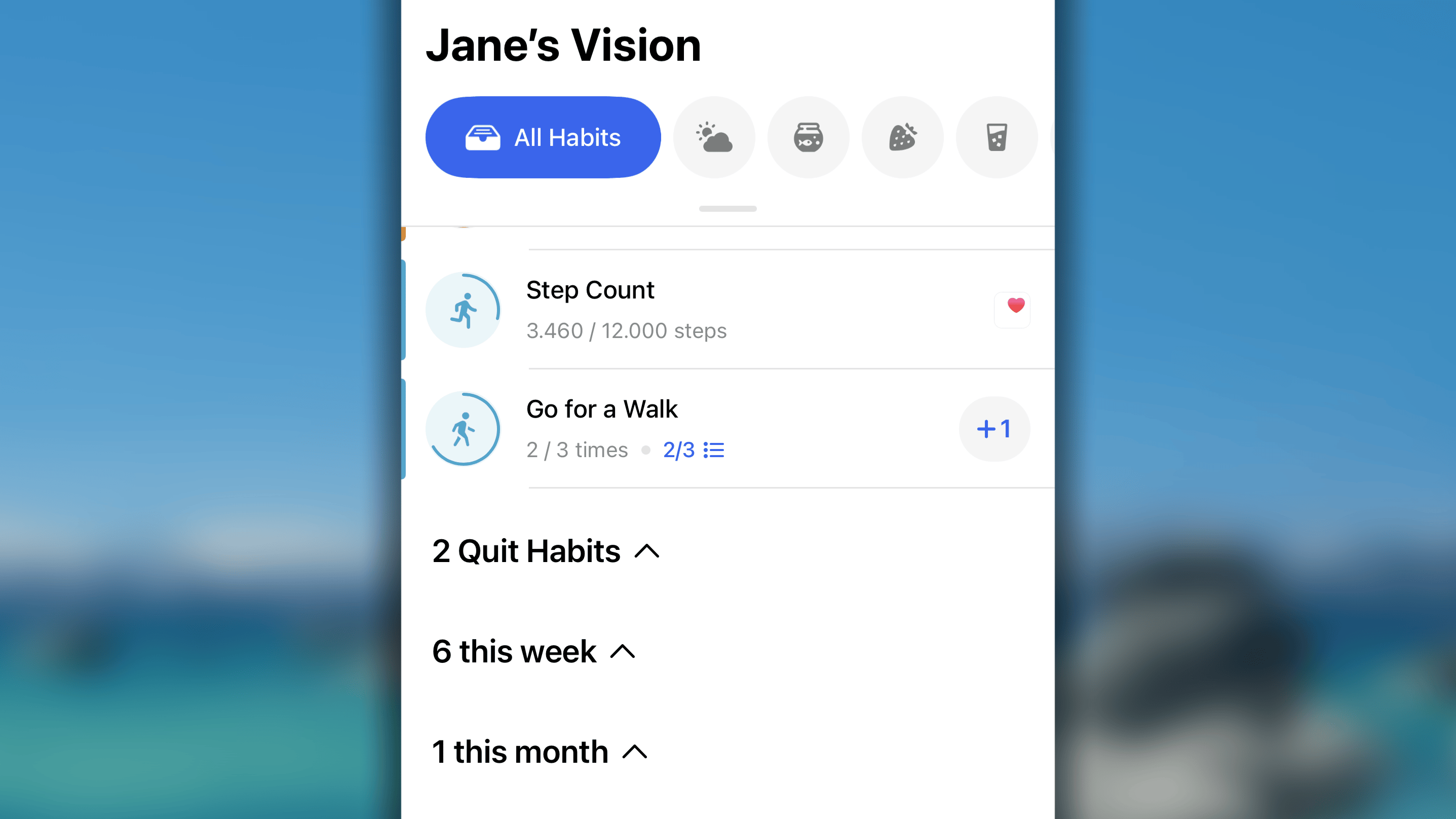
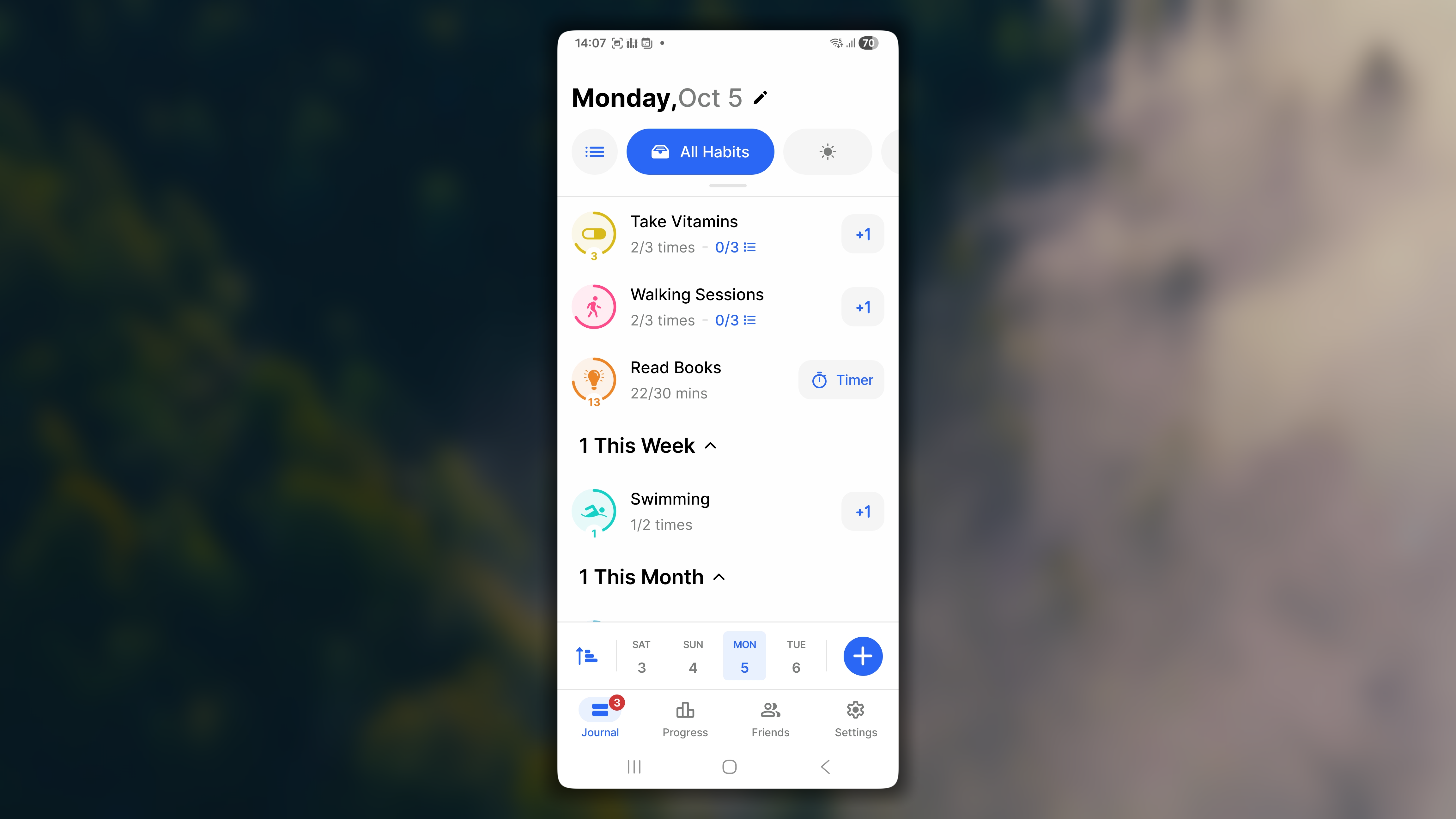
The Journal is where your habits actually live day to day. It’s the first screen you see when you open Habitify, showing exactly what’s due today and nothing more. No matter which platform you’re on, the Journal is built around the same idea: keep today simple and clear, while still giving you the tools to organize, filter, and sort your habits underneath that simplicity.This article walks through how to navigate the Journal, understand how your habits are grouped, and manage the order they appear in, so you can shape it to fit how you actually move through your day.
At the top of the Journal, right next to All Habits, you’ll find an Area Bar that lets you move between different ways of viewing your day:
All Habits: every habit scheduled for today, in one list.
Current Time of Day list: only the habits assigned to that block of time. This automatically jumps to the current time block based on the ranges you’ve set (for example, switching to “Morning” the moment your morning window starts), so you’re not stuck manually flipping tabs throughout the day.
Custom Area lists: habits grouped under the Areas you’ve created, like “Health” or “Work.” Instead of scanning your whole day, you can zoom into just one part of your life at a time.
Journal has two layouts: Day View and Week View. Daily View keeps your attention on today. Weekly View shows a full week at a glance, so you can spot patterns.To switch between the layouts, tap the layout button next to “All Habits”.Day View and Week View show the same habits from the same list. Only the way each habit is displayed changes.
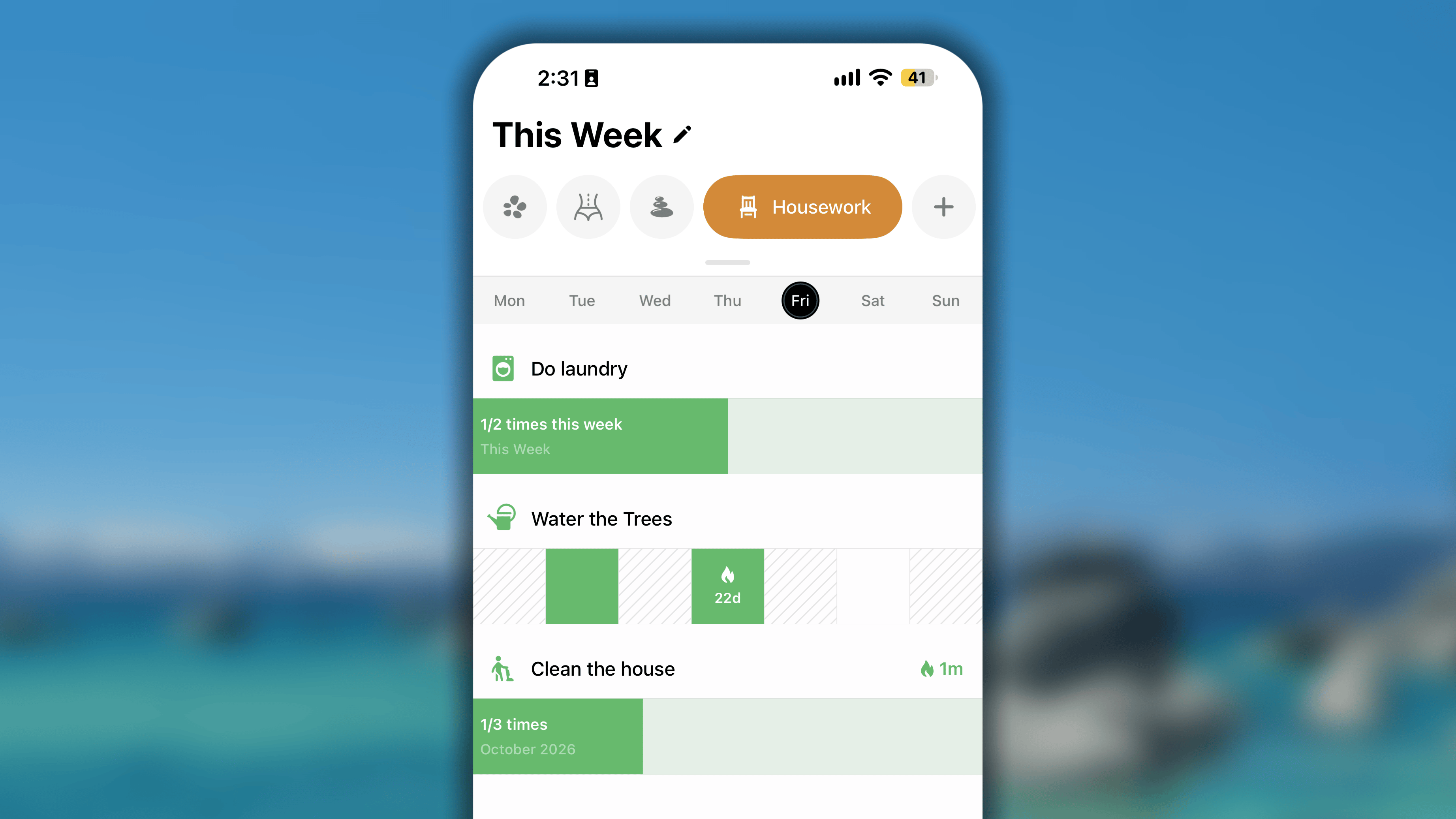
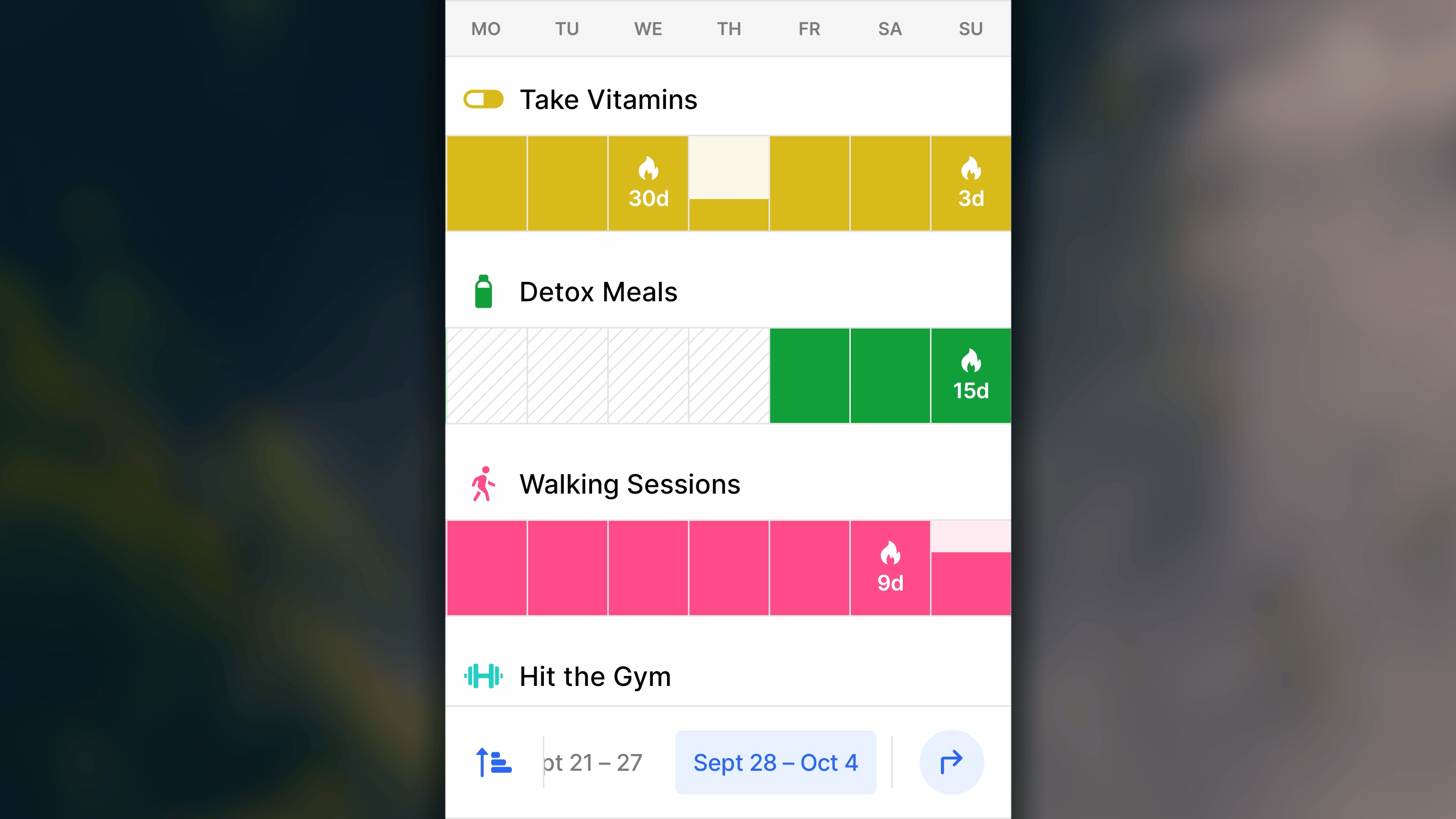
Week View shows your habits across a full week, so you can see how they’re trending instead of only what’s due today.The week starts on Monday or Sunday, depending on your selection in Settings > First Day of Week.Every habit gets its own row, with its icon and name above it. Today is highlighted in the day bar at the top. To move between weeks, use the week bar at the bottom of the screen. The selected week is highlighted.How a habit looks depends on its type: a good habit, a habit to limit, or a habit to quit.If you habit is a good habit with goal per day:
Each day is one cell representing your progress of the day:
A completed day is filled with a solid shade of the habit’s color. Consecutive completed days join into one continuous bar.
A day still in progress fills from the bottom up as you log more toward the daily goal.
A skipped day is marked with an →.
A failed day is marked with an ✕.
On days when the habit doesn’t repeat or haven’t started yet, the cell is hatched with diagonal lines.
Your streak appears as a 🔥 with its length (for example, 🔥7d) on the cell of the last day you completed the daily goal.
If you habit is a good habit with goal per week, month, or year:
The period is one seamless stripe
The stripe shows your progress toward the goal and fills as you log. For example, 2/7 times this week, or 27/30 km August 2026.
On the right of the habit name is your streak, counted in weeks, months, or years to match the goal period (for example, 🔥2w or 🔥3m). It’s counted up to the week you’re viewing, so it may changes as you move between weeks.
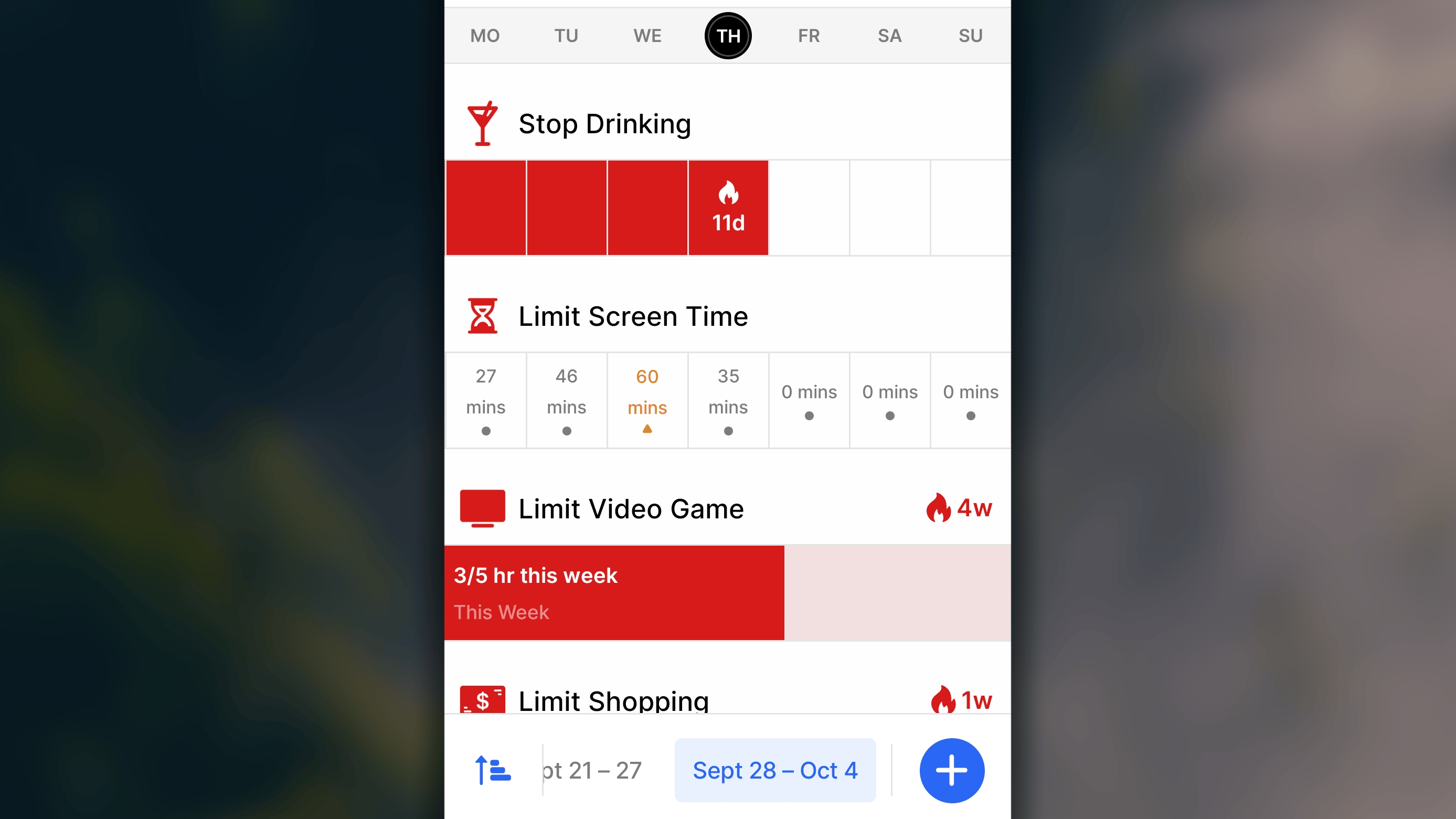
If you habit is a bad habit to quit:
Habits to quit have no goal period. They’re tracked day by day.
Each day is one cell representing your day:
A day you stayed on track is filled with a solid shade of the habit’s color. Consecutive days join into one continuous bar.
A day you check in ‘Fail’ is marked with an ✕.
A day you check in ‘Skip’ is marked with an →.
On days before your habit’s start date, the cell is hatched with diagonal lines.
Your streak appears as a 🔥 with its length (for example, 🔥3d) on the cell of the last day you stayed on track.
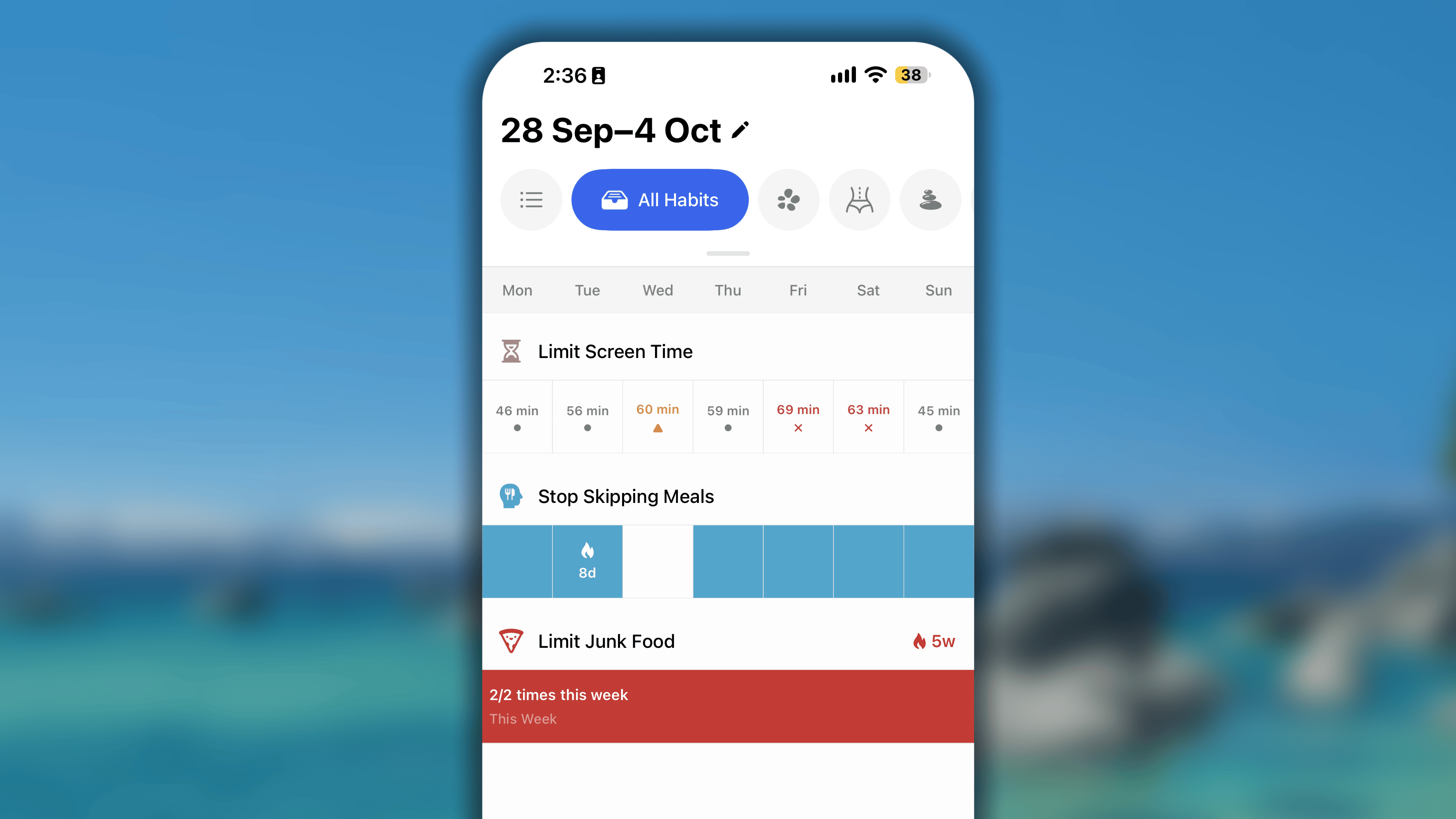
If you habit is a bad habit to limit per day:
Each day is one cell that shows the amount you logged that day (for example, 15m), with a marker under the amount that shows where you stand:
a grey • means you’re within your limit.
an orange ▲ means you’ve reached your limit.
a red ✕ means you’ve overdone it.
a day you check in ‘Skip’ directly is marked with an →.
a day you check in ‘Fail’ directly is marked with an ✕.
If you habit is a bad habit to limit per week, month, or year
The period is one seamless stripe with a + button on its left, the stripe is extended until ‘tomorrow’ in the current week, and will lengthen gradually until the end of the week.
The stripe shows how much you’ve logged against your limit for that period.
The stripe shows your progress against the limit and fills as you log. For example, 27/60 minutes this week, or 2/5 times this month.
Day View: habits are sub-categorized first (by status, and by goal type within In progress / uncompleted), then sorted in your selected order inside each group.
Week View: habits are sorted in your selected order across one continuous list, regardless of their status, type, or goal period.
Journal adapts to how you hold and fold your iPhone Duo, so the layout always fits the screen you’re using.Below is a short video for the preview of Journal on iPhone duo:
When your iPhone Duo is folded, Journal looks the same as it does on a standard iPhone, just with a shorter height. The navigation buttons for the other tabs sit on the right side of the screen.When you unfold it, Journal switches to the iPad version, which gives you much more room to work:
On the left, the sidebar lets you move between your Areas and the other tabs, such as Progress, Friends, and Reflection.
On the right, you’ll find the date bar along with the button to sort your habits or switch the layout between Day and Week view.
How can I preview further than tomorrow in Day view?
Currently, the Day view only supports viewing your schedule for Today and Tomorrow.The Day view is engineered specifically for immediate execution. While looking ahead might feel like productive planning, seeing an endless, rolling list of upcoming daily tasks often leads to “checklist fatigue” and overwhelm. By restricting your forward visibility to just the next 24 hours, Habitify keeps your cognitive load light. It encourages you to focus entirely on winning today and making basic preparations for tomorrow, without letting the weight of next week’s commitments paralyze your current momentum.
How far back can I review my past habits in the Day view?
You can navigate back up to 30 days in the past when using the Day View.By keeping the Day View restricted to a 30-day rolling window, the app ensures that your daily tracker remains fast, lightweight, and focused purely on your current momentum, rather than bogging you down in the microscopic details of the distant past.
How far can I see back in Week view?
Habitify limits your Week view history to a rolling 54-week window to provide a complete picture of your annual progress while ensuring your data remains highly relevant to your current life.
At the top of the Journal, right next to All Habits, you’ll find an Area Bar that lets you move between different ways of viewing your day:
All Habits: every habit scheduled for today, in one list.
Time of Day lists: only the habits assigned to that block of time. This bar is smart: it automatically jumps to the current time block based on the ranges you’ve set (for example, switching to “Morning” the moment your morning window starts), so you’re not stuck manually flipping tabs throughout the day.
Custom Area lists: habits grouped under the Areas you’ve created, like “Health” or “Work.” Instead of scanning your whole day, you can zoom into just one part of your life at a time.
Each of these is a genuinely separate list: a habit’s position in “All Habits” doesn’t affect where it sits in a Time of Day list or a Custom Area, which is what makes the next section useful.
Journal has two layouts: Day View and Week View. Daily View keeps your attention on today. Weekly View shows a full week at a glance, so you can spot patterns.To switch between the layouts, tap the layout button next to “All Habits”.Day View and Week View show the same habits from the same list. Only the way each habit is displayed changes.
Day View shows exactly what’s due today and nothing more. It’s the place to check in, log progress, and see what’s left of your day.Within any list, Habitify quietly groups habits by their current status, so what needs your attention rises to the top:
In progress / uncompleted: habits you haven’t finished yet today. This is the default focus of your list.
Completed: habits you’ve already checked off, kept visible so you can see today’s wins at a glance.
Skipped: habits that you chose to log it as a cheat day rather than break your streak. A skipped day freezes your streak instead of resetting it.
Failed: habits you’re marking honestly as a slip, and want it recorded as-is rather than smoothed over as a skip.
Within the in-progress/uncompleted group specifically, habits are further ordered by their goal type, top to bottom:
Good habits and limit-type habits with a daily goal: sits at the top, together, since both are core, everyday actions you’re expected to act on today.
Quit Habit(s): habits you’re trying to quit entirely, kept in their own sub-category since there’s no daily goal to hit, just a day to get through.
This Week: Good habits and limit-type habits with a goal per week.
This Month: Good habits and limit-type habits with a goal per month.
This Year: Good habits and limit-type habits with a goal per year.
Week View shows your habits across a full week, so you can see how they’re trending instead of only what’s due today.The week starts on Monday or Sunday, depending on your selection in Settings > First Day of Week.Every habit gets its own row, with its icon and name above it. Today is highlighted in the day bar at the top. To move between weeks, use the week bar at the bottom of the screen. The selected week is highlighted.How a habit looks depends on its type: a good habit, a habit to limit, or a habit to quit.If you habit is a good habit with goal per day
Each day is one cell representing your progress of the day:
A completed day is filled with a solid shade of the habit’s color. Consecutive completed days join into one continuous bar.
A day still in progress fills from the bottom up as you log more toward the daily goal.
A skipped day is marked with an →.
A failed day is marked with an ✕.
On days when the habit doesn’t repeat or haven’t started yet, the cell is hatched with diagonal lines.
Your streak appears as a 🔥 with its length (for example, 🔥7d) on the cell of the last day you completed the daily goal. If the whole week is part of a streak, it appears on the last day of the week and shows your streak length up to that day.
If you habit is a good habit with goal per week, month, or year
The period is one seamless stripe
The stripe shows your progress toward the goal and fills as you log. For example, 2/7 times this week, or 27/30 km August 2026.
On the right of the habit name is your streak, counted in weeks, months, or years to match the goal period (for example, 🔥2w or 🔥3m). It’s counted up to the week you’re viewing, so it may changes as you move between weeks.
If you habit is a bad habit to quitHabits to quit have no goal period. They’re tracked day by day.
Each day is one cell representing your day:
A day you stayed on track is filled with a solid shade of the habit’s color. Consecutive days join into one continuous bar.
A day you check in ‘Fail’ is marked with an ✕.
A day you check in ‘Skip’ is marked with an →.
On days before your habit’s start date, the cell is hatched with diagonal lines.
Your streak appears as a 🔥 with its length (for example, 🔥3d) on the cell of the last day you stayed on track.
If you habit is a bad habit to limit per day
Each day is one cell that shows the amount you logged that day (for example, 15m), with a marker under the amount that shows where you stand:
a grey • means you’re within your limit.
an orange ▲ means you’ve reached your limit.
a red ✕ means you’ve overdone it.
a day you check in ‘Skip’ directly is marked with an →.
a day you check in ‘Fail’ directly is marked with an ✕.
If you habit is a bad habit to limit per week, month, or year
The period is one seamless stripe with a + button on its left, the stripe is extended until ‘tomorrow’ in the current week, and will lengthen gradually until the end of the week.
The stripe shows how much you’ve logged against your limit for that period.
The stripe shows your progress against the limit and fills as you log. For example, 27/60 minutes this week, or 2/5 times this month.
Day View: habits are sub-categorized first (by status, and by goal type within In progress / uncompleted), then sorted in your selected order inside each group.
Week View: habits are sorted in your selected order across one continuous list, regardless of their status, type, or goal period.
Access the menu again, in Manage, choose My Habits Order.
Press and hold the ⚌ icon, then drag it up or down to its new position.
Tap Save to apply your changes.
Order is independent per list.Rearranging ‘All Habits’ doesn’t change the order inside a Time of Day list or a Custom Area. To rearrange the habit order in those lists:
For each Time of Day list: go to Settings → Time of Day → choose a time block → arrange the habits.
For each Custom Area list: go to Settings → Manage Area → choose an area → arrange the habits.
Habitify limits your Week view history to a rolling 54-week window to provide a complete picture of your annual progress while ensuring your data remains highly relevant to your current life.
How can I preview further than tomorrow in Day view?
Currently, the Day view only supports viewing your schedule for Today and Tomorrow.The Day view is engineered specifically for immediate execution. While looking ahead might feel like productive planning, seeing an endless, rolling list of upcoming daily tasks often leads to “checklist fatigue” and overwhelm. By restricting your forward visibility to just the next 24 hours, Habitify keeps your cognitive load light. It encourages you to focus entirely on winning today and making basic preparations for tomorrow, without letting the weight of next week’s commitments paralyze your current momentum.
How far back can I review my past habits in the Day view?
You can navigate back up to 30 days in the past when using the Day view.By keeping the Day view restricted to a 30-day rolling window, the app ensures that your daily tracker remains fast, lightweight, and focused purely on your current momentum, rather than bogging you down in the microscopic details of the distant past.
The sidebar on the left side of the app window is your starting point for every session. From here, you can move between:
All Habits: every habit you’re tracking, scheduled for today, shown together in one place.
Time of Day lists: narrows the list down to only the habits assigned to that block of your day, so you’re not looking at your evening routine while you’re still having breakfast.
Area lists: if you’ve grouped habits under Areas like “Health,” “Work,” or “Morning Routine,” each one gets its own list here, letting you focus on a single part of your life at a time instead of your whole day at once.
Whichever list you pick from the sidebar, it stays selected as you switch between Grid and List layout above it, the sidebar decides which habits you’re looking at, and the layout switch decides how you’re looking at them.
Grid view is built for seeing your habits the way a calendar laid out across several days at once, so you can spot patterns instead of just checking off one day in isolation.How daily habits appearEach daily habit gets its own row, and each day is represented as a single cell in that row, shaded in the habit’s assigned color.Scan across a row and you’re essentially looking at a visual streak, solid color chains together into an obvious run of consistency, while gaps or lighter cells show you exactly where things slipped.How weekly, monthly, and yearly habits appearThese target-based habits render as a single horizontal stride that spans the entire length of that week, month, or year.Think of it as a progress bar built into the grid: it fills in gradually as you log progress, so at a glance you can tell how close you are to hitting the goal for that period without doing any mental math about which days you’ve already covered.How habits are categorizedThe Grid layout doesn’t split your habits into completed, in-progress, or skipped groups. It’s one continuous, seamless list. The idea is that Grid layout is for reviewing patterns across time, not managing today’s to-do list, so breaking it up by status would work against the point of scanning everything at once.
List layout is the narrower, more immediate counterpart: instead of a wide view across days, it zeroes in on a single day and what still needs to get done. It opens by default to Today’s list.In List Layout, habits are automatically sorted into sub-categories based on their current status:
In progress / uncompleted: the habits you haven’t finished yet, and the default focus of the list.
Completed: habits you’ve already checked off, kept visible so you can see your wins for the day so far.
Skipped: habits where you went over a limit or did something you’re trying to quit, but chose to log it as a cheat day rather than break your streak. A skipped day freezes your streak instead of resetting it.
Failed: habits you’re marking honestly as a slip, and want it recorded as-is rather than smoothed over as a skip.
Within the in-progress/uncompleted group, there’s a further layer of ordering based on each habit’s goal type, top to bottom:
Good Habits with a daily goal: sits at the very top, since these are the core actions expected of you today.
Habits to Break: habits you’re quitting entirely, or limit-type habits with a daily goal.
This Week: good habits and limit-type habits with a goal per week.
This Month: good habits and limit-type habits with a goal per month.
This Year: good habits and limit-type habits with a goal per year.
Sorting behaves identically whether you’re in Grid or List view. Click the sort button at the top-right corner of the habit name column, and choose from:
Alphabetical (A-Z or Z-A): orders your list by habit name.
Reminder Time: orders habits chronologically by their first reminder of the day.
My Habits Order: a fully manual order you set yourself
You can set your custom order from either of two places, and both update the same underlying order, so it doesn’t matter which one you use, the result carries over to both Grid and List layout:With Grid layout:
select My Habits Order from the sort menu,
hold your mouse on the (☷) button on the left side of the habit’s icon, and drag it up or down to its new position.
With List layout:
on the left side bar, navigate to References, click on Habit.
click on Active(##)
hold your mouse on the habit, and drag it up or down to its new position.
Above the habit list, right next to the Grid/List switch, you’ll find a 🔍︎ icon. Click it to pull up a quick search field and find a specific habit by name.This can become handy once your list has grown past what you can scan in a glance, and it works exactly the same way regardless of which layout you’re currently viewing.
How can I preview my habits further than today on the website or desktop app?
The web and desktop versions intentionally limit to only previewing Today and Tomorrow.Seeing an endless, scrolling list of future commitments can quickly trigger “checklist fatigue” and overwhelm. By keeping your forward visibility tight, the web dashboard ensures your cognitive energy is spent on executing today’s routines rather than worrying about next week’s.
How far back can I review my progress in the List layout?
In the List layout, you can navigate back up to 30 days.The List layout is engineered for granular, day-to-day execution and immediate reflection. Capping this view at a rolling 30-day window keeps the interface lightning-fast and ensures your focus remains on your immediate momentum.
How far back can I review in the Grid layout?
The historical view in the Grid layout is completely dynamic: it depends entirely on the size of your desktop window or the zoom level in your web browser.You can zoom out to visually capture months of streak data at a single glance to spot macro-patterns, or zoom in to focus on a specific cluster of weeks, giving you total control over how you analyze your long-term progress.
{"docsConfig":{"theme":"aspen","$schema":"https://mintlify.com/docs.json","name":"Habitify","description":"This is the official knowledge base of Habitify, the habit tracker app for iOS, Android, desktop, and web. Find step-by-step guides on creating and tracking your habits, setting up integrations and automations for advanced tracking, and exploring Habitify's AI features, including Habitify MCP, Habi AI, and Siri AI-supported.","colors":{"primary":"#164AF2","light":"#164AF2","dark":"#1D45C9"},"logo":{"light":"https://mintcdn.com/habitify/6ubuIYTR9HqwJmST/images/Group3.png?fit=max\u0026auto=format\u0026n=6ubuIYTR9HqwJmST\u0026q=85\u0026s=19d2ca75b3476d732425d7ae3a079d41","dark":"https://mintcdn.com/habitify/79szqEEvHCts8PIA/images/Group1.png?fit=max\u0026auto=format\u0026n=79szqEEvHCts8PIA\u0026q=85\u0026s=aa244f00b99bdfebc0839912c4fadfbd"},"favicon":{"light":"https://mintcdn.com/habitify/6mDwR9tnCNQh0nLA/images/64-Desktop.png?fit=max\u0026auto=format\u0026n=6mDwR9tnCNQh0nLA\u0026q=85\u0026s=1a92045ea4ab8565691f7db03ebccb55","dark":"https://mintcdn.com/habitify/6mDwR9tnCNQh0nLA/images/64-Desktop.png?fit=max\u0026auto=format\u0026n=6mDwR9tnCNQh0nLA\u0026q=85\u0026s=1a92045ea4ab8565691f7db03ebccb55"},"navbar":{"links":[{"href":"mailto:contact@habitify.me","label":"Contact Us"}],"primary":{"type":"button","label":"Download App","href":"https://habitify.me/download"}},"footer":{"socials":{"x":"https://x.com/usehabitify","instagram":"https://instagram.com/habitify.me","facebook":"https://facebook.com/habitify","website":"https://habitify.me"}},"contextual":{"options":["copy","view","chatgpt","claude","perplexity","mcp","cursor","vscode"],"display":"header"},"styling":{"latex":false},"navigation":{"pages":[]}},"deployment":{"deploymentMetadataValue":{"subdomain":"habitify","hasAudioNarration":false,"actualSubdomain":"habitify","customDomains":["docs.habitify.me"],"gitSource":{"type":"github","owner":"unstatic-co","repo":"habitify-public-docs","deployBranch":"main","contentDirectory":"","isPrivate":false,"mountPath":"","label":""},"chroma":{"latestBuiltDeploymentHistoryId":"6ad97767e2e889d7781ddf13","collectionId":"6068df77-ee1d-4d32-b116-279e1ecbb741","liveDeploymentHistoryId":"6ad97767e2e889d7781ddf13","schemaVersion":"v3"},"feedback":{"thumbs":false,"issues":false},"entitlements":{},"buildId":"6ad97767e2e889d7781ddf13","clientVersion":"0.0.3966","searchFilterCounts":[{"language":"default","tag":"Documentation","count":41},{"language":"default","tag":"API Documentation","count":24},{"language":"default","tag":"Integration","count":9},{"language":"default","tag":"Features","count":8},{"language":"default","tag":"Habits","count":8},{"language":"default","tag":"Habit Logs","count":7},{"language":"default","tag":"Tools","count":6},{"language":"default","tag":"Plans \u0026 Billing","count":5},{"language":"default","tag":"Areas","count":5},{"language":"default","tag":"Automation","count":4}]},"assistantConfig":{"enableAskAiButton":false,"enableStarterQuestions":false,"enableContextualStarterQuestions":false,"enableAskAiSearchBar":true},"hasChatPermissions":false,"hasWebMcpPermissions":false,"toggles":[{"name":"kill-isr","enabled":true,"variant":{"name":"disabled","enabled":false,"feature_enabled":true},"impressionData":false},{"name":"agent-mintlify-slack","enabled":true,"variant":{"name":"disabled","enabled":false,"feature_enabled":true},"impressionData":false},{"name":"editor-v7-file-tree","enabled":true,"variant":{"name":"disabled","enabled":false,"feature_enabled":true},"impressionData":false},{"name":"agent-integrations-settings","enabled":true,"variant":{"name":"disabled","enabled":false,"feature_enabled":true},"impressionData":false},{"name":"automations-pr-grouping","enabled":true,"variant":{"name":"disabled","enabled":false,"feature_enabled":true},"impressionData":false},{"name":"custom-prefix","enabled":true,"variant":{"name":"disabled","enabled":false,"feature_enabled":true},"impressionData":false},{"name":"analytics-v7","enabled":true,"variant":{"name":"disabled","enabled":false,"feature_enabled":true},"impressionData":false},{"name":"user-flows-analytics","enabled":true,"variant":{"name":"disabled","enabled":false,"feature_enabled":true},"impressionData":false},{"name":"no-publish-flow","enabled":true,"variant":{"name":"disabled","enabled":false,"feature_enabled":true},"impressionData":false},{"name":"workos-onboarding","enabled":true,"variant":{"name":"disabled","enabled":false,"feature_enabled":true},"impressionData":false},{"name":"llms-txt-v2","enabled":true,"variant":{"name":"disabled","enabled":false,"feature_enabled":true},"impressionData":false},{"name":"pause-universal-search-reconcile","enabled":true,"variant":{"name":"disabled","enabled":false,"feature_enabled":true},"impressionData":false},{"name":"snapshot-serving-live","enabled":true,"variant":{"name":"disabled","enabled":false,"feature_enabled":true},"impressionData":false},{"name":"stripTemperatureMiddleware","enabled":true,"variant":{"name":"disabled","enabled":false,"feature_enabled":true},"impressionData":false},{"name":"per-site-search-delta","enabled":true,"variant":{"name":"disabled","enabled":false,"feature_enabled":true},"impressionData":false},{"name":"support-platform-pylon-zendesk","enabled":true,"variant":{"name":"disabled","enabled":false,"feature_enabled":true},"impressionData":false},{"name":"snapshot-serving","enabled":true,"variant":{"name":"disabled","enabled":false,"feature_enabled":true},"impressionData":false},{"name":"instant-rollback","enabled":true,"variant":{"name":"disabled","enabled":false,"feature_enabled":true},"impressionData":false},{"name":"granular-notifications-server","enabled":true,"variant":{"name":"disabled","enabled":false,"feature_enabled":true},"impressionData":false},{"name":"granular-notifications","enabled":true,"variant":{"name":"disabled","enabled":false,"feature_enabled":true},"impressionData":false},{"name":"editor-private-page-search","enabled":true,"variant":{"name":"disabled","enabled":false,"feature_enabled":true},"impressionData":false},{"name":"automations-fable","enabled":true,"variant":{"name":"disabled","enabled":false,"feature_enabled":true},"impressionData":false},{"name":"fixed-ai-action-pricing","enabled":true,"variant":{"name":"disabled","enabled":false,"feature_enabled":true},"impressionData":false},{"name":"automation-resolve-merge-conflict","enabled":true,"variant":{"name":"disabled","enabled":false,"feature_enabled":true},"impressionData":false},{"name":"scoped-publishing","enabled":true,"variant":{"name":"disabled","enabled":false,"feature_enabled":true},"impressionData":false},{"name":"mintql","enabled":true,"variant":{"name":"disabled","enabled":false,"feature_enabled":true},"impressionData":false},{"name":"page-level-analytics","enabled":true,"variant":{"name":"disabled","enabled":false,"feature_enabled":true},"impressionData":false},{"name":"editor-version-history-v2","enabled":true,"variant":{"name":"disabled","enabled":false,"feature_enabled":true},"impressionData":false},{"name":"editor-nav-generations","enabled":true,"variant":{"name":"disabled","enabled":false,"feature_enabled":true},"impressionData":false},{"name":"billing-page-v2","enabled":true,"variant":{"name":"disabled","enabled":false,"feature_enabled":true},"impressionData":false},{"name":"workspace-projects","enabled":true,"variant":{"name":"disabled","enabled":false,"feature_enabled":true},"impressionData":false},{"name":"assistant-v5","enabled":true,"variant":{"name":"disabled","enabled":false,"feature_enabled":true},"impressionData":false},{"name":"byok-sep-25","enabled":true,"variant":{"name":"disabled","enabled":false,"feature_enabled":true},"impressionData":false},{"name":"fork-pr-previews","enabled":true,"variant":{"name":"disabled","enabled":false,"feature_enabled":true},"impressionData":false},{"name":"revalidation-jwt","enabled":true,"variant":{"name":"disabled","enabled":false,"feature_enabled":true},"impressionData":false},{"name":"vite-origin","enabled":true,"variant":{"name":"disabled","enabled":false,"feature_enabled":true},"impressionData":false},{"name":"editor-agent-model-picker","enabled":true,"variant":{"name":"disabled","enabled":false,"feature_enabled":true},"impressionData":false},{"name":"billing-updated-9-15","enabled":true,"variant":{"name":"disabled","enabled":false,"feature_enabled":true},"impressionData":false},{"name":"hobby-abuse-scan","enabled":true,"variant":{"name":"disabled","enabled":false,"feature_enabled":true},"impressionData":false},{"name":"dashboard-inbox","enabled":true,"variant":{"name":"disabled","enabled":false,"feature_enabled":true},"impressionData":false}],"isAtlas":false,"googleFontsInlined":false},"customCss":[],"page":{"pagePath":"journal","slug":"/journal","pageMetadata":{"title":"Journal","description":null,"href":"/journal"},"pageType":"default","mdx":{"mdxSource":{"compiledSource":"\"use strict\";const{Fragment:_Fragment,jsx:_jsx,jsxs:_jsxs}=arguments[0];const{useMDXComponents:_provideComponents}=arguments[0];function _createMdxContent(props){const _components={em:`em`,li:`li`,ol:`ol`,p:`p`,strong:`strong`,ul:`ul`,..._provideComponents(),...props.components},{Accordion,Heading,Note,OptimizedFrame,OptimizedImage,Tab,Tabs}=_components;if(!Accordion)_missingMdxReference(`Accordion`,true);if(!Heading)_missingMdxReference(`Heading`,true);if(!Note)_missingMdxReference(`Note`,true);if(!OptimizedFrame)_missingMdxReference(`OptimizedFrame`,true);if(!OptimizedImage)_missingMdxReference(`OptimizedImage`,true);if(!Tab)_missingMdxReference(`Tab`,true);if(!Tabs)_missingMdxReference(`Tabs`,true);return _jsxs(_Fragment,{children:[_jsx(_components.p,{children:`The Journal is where your habits actually live day to day. It’s the first screen you see when you open Habitify, showing exactly what’s due today and nothing more. No matter which platform you’re on, the Journal is built around the same idea: keep today simple and clear, while still giving you the tools to organize, filter, and sort your habits underneath that simplicity.`}),`\n`,_jsx(_components.p,{children:`This article walks through how to navigate the Journal, understand how your habits are grouped, and manage the order they appear in, so you can shape it to fit how you actually move through your day.`}),`\n`,_jsxs(Tabs,{children:[_jsxs(Tab,{title:` iOS`,id:`%EF%A3%BF-ios`,\"data-child-heading-ids\":`[\"switching-between-lists\",\"switching-between-layouts\",\"day-view\",\"week-view\",\"managing-habit-order\",\"how-sorting-is-applied-in-each-layout\",\"how-to-customize-%E2%80%98my-habits-order%E2%80%99\",\"searching-habits\",\"journal-on-iphone-duo\",\"faqs\"]`,children:[_jsx(OptimizedFrame,{src:`https://drive.google.com/file/d/1FVghynLUGkO6QicsLFLkIjXaJoGzbCMq/preview`,width:`640`,height:`360`}),_jsx(Heading,{level:`2`,id:`switching-between-lists`,children:`Switching between lists`}),_jsxs(_components.p,{children:[`At the top of the Journal, right next to `,_jsx(_components.strong,{children:`All Habits`}),`, you’ll find an Area Bar that lets you move between different ways of viewing your day:`]}),_jsx(OptimizedImage,{src:`https://mintcdn.com/habitify/enmgtvLM6ls7WDyH/images/Areabar_Journal_iOS.png?fit=max\u0026auto=format\u0026n=enmgtvLM6ls7WDyH\u0026q=85\u0026s=96233b0e35ba7f974815e2e3248deefd`,alt:`Areabar Journal I OS`,\"data-og-width\":`1981`,width:`1981`,\"data-og-height\":`1114`,height:`1114`,\"data-path\":`images/Areabar_Journal_iOS.png`,\"data-optimize\":`true`,\"data-opv\":`3`,srcset:`https://mintcdn.com/habitify/enmgtvLM6ls7WDyH/images/Areabar_Journal_iOS.png?w=280\u0026fit=max\u0026auto=format\u0026n=enmgtvLM6ls7WDyH\u0026q=85\u0026s=644178816ada7c0b912f8c9863a9a0dd 280w, https://mintcdn.com/habitify/enmgtvLM6ls7WDyH/images/Areabar_Journal_iOS.png?w=560\u0026fit=max\u0026auto=format\u0026n=enmgtvLM6ls7WDyH\u0026q=85\u0026s=91b869d9dca388182dc54cc27543edcf 560w, https://mintcdn.com/habitify/enmgtvLM6ls7WDyH/images/Areabar_Journal_iOS.png?w=840\u0026fit=max\u0026auto=format\u0026n=enmgtvLM6ls7WDyH\u0026q=85\u0026s=a9b4c0a3010c1ad52d081ab220265647 840w, https://mintcdn.com/habitify/enmgtvLM6ls7WDyH/images/Areabar_Journal_iOS.png?w=1100\u0026fit=max\u0026auto=format\u0026n=enmgtvLM6ls7WDyH\u0026q=85\u0026s=19e85c6a2ceda850c012ebc8b564402e 1100w, https://mintcdn.com/habitify/enmgtvLM6ls7WDyH/images/Areabar_Journal_iOS.png?w=1650\u0026fit=max\u0026auto=format\u0026n=enmgtvLM6ls7WDyH\u0026q=85\u0026s=81c530f9e4d928e237d31664ca3afefc 1650w, https://mintcdn.com/habitify/enmgtvLM6ls7WDyH/images/Areabar_Journal_iOS.png?w=2500\u0026fit=max\u0026auto=format\u0026n=enmgtvLM6ls7WDyH\u0026q=85\u0026s=6af24cd389dda2387b91e8bf1fdcbb73 2500w`}),_jsxs(_components.ul,{children:[`\n`,_jsxs(_components.li,{children:[_jsx(_components.strong,{children:`All Habits`}),`: every habit scheduled for today, in one list.`]}),`\n`,_jsxs(_components.li,{children:[_jsx(_components.strong,{children:`Current Time of Day list:`}),` only the habits assigned to that block of time. This automatically jumps to the current time block based on the ranges you’ve set (for example, switching to “Morning” the moment your morning window starts), so you’re not stuck manually flipping tabs throughout the day.`]}),`\n`,_jsxs(_components.li,{children:[_jsx(_components.strong,{children:`Custom Area lists`}),`: habits grouped under the Areas you’ve created, like “Health” or “Work.” Instead of scanning your whole day, you can zoom into just one part of your life at a time.`]}),`\n`]}),_jsx(Heading,{level:`2`,id:`switching-between-layouts`,children:`Switching between layouts`}),_jsxs(_components.p,{children:[`Journal has two layouts: `,_jsx(_components.strong,{children:`Day View`}),` and `,_jsx(_components.strong,{children:`Week View`}),`. `,_jsx(_components.em,{children:`Daily View`}),` keeps your attention on today. `,_jsx(_components.em,{children:`Weekly View`}),` shows a full week at a glance, so you can spot patterns.`]}),_jsx(_components.p,{children:`To switch between the layouts, tap the layout button next to “All Habits”.`}),_jsxs(_components.p,{children:[_jsx(_components.strong,{children:`Day View`}),` and `,_jsx(_components.strong,{children:`Week View`}),` show the same habits from the same list. Only the way each habit is displayed changes.`]}),_jsx(Heading,{level:`3`,id:`day-view`,children:_jsx(_components.strong,{children:`Day View`})}),_jsx(_components.p,{children:`Day View shows exactly what’s due today and nothing more. It’s the place to check in, log progress, and see what’s left of your day.`}),_jsx(OptimizedImage,{src:`https://mintcdn.com/habitify/enmgtvLM6ls7WDyH/images/HabitStatus_Journal_iOS-copy.png?fit=max\u0026auto=format\u0026n=enmgtvLM6ls7WDyH\u0026q=85\u0026s=d1f0a05ff7170ce14f46e76e3324b561`,alt:`Habit Status Journal I OS Copy`,\"data-og-width\":`3359`,width:`3359`,\"data-og-height\":`1890`,height:`1890`,\"data-path\":`images/HabitStatus_Journal_iOS-copy.png`,\"data-optimize\":`true`,\"data-opv\":`3`,srcset:`https://mintcdn.com/habitify/enmgtvLM6ls7WDyH/images/HabitStatus_Journal_iOS-copy.png?w=280\u0026fit=max\u0026auto=format\u0026n=enmgtvLM6ls7WDyH\u0026q=85\u0026s=6c80157bb544ede768654809d489d341 280w, https://mintcdn.com/habitify/enmgtvLM6ls7WDyH/images/HabitStatus_Journal_iOS-copy.png?w=560\u0026fit=max\u0026auto=format\u0026n=enmgtvLM6ls7WDyH\u0026q=85\u0026s=72db1edcd9582d8ce826763e0d41b994 560w, https://mintcdn.com/habitify/enmgtvLM6ls7WDyH/images/HabitStatus_Journal_iOS-copy.png?w=840\u0026fit=max\u0026auto=format\u0026n=enmgtvLM6ls7WDyH\u0026q=85\u0026s=8402056082ac9e78a177422f695e0df0 840w, https://mintcdn.com/habitify/enmgtvLM6ls7WDyH/images/HabitStatus_Journal_iOS-copy.png?w=1100\u0026fit=max\u0026auto=format\u0026n=enmgtvLM6ls7WDyH\u0026q=85\u0026s=97817c582e597e988c0ee7c70e7d3015 1100w, https://mintcdn.com/habitify/enmgtvLM6ls7WDyH/images/HabitStatus_Journal_iOS-copy.png?w=1650\u0026fit=max\u0026auto=format\u0026n=enmgtvLM6ls7WDyH\u0026q=85\u0026s=301cc7e434779de7acb5eea47085e256 1650w, https://mintcdn.com/habitify/enmgtvLM6ls7WDyH/images/HabitStatus_Journal_iOS-copy.png?w=2500\u0026fit=max\u0026auto=format\u0026n=enmgtvLM6ls7WDyH\u0026q=85\u0026s=b868aaf5d8571a3de6315b841666e1ad 2500w`}),_jsxs(_components.ul,{children:[`\n`,_jsxs(_components.li,{children:[_jsx(_components.strong,{children:`In progress / uncompleted`}),`: habits you haven’t finished yet today. This is the default focus of your list.`]}),`\n`,_jsxs(_components.li,{children:[_jsx(_components.strong,{children:`Completed`}),`: habits you’ve already checked off, kept visible so you can see today’s wins at a glance.`]}),`\n`,_jsxs(_components.li,{children:[_jsx(_components.strong,{children:`Skipped`}),`: habits that you chose to log it as a cheat day rather than break your streak. A skipped day freezes your streak instead of resetting it.`]}),`\n`,_jsxs(_components.li,{children:[_jsx(_components.strong,{children:`Failed`}),`: habits you’re marking honestly as a slip, and want it recorded as-is rather than smoothed over as a skip.`]}),`\n`]}),_jsx(_components.p,{children:`Within the in-progress/uncompleted group specifically, habits are further ordered by their goal type, top to bottom:`}),_jsx(OptimizedImage,{src:`https://mintcdn.com/habitify/enmgtvLM6ls7WDyH/images/HabitType_Journal_iOS.png?fit=max\u0026auto=format\u0026n=enmgtvLM6ls7WDyH\u0026q=85\u0026s=c39fc0d9ebd7e4e7612456f464a1b289`,alt:`Habit Type Journal I OS`,\"data-og-width\":`2874`,width:`2874`,\"data-og-height\":`1616`,height:`1616`,\"data-path\":`images/HabitType_Journal_iOS.png`,\"data-optimize\":`true`,\"data-opv\":`3`,srcset:`https://mintcdn.com/habitify/enmgtvLM6ls7WDyH/images/HabitType_Journal_iOS.png?w=280\u0026fit=max\u0026auto=format\u0026n=enmgtvLM6ls7WDyH\u0026q=85\u0026s=c50d13816a2803e0d3fe2019322f4f55 280w, https://mintcdn.com/habitify/enmgtvLM6ls7WDyH/images/HabitType_Journal_iOS.png?w=560\u0026fit=max\u0026auto=format\u0026n=enmgtvLM6ls7WDyH\u0026q=85\u0026s=a9c90e93f6d1f2f961b5b7266c970f14 560w, https://mintcdn.com/habitify/enmgtvLM6ls7WDyH/images/HabitType_Journal_iOS.png?w=840\u0026fit=max\u0026auto=format\u0026n=enmgtvLM6ls7WDyH\u0026q=85\u0026s=42a734fefab7a960805f161008374b4a 840w, https://mintcdn.com/habitify/enmgtvLM6ls7WDyH/images/HabitType_Journal_iOS.png?w=1100\u0026fit=max\u0026auto=format\u0026n=enmgtvLM6ls7WDyH\u0026q=85\u0026s=981ad840885c9a24afe6417e77ce009e 1100w, https://mintcdn.com/habitify/enmgtvLM6ls7WDyH/images/HabitType_Journal_iOS.png?w=1650\u0026fit=max\u0026auto=format\u0026n=enmgtvLM6ls7WDyH\u0026q=85\u0026s=cbac8c123ee22c5cf0658f21e7ebb106 1650w, https://mintcdn.com/habitify/enmgtvLM6ls7WDyH/images/HabitType_Journal_iOS.png?w=2500\u0026fit=max\u0026auto=format\u0026n=enmgtvLM6ls7WDyH\u0026q=85\u0026s=6386958f6a473d47a5684d86eebc046f 2500w`}),_jsxs(_components.ul,{children:[`\n`,_jsxs(_components.li,{children:[_jsx(_components.strong,{children:`Habits with a goal per day`}),`: sits at the top, together, since both are core, everyday actions you’re expected to act on today.`]}),`\n`,_jsxs(_components.li,{children:[_jsx(_components.strong,{children:`Quit Habit(s)`}),`: habits to quit, or habits to limit with a daily goal.`]}),`\n`,_jsxs(_components.li,{children:[_jsx(_components.strong,{children:`This Week`}),`: good habits and limit-type habits with a goal per week.`]}),`\n`,_jsxs(_components.li,{children:[_jsx(_components.strong,{children:`This Month`}),`: good habits and limit-type habits with a goal per month.`]}),`\n`,_jsxs(_components.li,{children:[_jsx(_components.strong,{children:`This Year`}),`: good habits and limit-type habits with a goal per year.`]}),`\n`]}),_jsx(Heading,{level:`3`,id:`week-view`,children:`Week View`}),_jsx(OptimizedFrame,{src:`https://drive.google.com/file/d/1m0NskumBYsItMSYz0X7lN_LOAc8HshdQ/preview`,width:`640`,height:`360`}),_jsxs(_components.p,{children:[_jsx(_components.strong,{children:`Week View`}),` shows your habits across a full week, so you can see how they’re trending instead of only what’s due today.`]}),_jsxs(_components.p,{children:[`The week starts on Monday or Sunday, depending on your selection in `,_jsx(_components.strong,{children:`Settings > First Day of Week.`})]}),_jsx(_components.p,{children:`Every habit gets its own row, with its icon and name above it. Today is highlighted in the day bar at the top. To move between weeks, use the week bar at the bottom of the screen. The selected week is highlighted.`}),_jsxs(_components.p,{children:[`How a habit looks depends on its type: `,_jsx(_components.strong,{children:`a good habit`}),`, `,_jsx(_components.strong,{children:`a habit to limit`}),`, or `,_jsx(_components.strong,{children:`a habit to quit`}),`.`]}),_jsx(OptimizedImage,{src:`https://mintcdn.com/habitify/EMlAUxZBcz1LG4JZ/images/WeekView_GoodHabit_iOS.png?fit=max\u0026auto=format\u0026n=EMlAUxZBcz1LG4JZ\u0026q=85\u0026s=b2ea52a774faba0ab678050038e8bb38`,alt:`Week View Good Habit I OS`,\"data-og-width\":`3687`,width:`3687`,\"data-og-height\":`2074`,height:`2074`,\"data-path\":`images/WeekView_GoodHabit_iOS.png`,\"data-optimize\":`true`,\"data-opv\":`3`,srcset:`https://mintcdn.com/habitify/EMlAUxZBcz1LG4JZ/images/WeekView_GoodHabit_iOS.png?w=280\u0026fit=max\u0026auto=format\u0026n=EMlAUxZBcz1LG4JZ\u0026q=85\u0026s=45bbcba021f246952322db3ca5ae31f6 280w, https://mintcdn.com/habitify/EMlAUxZBcz1LG4JZ/images/WeekView_GoodHabit_iOS.png?w=560\u0026fit=max\u0026auto=format\u0026n=EMlAUxZBcz1LG4JZ\u0026q=85\u0026s=f5cc6886ca112336b64d283f6d1fb521 560w, https://mintcdn.com/habitify/EMlAUxZBcz1LG4JZ/images/WeekView_GoodHabit_iOS.png?w=840\u0026fit=max\u0026auto=format\u0026n=EMlAUxZBcz1LG4JZ\u0026q=85\u0026s=dfd9da8b28bddc4a7a36591d82f45a3a 840w, https://mintcdn.com/habitify/EMlAUxZBcz1LG4JZ/images/WeekView_GoodHabit_iOS.png?w=1100\u0026fit=max\u0026auto=format\u0026n=EMlAUxZBcz1LG4JZ\u0026q=85\u0026s=71f8e1937882e84bdce6b217e3c05206 1100w, https://mintcdn.com/habitify/EMlAUxZBcz1LG4JZ/images/WeekView_GoodHabit_iOS.png?w=1650\u0026fit=max\u0026auto=format\u0026n=EMlAUxZBcz1LG4JZ\u0026q=85\u0026s=5fff449b8aee45d444eda5e8e9317da6 1650w, https://mintcdn.com/habitify/EMlAUxZBcz1LG4JZ/images/WeekView_GoodHabit_iOS.png?w=2500\u0026fit=max\u0026auto=format\u0026n=EMlAUxZBcz1LG4JZ\u0026q=85\u0026s=aed0077db1e23671718fdb20749eca7f 2500w`}),_jsxs(_components.p,{children:[`If you habit is `,_jsx(_components.strong,{children:`a good habit with goal per day:`})]}),_jsxs(_components.ul,{children:[`\n`,_jsxs(_components.li,{children:[`Each day is one cell representing your progress of the day:`,`\n`,_jsxs(_components.ul,{children:[`\n`,_jsx(_components.li,{children:`A completed day is filled with a solid shade of the habit’s color. Consecutive completed days join into one continuous bar.`}),`\n`,_jsx(_components.li,{children:`A day still in progress fills from the bottom up as you log more toward the daily goal.`}),`\n`,_jsx(_components.li,{children:`A skipped day is marked with an →.`}),`\n`,_jsx(_components.li,{children:`A failed day is marked with an ✕.`}),`\n`]}),`\n`]}),`\n`,_jsx(_components.li,{children:`On days when the habit doesn’t repeat or haven’t started yet, the cell is hatched with diagonal lines.`}),`\n`,_jsxs(_components.li,{children:[`Your streak appears as a 🔥 with its length (for example, 🔥`,_jsx(_components.strong,{children:`7d`}),`) on the cell of the last day you completed the daily goal.`]}),`\n`]}),_jsxs(_components.p,{children:[`If you habit is `,_jsx(_components.strong,{children:`a good habit with goal per week, month, or year:`})]}),_jsxs(_components.ul,{children:[`\n`,_jsxs(_components.li,{children:[`\n`,_jsx(_components.p,{children:`The period is one seamless stripe`}),`\n`]}),`\n`,_jsxs(_components.li,{children:[`\n`,_jsxs(_components.p,{children:[`The stripe shows your progress toward the goal and fills as you log. For example, `,_jsx(_components.em,{children:`2/7 times this week`}),`, or `,_jsx(_components.em,{children:`27/30 km August 2026`}),`.`]}),`\n`]}),`\n`,_jsxs(_components.li,{children:[`\n`,_jsxs(_components.p,{children:[`On the right of the habit name is your streak, counted in weeks, months, or years to match the goal period (for example, `,_jsx(_components.em,{children:`🔥2w`}),` or `,_jsx(_components.em,{children:`🔥3m`}),`). It’s counted up to the week you’re viewing, so it may changes as you move between weeks.`]}),`\n`,_jsx(OptimizedImage,{src:`https://mintcdn.com/habitify/EMlAUxZBcz1LG4JZ/images/WeekView_BadHabit_iOS.png?fit=max\u0026auto=format\u0026n=EMlAUxZBcz1LG4JZ\u0026q=85\u0026s=8c1482cbbffac6f0d7395bcd4512b4dc`,alt:`Week View Bad Habit I OS`,\"data-og-width\":`3819`,width:`3819`,\"data-og-height\":`2148`,height:`2148`,\"data-path\":`images/WeekView_BadHabit_iOS.png`,\"data-optimize\":`true`,\"data-opv\":`3`,srcset:`https://mintcdn.com/habitify/EMlAUxZBcz1LG4JZ/images/WeekView_BadHabit_iOS.png?w=280\u0026fit=max\u0026auto=format\u0026n=EMlAUxZBcz1LG4JZ\u0026q=85\u0026s=2c2c7c4fdc18ee91517ebc28c6f94435 280w, https://mintcdn.com/habitify/EMlAUxZBcz1LG4JZ/images/WeekView_BadHabit_iOS.png?w=560\u0026fit=max\u0026auto=format\u0026n=EMlAUxZBcz1LG4JZ\u0026q=85\u0026s=22f97f897d4796d6fd57277f377e89d2 560w, https://mintcdn.com/habitify/EMlAUxZBcz1LG4JZ/images/WeekView_BadHabit_iOS.png?w=840\u0026fit=max\u0026auto=format\u0026n=EMlAUxZBcz1LG4JZ\u0026q=85\u0026s=07e382bd58ec31711c5b5198b0b60cbe 840w, https://mintcdn.com/habitify/EMlAUxZBcz1LG4JZ/images/WeekView_BadHabit_iOS.png?w=1100\u0026fit=max\u0026auto=format\u0026n=EMlAUxZBcz1LG4JZ\u0026q=85\u0026s=5d209922d97d0b22bd88f8a6d304d4a4 1100w, https://mintcdn.com/habitify/EMlAUxZBcz1LG4JZ/images/WeekView_BadHabit_iOS.png?w=1650\u0026fit=max\u0026auto=format\u0026n=EMlAUxZBcz1LG4JZ\u0026q=85\u0026s=2cf6c06351bf8280f520427d3c75bc92 1650w, https://mintcdn.com/habitify/EMlAUxZBcz1LG4JZ/images/WeekView_BadHabit_iOS.png?w=2500\u0026fit=max\u0026auto=format\u0026n=EMlAUxZBcz1LG4JZ\u0026q=85\u0026s=d45ab2bf4d6758057f8a0389e29ec0c5 2500w`}),`\n`]}),`\n`]}),_jsxs(_components.p,{children:[`If you habit is `,_jsx(_components.strong,{children:`a bad habit to quit:`})]}),_jsxs(_components.ul,{children:[`\n`,_jsxs(_components.li,{children:[`\n`,_jsx(_components.p,{children:`Habits to quit have no goal period. They’re tracked day by day.`}),`\n`]}),`\n`,_jsxs(_components.li,{children:[`\n`,_jsx(_components.p,{children:`Each day is one cell representing your day:`}),`\n`,_jsxs(_components.ul,{children:[`\n`,_jsx(_components.li,{children:`A day you stayed on track is filled with a solid shade of the habit’s color. Consecutive days join into one continuous bar.`}),`\n`,_jsx(_components.li,{children:`A day you check in ‘Fail’ is marked with an ✕.`}),`\n`,_jsx(_components.li,{children:`A day you check in ‘Skip’ is marked with an →.`}),`\n`]}),`\n`]}),`\n`,_jsxs(_components.li,{children:[`\n`,_jsx(_components.p,{children:`On days before your habit’s start date, the cell is hatched with diagonal lines.`}),`\n`]}),`\n`,_jsxs(_components.li,{children:[`\n`,_jsxs(_components.p,{children:[`Your streak appears as a 🔥 with its length (`,_jsx(_components.em,{children:`for example, 🔥3d`}),`) on the cell of the last day you stayed on track.`]}),`\n`]}),`\n`]}),_jsxs(_components.p,{children:[`If you habit is `,_jsx(_components.strong,{children:`a bad habit to limit per day:`})]}),_jsxs(_components.ul,{children:[`\n`,_jsxs(_components.li,{children:[`Each day is one cell that shows the amount you logged that day (`,_jsx(_components.em,{children:`for example, 15m`}),`), with a marker under the amount that shows where you stand:`,`\n`,_jsxs(_components.ul,{children:[`\n`,_jsx(_components.li,{children:`a grey • means you’re within your limit.`}),`\n`,_jsx(_components.li,{children:`an orange ▲ means you’ve reached your limit.`}),`\n`,_jsx(_components.li,{children:`a red ✕ means you’ve overdone it.`}),`\n`]}),`\n`]}),`\n`,_jsx(_components.li,{children:`a day you check in ‘Skip’ directly is marked with an →.`}),`\n`,_jsx(_components.li,{children:`a day you check in ‘Fail’ directly is marked with an ✕.`}),`\n`]}),_jsxs(_components.p,{children:[`If you habit is `,_jsx(_components.strong,{children:`a bad habit to limit per week, month, or year`})]}),_jsxs(_components.ul,{children:[`\n`,_jsxs(_components.li,{children:[`The period is one seamless stripe with a `,_jsx(_components.strong,{children:`+`}),` button on its left, the stripe is extended until ‘tomorrow’ in the current week, and will lengthen gradually until the end of the week.`]}),`\n`,_jsx(_components.li,{children:`The stripe shows how much you’ve logged against your limit for that period.`}),`\n`,_jsxs(_components.li,{children:[`The stripe shows your progress against the limit and fills as you log. For example, `,_jsx(_components.em,{children:`27/60 minutes this week`}),`, or `,_jsx(_components.em,{children:`2/5 times this month`}),`.`]}),`\n`]}),_jsx(Heading,{level:`2`,id:`managing-habit-order`,children:`Managing habit order`}),_jsx(OptimizedFrame,{src:`https://drive.google.com/file/d/1cKK8d2w8I12G02TvZX4_9q0icU_Kni-L/preview`,width:`640`,height:`360`}),_jsx(_components.p,{children:`Tap the sort button in the top-right corner of the Journal to arrange your list by:`}),_jsxs(_components.ul,{children:[`\n`,_jsxs(_components.li,{children:[_jsx(_components.strong,{children:`A-Z or Z-A: habits are ordered`}),` alphabetically by their name.`]}),`\n`,_jsxs(_components.li,{children:[_jsx(_components.strong,{children:`Reminder Time:`}),` habits ordered chronologically their first reminder in the day.`]}),`\n`,_jsxs(_components.li,{children:[_jsx(_components.strong,{children:`My Habits Order: habits are`}),` positioned however you decide, manually.`]}),`\n`]}),_jsx(Note,{children:_jsx(_components.p,{children:`These settings are only applied for the habit order in the ‘All Habits’ list`})}),_jsx(Heading,{level:`3`,id:`how-sorting-is-applied-in-each-layout`,children:_jsx(_components.strong,{children:`How sorting is applied in each layout`})}),_jsxs(_components.ul,{children:[`\n`,_jsxs(_components.li,{children:[_jsx(_components.strong,{children:`Day View`}),`: habits are sub-categorized first (by status, and by goal type within In progress / uncompleted), then sorted in your selected order inside each group.`]}),`\n`,_jsxs(_components.li,{children:[_jsx(_components.strong,{children:`Week View`}),`: habits are sorted in your selected order across one continuous list, regardless of their status, type, or goal period.`]}),`\n`]}),_jsx(Heading,{level:`3`,id:`how-to-customize-‘my-habits-order’`,children:`How to customize ‘My Habits Order’`}),_jsxs(_components.ol,{children:[`\n`,_jsxs(_components.li,{children:[`In `,_jsx(_components.em,{children:`Journal,`}),` view thew ‘`,_jsx(_components.strong,{children:`All Habits`}),`’ list.`]}),`\n`,_jsxs(_components.li,{children:[`Tap on `,_jsx(_components.strong,{children:`the sort button`}),` on the date bar.`]}),`\n`,_jsxs(_components.li,{children:[`Tap `,_jsx(_components.strong,{children:`the sort button`}),` again, then choose ‘`,_jsx(_components.strong,{children:`Reorder Habits`}),`’.`]}),`\n`,_jsxs(_components.li,{children:[`Hold on `,_jsx(_components.strong,{children:`the ☰ icon`}),` on the right of the habit, then drag it up or down to its new position.`]}),`\n`,_jsxs(_components.li,{children:[`When everything is set, tap `,_jsx(_components.strong,{children:`the ✓ button`}),` on the top right corner to save the changes.`]}),`\n`]}),_jsxs(Note,{children:[_jsx(_components.p,{children:_jsx(_components.strong,{children:`Order is independent per list.`})}),_jsx(_components.p,{children:`Rearranging “All Habits” doesn’t change the order inside a Time of Day list or a Custom Area lists.`}),_jsxs(_components.ul,{children:[`\n`,_jsx(_components.li,{children:`To manage the habit order in each Time of Day list: go to Settings → Time of Day → choose time block → arrange the habits in ‘Included’ section.`}),`\n`,_jsx(_components.li,{children:`To manage the habit order in each Custom Area list: go to Settings → All Areas → choose an area → arrange the habits in ‘Included’ list section.`}),`\n`]})]}),_jsx(Heading,{level:`2`,id:`searching-habits`,children:_jsx(_components.strong,{children:`Searching habits`})}),_jsx(OptimizedFrame,{src:`https://drive.google.com/file/d/1cCGRzUANz0gI0XlhaJiXkoFPezvG1hud/preview`,width:`640`,height:`360`}),_jsx(_components.p,{children:`To navigate through your long habit list and find the habit you want:`}),_jsxs(_components.ul,{children:[`\n`,_jsxs(_components.li,{children:[`In `,_jsx(_components.em,{children:`Journal`}),`, hold and drag down your habit list.`]}),`\n`,_jsxs(_components.li,{children:[`Hold your screen until you see `,_jsx(_components.strong,{children:`the 🔍︎ button`}),`, then drag it to the right to select the function.`]}),`\n`,_jsx(_components.li,{children:`Enter the habit you want to access in the search, the result shows immediately based on your input.`}),`\n`,_jsx(_components.li,{children:`From the search result, you can check in on your habit directly.`}),`\n`]}),_jsxs(_components.p,{children:[`To exit the search, simply tap on ‘`,_jsx(_components.strong,{children:`Cancel`}),`’.`]}),_jsx(Heading,{level:`2`,id:`journal-on-iphone-duo`,children:`Journal on iPhone Duo`}),_jsx(_components.p,{children:`Journal adapts to how you hold and fold your iPhone Duo, so the layout always fits the screen you’re using.`}),_jsx(_components.p,{children:_jsx(_components.em,{children:_jsx(_components.strong,{children:`Below is a short video for the preview of Journal on iPhone duo:`})})}),_jsx(OptimizedFrame,{src:`https://drive.google.com/file/d/1sEK7isUjhRWzXzPIRgF45hUh9cCLbdkp/preview`,width:`640`,height:`360`}),_jsxs(_components.p,{children:[_jsx(_components.strong,{children:`When your iPhone Duo is folded,`}),` Journal looks the same as it does on a standard iPhone, just with a shorter height. The navigation buttons for the other tabs sit on the right side of the screen.`]}),_jsxs(_components.p,{children:[_jsx(_components.strong,{children:`When you unfold it,`}),` Journal switches to the iPad version, which gives you much more room to work:`]}),_jsxs(_components.ul,{children:[`\n`,_jsx(_components.li,{children:`On the left, the sidebar lets you move between your Areas and the other tabs, such as Progress, Friends, and Reflection.`}),`\n`,_jsx(_components.li,{children:`On the right, you’ll find the date bar along with the button to sort your habits or switch the layout between Day and Week view.`}),`\n`]}),_jsx(Heading,{level:`2`,id:`faqs`,children:`FAQs`}),_jsxs(Accordion,{title:_jsx(_Fragment,{children:_jsx(_components.strong,{className:`font-extrabold`,children:`How can I preview further than tomorrow in Day view?`})}),id:`how-can-i-preview-further-than-tomorrow-in-day-view`,children:[_jsx(_components.p,{children:`Currently, the Day view only supports viewing your schedule for Today and Tomorrow.`}),_jsx(_components.p,{children:`The Day view is engineered specifically for immediate execution. While looking ahead might feel like productive planning, seeing an endless, rolling list of upcoming daily tasks often leads to “checklist fatigue” and overwhelm. By restricting your forward visibility to just the next 24 hours, Habitify keeps your cognitive load light. It encourages you to focus entirely on winning today and making basic preparations for tomorrow, without letting the weight of next week’s commitments paralyze your current momentum.`})]}),_jsxs(Accordion,{title:_jsx(_Fragment,{children:_jsx(_components.strong,{className:`font-extrabold`,children:`How far back can I review my past habits in the Day view?`})}),id:`how-far-back-can-i-review-my-past-habits-in-the-day-view`,children:[_jsx(_components.p,{children:`You can navigate back up to 30 days in the past when using the Day View.`}),_jsx(_components.p,{children:`By keeping the Day View restricted to a 30-day rolling window, the app ensures that your daily tracker remains fast, lightweight, and focused purely on your current momentum, rather than bogging you down in the microscopic details of the distant past.`})]}),_jsx(Accordion,{title:_jsx(_Fragment,{children:_jsx(_components.strong,{className:`font-extrabold`,children:`How far can I see back in Week view?`})}),id:`how-far-can-i-see-back-in-week-view`,children:_jsx(_components.p,{children:`Habitify limits your Week view history to a rolling 54-week window to provide a complete picture of your annual progress while ensuring your data remains highly relevant to your current life.`})})]}),_jsxs(Tab,{title:`🤖 Android`,id:`%F0%9F%A4%96-android`,\"data-child-heading-ids\":`[\"switching-between-lists-2\",\"switching-between-layouts-2\",\"day-view-2\",\"week-view-2\",\"managing-habit-order-2\",\"how-sorting-is-applied-in-each-layout-2\",\"how-to-customize-%E2%80%98my-habits-order%E2%80%99-2\",\"searching-habits-2\",\"faqs-2\"]`,children:[_jsx(OptimizedFrame,{src:`https://drive.google.com/file/d/1h7sSig4QW2TyZwuRtm6rIsk2cLKDhZ88/preview`,width:`640`,height:`360`}),_jsx(Heading,{level:`2`,id:`switching-between-lists-2`,children:`Switching between lists`}),_jsxs(_components.p,{children:[`At the top of the Journal, right next to `,_jsx(_components.strong,{children:`All Habits`}),`, you’ll find an Area Bar that lets you move between different ways of viewing your day:`]}),_jsxs(_components.ul,{children:[`\n`,_jsxs(_components.li,{children:[_jsx(_components.strong,{children:`All Habits`}),`: every habit scheduled for today, in one list.`]}),`\n`,_jsxs(_components.li,{children:[_jsx(_components.strong,{children:`Time of Day lists:`}),` only the habits assigned to that block of time. This bar is smart: it automatically jumps to the current time block based on the ranges you’ve set (for example, switching to “Morning” the moment your morning window starts), so you’re not stuck manually flipping tabs throughout the day.`]}),`\n`,_jsxs(_components.li,{children:[_jsx(_components.strong,{children:`Custom Area lists`}),`: habits grouped under the Areas you’ve created, like “Health” or “Work.” Instead of scanning your whole day, you can zoom into just one part of your life at a time.`]}),`\n`]}),_jsx(_components.p,{children:`Each of these is a genuinely separate list: a habit’s position in “All Habits” doesn’t affect where it sits in a Time of Day list or a Custom Area, which is what makes the next section useful.`}),_jsx(Heading,{level:`2`,id:`switching-between-layouts-2`,children:`Switching between layouts`}),_jsxs(_components.p,{children:[`Journal has two layouts: `,_jsx(_components.strong,{children:`Day View`}),` and `,_jsx(_components.strong,{children:`Week View`}),`. `,_jsx(_components.em,{children:`Daily View`}),` keeps your attention on today. `,_jsx(_components.em,{children:`Weekly View`}),` shows a full week at a glance, so you can spot patterns.`]}),_jsx(_components.p,{children:`To switch between the layouts, tap the layout button next to “All Habits”.`}),_jsxs(_components.p,{children:[_jsx(_components.strong,{children:`Day View`}),` and `,_jsx(_components.strong,{children:`Week View`}),` show the same habits from the same list. Only the way each habit is displayed changes.`]}),_jsx(Heading,{level:`3`,id:`day-view-2`,children:`Day View`}),_jsx(_components.p,{children:`Day View shows exactly what’s due today and nothing more. It’s the place to check in, log progress, and see what’s left of your day.`}),_jsx(OptimizedImage,{src:`https://mintcdn.com/habitify/jDfEnDasfFN_oBFP/images/DayView_Journal_Android.png?fit=max\u0026auto=format\u0026n=jDfEnDasfFN_oBFP\u0026q=85\u0026s=6dbbda9e643e65c4efd63888b6b4f725`,alt:`Day View Journal Android`,\"data-og-width\":`4608`,width:`4608`,\"data-og-height\":`2592`,height:`2592`,\"data-path\":`images/DayView_Journal_Android.png`,\"data-optimize\":`true`,\"data-opv\":`3`,srcset:`https://mintcdn.com/habitify/jDfEnDasfFN_oBFP/images/DayView_Journal_Android.png?w=280\u0026fit=max\u0026auto=format\u0026n=jDfEnDasfFN_oBFP\u0026q=85\u0026s=592c7449e2b678c74134805d3170b835 280w, https://mintcdn.com/habitify/jDfEnDasfFN_oBFP/images/DayView_Journal_Android.png?w=560\u0026fit=max\u0026auto=format\u0026n=jDfEnDasfFN_oBFP\u0026q=85\u0026s=b2902f3eaef65ab8218a9061b5eab056 560w, https://mintcdn.com/habitify/jDfEnDasfFN_oBFP/images/DayView_Journal_Android.png?w=840\u0026fit=max\u0026auto=format\u0026n=jDfEnDasfFN_oBFP\u0026q=85\u0026s=b7d098ee53b7069c71ded2cd16d5f422 840w, https://mintcdn.com/habitify/jDfEnDasfFN_oBFP/images/DayView_Journal_Android.png?w=1100\u0026fit=max\u0026auto=format\u0026n=jDfEnDasfFN_oBFP\u0026q=85\u0026s=5c5ff2d43b870b8100631472eeecfbdb 1100w, https://mintcdn.com/habitify/jDfEnDasfFN_oBFP/images/DayView_Journal_Android.png?w=1650\u0026fit=max\u0026auto=format\u0026n=jDfEnDasfFN_oBFP\u0026q=85\u0026s=933f81b49fce1ca40c6f22c01556bd7f 1650w, https://mintcdn.com/habitify/jDfEnDasfFN_oBFP/images/DayView_Journal_Android.png?w=2500\u0026fit=max\u0026auto=format\u0026n=jDfEnDasfFN_oBFP\u0026q=85\u0026s=9e7e1aef1176d174a6be2d6c3f8d330e 2500w`}),_jsx(_components.p,{children:`Within any list, Habitify quietly groups habits by their current status, so what needs your attention rises to the top:`}),_jsxs(_components.ul,{children:[`\n`,_jsxs(_components.li,{children:[_jsx(_components.strong,{children:`In progress / uncompleted`}),`: habits you haven’t finished yet today. This is the default focus of your list.`]}),`\n`,_jsxs(_components.li,{children:[_jsx(_components.strong,{children:`Completed`}),`: habits you’ve already checked off, kept visible so you can see today’s wins at a glance.`]}),`\n`,_jsxs(_components.li,{children:[_jsx(_components.strong,{children:`Skipped`}),`: habits that you chose to log it as a cheat day rather than break your streak. A skipped day freezes your streak instead of resetting it.`]}),`\n`,_jsxs(_components.li,{children:[_jsx(_components.strong,{children:`Failed`}),`: habits you’re marking honestly as a slip, and want it recorded as-is rather than smoothed over as a skip.`]}),`\n`]}),_jsx(_components.p,{children:`Within the in-progress/uncompleted group specifically, habits are further ordered by their goal type, top to bottom:`}),_jsxs(_components.ul,{children:[`\n`,_jsxs(_components.li,{children:[_jsx(_components.strong,{children:`Good habits and limit-type habits with a daily goal`}),`: sits at the top, together, since both are core, everyday actions you’re expected to act on today.`]}),`\n`,_jsxs(_components.li,{children:[_jsx(_components.strong,{children:`Quit Habit(s)`}),`: habits you’re trying to quit entirely, kept in their own sub-category since there’s no daily goal to hit, just a day to get through.`]}),`\n`,_jsxs(_components.li,{children:[_jsx(_components.strong,{children:`This Week`}),`: Good habits and limit-type habits with a goal per week.`]}),`\n`,_jsxs(_components.li,{children:[_jsx(_components.strong,{children:`This Month`}),`: Good habits and limit-type habits with a goal per month.`]}),`\n`,_jsxs(_components.li,{children:[_jsx(_components.strong,{children:`This Year`}),`: Good habits and limit-type habits with a goal per year.`]}),`\n`]}),_jsx(Heading,{level:`3`,id:`week-view-2`,children:`Week View`}),_jsx(OptimizedFrame,{src:`https://drive.google.com/file/d/1YamN5PUfQ3494cWsGe2bco11ZL2EGHZH/preview`,width:`640`,height:`360`}),_jsx(_components.p,{children:`Week View shows your habits across a full week, so you can see how they’re trending instead of only what’s due today.`}),_jsxs(_components.p,{children:[`The week starts on Monday or Sunday, depending on your selection in `,_jsx(_components.strong,{children:`Settings > First Day of Week`}),`.`]}),_jsx(_components.p,{children:`Every habit gets its own row, with its icon and name above it. Today is highlighted in the day bar at the top. To move between weeks, use the week bar at the bottom of the screen. The selected week is highlighted.`}),_jsxs(_components.p,{children:[`How a habit looks depends on its type: `,_jsx(_components.strong,{children:`a good habit`}),`, `,_jsx(_components.strong,{children:`a habit to limit`}),`, or `,_jsx(_components.strong,{children:`a habit to quit`}),`.`]}),_jsx(OptimizedImage,{src:`https://mintcdn.com/habitify/jDfEnDasfFN_oBFP/images/WeeklyView-GoodHabits-Journal.png?fit=max\u0026auto=format\u0026n=jDfEnDasfFN_oBFP\u0026q=85\u0026s=61cbf2a98bd9e5a6d3aae7683ae72939`,alt:`Weekly View Good Habits Journal`,\"data-og-width\":`2779`,width:`2779`,\"data-og-height\":`1563`,height:`1563`,\"data-path\":`images/WeeklyView-GoodHabits-Journal.png`,\"data-optimize\":`true`,\"data-opv\":`3`,srcset:`https://mintcdn.com/habitify/jDfEnDasfFN_oBFP/images/WeeklyView-GoodHabits-Journal.png?w=280\u0026fit=max\u0026auto=format\u0026n=jDfEnDasfFN_oBFP\u0026q=85\u0026s=7632028d2be80464188c86abe2abca37 280w, https://mintcdn.com/habitify/jDfEnDasfFN_oBFP/images/WeeklyView-GoodHabits-Journal.png?w=560\u0026fit=max\u0026auto=format\u0026n=jDfEnDasfFN_oBFP\u0026q=85\u0026s=6b172a3e6c6e79aba2194e7600bab258 560w, https://mintcdn.com/habitify/jDfEnDasfFN_oBFP/images/WeeklyView-GoodHabits-Journal.png?w=840\u0026fit=max\u0026auto=format\u0026n=jDfEnDasfFN_oBFP\u0026q=85\u0026s=2d9a796da7ced1cc045e225791aefa08 840w, https://mintcdn.com/habitify/jDfEnDasfFN_oBFP/images/WeeklyView-GoodHabits-Journal.png?w=1100\u0026fit=max\u0026auto=format\u0026n=jDfEnDasfFN_oBFP\u0026q=85\u0026s=4e05a9363825250716f8e76995615b5b 1100w, https://mintcdn.com/habitify/jDfEnDasfFN_oBFP/images/WeeklyView-GoodHabits-Journal.png?w=1650\u0026fit=max\u0026auto=format\u0026n=jDfEnDasfFN_oBFP\u0026q=85\u0026s=8f70c850e8988f6d9a328716bbf0e5b5 1650w, https://mintcdn.com/habitify/jDfEnDasfFN_oBFP/images/WeeklyView-GoodHabits-Journal.png?w=2500\u0026fit=max\u0026auto=format\u0026n=jDfEnDasfFN_oBFP\u0026q=85\u0026s=0dc932031ed777a94a58abd3db6b133b 2500w`}),_jsxs(_components.p,{children:[`If you habit is `,_jsx(_components.strong,{children:`a good habit with goal per day`})]}),_jsxs(_components.ul,{children:[`\n`,_jsxs(_components.li,{children:[`Each day is one cell representing your progress of the day:`,`\n`,_jsxs(_components.ul,{children:[`\n`,_jsx(_components.li,{children:`A completed day is filled with a solid shade of the habit’s color. Consecutive completed days join into one continuous bar.`}),`\n`,_jsx(_components.li,{children:`A day still in progress fills from the bottom up as you log more toward the daily goal.`}),`\n`,_jsx(_components.li,{children:`A skipped day is marked with an →.`}),`\n`,_jsx(_components.li,{children:`A failed day is marked with an ✕.`}),`\n`]}),`\n`]}),`\n`,_jsx(_components.li,{children:`On days when the habit doesn’t repeat or haven’t started yet, the cell is hatched with diagonal lines.`}),`\n`,_jsxs(_components.li,{children:[`Your streak appears as a 🔥 with its length (for example, 🔥`,_jsx(_components.strong,{children:`7d`}),`) on the cell of the last day you completed the daily goal. If the whole week is part of a streak, it appears on the last day of the week and shows your streak length up to that day.`]}),`\n`]}),_jsxs(_components.p,{children:[`If you habit is `,_jsx(_components.strong,{children:`a good habit with goal per week, month, or year`})]}),_jsxs(_components.ul,{children:[`\n`,_jsxs(_components.li,{children:[`\n`,_jsx(_components.p,{children:`The period is one seamless stripe`}),`\n`]}),`\n`,_jsxs(_components.li,{children:[`\n`,_jsxs(_components.p,{children:[`The stripe shows your progress toward the goal and fills as you log. For example, `,_jsx(_components.em,{children:`2/7 times this week`}),`, or `,_jsx(_components.em,{children:`27/30 km August 2026`}),`.`]}),`\n`]}),`\n`,_jsxs(_components.li,{children:[`\n`,_jsxs(_components.p,{children:[`On the right of the habit name is your streak, counted in weeks, months, or years to match the goal period (for example, `,_jsx(_components.em,{children:`🔥2w`}),` or `,_jsx(_components.em,{children:`🔥3m`}),`). It’s counted up to the week you’re viewing, so it may changes as you move between weeks.`]}),`\n`,_jsx(OptimizedImage,{src:`https://mintcdn.com/habitify/jDfEnDasfFN_oBFP/images/WeeklyView-BadHabits-Android.png?fit=max\u0026auto=format\u0026n=jDfEnDasfFN_oBFP\u0026q=85\u0026s=8b52c8563b268e6f1bb48572ee9af2e6`,alt:`Weekly View Bad Habits Android`,\"data-og-width\":`2775`,width:`2775`,\"data-og-height\":`1561`,height:`1561`,\"data-path\":`images/WeeklyView-BadHabits-Android.png`,\"data-optimize\":`true`,\"data-opv\":`3`,srcset:`https://mintcdn.com/habitify/jDfEnDasfFN_oBFP/images/WeeklyView-BadHabits-Android.png?w=280\u0026fit=max\u0026auto=format\u0026n=jDfEnDasfFN_oBFP\u0026q=85\u0026s=3ee483d17928cb216b9df3470a592669 280w, https://mintcdn.com/habitify/jDfEnDasfFN_oBFP/images/WeeklyView-BadHabits-Android.png?w=560\u0026fit=max\u0026auto=format\u0026n=jDfEnDasfFN_oBFP\u0026q=85\u0026s=45c010faefd4907b76933b36353479b3 560w, https://mintcdn.com/habitify/jDfEnDasfFN_oBFP/images/WeeklyView-BadHabits-Android.png?w=840\u0026fit=max\u0026auto=format\u0026n=jDfEnDasfFN_oBFP\u0026q=85\u0026s=4f6dafed89fccf7de3d0bf3ee6b068e0 840w, https://mintcdn.com/habitify/jDfEnDasfFN_oBFP/images/WeeklyView-BadHabits-Android.png?w=1100\u0026fit=max\u0026auto=format\u0026n=jDfEnDasfFN_oBFP\u0026q=85\u0026s=3e9e88e85c52a0c27269f6b9464fba93 1100w, https://mintcdn.com/habitify/jDfEnDasfFN_oBFP/images/WeeklyView-BadHabits-Android.png?w=1650\u0026fit=max\u0026auto=format\u0026n=jDfEnDasfFN_oBFP\u0026q=85\u0026s=21d26cb7e59db4a57f2e344941711d03 1650w, https://mintcdn.com/habitify/jDfEnDasfFN_oBFP/images/WeeklyView-BadHabits-Android.png?w=2500\u0026fit=max\u0026auto=format\u0026n=jDfEnDasfFN_oBFP\u0026q=85\u0026s=2f48536c4cb0799d15313a24bda9547a 2500w`}),`\n`]}),`\n`]}),_jsxs(_components.p,{children:[`If you habit is `,_jsx(_components.strong,{children:`a bad habit to quit`})]}),_jsx(_components.p,{children:`Habits to quit have no goal period. They’re tracked day by day.`}),_jsxs(_components.ul,{children:[`\n`,_jsxs(_components.li,{children:[`Each day is one cell representing your day:`,`\n`,_jsxs(_components.ul,{children:[`\n`,_jsx(_components.li,{children:`A day you stayed on track is filled with a solid shade of the habit’s color. Consecutive days join into one continuous bar.`}),`\n`,_jsx(_components.li,{children:`A day you check in ‘Fail’ is marked with an ✕.`}),`\n`,_jsx(_components.li,{children:`A day you check in ‘Skip’ is marked with an →.`}),`\n`]}),`\n`]}),`\n`,_jsx(_components.li,{children:`On days before your habit’s start date, the cell is hatched with diagonal lines.`}),`\n`,_jsxs(_components.li,{children:[`Your streak appears as a 🔥 with its length (`,_jsx(_components.em,{children:`for example, 🔥3d`}),`) on the cell of the last day you stayed on track.`]}),`\n`]}),_jsxs(_components.p,{children:[`If you habit is `,_jsx(_components.strong,{children:`a bad habit to limit per day`})]}),_jsxs(_components.ul,{children:[`\n`,_jsxs(_components.li,{children:[`Each day is one cell that shows the amount you logged that day (`,_jsx(_components.em,{children:`for example, 15m`}),`), with a marker under the amount that shows where you stand:`,`\n`,_jsxs(_components.ul,{children:[`\n`,_jsx(_components.li,{children:`a grey • means you’re within your limit.`}),`\n`,_jsx(_components.li,{children:`an orange ▲ means you’ve reached your limit.`}),`\n`,_jsx(_components.li,{children:`a red ✕ means you’ve overdone it.`}),`\n`]}),`\n`]}),`\n`,_jsx(_components.li,{children:`a day you check in ‘Skip’ directly is marked with an →.`}),`\n`,_jsx(_components.li,{children:`a day you check in ‘Fail’ directly is marked with an ✕.`}),`\n`]}),_jsxs(_components.p,{children:[`If you habit is `,_jsx(_components.strong,{children:`a bad habit to limit per week, month, or year`})]}),_jsxs(_components.ul,{children:[`\n`,_jsxs(_components.li,{children:[`The period is one seamless stripe with a `,_jsx(_components.strong,{children:`+`}),` button on its left, the stripe is extended until ‘tomorrow’ in the current week, and will lengthen gradually until the end of the week.`]}),`\n`,_jsx(_components.li,{children:`The stripe shows how much you’ve logged against your limit for that period.`}),`\n`,_jsxs(_components.li,{children:[`The stripe shows your progress against the limit and fills as you log. For example, `,_jsx(_components.em,{children:`27/60 minutes this week`}),`, or `,_jsx(_components.em,{children:`2/5 times this month`}),`.`]}),`\n`]}),_jsx(Heading,{level:`2`,id:`managing-habit-order-2`,children:`Managing habit order`}),_jsx(OptimizedFrame,{src:`https://drive.google.com/file/d/18XRiIWdDYgHPnpRJGdDcZI7jqPOa8tYC/preview`,width:`640`,height:`360`}),_jsx(_components.p,{children:`The sorting button sits on the left side of the date bar, at the bottom of the screen, just above the navigation bar. Tap it to arrange your list by:`}),_jsxs(_components.ul,{children:[`\n`,_jsxs(_components.li,{children:[_jsx(_components.strong,{children:`A-Z or Z-A`}),`: sort your habits alphabetically by their name.`]}),`\n`,_jsxs(_components.li,{children:[_jsx(_components.strong,{children:`Reminder Time:`}),` sort your habits ordered chronologically by their first reminder of the day.`]}),`\n`,_jsxs(_components.li,{children:[_jsx(_components.strong,{children:`My Habits Order:`}),` sort your habits manually, positioned however you decide.`]}),`\n`]}),_jsx(Note,{children:_jsx(_components.p,{children:`This is for sorting habits in ‘All Habits’ list only.`})}),_jsx(Heading,{level:`3`,id:`how-sorting-is-applied-in-each-layout-2`,children:`How sorting is applied in each layout`}),_jsxs(_components.ul,{children:[`\n`,_jsxs(_components.li,{children:[_jsx(_components.strong,{children:`Day View`}),`: habits are sub-categorized first (by status, and by goal type within In progress / uncompleted), then sorted in your selected order inside each group.`]}),`\n`,_jsxs(_components.li,{children:[_jsx(_components.strong,{children:`Week View`}),`: habits are sorted in your selected order across one continuous list, regardless of their status, type, or goal period.`]}),`\n`]}),_jsx(Heading,{level:`3`,id:`how-to-customize-‘my-habits-order’-2`,children:`How to customize ‘My Habits Order’`}),_jsxs(_components.ul,{children:[`\n`,_jsxs(_components.li,{children:[`In Journal, access `,_jsx(_components.strong,{children:`All Habits`}),` list`]}),`\n`,_jsx(_components.li,{children:`Navigate to the date bar, tap the sort button.`}),`\n`,_jsxs(_components.li,{children:[`In `,_jsx(_components.em,{children:`Sort by`}),`, choose `,_jsx(_components.strong,{children:`My Habits Order`}),`.`]}),`\n`,_jsxs(_components.li,{children:[`Access the menu again, in `,_jsx(_components.em,{children:`Manage`}),`, choose `,_jsx(_components.strong,{children:`My Habits Order`}),`.`]}),`\n`,_jsx(_components.li,{children:`Press and hold the ⚌ icon, then drag it up or down to its new position.`}),`\n`,_jsxs(_components.li,{children:[`Tap `,_jsx(_components.strong,{children:`Save`}),` to apply your changes.`]}),`\n`]}),_jsxs(Note,{children:[_jsx(_components.p,{children:_jsx(_components.strong,{children:`Order is independent per list.`})}),_jsx(_components.p,{children:`Rearranging ‘All Habits’ doesn’t change the order inside a Time of Day list or a Custom Area. To rearrange the habit order in those lists:`}),_jsxs(_components.ul,{children:[`\n`,_jsxs(_components.li,{children:[_jsx(_components.strong,{children:`For each Time of Day list`}),`: go to Settings → Time of Day → choose a time block → arrange the habits.`]}),`\n`,_jsxs(_components.li,{children:[_jsx(_components.strong,{children:`For each Custom Area list`}),`: go to Settings → Manage Area → choose an area → arrange the habits.`]}),`\n`]})]}),_jsx(Heading,{level:`2`,id:`searching-habits-2`,children:`Searching habits`}),_jsx(OptimizedFrame,{src:`https://drive.google.com/file/d/1-NZG-MdbHYXflMgV4ZbD8hMqc2L6CjIe/preview`,width:`640`,height:`360`}),_jsx(_components.p,{children:`To navigate through your long habit list and find the habit you want:`}),_jsxs(_components.ul,{children:[`\n`,_jsx(_components.li,{children:`In Journal, hold and drag down your habit list.`}),`\n`,_jsx(_components.li,{children:`Hold your screen until you see the 🔍︎ button, then drag it down lower before releasing.`}),`\n`,_jsx(_components.li,{children:`Enter the habit you want to access in the search, the result shows immediately based on your input.`}),`\n`,_jsx(_components.li,{children:`From the search result, you can check in on your habit directly.`}),`\n`]}),_jsxs(_components.p,{children:[`To exit the search, simply tap on ‘`,_jsx(_components.strong,{children:`Cancel`}),`’.`]}),_jsx(Heading,{level:`2`,id:`faqs-2`,children:`FAQs`}),_jsx(Accordion,{title:_jsx(_Fragment,{children:_jsx(_components.strong,{className:`font-extrabold`,children:`How far can I see back in Week view?`})}),id:`how-far-can-i-see-back-in-week-view-1`,children:_jsx(_components.p,{children:`Habitify limits your Week view history to a rolling 54-week window to provide a complete picture of your annual progress while ensuring your data remains highly relevant to your current life.`})}),_jsxs(Accordion,{title:_jsx(_Fragment,{children:_jsx(_components.strong,{className:`font-extrabold`,children:`How can I preview further than tomorrow in Day view?`})}),id:`how-can-i-preview-further-than-tomorrow-in-day-view-1`,children:[_jsx(_components.p,{children:`Currently, the Day view only supports viewing your schedule for Today and Tomorrow.`}),_jsx(_components.p,{children:`The Day view is engineered specifically for immediate execution. While looking ahead might feel like productive planning, seeing an endless, rolling list of upcoming daily tasks often leads to “checklist fatigue” and overwhelm. By restricting your forward visibility to just the next 24 hours, Habitify keeps your cognitive load light. It encourages you to focus entirely on winning today and making basic preparations for tomorrow, without letting the weight of next week’s commitments paralyze your current momentum.`})]}),_jsxs(Accordion,{title:_jsx(_Fragment,{children:_jsx(_components.strong,{className:`font-extrabold`,children:`How far back can I review my past habits in the Day view?`})}),id:`how-far-back-can-i-review-my-past-habits-in-the-day-view-1`,children:[_jsx(_components.p,{children:`You can navigate back up to 30 days in the past when using the Day view.`}),_jsx(_components.p,{children:`By keeping the Day view restricted to a 30-day rolling window, the app ensures that your daily tracker remains fast, lightweight, and focused purely on your current momentum, rather than bogging you down in the microscopic details of the distant past.`})]})]}),_jsxs(Tab,{title:`🖥️ Website \u0026 Desktop`,id:`%F0%9F%96%A5%EF%B8%8F-website-%26-desktop`,\"data-child-heading-ids\":`[\"navigation-sidebar\",\"main-view-of-habit-list\",\"grid-layout\",\"list-layout\",\"sorting-habits\",\"how-to-customize-%E2%80%98my-habit-order%E2%80%99\",\"searching-habits-3\",\"faqs-3\"]`,children:[_jsx(OptimizedFrame,{src:`https://drive.google.com/file/d/1mpdmRbk9r8F6RVB4zzqrdHeMdU52-9Oe/preview`,width:`640`,height:`360`}),_jsx(Heading,{level:`2`,id:`navigation-sidebar`,children:`Navigation sidebar`}),_jsx(_components.p,{children:`The sidebar on the left side of the app window is your starting point for every session. From here, you can move between:`}),_jsxs(_components.ul,{children:[`\n`,_jsxs(_components.li,{children:[_jsx(_components.strong,{children:`All Habits`}),`: every habit you’re tracking, scheduled for today, shown together in one place.`]}),`\n`,_jsxs(_components.li,{children:[_jsx(_components.strong,{children:`Time of Day lists:`}),` narrows the list down to only the habits assigned to that block of your day, so you’re not looking at your evening routine while you’re still having breakfast.`]}),`\n`,_jsxs(_components.li,{children:[_jsx(_components.strong,{children:`Area lists`}),`: if you’ve grouped habits under Areas like “Health,” “Work,” or “Morning Routine,” each one gets its own list here, letting you focus on a single part of your life at a time instead of your whole day at once.`]}),`\n`]}),_jsxs(_components.p,{children:[`Whichever list you pick from the sidebar, it stays selected as you switch between Grid and List layout above it, the sidebar decides `,_jsx(_components.em,{children:`which`}),` habits you’re looking at, and the layout switch decides `,_jsx(_components.em,{children:`how`}),` you’re looking at them.`]}),_jsx(Heading,{level:`2`,id:`main-view-of-habit-list`,children:`Main view of Habit List`}),_jsx(Heading,{level:`3`,id:`grid-layout`,children:`Grid Layout`}),_jsx(_components.p,{children:`Grid view is built for seeing your habits the way a calendar laid out across several days at once, so you can spot patterns instead of just checking off one day in isolation.`}),_jsx(_components.p,{children:_jsx(_components.strong,{children:`How daily habits appear`})}),_jsx(_components.p,{children:`Each daily habit gets its own row, and each day is represented as a single cell in that row, shaded in the habit’s assigned color.`}),_jsx(_components.p,{children:`Scan across a row and you’re essentially looking at a visual streak, solid color chains together into an obvious run of consistency, while gaps or lighter cells show you exactly where things slipped.`}),_jsx(_components.p,{children:_jsx(_components.strong,{children:`How weekly, monthly, and yearly habits appear`})}),_jsx(_components.p,{children:`These target-based habits render as a single horizontal stride that spans the entire length of that week, month, or year.`}),_jsx(_components.p,{children:`Think of it as a progress bar built into the grid: it fills in gradually as you log progress, so at a glance you can tell how close you are to hitting the goal for that period without doing any mental math about which days you’ve already covered.`}),_jsx(_components.p,{children:_jsx(_components.strong,{children:`How habits are categorized`})}),_jsx(_components.p,{children:`The Grid layout doesn’t split your habits into completed, in-progress, or skipped groups. It’s one continuous, seamless list. The idea is that Grid layout is for reviewing patterns across time, not managing today’s to-do list, so breaking it up by status would work against the point of scanning everything at once.`}),_jsx(Heading,{level:`3`,id:`list-layout`,children:`List Layout`}),_jsxs(_components.p,{children:[`List layout is the narrower, more immediate counterpart: instead of a wide view across days, it zeroes in on a single day and what still needs to get done. It opens by default to `,_jsx(_components.strong,{children:`Today’s`}),` list.`]}),_jsx(_components.p,{children:`In List Layout, habits are automatically sorted into sub-categories based on their current status:`}),_jsxs(_components.ul,{children:[`\n`,_jsxs(_components.li,{children:[_jsx(_components.strong,{children:`In progress / uncompleted`}),`: the habits you haven’t finished yet, and the default focus of the list.`]}),`\n`,_jsxs(_components.li,{children:[_jsx(_components.strong,{children:`Completed`}),`: habits you’ve already checked off, kept visible so you can see your wins for the day so far.`]}),`\n`,_jsxs(_components.li,{children:[_jsx(_components.strong,{children:`Skipped`}),`: habits where you went over a limit or did something you’re trying to quit, but chose to log it as a cheat day rather than break your streak. A skipped day freezes your streak instead of resetting it.`]}),`\n`,_jsxs(_components.li,{children:[_jsx(_components.strong,{children:`Failed`}),`: habits you’re marking honestly as a slip, and want it recorded as-is rather than smoothed over as a skip.`]}),`\n`]}),_jsx(_components.p,{children:`Within the in-progress/uncompleted group, there’s a further layer of ordering based on each habit’s goal type, top to bottom:`}),_jsxs(_components.ul,{children:[`\n`,_jsxs(_components.li,{children:[_jsx(_components.strong,{children:`Good Habits with a daily goal`}),`: sits at the very top, since these are the core actions expected of you today.`]}),`\n`,_jsxs(_components.li,{children:[_jsx(_components.strong,{children:`Habits to Break`}),`: habits you’re quitting entirely, or limit-type habits with a daily goal.`]}),`\n`,_jsxs(_components.li,{children:[_jsx(_components.strong,{children:`This Week`}),`: good habits and limit-type habits with a goal per week.`]}),`\n`,_jsxs(_components.li,{children:[_jsx(_components.strong,{children:`This Month`}),`: good habits and limit-type habits with a goal per month.`]}),`\n`,_jsxs(_components.li,{children:[_jsx(_components.strong,{children:`This Year`}),`: good habits and limit-type habits with a goal per year.`]}),`\n`]}),_jsx(Heading,{level:`2`,id:`sorting-habits`,children:`Sorting habits`}),_jsx(_components.p,{children:`Sorting behaves identically whether you’re in Grid or List view. Click the sort button at the top-right corner of the habit name column, and choose from:`}),_jsxs(_components.ul,{children:[`\n`,_jsxs(_components.li,{children:[_jsx(_components.strong,{children:`Alphabetical (A-Z or Z-A)`}),`: orders your list by habit name.`]}),`\n`,_jsxs(_components.li,{children:[_jsx(_components.strong,{children:`Reminder Time`}),`: orders habits chronologically by their first reminder of the day.`]}),`\n`,_jsxs(_components.li,{children:[_jsx(_components.strong,{children:`My Habits Order`}),`: a fully manual order you set yourself`]}),`\n`]}),_jsx(Heading,{level:`4`,id:`how-to-customize-‘my-habit-order’`,children:`How to customize ‘My Habit Order’`}),_jsx(_components.p,{children:`You can set your custom order from either of two places, and both update the same underlying order, so it doesn’t matter which one you use, the result carries over to both Grid and List layout:`}),_jsx(_components.p,{children:_jsx(_components.strong,{children:`With Grid layout:`})}),_jsxs(_components.ol,{children:[`\n`,_jsxs(_components.li,{children:[`select `,_jsx(_components.strong,{children:`My Habits Order`}),` from the sort menu,`]}),`\n`,_jsx(_components.li,{children:`hold your mouse on the (☷) button on the left side of the habit’s icon, and drag it up or down to its new position.`}),`\n`]}),_jsx(_components.p,{children:_jsx(_components.strong,{children:`With List layout:`})}),_jsxs(_components.ol,{children:[`\n`,_jsxs(_components.li,{children:[`on the left side bar, navigate to `,_jsx(_components.strong,{children:`References`}),`, click on `,_jsx(_components.strong,{children:`Habit.`})]}),`\n`,_jsxs(_components.li,{children:[`click on `,_jsx(_components.strong,{children:`Active(##)`})]}),`\n`,_jsx(_components.li,{children:`hold your mouse on the habit, and drag it up or down to its new position.`}),`\n`]}),_jsx(Heading,{level:`2`,id:`searching-habits-3`,children:`Searching habits`}),_jsx(_components.p,{children:`Above the habit list, right next to the Grid/List switch, you’ll find a 🔍︎ icon. Click it to pull up a quick search field and find a specific habit by name.`}),_jsx(_components.p,{children:`This can become handy once your list has grown past what you can scan in a glance, and it works exactly the same way regardless of which layout you’re currently viewing.`}),_jsx(Heading,{level:`2`,id:`faqs-3`,children:`FAQs`}),_jsxs(Accordion,{title:_jsx(_Fragment,{children:_jsx(_components.strong,{className:`font-extrabold`,children:`How can I preview my habits further than today on the website or desktop app?`})}),id:`how-can-i-preview-my-habits-further-than-today-on-the-website-or-desktop-app`,children:[_jsx(_components.p,{children:`The web and desktop versions intentionally limit to only previewing Today and Tomorrow.`}),_jsx(_components.p,{children:`Seeing an endless, scrolling list of future commitments can quickly trigger “checklist fatigue” and overwhelm. By keeping your forward visibility tight, the web dashboard ensures your cognitive energy is spent on executing today’s routines rather than worrying about next week’s.`})]}),_jsxs(Accordion,{title:_jsx(_Fragment,{children:_jsx(_components.strong,{className:`font-extrabold`,children:`How far back can I review my progress in the List layout?`})}),id:`how-far-back-can-i-review-my-progress-in-the-list-layout`,children:[_jsx(_components.p,{children:`In the List layout, you can navigate back up to 30 days.`}),_jsx(_components.p,{children:`The List layout is engineered for granular, day-to-day execution and immediate reflection. Capping this view at a rolling 30-day window keeps the interface lightning-fast and ensures your focus remains on your immediate momentum.`})]}),_jsxs(Accordion,{title:_jsx(_Fragment,{children:_jsx(_components.strong,{className:`font-extrabold`,children:`How far back can I review in the Grid layout?`})}),id:`how-far-back-can-i-review-in-the-grid-layout`,children:[_jsx(_components.p,{children:`The historical view in the Grid layout is completely dynamic: it depends entirely on the size of your desktop window or the zoom level in your web browser.`}),_jsx(_components.p,{children:`You can zoom out to visually capture months of streak data at a single glance to spot macro-patterns, or zoom in to focus on a specific cluster of weeks, giving you total control over how you analyze your long-term progress.`})]})]})]})]})}function MDXContent(props={}){const{wrapper:MDXLayout}={..._provideComponents(),...props.components};return MDXLayout?_jsx(MDXLayout,{...props,children:_jsx(_createMdxContent,{...props})}):_createMdxContent(props)}return{default:MDXContent};function _missingMdxReference(id,component){throw new Error(`Expected `+(component?`component`:`object`)+\" `\"+id+\"` to be defined: you likely forgot to import, pass, or provide it.\")}","frontmatter":{},"scope":{"config":{},"pageMetadata":{"title":"Journal","description":null,"href":"/journal"}}},"mdxSourceWithNoJs":null},"mdxExtracts":{"tableOfContents":[{"title":"Switching between lists","slug":"switching-between-lists","depth":2,"children":[],"tabId":"%EF%A3%BF-ios"},{"title":"Switching between layouts","slug":"switching-between-layouts","depth":2,"children":[{"title":"Day View","slug":"day-view","depth":3,"children":[],"tabId":"%EF%A3%BF-ios"},{"title":"Week View","slug":"week-view","depth":3,"children":[],"tabId":"%EF%A3%BF-ios"}],"tabId":"%EF%A3%BF-ios"},{"title":"Managing habit order","slug":"managing-habit-order","depth":2,"children":[{"title":"How sorting is applied in each layout","slug":"how-sorting-is-applied-in-each-layout","depth":3,"children":[],"tabId":"%EF%A3%BF-ios"},{"title":"How to customize ‘My Habits Order’","slug":"how-to-customize-‘my-habits-order’","depth":3,"children":[],"tabId":"%EF%A3%BF-ios"}],"tabId":"%EF%A3%BF-ios"},{"title":"Searching habits","slug":"searching-habits","depth":2,"children":[],"tabId":"%EF%A3%BF-ios"},{"title":"Journal on iPhone Duo","slug":"journal-on-iphone-duo","depth":2,"children":[],"tabId":"%EF%A3%BF-ios"},{"title":"FAQs","slug":"faqs","depth":2,"children":[],"tabId":"%EF%A3%BF-ios"},{"title":"Switching between lists","slug":"switching-between-lists-2","depth":2,"children":[],"tabId":"%F0%9F%A4%96-android"},{"title":"Switching between layouts","slug":"switching-between-layouts-2","depth":2,"children":[{"title":"Day View","slug":"day-view-2","depth":3,"children":[],"tabId":"%F0%9F%A4%96-android"},{"title":"Week View","slug":"week-view-2","depth":3,"children":[],"tabId":"%F0%9F%A4%96-android"}],"tabId":"%F0%9F%A4%96-android"},{"title":"Managing habit order","slug":"managing-habit-order-2","depth":2,"children":[{"title":"How sorting is applied in each layout","slug":"how-sorting-is-applied-in-each-layout-2","depth":3,"children":[],"tabId":"%F0%9F%A4%96-android"},{"title":"How to customize ‘My Habits Order’","slug":"how-to-customize-‘my-habits-order’-2","depth":3,"children":[],"tabId":"%F0%9F%A4%96-android"}],"tabId":"%F0%9F%A4%96-android"},{"title":"Searching habits","slug":"searching-habits-2","depth":2,"children":[],"tabId":"%F0%9F%A4%96-android"},{"title":"FAQs","slug":"faqs-2","depth":2,"children":[],"tabId":"%F0%9F%A4%96-android"},{"title":"Navigation sidebar","slug":"navigation-sidebar","depth":2,"children":[],"tabId":"%F0%9F%96%A5%EF%B8%8F-website-%26-desktop"},{"title":"Main view of Habit List","slug":"main-view-of-habit-list","depth":2,"children":[{"title":"Grid Layout","slug":"grid-layout","depth":3,"children":[],"tabId":"%F0%9F%96%A5%EF%B8%8F-website-%26-desktop"},{"title":"List Layout","slug":"list-layout","depth":3,"children":[],"tabId":"%F0%9F%96%A5%EF%B8%8F-website-%26-desktop"}],"tabId":"%F0%9F%96%A5%EF%B8%8F-website-%26-desktop"},{"title":"Sorting habits","slug":"sorting-habits","depth":2,"children":[{"title":"How to customize ‘My Habit Order’","slug":"how-to-customize-‘my-habit-order’","depth":4,"children":[],"tabId":"%F0%9F%96%A5%EF%B8%8F-website-%26-desktop"}],"tabId":"%F0%9F%96%A5%EF%B8%8F-website-%26-desktop"},{"title":"Searching habits","slug":"searching-habits-3","depth":2,"children":[],"tabId":"%F0%9F%96%A5%EF%B8%8F-website-%26-desktop"},{"title":"FAQs","slug":"faqs-3","depth":2,"children":[],"tabId":"%F0%9F%96%A5%EF%B8%8F-website-%26-desktop"}],"codeExamples":{}},"jsLinks":[],"subdomain":"habitify","siteName":"Habitify","title":"Journal - Habitify","navMaps":{"firstHrefInVersion":{},"firstHrefInLanguage":{}},"lastModified":"2026-10-22T02:39:39.795Z","originalFileLocation":"journal.mdx"},"headHtml":"\u003cscript data-mint-head>(function(){var d=document.documentElement,p=null;if(!p){try{p=localStorage.getItem(\"isDarkMode\")}catch(e){}if(p==='true')p='dark';else if(p==='false')p='light';if(p!=='light'\u0026\u0026p!=='dark'\u0026\u0026p!=='system')p=\"system\"}var r=p==='system'?(matchMedia(\"(prefers-color-scheme: dark)\").matches?'dark':'light'):p;d.classList.remove(r==='dark'?'light':'dark');d.classList.add(r);d.setAttribute(\"data-theme-preference\",p)})();\u003c/script>\u003cmeta data-mint-head name=\"application-name\" content=\"Habitify\">\u003cmeta data-mint-head name=\"generator\" content=\"Mintlify\">\u003clink data-mint-head rel=\"icon\" type=\"image/png\" sizes=\"192x192\" href=\"/mintlify-assets/_mintlify/favicons/habitify/V_6sSIuXd9KCLw9s/_generated/favicon/android-chrome-192x192.png\" media=\"(prefers-color-scheme: light)\">\u003clink data-mint-head rel=\"apple-touch-icon\" type=\"image/png\" sizes=\"180x180\" href=\"/mintlify-assets/_mintlify/favicons/habitify/V_6sSIuXd9KCLw9s/_generated/favicon/apple-touch-icon.png\">\u003clink data-mint-head rel=\"icon\" type=\"image/png\" sizes=\"16x16\" href=\"/mintlify-assets/_mintlify/favicons/habitify/V_6sSIuXd9KCLw9s/_generated/favicon/favicon-16x16.png\" media=\"(prefers-color-scheme: light)\">\u003clink data-mint-head rel=\"icon\" type=\"image/png\" sizes=\"32x32\" href=\"/mintlify-assets/_mintlify/favicons/habitify/V_6sSIuXd9KCLw9s/_generated/favicon/favicon-32x32.png\" media=\"(prefers-color-scheme: light)\">\u003clink data-mint-head rel=\"shortcut icon\" type=\"image/x-icon\" href=\"/mintlify-assets/_mintlify/favicons/habitify/V_6sSIuXd9KCLw9s/_generated/favicon/favicon.ico\" media=\"(prefers-color-scheme: light)\">\u003clink data-mint-head rel=\"icon\" type=\"image/png\" sizes=\"192x192\" href=\"/mintlify-assets/_mintlify/favicons/habitify/V_6sSIuXd9KCLw9s/_generated/favicon-dark/android-chrome-192x192.png\" media=\"(prefers-color-scheme: dark)\">\u003clink data-mint-head rel=\"icon\" type=\"image/png\" sizes=\"16x16\" href=\"/mintlify-assets/_mintlify/favicons/habitify/V_6sSIuXd9KCLw9s/_generated/favicon-dark/favicon-16x16.png\" media=\"(prefers-color-scheme: dark)\">\u003clink data-mint-head rel=\"icon\" type=\"image/png\" sizes=\"32x32\" href=\"/mintlify-assets/_mintlify/favicons/habitify/V_6sSIuXd9KCLw9s/_generated/favicon-dark/favicon-32x32.png\" media=\"(prefers-color-scheme: dark)\">\u003clink data-mint-head rel=\"shortcut icon\" type=\"image/x-icon\" href=\"/mintlify-assets/_mintlify/favicons/habitify/V_6sSIuXd9KCLw9s/_generated/favicon-dark/favicon.ico\" media=\"(prefers-color-scheme: dark)\">\u003cmeta data-mint-head property=\"og:title\" content=\"Journal - Habitify\">\u003cmeta data-mint-head property=\"og:site_name\" content=\"Habitify\">\u003cmeta data-mint-head property=\"og:url\" content=\"https://docs.habitify.me/journal\">\u003cmeta data-mint-head property=\"og:type\" content=\"website\">\u003cmeta data-mint-head property=\"og:image\" content=\"https://habitify.mintlify.app/_mintlify/api/og/v2?division=Features\u0026amp;title=Journal\u0026amp;theme=7442d8443a4f400eb6dadc2d\u0026amp;signature=9e678eb15d01de5fab38fa9a522e33d52ae853f32f30a21fcecfdf381a1df650\">\u003cmeta data-mint-head property=\"og:image:width\" content=\"1200\">\u003cmeta data-mint-head property=\"og:image:height\" content=\"630\">\u003cmeta data-mint-head name=\"twitter:card\" content=\"summary_large_image\">\u003cmeta data-mint-head name=\"twitter:title\" content=\"Journal - Habitify\">\u003cmeta data-mint-head name=\"twitter:image\" content=\"https://habitify.mintlify.app/_mintlify/api/og/v2?division=Features\u0026amp;title=Journal\u0026amp;theme=7442d8443a4f400eb6dadc2d\u0026amp;signature=9e678eb15d01de5fab38fa9a522e33d52ae853f32f30a21fcecfdf381a1df650\">\u003cmeta data-mint-head name=\"twitter:image:width\" content=\"1200\">\u003cmeta data-mint-head name=\"twitter:image:height\" content=\"630\">\u003cmeta data-mint-head name=\"msapplication-config\" content=\"/mintlify-assets/_mintlify/favicons/habitify/V_6sSIuXd9KCLw9s/_generated/favicon/browserconfig.xml\">\u003cmeta data-mint-head name=\"apple-mobile-web-app-title\" content=\"Habitify\">\u003cmeta data-mint-head name=\"msapplication-TileColor\" content=\"#164AF2\">\u003clink data-mint-head rel=\"canonical\" href=\"https://docs.habitify.me/journal\">\u003clink data-mint-head rel=\"alternate\" type=\"application/xml\" href=\"/sitemap.xml\">\u003clink data-mint-head rel=\"alternate\" type=\"text/markdown\" href=\"/journal.md\">\u003cscript data-mint-head type=\"application/ld+json\">{\"@context\":\"https://schema.org\",\"@graph\":[{\"@type\":\"Organization\",\"@id\":\"https://docs.habitify.me/#organization\",\"name\":\"Habitify\",\"url\":\"https://docs.habitify.me\",\"logo\":{\"@type\":\"ImageObject\",\"url\":\"https://mintcdn.com/habitify/6ubuIYTR9HqwJmST/images/Group3.png?fit=max\u0026auto=format\u0026n=6ubuIYTR9HqwJmST\u0026q=85\u0026s=19d2ca75b3476d732425d7ae3a079d41\"}},{\"@type\":\"WebSite\",\"@id\":\"https://docs.habitify.me#website\",\"name\":\"Habitify\",\"url\":\"https://docs.habitify.me\",\"publisher\":{\"@id\":\"https://docs.habitify.me/#organization\"}},{\"@type\":\"WebPage\",\"@id\":\"https://docs.habitify.me/journal#webpage\",\"url\":\"https://docs.habitify.me/journal\",\"name\":\"Journal\",\"dateModified\":\"2026-10-22T02:39:39.795Z\",\"isPartOf\":{\"@id\":\"https://docs.habitify.me#website\"},\"breadcrumb\":{\"@id\":\"https://docs.habitify.me/journal#breadcrumb\"}},{\"@type\":\"BreadcrumbList\",\"@id\":\"https://docs.habitify.me/journal#breadcrumb\",\"itemListElement\":[{\"@type\":\"ListItem\",\"position\":1,\"name\":\"Features\",\"item\":\"https://docs.habitify.me/good-habits\"},{\"@type\":\"ListItem\",\"position\":2,\"name\":\"Journal\",\"item\":\"https://docs.habitify.me/journal\"}]},{\"@type\":[\"Article\",\"TechArticle\"],\"@id\":\"https://docs.habitify.me/journal#article\",\"headline\":\"Journal\",\"name\":\"Journal\",\"url\":\"https://docs.habitify.me/journal\",\"mainEntityOfPage\":{\"@id\":\"https://docs.habitify.me/journal#webpage\"},\"dateModified\":\"2026-10-22T02:39:39.795Z\",\"publisher\":{\"@id\":\"https://docs.habitify.me/#organization\"},\"isPartOf\":{\"@id\":\"https://docs.habitify.me#website\"}}]}\u003c/script>\u003cscript data-mint-head type=\"application/ld+json\">{\"@context\":\"https://schema.org\",\"@type\":\"WebSite\",\"name\":\"Habitify\",\"creator\":{\"@type\":\"Organization\",\"name\":\"Mintlify\",\"url\":\"https://mintlify.com\"}}\u003c/script>","siteName":"Habitify","nav":{"global":null,"tabs":[{"tab":"Documentation","icon":"life-ring","pages":[{"group":"Get Started","pages":[{"title":"Introduction","href":"/habitify-introduction"},{"title":"Quick Start","href":"/habitify-quick-start"}]},{"group":"Features","pages":[{"title":"Good habits","href":"/good-habits"},{"title":"Bad habits","description":null,"href":"/bad-habits"},{"title":"Journal","href":"/journal"},{"title":"Single progress","description":null,"href":"/single-progress"},{"title":"Progress","href":"/untitled-page-5"},{"title":"Reflection","href":"/reflection"},{"title":"Circle","href":"/circle"},{"title":"Challenge","href":"/challenge"}]},{"group":"Tools","pages":[{"title":"Area","href":"/area"},{"title":"Reminder","href":"/reminder"},{"title":"Habit Gate","hidden":true,"href":"/habit-gate"},{"title":"Note","href":"/note"},{"title":"Widget","href":"/widget"},{"title":"Task","href":"/task"},{"title":"Timer","href":"/timer"}]},{"group":"App Settings","pages":[{"title":"Off Mode","href":"/off-mode"},{"title":"App Behaviors","href":"/app-behavior"}]},{"group":"Automation","pages":[{"title":"Status Update","href":"/automation-status-update"},{"title":"Shortcuts","href":"/ios-shortcuts"},{"title":"NFC Tags","href":"/nfc-tags"},{"title":"Zapier \u0026 IFTTT","href":"/zapier-ifttt"}]},{"group":"Integration","pages":[{"title":"Google Calendar","href":"/google-calendar-integration"},{"title":"Outlook Calendar","href":"/outlook-calendar-integration"},{"title":"Apple Calendar","href":"/apple-calendar-integration"},{"title":"Apple Health","href":"/apple-health-integration"},{"title":"Health Connect","href":"/health-connect-integration"},{"title":"Strava","href":"/strava-integration"},{"title":"Google Health (Fitbit)","href":"/fitbit-integration"},{"title":"Rescue Time","href":"/rescue-time-integration"},{"title":"Screen Time","href":"/screen-time-integration"}]},{"group":"Habitify MCP \u0026 AI","pages":[{"title":"Habitify MCP","href":"/habitify-mcp"},{"title":"Habi AI","href":"/habi-ai"},{"title":"Siri AI","href":"/untitled-page"}]},{"group":"Plans \u0026 Billing","pages":[{"title":"Plans \u0026 Payments","href":"/plans"},{"title":"Purchases \u0026 Billings","href":"/billings"},{"title":"Habitify Family","href":"/habitify-family"},{"title":"Habitify Team","href":"/habitify-team"},{"title":"Habitify Student","href":"/habitify-student"}]},{"group":"Account \u0026 Data","pages":[{"title":"Account","href":"/manage-account"},{"title":"Data","href":"/manage-data"}]}]},{"tab":"API Documentation","icon":"rectangle-api","pages":[{"title":"API Documentation","href":"/api-reference/habits/get-all-habits"}]},{"tab":"Changelog","icon":"bullhorn","href":"https://feedback.habitify.me/changelog"}]},"title":"Journal - Habitify","buildId":"dpl_cadrRc5H9XQiJQbDFN5mcYRs2PAj","deploymentId":"dpl_cadrRc5H9XQiJQbDFN5mcYRs2PAj","dynamics":["a74be98ba7"],"chunks":["zoom-image-lightbox-B0E5HDf_.js","lightbox-handle-r17bVUz3.js"]}