

Quick Setup
To set up the habit gate for your habit:- In the screen of New Habit or Edit Habit, tap Habit Gate,
- Turn it on by choose option “Block apps & websites”
- In “Apps & Websites”, add the apps or/and the websites should be blocked.
- Choose the verification method to verify the habit’s completion and unblock the apps/websites.
- In “Bypass Policy”, choose how strictly the block and verification should be.
- In “After Verification”, choose what the app should execute after the verification is successful.
- Once everything is done, tap ← to save the set up and go back to the habit’s settings screen.
Verification Methods
Verify by Location
How to Set up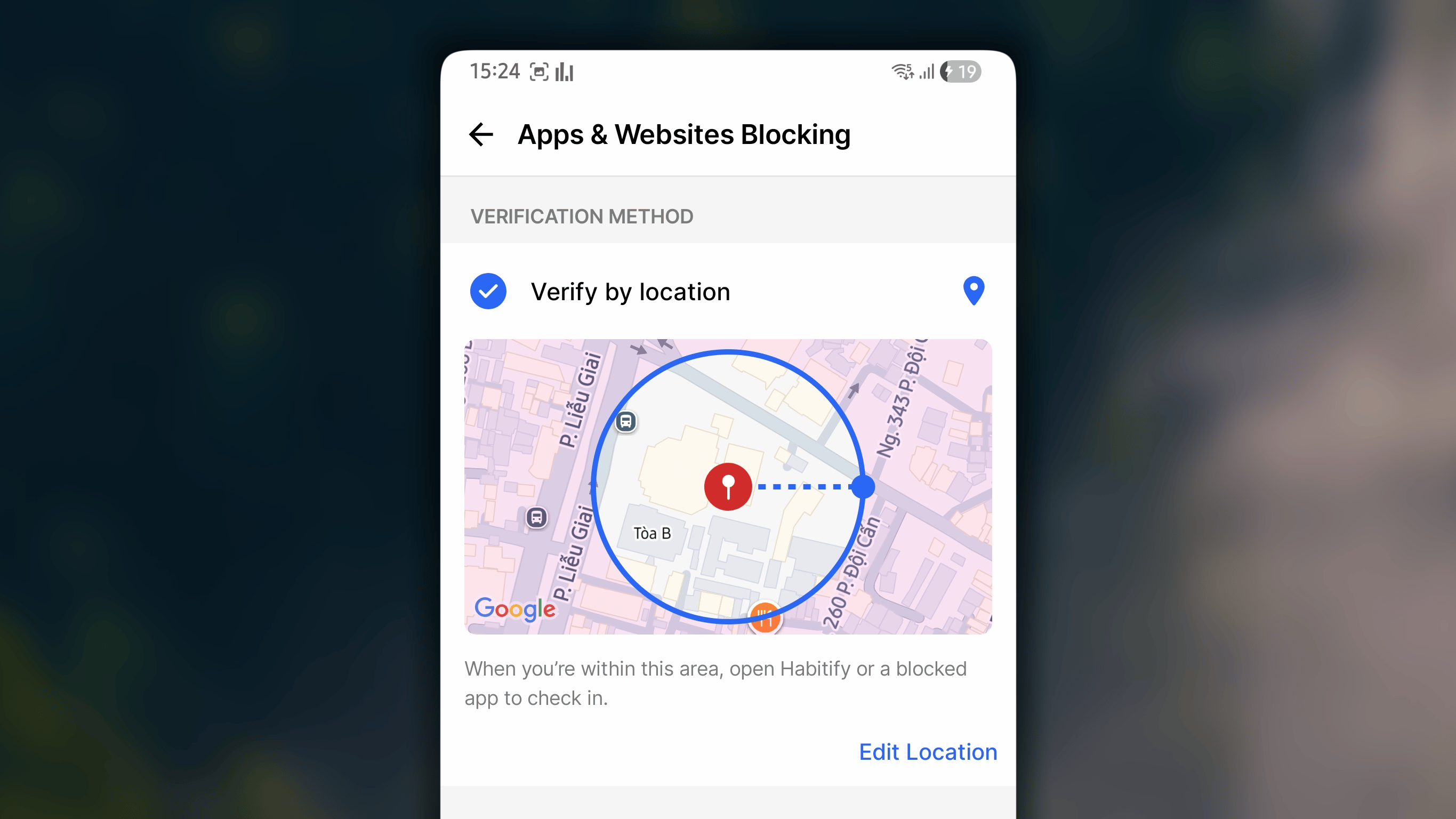
- In Habit Gate, under “Verification Method”, select Verify by Location.
- Tap on ‘Pick a location’
- Select ‘Current Location’ or search for the place which should be qualified for the verification, such as your gym or library.
- Set the distance. This is how close you must be for the habit to count.
- Tap ← to save and go back.
- Go to the pinned place, you need to be inside the distance you set.
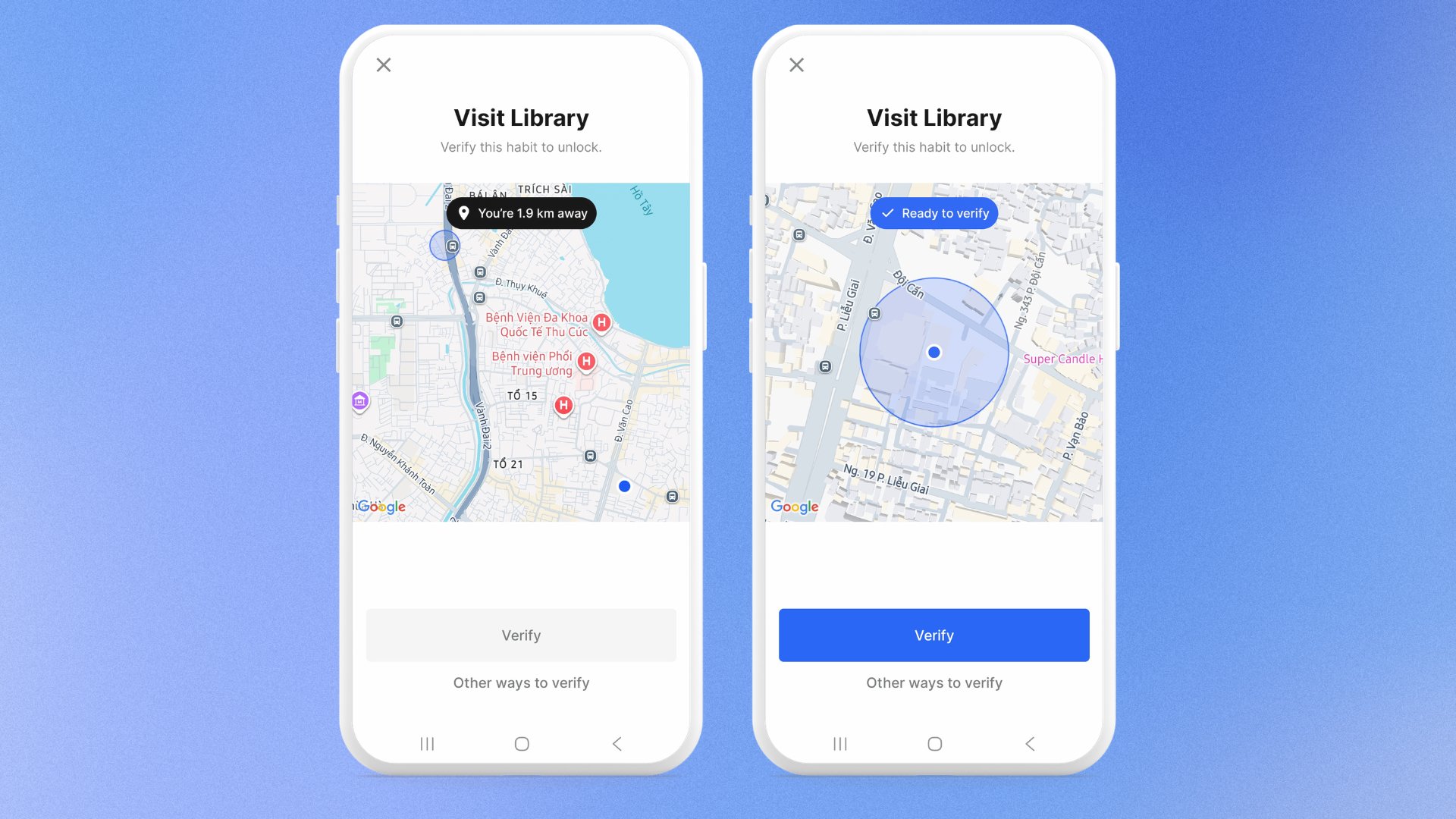
- Open a blocked app or website to reach the blocking screen. Then tap Verify.
- If you are within the area qualified for the verification, you can tap Verify button in this screen.
Otherwise, it will disable the button, and show how far it is from your location to the required area.
Verify by Photo
How to Set up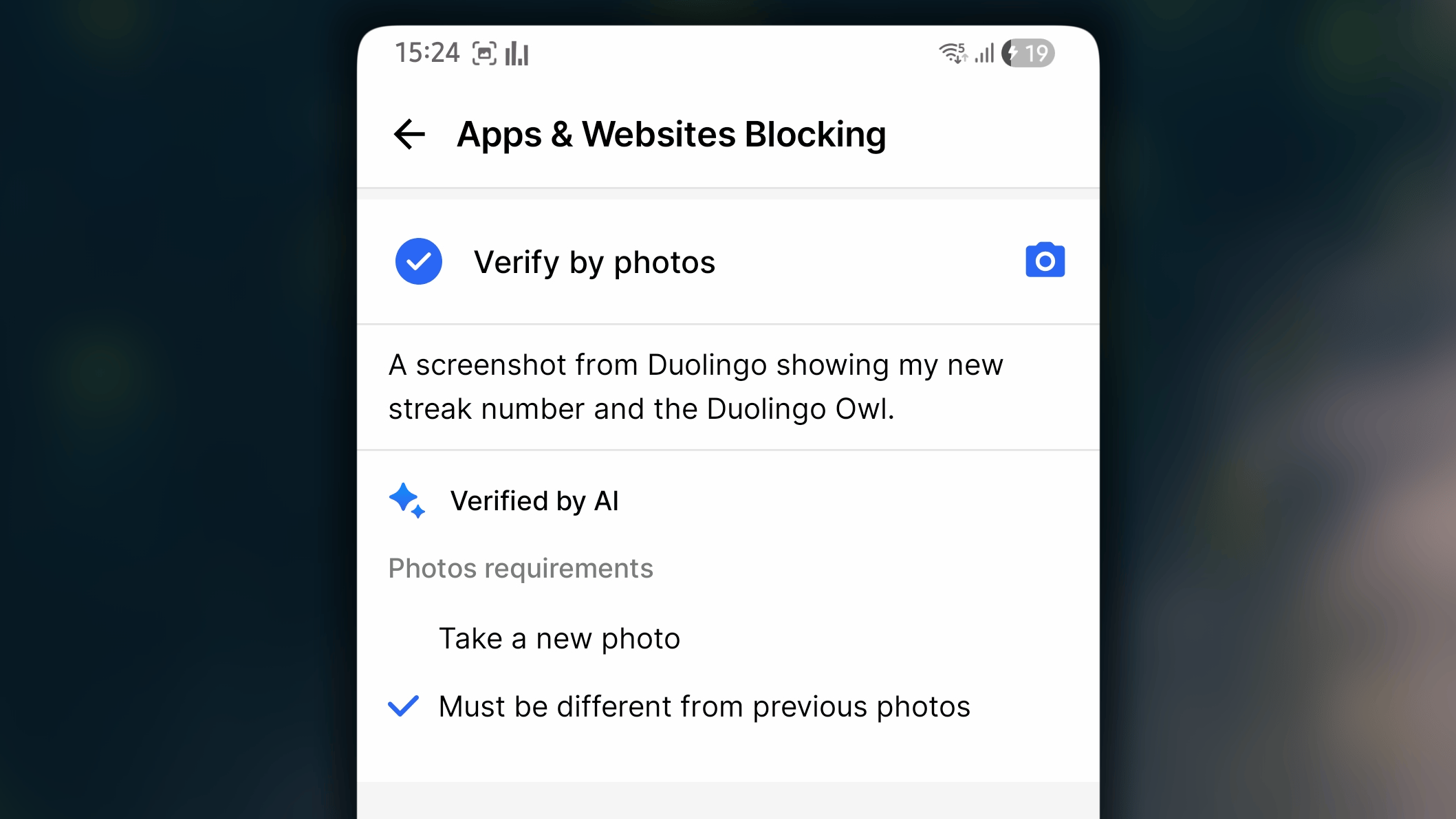
- In Habit Gate, under “Verification Method”, select Verify by Photo.
- Describe what the photo should show. Be specific. “My running shoes on the doorstep” works better than “proof I ran.”
- Optionally, turn on the rules:
- Take a new photo
- Must be different from previous photos
- Tap ← to save and go back.
- Open a blocked app or website to reach the blocking screen. Then tap Verify.
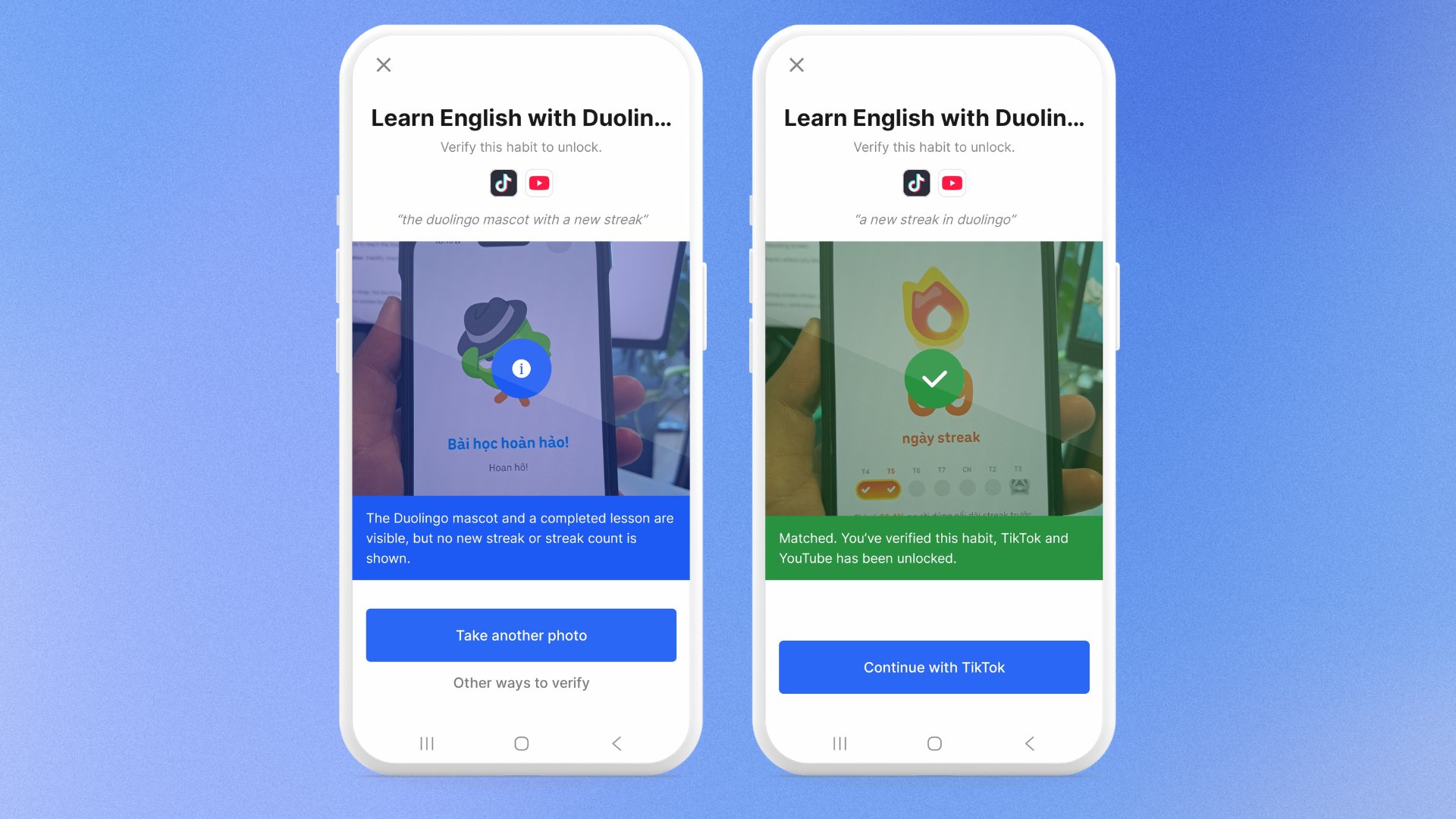
- Take a photo that matches your description.
- Wait for Habitify’s AI to check the photo against your description:
- If your photo is not qualified, a reason will be provided. You can tap Take another photo and try again.
- If your photo is qualified, you will see a green ✔️, and you can tap ‘Continue with [the blocked app/web]’ to use the app/web.
Verify by Screen Time
How to Set up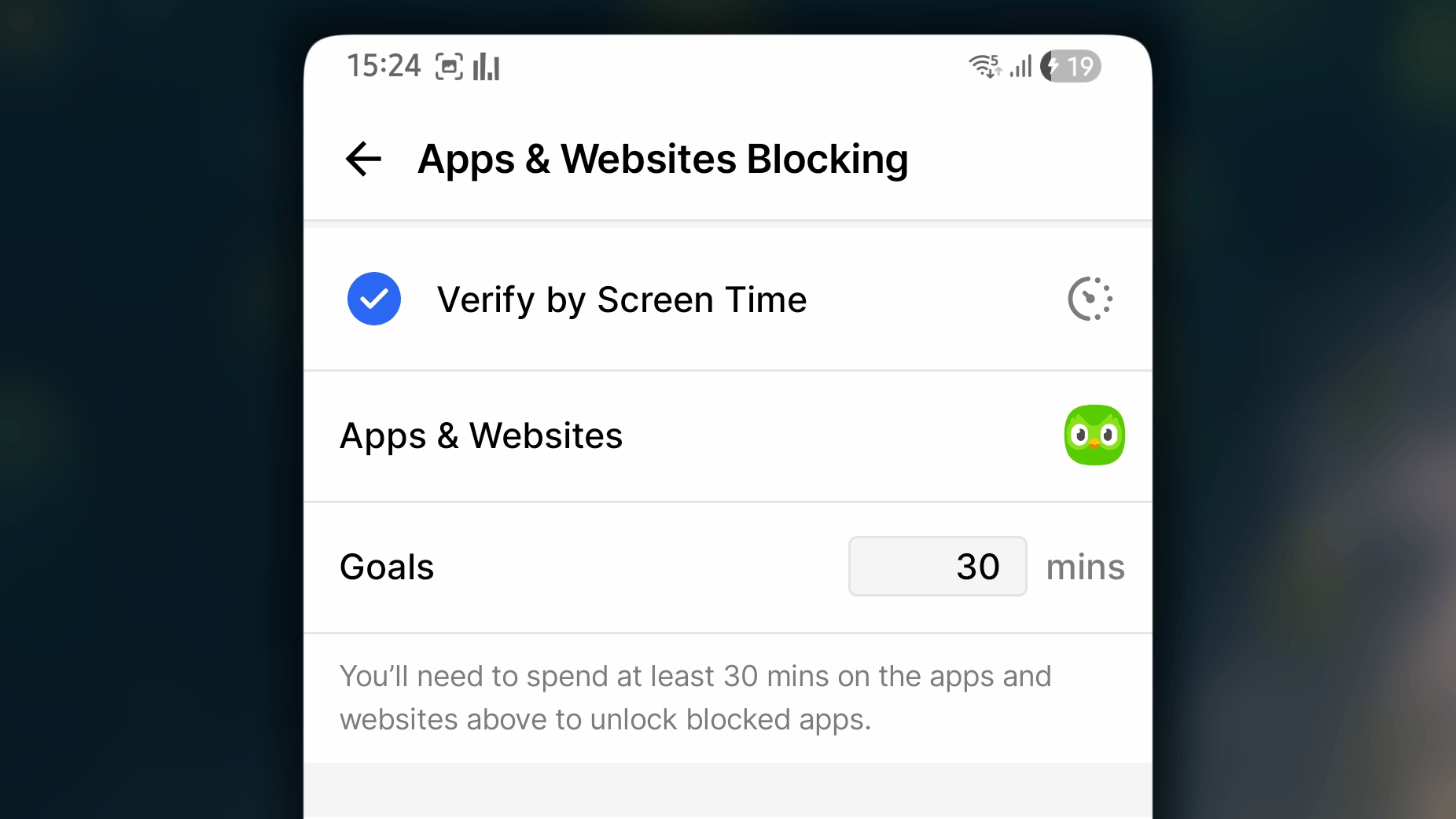
- In Habit Gate, under “Verification Method”, select Verify by Screen Time.
- Choose the app you’ll use, such as Duolingo.
- Set the target time, such as 30 minutes.
- Tap ← to save and go back.
- Open the app you chose and use it until you reach the target time.
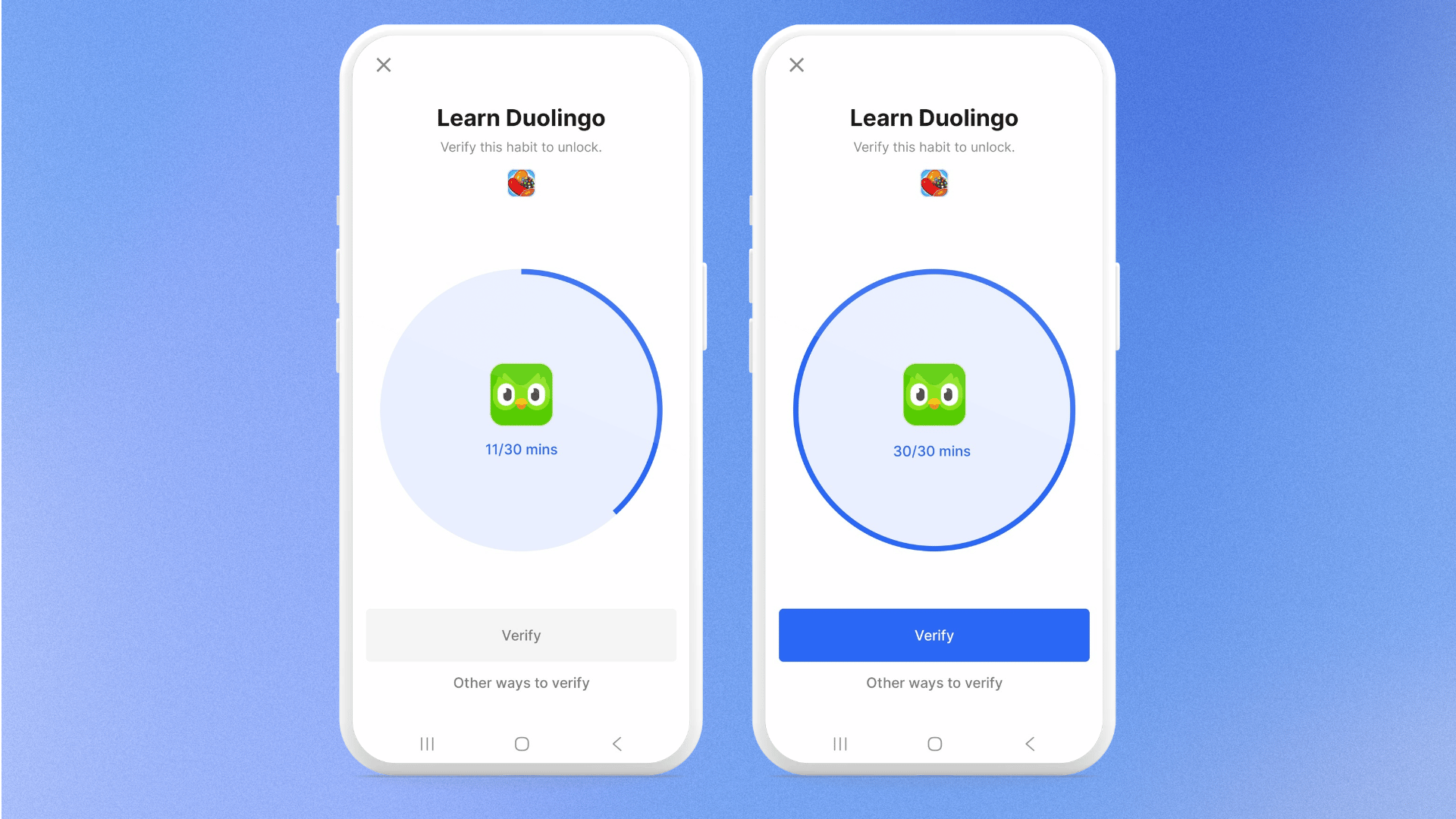
- Open a blocked app or website to reach the blocking screen. Then tap Verify.
- If your screen time is qualified, you can contintue to tap Verify button. Otherwise, the button will be disabled.
Verify by Health Connect
How to Set up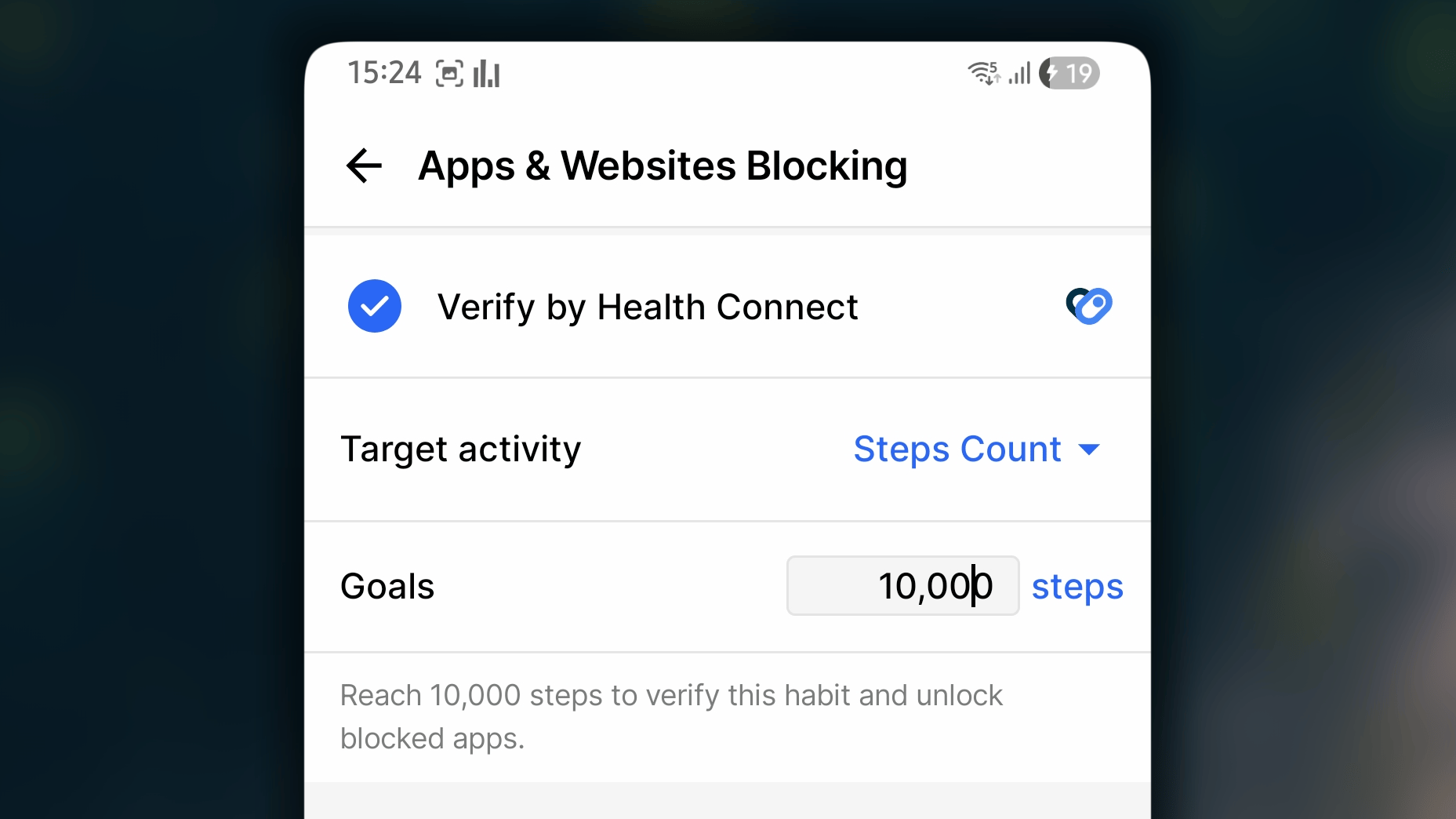
- In Habit Gate, under “Verification Method”, select Verify by Health Connect.
- In Target activity, Choose the activity you want to track, such as Steps or Calories Burned.
- In Goals, set the required value to reach, such as 10,000 steps or 800 kcal.
- Tap ← to save and go back.
- Do the activity until you reach your goal. The data comes from your health app.
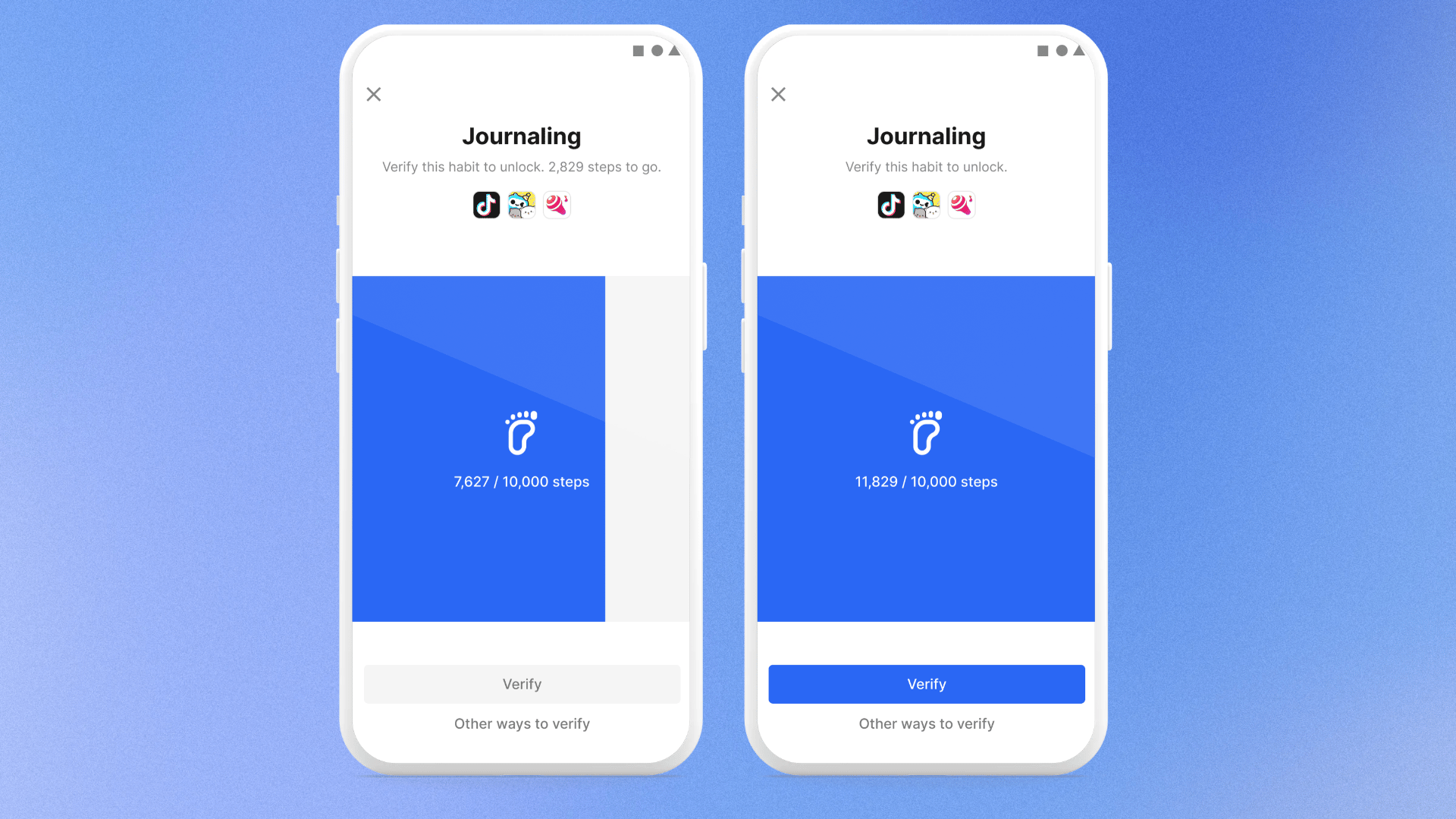
- Open a blocked app or website to reach the blocking screen. Then tap Verify.
- You can quickly check how much you do. For the first time, you may be requested to grant permission to access Health Connect.
- If you reach the goal value, you can continue to tap the Verify button. Otherwise, the button will be disabled.
Verify by NFC
How to Set up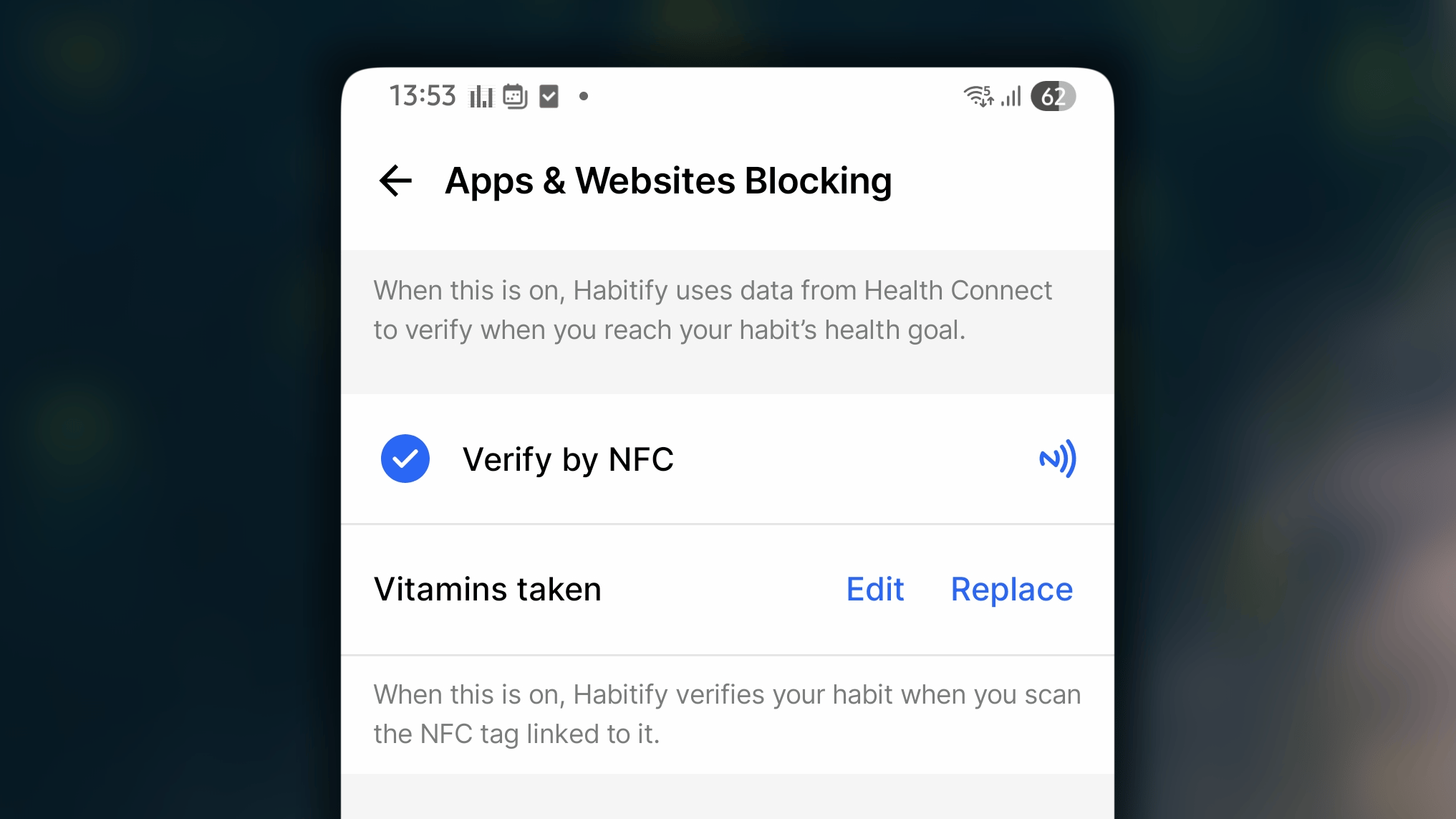
- In Habit Gate, under “Verification Method”, select Verify by NFC.
- Tap ‘Scan a Tag to link…’
- Scan the NFC tag you want to link to this habit, leaving a short message which will appear in the blocking screen which might help you remember what to do to remove the blocking.
- Tap ← to save and go back.
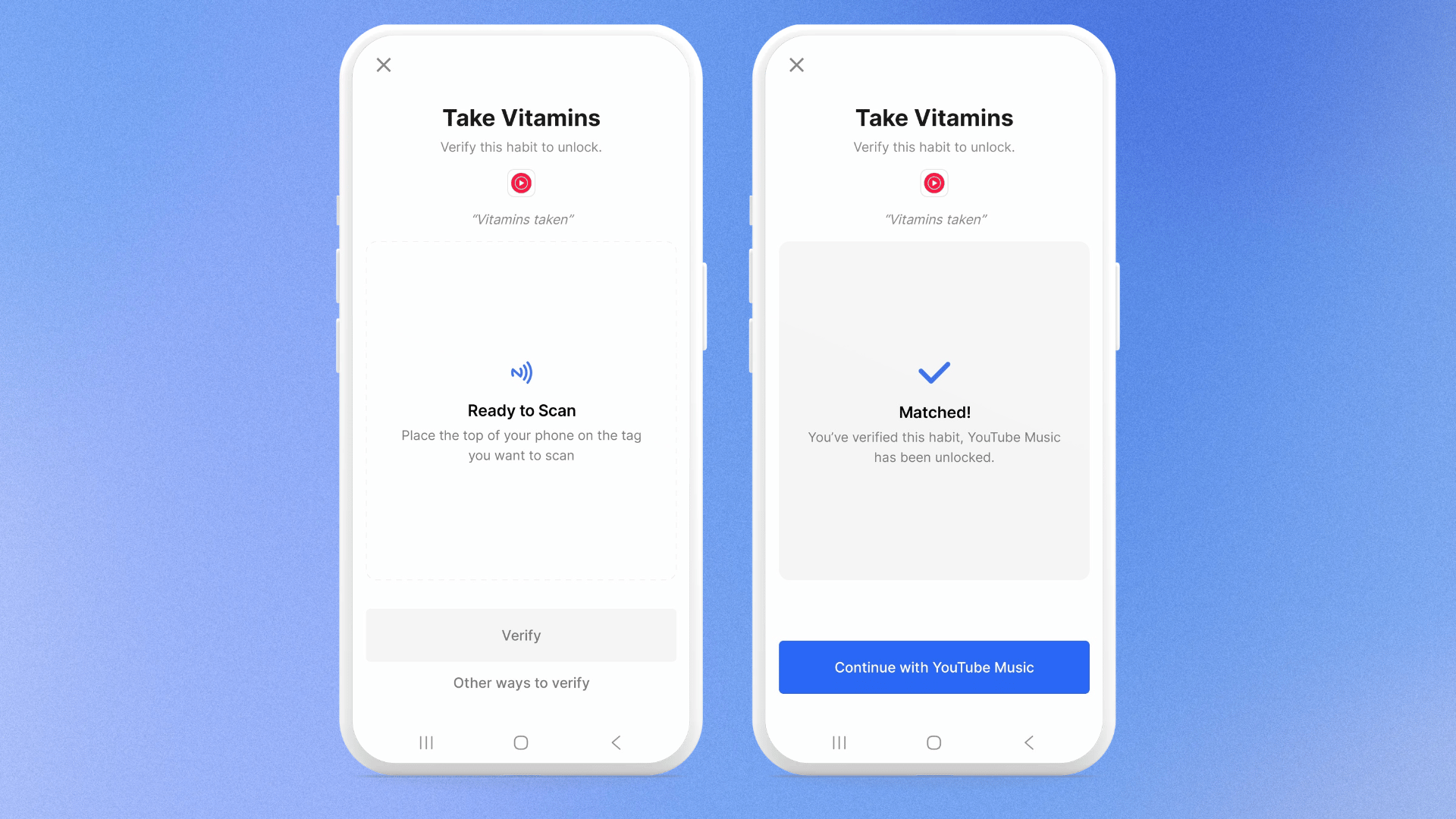
- Open a blocked app or website to reach the blocking screen.
- Tap Verify and choose NFC.
- Hold your phone against the linked tag.
Bypass policy
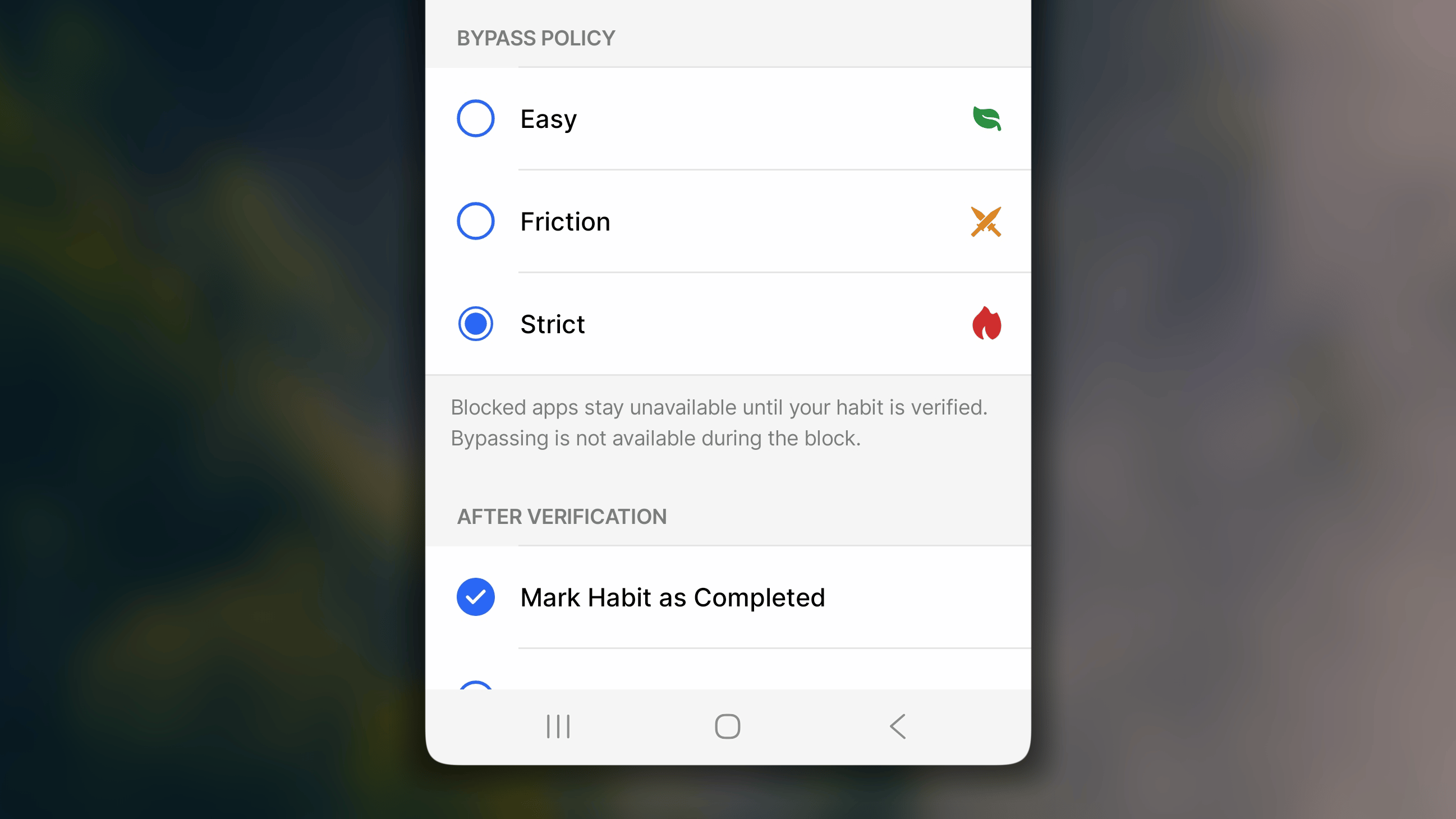
There are 3 options of level on the bypass policy:- Easy: You can open blocked apps at any time after a quick confirmation. No verification needed.
- Friction: You can open blocked apps for a short time, after Habitify asks you to confirm. Then they’re blocked again.
- Strict: Blocked apps stay blocked until the habit is verified. There is no way to skip the verification.
After Verification
This setting controls what else Habitify does at the moment your verification is accepted. It runs automatically, so you don’t need to do anything extra once the gate opens. There are 2 options:- Mark the habit as completed: When your verification is accepted, Habitify checks off the habit for you.
- Save the photo to habit notes: When a photo is accepted for the verification, Habitify saves it in that habit’s Note.
FAQs
Do my apps get blocked again the next day?
Do my apps get blocked again the next day?
Yes. The gate resets at midnight (0:00). Once you verify a habit, your blocked apps and websites stay unlocked for the rest of that day. At 0:00 they are blocked again until you verify again.
What if the same app is blocked by more than one habit?
What if the same app is blocked by more than one habit?
You need to verify all of those habits. Verifying one habit doesn’t unlock the app while another habit that blocks it is still unverified.
If I turn on several verification methods, which one do I see first?
If I turn on several verification methods, which one do I see first?
Habitify shows them in a fixed order: Location, Photo, Screen Time, Health Connect, then NFC. You can’t reorder them, but you can switch between methods for the verification by choosing “Other ways to verify” on the blocking screen.