

Purchasing Team License
- Navigate to our dedicated webpage for team subscriptions:
https://habitify.me/habitify-for-team - Click the ‘Upgrade Your Team’ button on the landing page.
- On the Purchase configuration screen, you will:
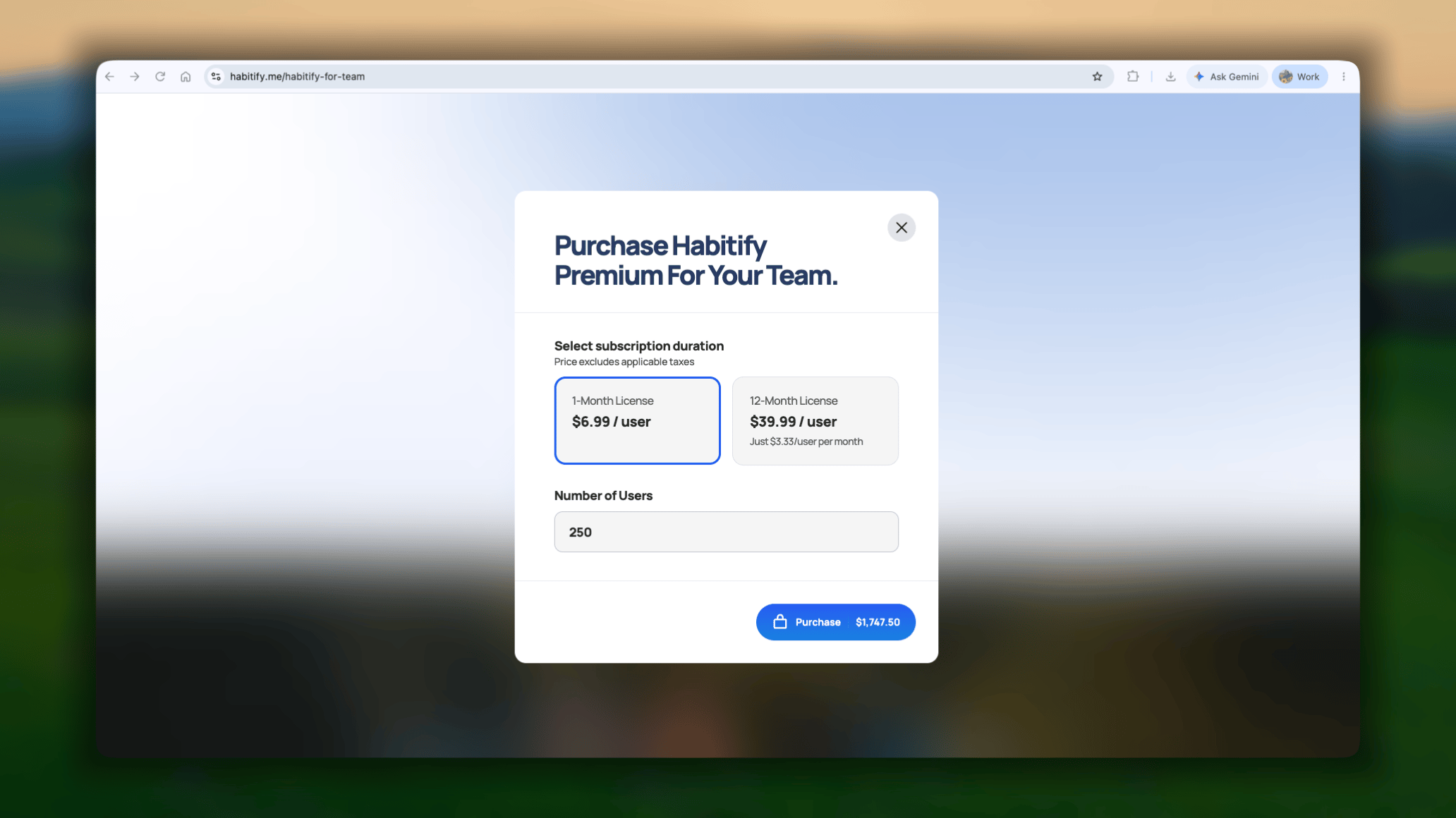
- Choose license model: 1-month or 12-month.
- Enter the number of users (seats) a.k.a the number of your team member.
Minimum required is 30. - Tap the ‘Purchase [total price]’ button to continue.
- Check the details of your order againa, then tap the ‘Purchase’ button.
- In the secure payment window, you will need to provide:
- Your email address: This is crucial, as we will send your payment invoice and the link to set up your license code here.
- Your country: For billing and policy purposes.
- Your payment method: Choose to pay via PayPal or with a debit/credit card.
Setting up Team License code
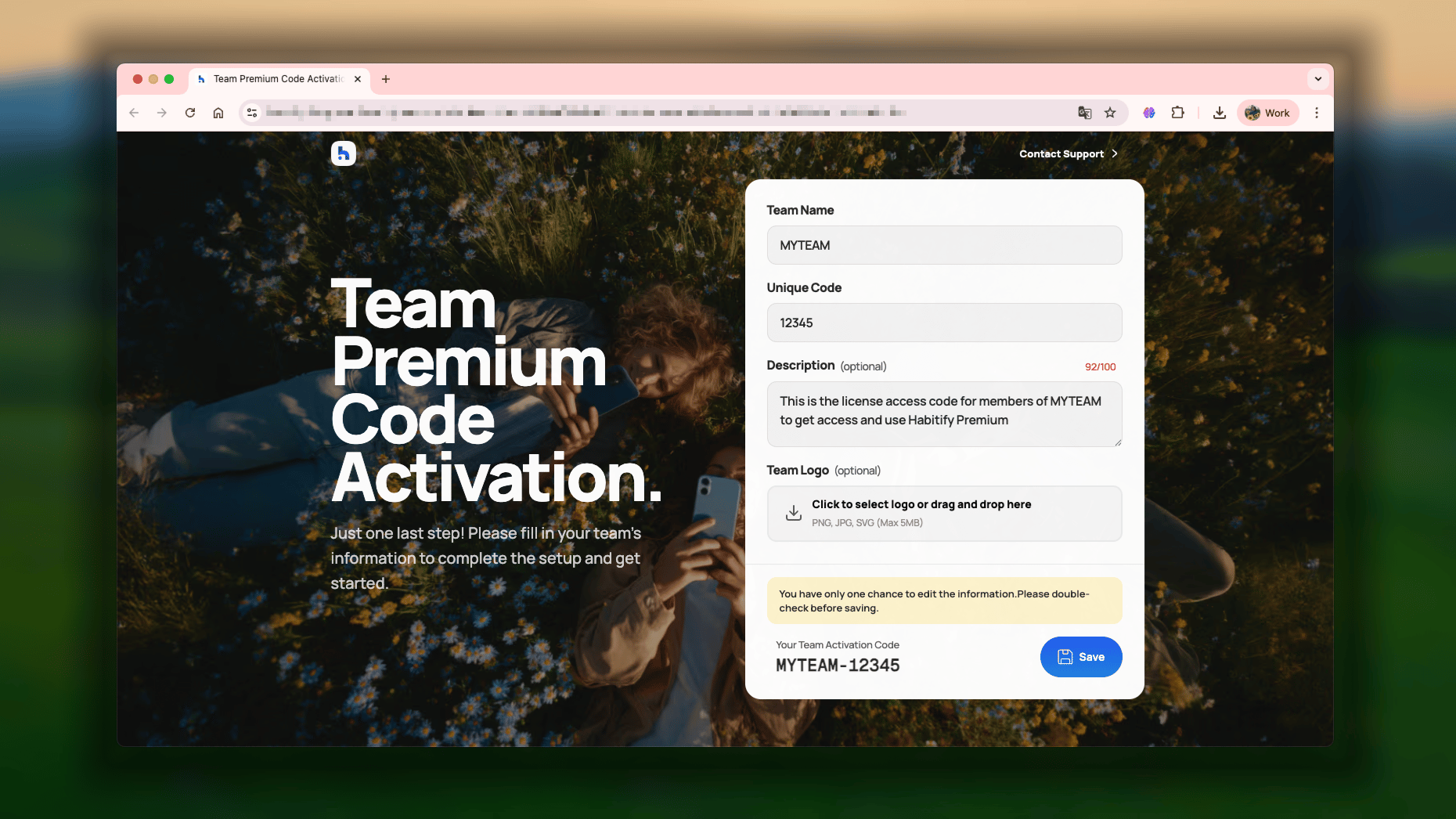
After purchasing, you need to create the unique code that your team member will use to activate the Habitify PRO on their account. Please look for an email in your inbox with the subject line: “Configure Your Habitify License” and click the link inside. The link will take you to a setup page. Here you will:- Team Name & Unique Code: these information will be used to generate the access code
- Description (optional)
- Team Logo (optional)
Activating with Team License code
Please make sure you have the following ready:- A Habitify Account: You must have the Habitify app installed and be logged into your personal Habitify account. If you haven’t created an account yet, please do so first.
- Your License Code: You will need the unique license code provided by your team’s administrator. If you do not have this code, please contact your manager or team admin directly to receive it.
- iOS
- Android
- Open the Habitify app, and navigate to the Settings tab.
You may need to access the Progress tab first, then you will see the Settings tab. - In Settings, Find and tap ‘Payment and Billing’.
- In Payment, tap ‘Enter Code’.
- Enter your code and tap ‘Redeem’.
How the Team License works
Here are the core rules of a team license:- No Expiration Date: Your activation code do not have expired date. You can purchase them now and distribute them whenever your team is ready.
- One Redemption Per Account: Each individual Habitify account can only redeem a specific code 1 time only.
- Duration Starts Upon Redemption: The clock on the PRO access does not start ticking on the day you purchase the code. It strictly begins the moment the team member actually redeems the code in their app.