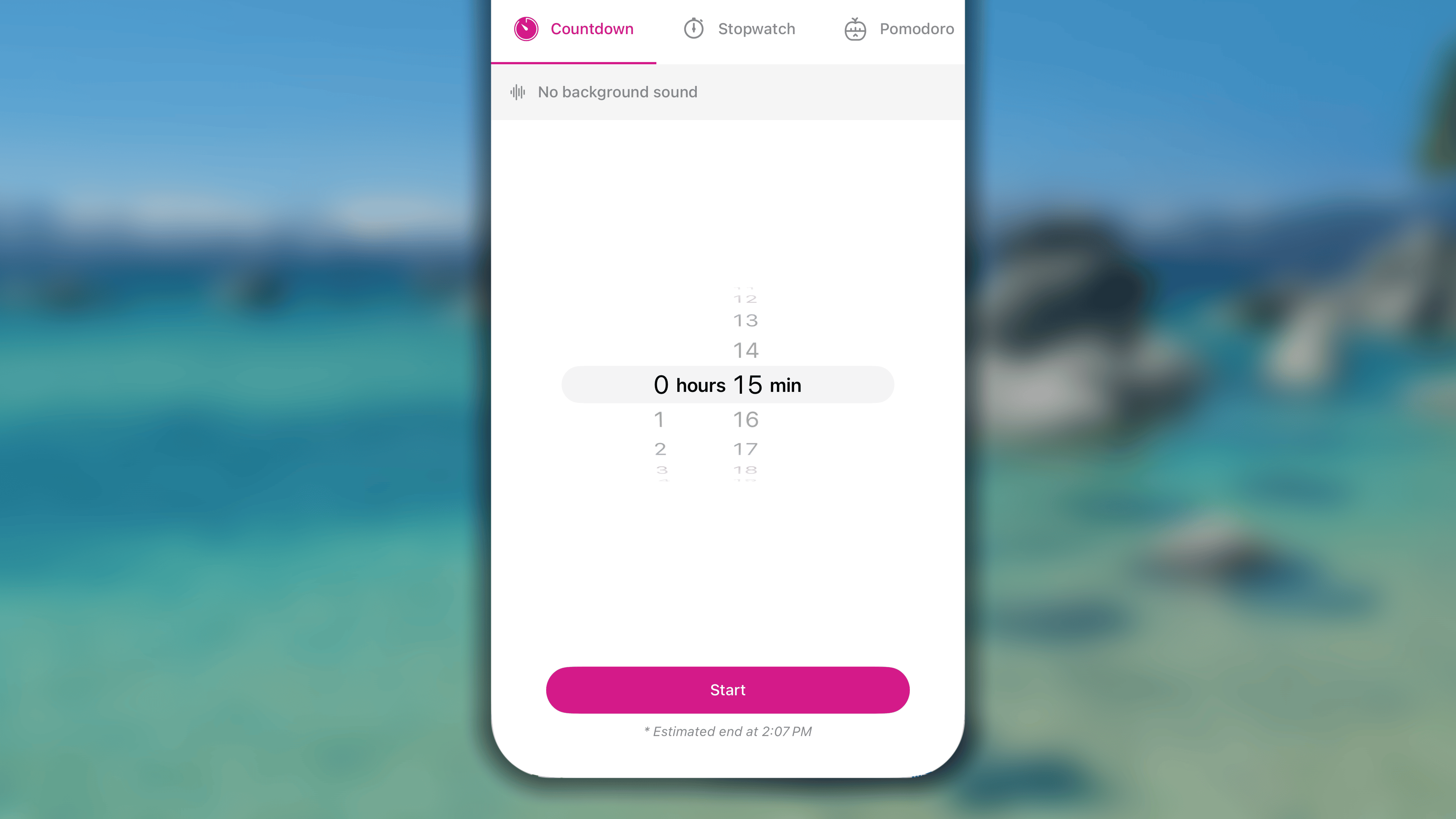
 1. In *Journal*, navigate to the habit, and tap the **'⏱️ Timer'** smart button next to it.
2. In the screen of *Timer*, Tap to open **'Countdown'** tab.
3. Adjust the duration length for your session.
1. In *Journal*, navigate to the habit, and tap the **'⏱️ Timer'** smart button next to it.
2. In the screen of *Timer*, Tap to open **'Countdown'** tab.
3. Adjust the duration length for your session.*Optionally*, in case you want some white noise, tap *'၊၊||၊ No background sound'* and choose one from the list, then tap **'***Done***'** button in the top right corner. Otherwise, tap *'Cancel'*. 4. Tap the **'Start'** button to begin your session. ### Starting a Pomodoro session
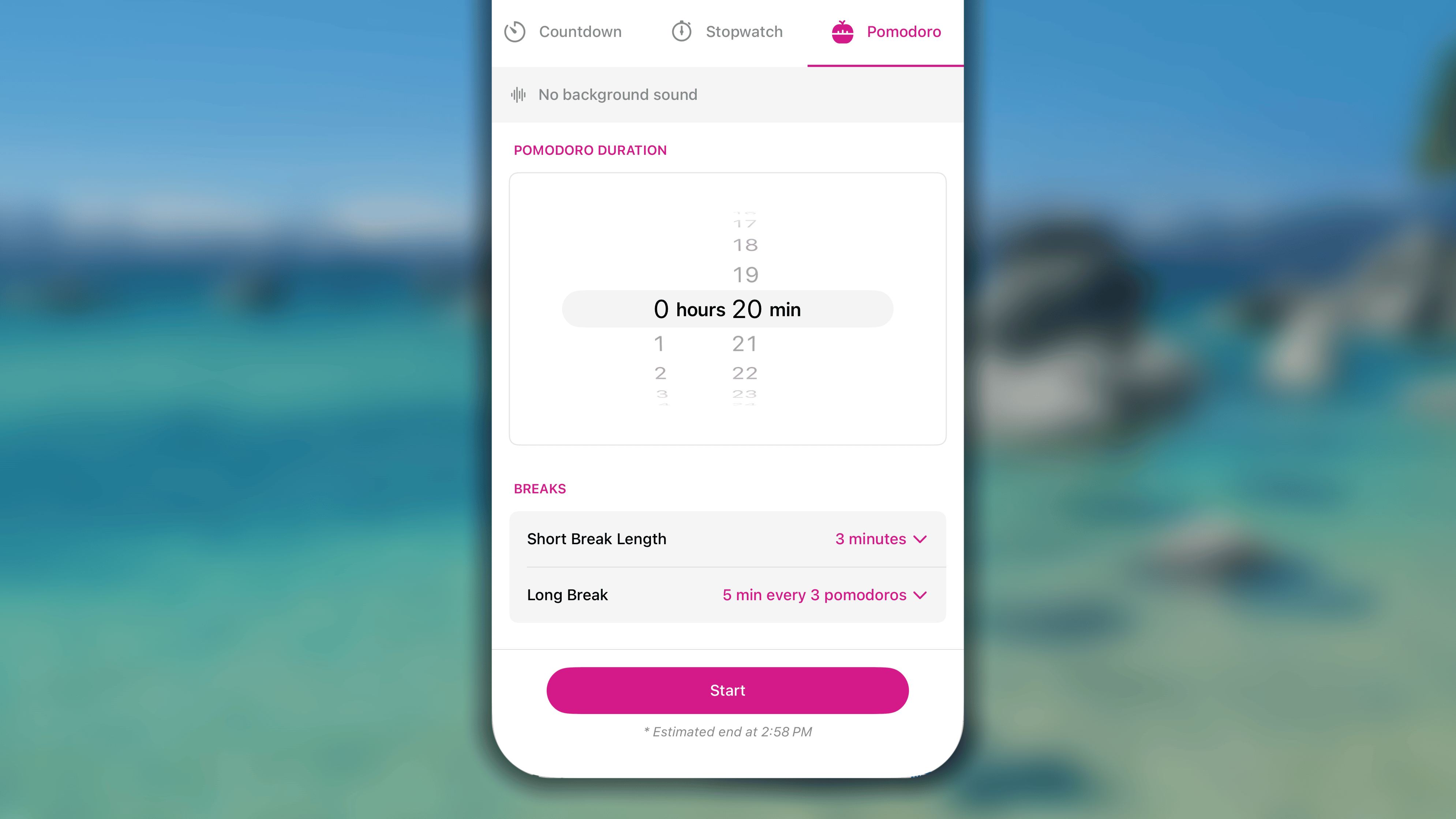 1. In *Journal*, navigate to the habit, and tap the **'⏱️ Timer'** smart button next to it.
2. In the screen of *Timer*, tap to open '**Pomodoro**' tab.
3. Adjust the duration length for your session.
1. **Number of Pomodoros**: Choose the number of working intervals during the session. The maximum is 30.
2. **Pomodoro Duration**: Set the duration of each working interval. Maximum is 23 hours 59 minutes per interval.
3. **Breaks**:
* *Short Break Length*: Define the length of each short break between 2 working intervals
* *Long Break*: Configure the below settings and tap **'Done'** to save.
* *Pomodoros before long break*: Set the number of working interval to complete before reaching the long break.
* *Long break length*: Defind the length of each long break.
4. Optionally, in case you want some white noise, tap *'***၊၊*||*၊ *No background sound***\*'\* under the habit name, and choose one from the list.
1. In *Journal*, navigate to the habit, and tap the **'⏱️ Timer'** smart button next to it.
2. In the screen of *Timer*, tap to open '**Pomodoro**' tab.
3. Adjust the duration length for your session.
1. **Number of Pomodoros**: Choose the number of working intervals during the session. The maximum is 30.
2. **Pomodoro Duration**: Set the duration of each working interval. Maximum is 23 hours 59 minutes per interval.
3. **Breaks**:
* *Short Break Length*: Define the length of each short break between 2 working intervals
* *Long Break*: Configure the below settings and tap **'Done'** to save.
* *Pomodoros before long break*: Set the number of working interval to complete before reaching the long break.
* *Long break length*: Defind the length of each long break.
4. Optionally, in case you want some white noise, tap *'***၊၊*||*၊ *No background sound***\*'\* under the habit name, and choose one from the list.Tap **'Done'** button in the top right corner to save the change. Otherwise, tap \*'\***Cancel'**. 5. When everything is set, tap **'Start'** button to begin the focus session. ### Starting a Stopwatch session
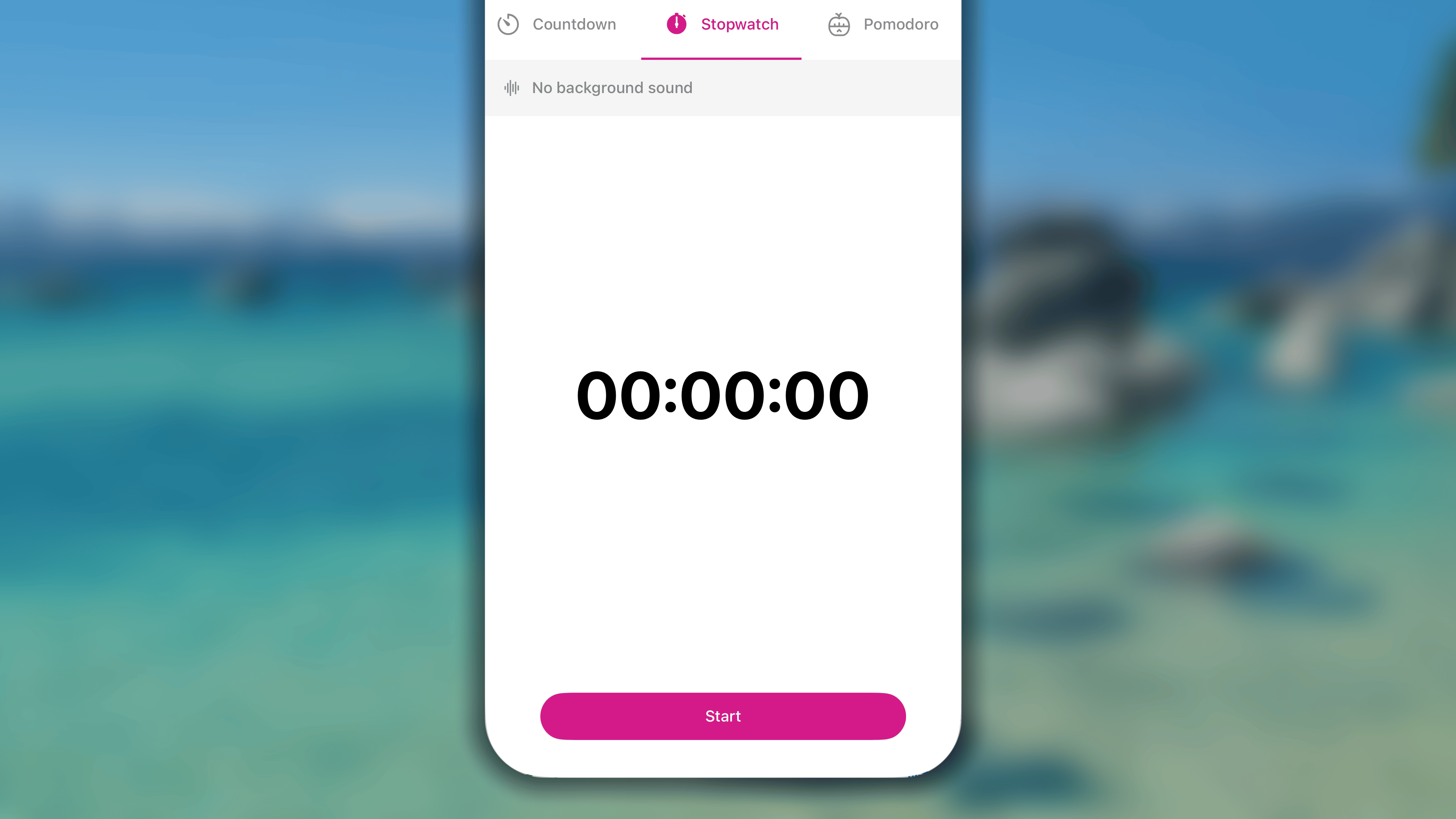 1. In *Journal*, navigate to the habit, and tap the **'⏱️ Timer'** smart button next to it.
2. In the screen of *Timer*, Tap to open '**Stopwatch**' tab.
3. Optionally, in case you want some white noise, tap '*၊၊||၊ No background sound*' and choose one from the list.
1. In *Journal*, navigate to the habit, and tap the **'⏱️ Timer'** smart button next to it.
2. In the screen of *Timer*, Tap to open '**Stopwatch**' tab.
3. Optionally, in case you want some white noise, tap '*၊၊||၊ No background sound*' and choose one from the list.Then tap '*Done*' button in the top right corner to save the change. Otherwise, tap '*Cancel*'. 4. Tap the '**Start'** button to begin your session. ## During a Timer session ### Pausing or stopping the session * **To pause the running session**, tap the '**⏸ Pause'** button under the time counter.
Later, tap the '**▶︎ Resume**' button to let it continue counting the time, * **To stop the running session**, tap the **'◼Stop'** button in the top right corner, tap '**Stop**' again to confirm, then choose between: * **'Save'**: to log the counted time to your habit's progress * **'Enter Different Duration'**: to log a custom value of your own to the habit's progress. * **'Discard'** (in the top left corner): to save nothing. * Optionally, tap **'Notes (optional)'** to conveniently add a note to your habit. ### Following habit's checklist
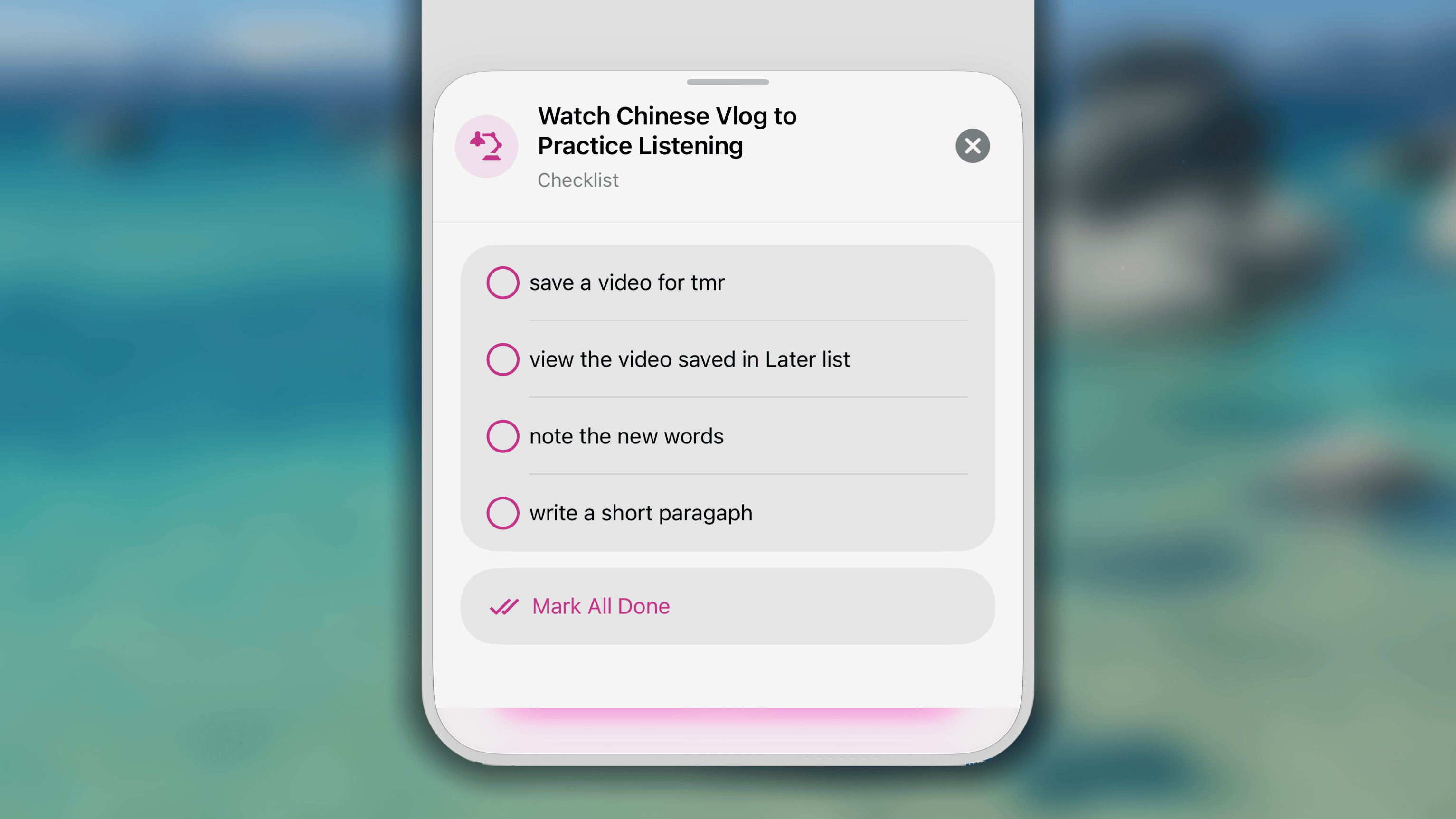 1. Tap the **'⫶☰ #/# tasks'** under the habit name
2. View and check in your checklist.
3. Tap ⨂ button in the top right corner of the checklist to close.
### Controling background sound
1. Tap the **'⫶☰ #/# tasks'** under the habit name
2. View and check in your checklist.
3. Tap ⨂ button in the top right corner of the checklist to close.
### Controling background sound
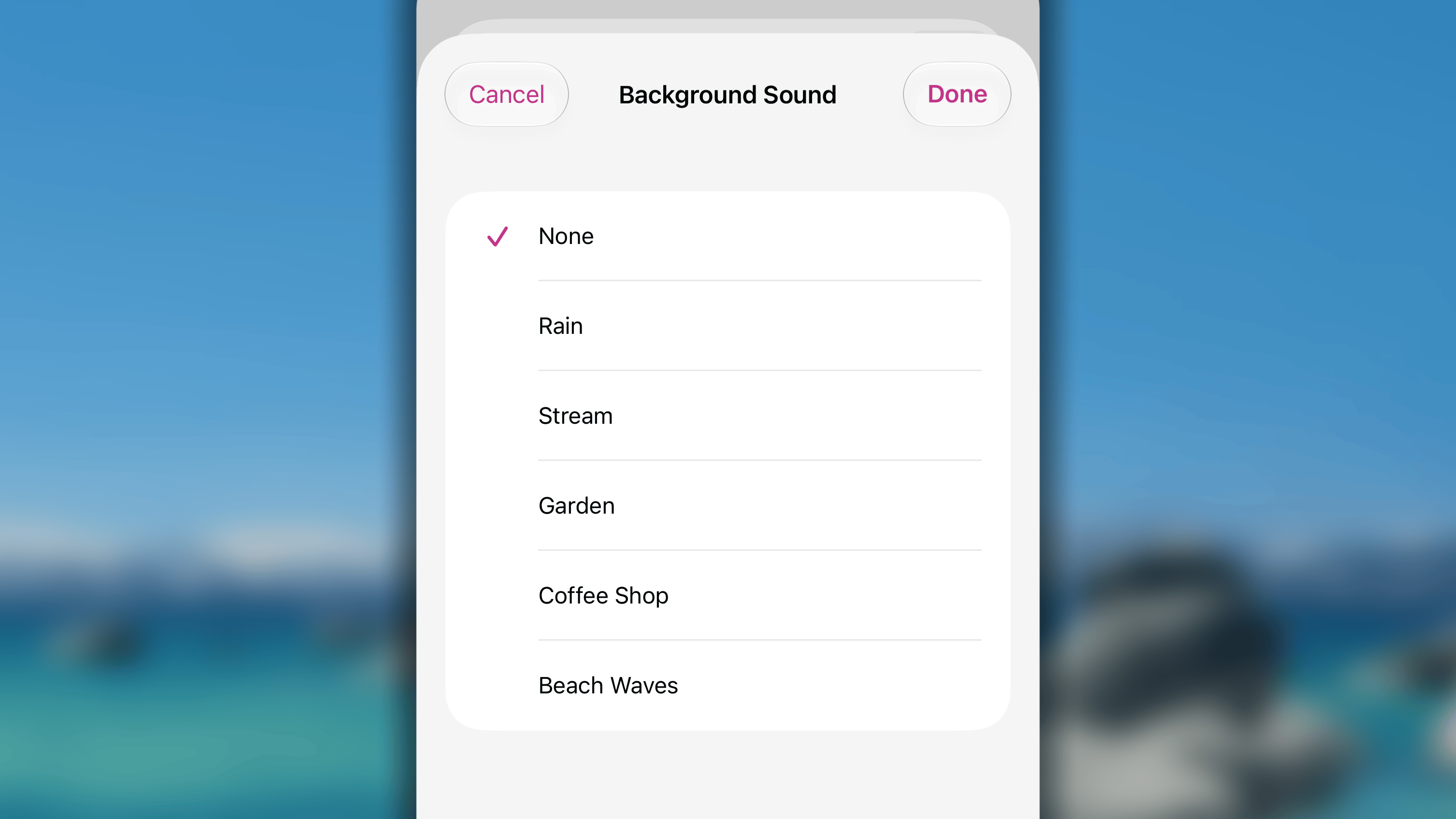 In addition, **to control the background sound** while the counter is working:
1. Tap the **၊၊||၊ button** under the habit name,
2. Choose 'None' (to turn it off), or choose a white noise from the list
3. Tap **'Save'** to save the change.
In addition, **to control the background sound** while the counter is working:
1. Tap the **၊၊||၊ button** under the habit name,
2. Choose 'None' (to turn it off), or choose a white noise from the list
3. Tap **'Save'** to save the change. Otherwise, tap '**Cancel'** to discard any changes. ## FAQs
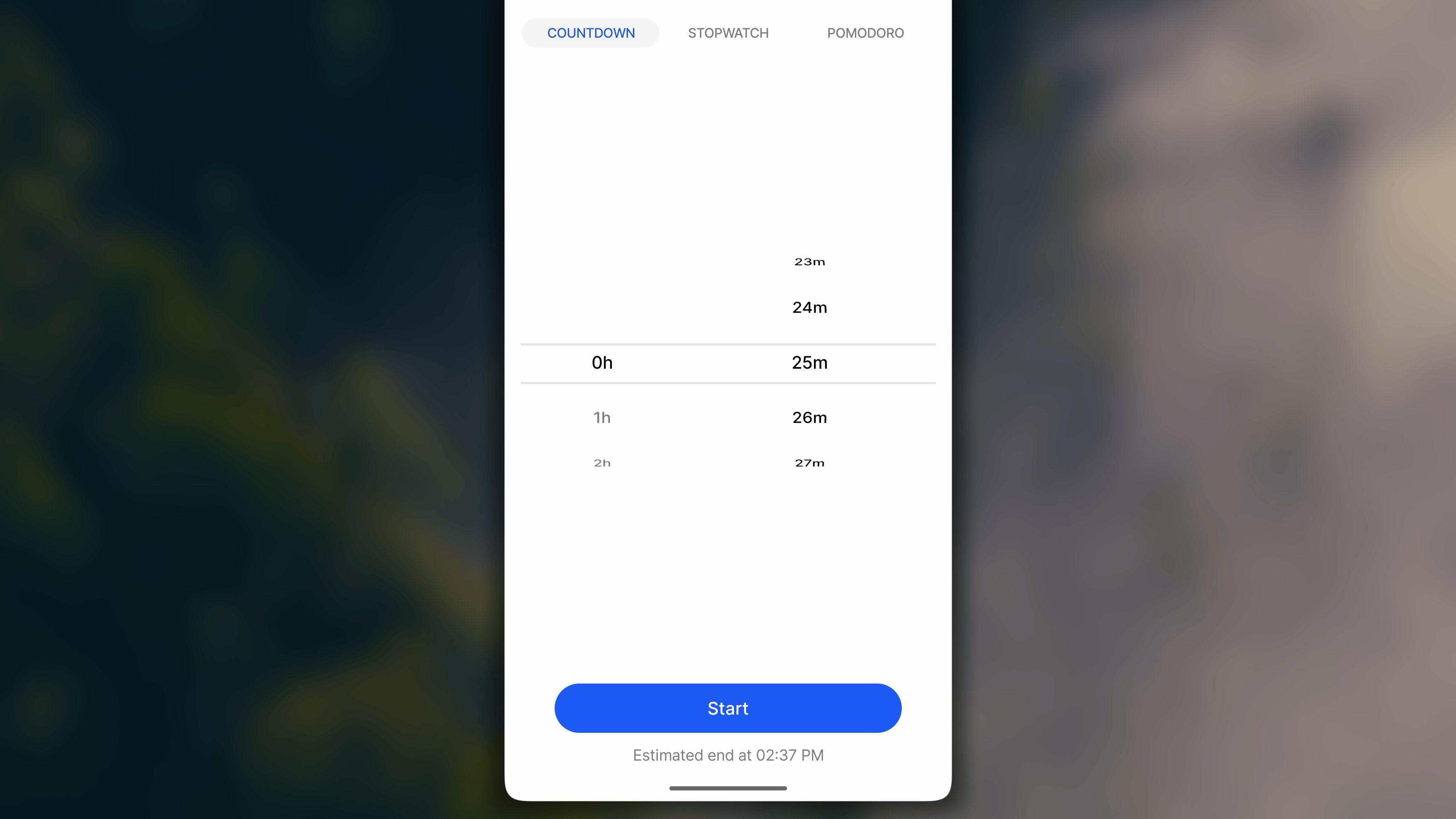 1. In *Journal*, make sure you open the Daily View.
2. Navigate to the habit, and tap the **'⏱️ '** smart button next to it.
3. In the screen of *Timer*, Tap to open **'Countdown'** tab.
4. Adjust the duration length for your session.
1. In *Journal*, make sure you open the Daily View.
2. Navigate to the habit, and tap the **'⏱️ '** smart button next to it.
3. In the screen of *Timer*, Tap to open **'Countdown'** tab.
4. Adjust the duration length for your session.Optionally, in case you want some white noise, tap '♪' in the top right corner, and choose one from the list. 5. Tap the **'Start'** button to begin your session. ### Starting a Pomodoro session
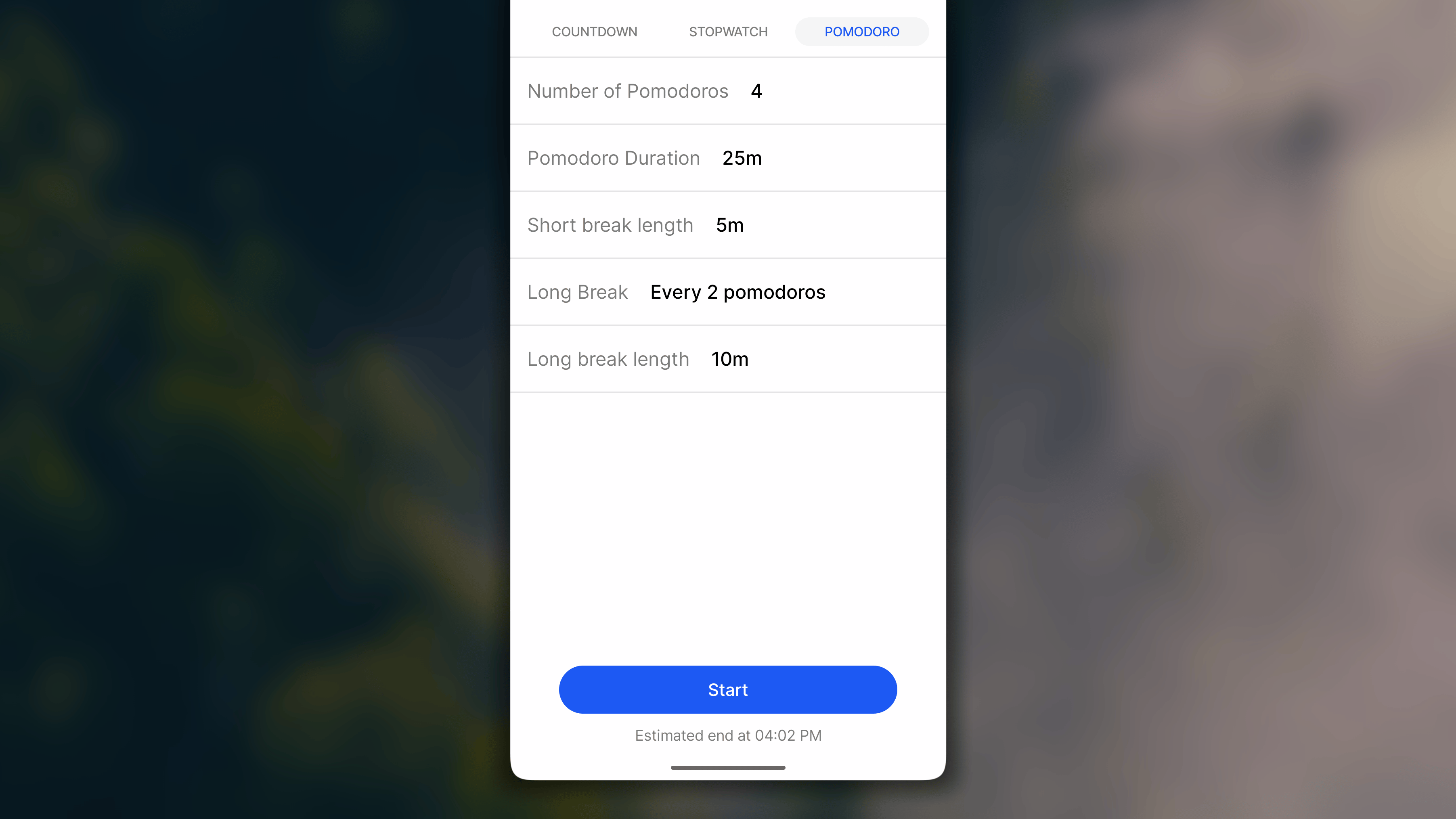 1. In *Journal*, make sure you open the Daily View.
2. Navigate to the habit, and tap the **'⏱️ '** smart button next to it.
3. In the screen of *Timer*, tap to open '**Pomodoro**' tab.
4. Adjust the duration length for your session.
1. **Number of Pomodoros**: Choose the number of working intervals during the session. The maximum is 30.
2. **Pomodoro Duration**: Set the duration of each working interval. Maximum is 23 hours 59 minutes per interval.
3. **Short Break Length**: Define the length of each short break between 2 working intervals
4. **Long Break**: Set the number of working interval to complete before reaching the long break.
5. **Long break length:** Defind the length of each long break.
5. Optionally, in case you want some white noise, tap '♪' in the top right corner, and choose one from the list.
6. When everything is set, tap **'Start'** button to begin the focus session.
### Starting a Stopwatch session
1. In *Journal*, make sure you open the Daily View.
2. Navigate to the habit, and tap the **'⏱️ '** smart button next to it.
3. In the screen of *Timer*, tap to open '**Pomodoro**' tab.
4. Adjust the duration length for your session.
1. **Number of Pomodoros**: Choose the number of working intervals during the session. The maximum is 30.
2. **Pomodoro Duration**: Set the duration of each working interval. Maximum is 23 hours 59 minutes per interval.
3. **Short Break Length**: Define the length of each short break between 2 working intervals
4. **Long Break**: Set the number of working interval to complete before reaching the long break.
5. **Long break length:** Defind the length of each long break.
5. Optionally, in case you want some white noise, tap '♪' in the top right corner, and choose one from the list.
6. When everything is set, tap **'Start'** button to begin the focus session.
### Starting a Stopwatch session
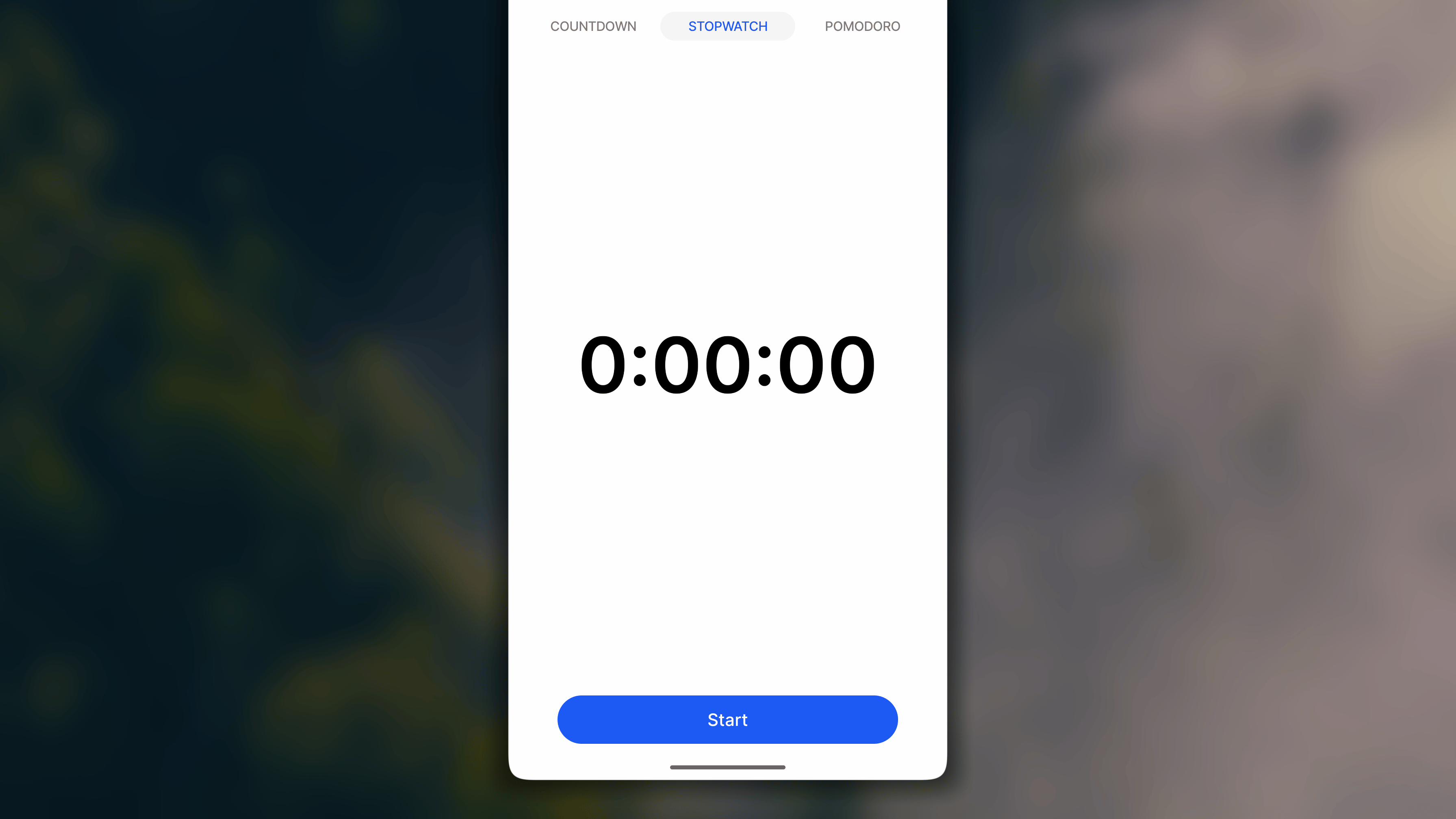 1. In *Journal*, make sure you open the Daily View.
2. Navigate to the habit, and tap the **'⏱️ Timer'** smart button next to it.
3. In the screen of *Timer*, Tap to open '**Stopwatch**' tab.
4. Optionally, in case you want some white noise, tap '♪' in the top right corner, and choose one from the list.
5. Tap the '**Start'** button to begin your session.
## During a Timer session
### Pausing or stopping the session
* **To pause the running session**, tap the '**⏸ Pause'** button under the time counter.
1. In *Journal*, make sure you open the Daily View.
2. Navigate to the habit, and tap the **'⏱️ Timer'** smart button next to it.
3. In the screen of *Timer*, Tap to open '**Stopwatch**' tab.
4. Optionally, in case you want some white noise, tap '♪' in the top right corner, and choose one from the list.
5. Tap the '**Start'** button to begin your session.
## During a Timer session
### Pausing or stopping the session
* **To pause the running session**, tap the '**⏸ Pause'** button under the time counter.Later, tap the '**▶︎ Resume**' button to let it continue counting the time, * **To stop the running session**, tap the **'◼Stop'** button in the top left corner, tap '**Stop**' again to confirm, then choose between: * **'Save and Close'**: to log the counted time to your habit's progress * **'Enter Different Duration'**: to log a custom value of your own to the habit's progress. * **'x'** (in the top left corner): to save nothing. ### Following habit's checklist
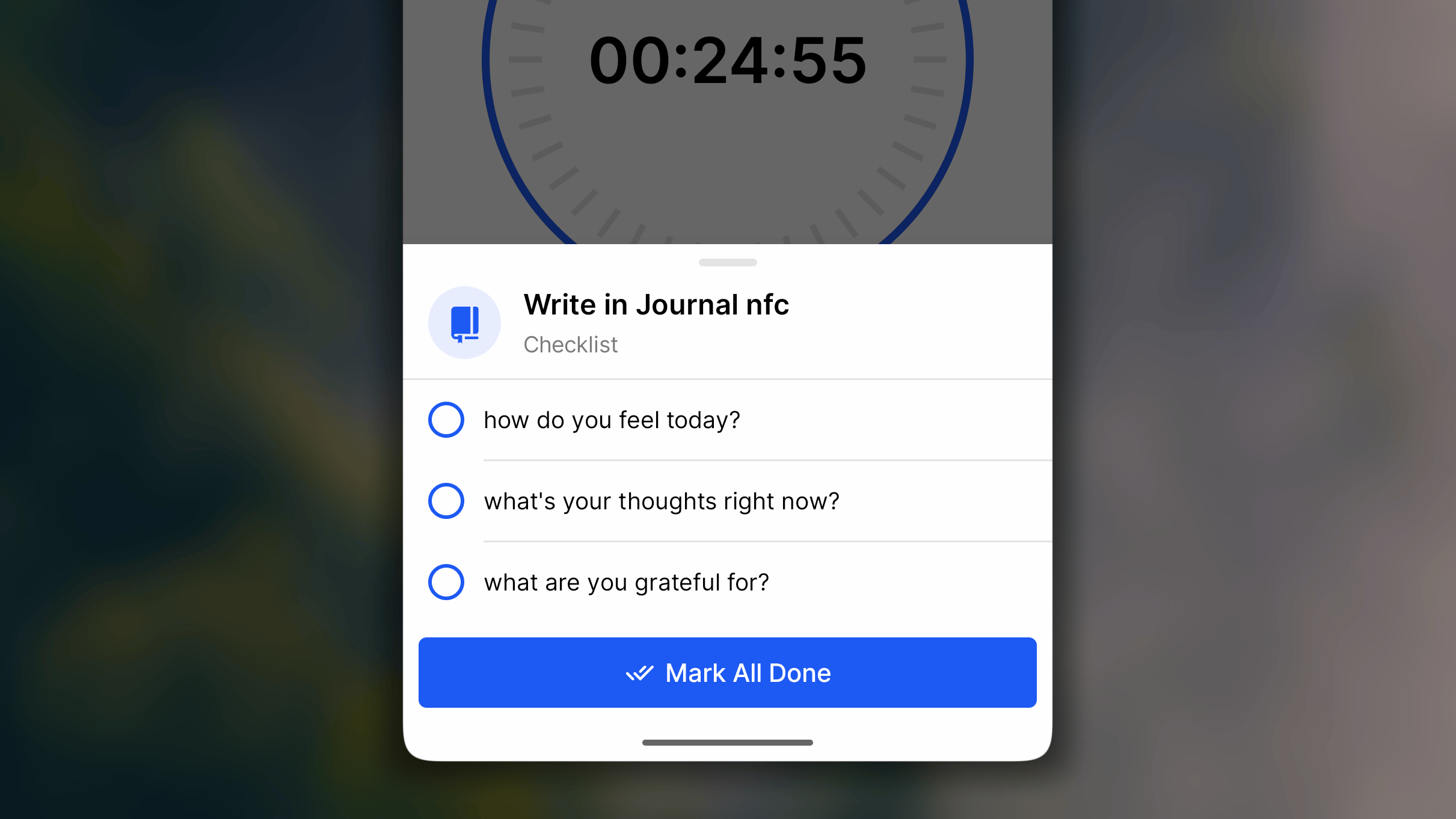 1. Tap the **'≔ #/# tasks'** under the habit name
2. View and check in your checklist.
3. Tap outside the checklist to close it.
### Controling background sound
1. Tap the **'≔ #/# tasks'** under the habit name
2. View and check in your checklist.
3. Tap outside the checklist to close it.
### Controling background sound
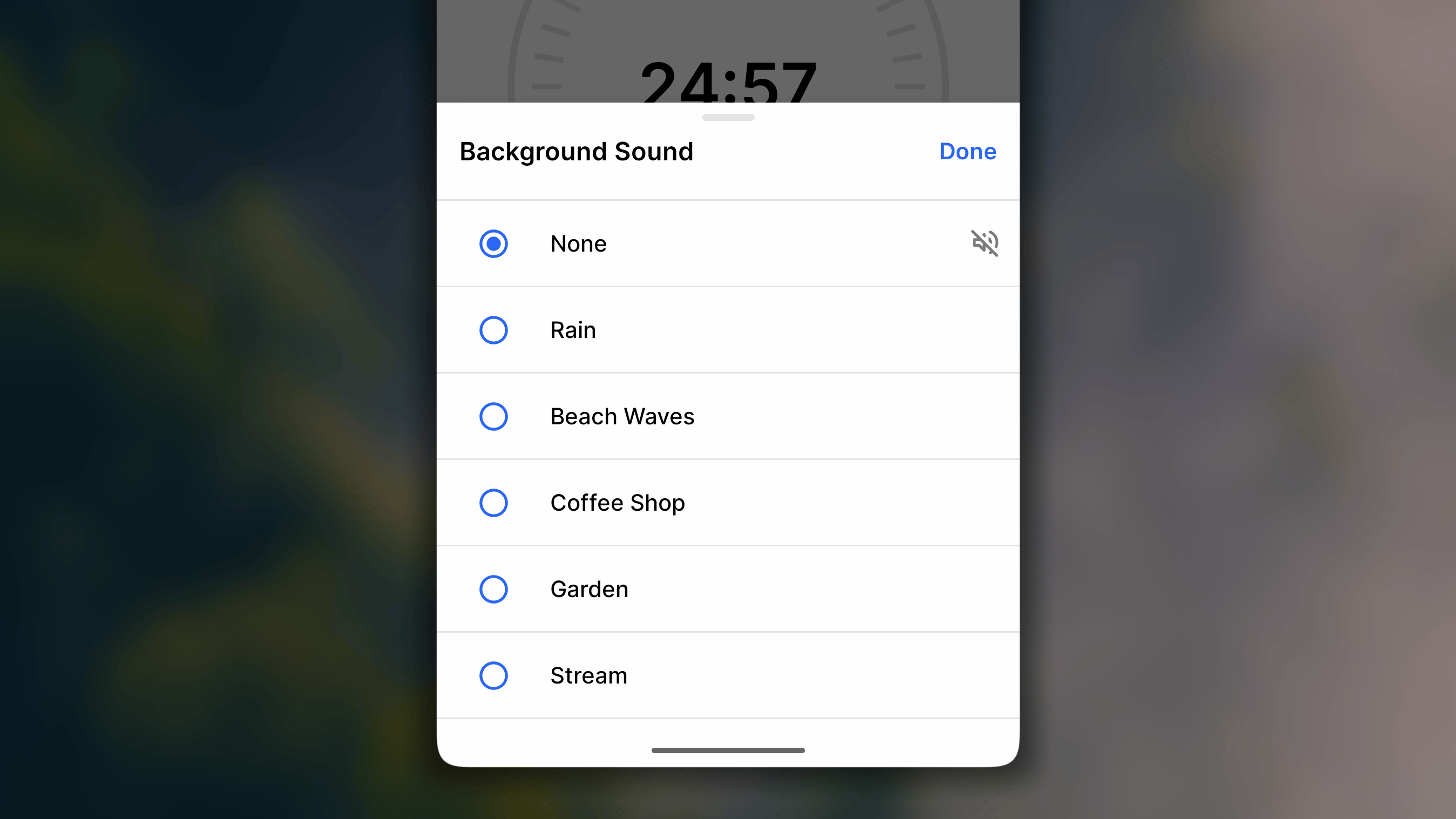 In addition, **to control the background sound** while the counter is working:
1. Tap the ♪ **button** in the top right corner.
2. Choose 'None' (to turn it off), or choose a white noise from the list
## FAQs
In addition, **to control the background sound** while the counter is working:
1. Tap the ♪ **button** in the top right corner.
2. Choose 'None' (to turn it off), or choose a white noise from the list
## FAQs