> ## Documentation Index
> Fetch the complete documentation index at: https://docs.habitify.me/llms.txt
> Use this file to discover all available pages before exploring further.
# Shortcuts
Habitify support the integration with Apple's Shortcuts app, letting you check in on habits and view your progress without ever opening Habitify itself.
Once a shortcut is set up, running it can log progress, mark a habit's status, or check your current standing, triggered however you like: a home screen tap, an automation, or even your voice through Siri.
There are seven Habitify actions available in Shortcuts:
* **Add Note**: write a note on a habit.
* **Add Log**: log a progress value for a habit.
* **Log Mood**: log your mood.
* **Remove Logs**: remove logged progress for a habit on a specific date.
* **Skip/Fail a Habit**: mark a habit's status for the current day.
* **Start Timer**: start a timer session on a time-based habit.
* **View Journal**: open a quick view of your habit list.
For any of these, leaving the habit field empty makes the shortcut more flexible: it'll simply prompt you to choose a habit each time you run it, rather than being locked to one.
## Settings of Habitify Shortcuts
### **Add Note**
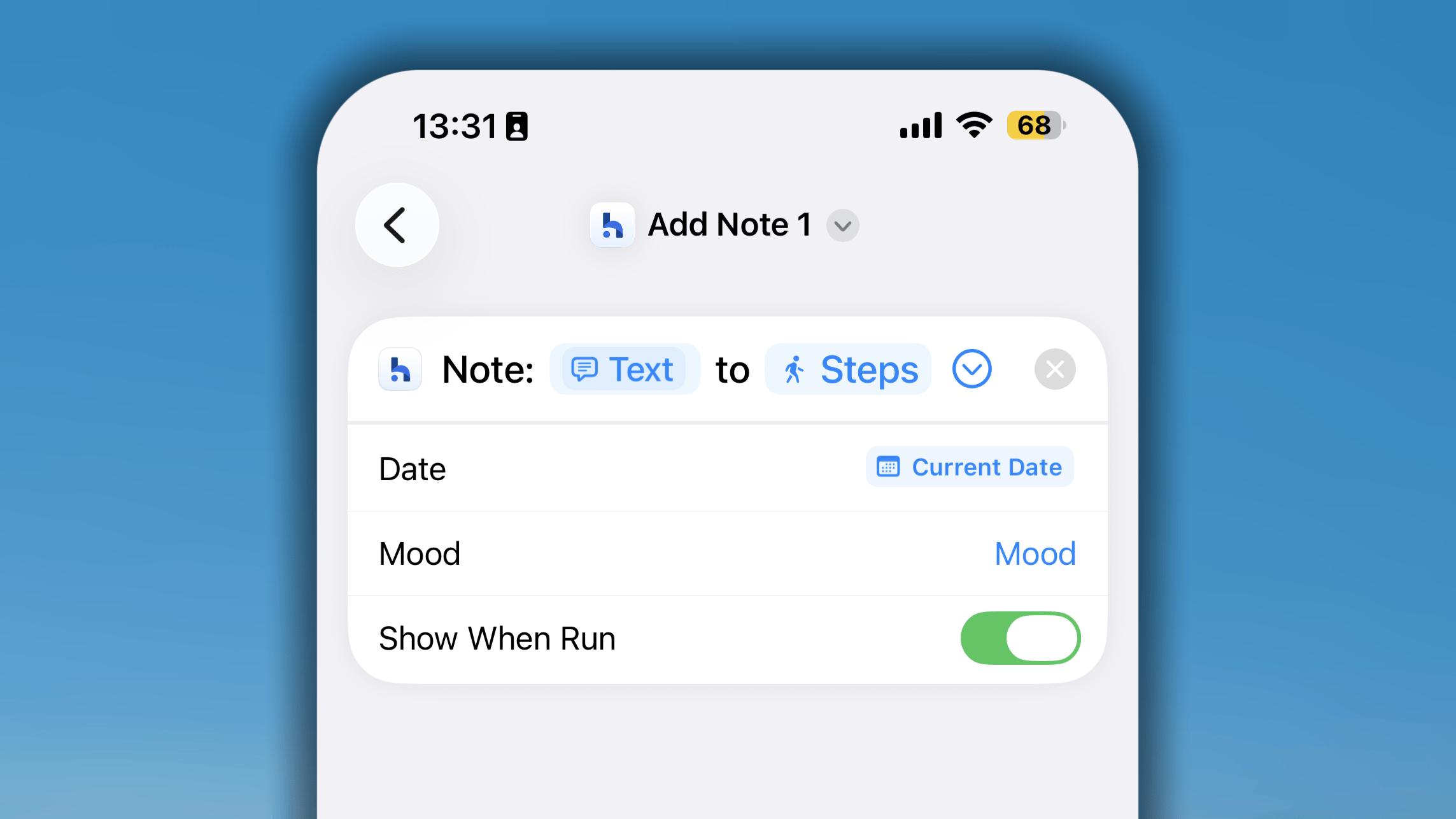 This shortcut assists you in writing a note on your habit.
* In Shortcuts, search for Habitify and choose **Add Note** shortcut.
* In the Settings of this shortcut, you will need to choose a specific habit.
* If you leave it empty, each time the shortcut runs, you will be asked to choose one habit on which you want to leave a note.
* In this shortcut, you can set the date as "Current date" for default or "Ask each time" you run it.
### **Log Habit**
This shortcut assists you in writing a note on your habit.
* In Shortcuts, search for Habitify and choose **Add Note** shortcut.
* In the Settings of this shortcut, you will need to choose a specific habit.
* If you leave it empty, each time the shortcut runs, you will be asked to choose one habit on which you want to leave a note.
* In this shortcut, you can set the date as "Current date" for default or "Ask each time" you run it.
### **Log Habit**
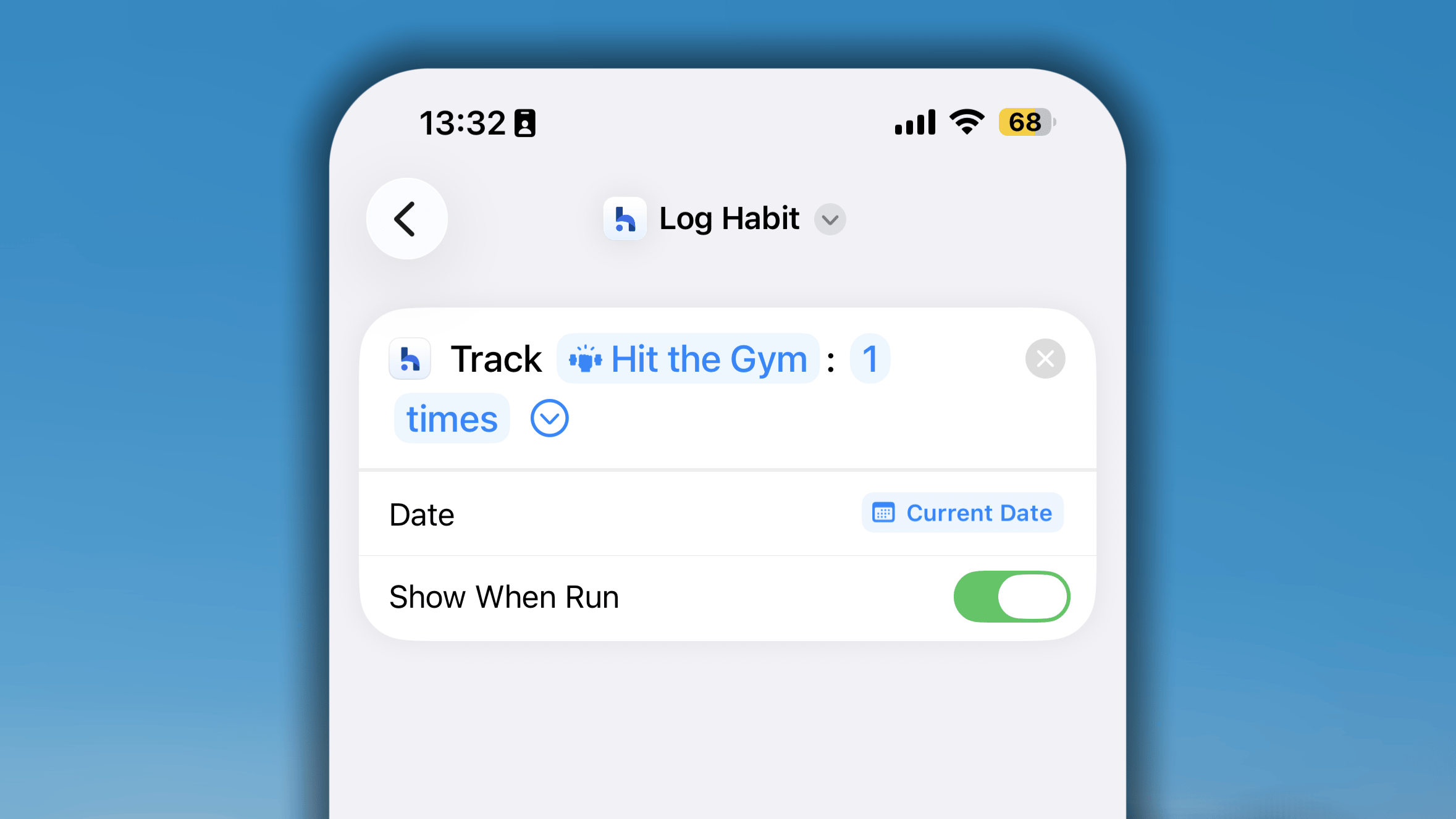 This shortcut is for logging your progress value.
* In Shortcuts, search for Habitify and choose **Log Habit** shortcut.
* In the Settings of this shortcut, you will need to choose a specific habit, and remember to choose the unit as "rep".
* Each time you run the shortcut, it will show a pop-up where you can enter the value.
* In this shortcut, you can set the date as "Current date" for default or "Ask each time" you run it.
### **Log Mood**
This shortcut is for logging your progress value.
* In Shortcuts, search for Habitify and choose **Log Habit** shortcut.
* In the Settings of this shortcut, you will need to choose a specific habit, and remember to choose the unit as "rep".
* Each time you run the shortcut, it will show a pop-up where you can enter the value.
* In this shortcut, you can set the date as "Current date" for default or "Ask each time" you run it.
### **Log Mood**
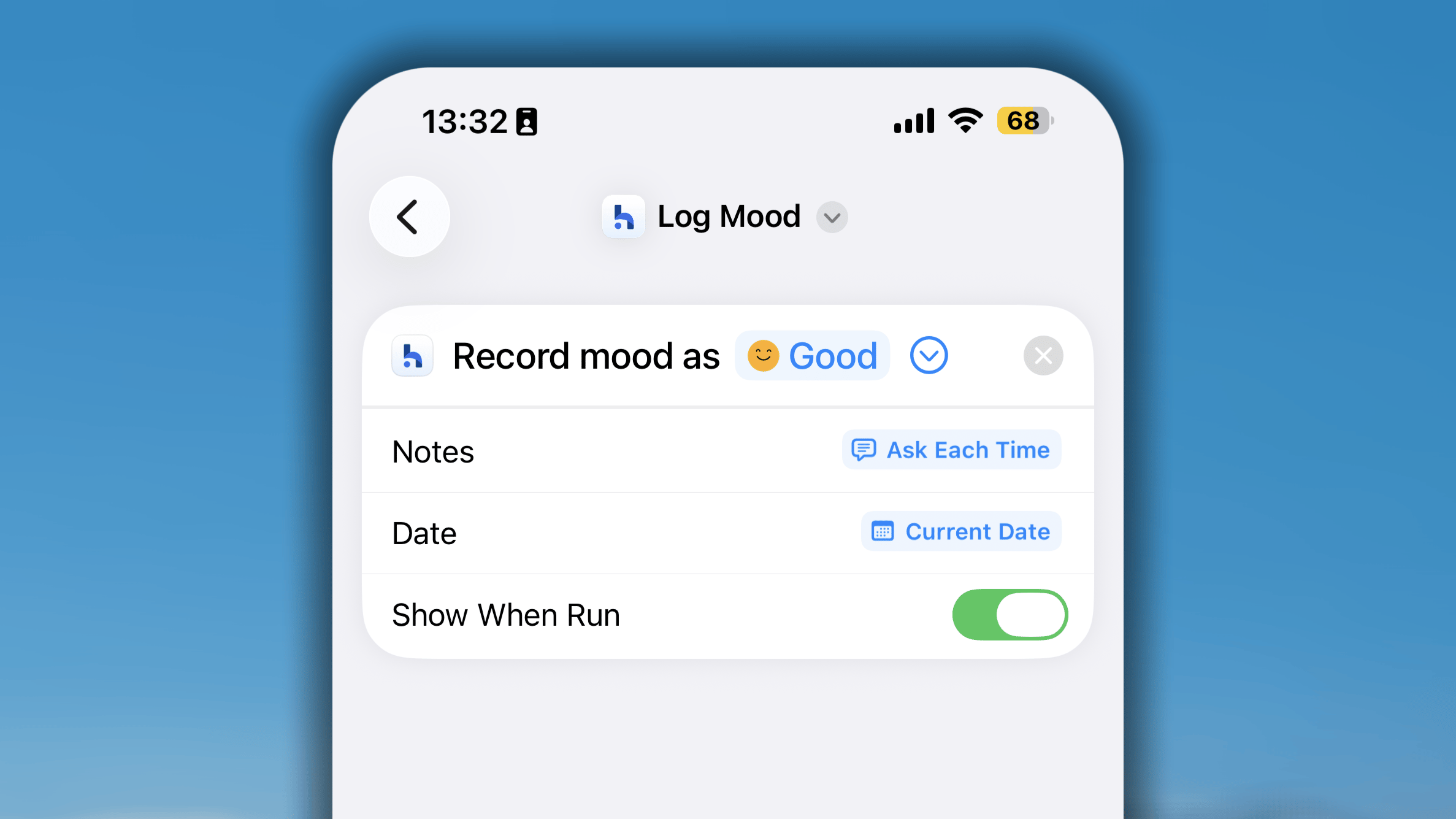 This shortcut allows you to conveniently log your mood.
* In Shortcuts, search for Habitify and choose **Log Mood** shortcut.
* In the settings of shortcut, choose the mood you want to log automatically
* Or, you can set the shortcut to "Ask each time" and it will prompt you the list of mood to choose each time you run the shortcuts.
### **Remove Logs**
This shortcut allows you to conveniently log your mood.
* In Shortcuts, search for Habitify and choose **Log Mood** shortcut.
* In the settings of shortcut, choose the mood you want to log automatically
* Or, you can set the shortcut to "Ask each time" and it will prompt you the list of mood to choose each time you run the shortcuts.
### **Remove Logs**
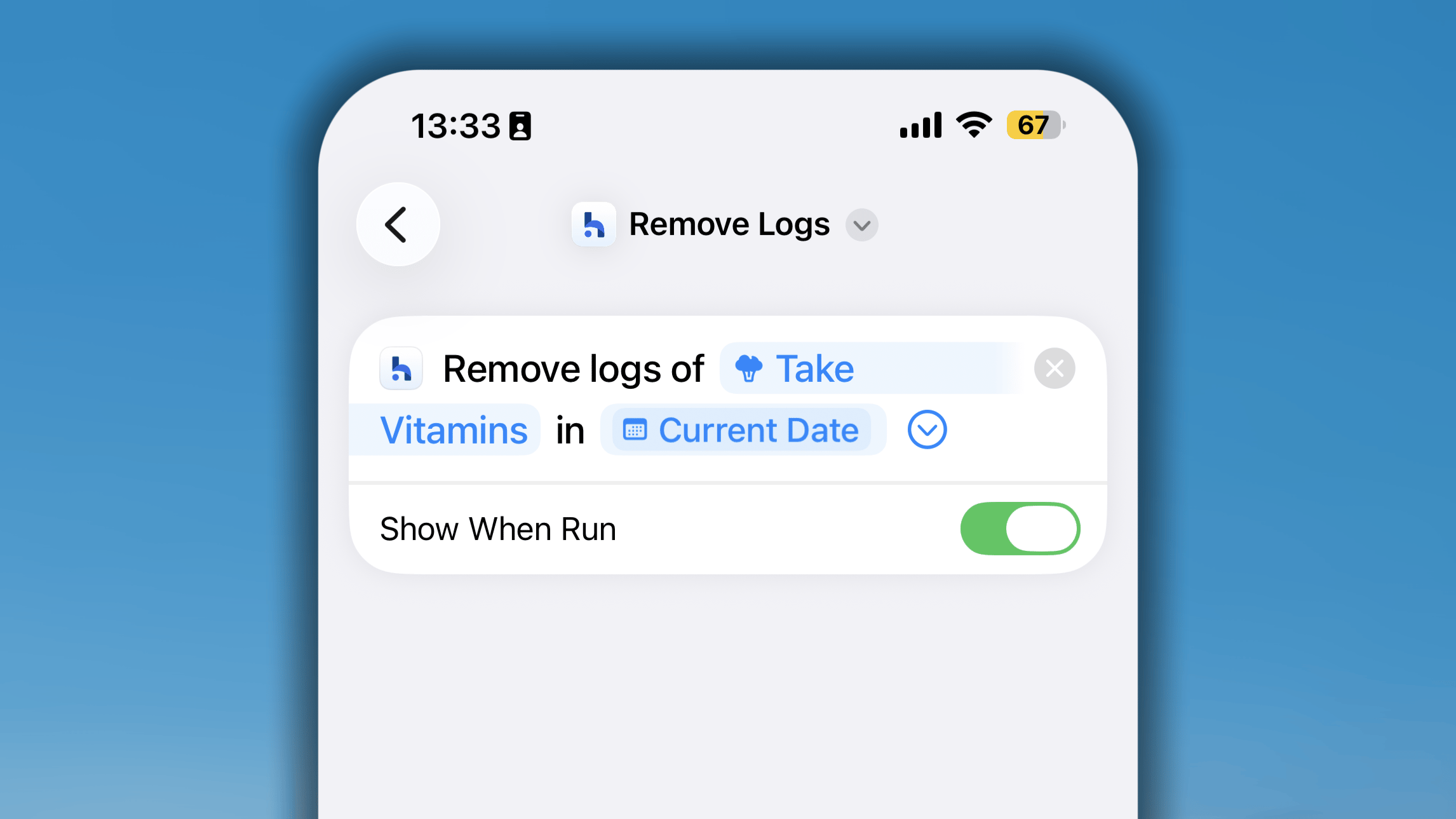 This shortcut let you remove the log(s) of progress on a habit on a specific date. Please note that this will remove and reset your progress back to 0 by one run.
* In Shortcuts, search for Habitify and choose **Remove Logs** shortcut.
* In the settings of shortcut, choose the habit you want to start timer session with the shortcut. You can leave this field empty and the shortcut will ask you each time you run it.
* Choose the **Date** you want to remove logs. You also can set it to "Ask Each Time".
### **Skip/Fail a Habit**
This shortcut let you remove the log(s) of progress on a habit on a specific date. Please note that this will remove and reset your progress back to 0 by one run.
* In Shortcuts, search for Habitify and choose **Remove Logs** shortcut.
* In the settings of shortcut, choose the habit you want to start timer session with the shortcut. You can leave this field empty and the shortcut will ask you each time you run it.
* Choose the **Date** you want to remove logs. You also can set it to "Ask Each Time".
### **Skip/Fail a Habit**
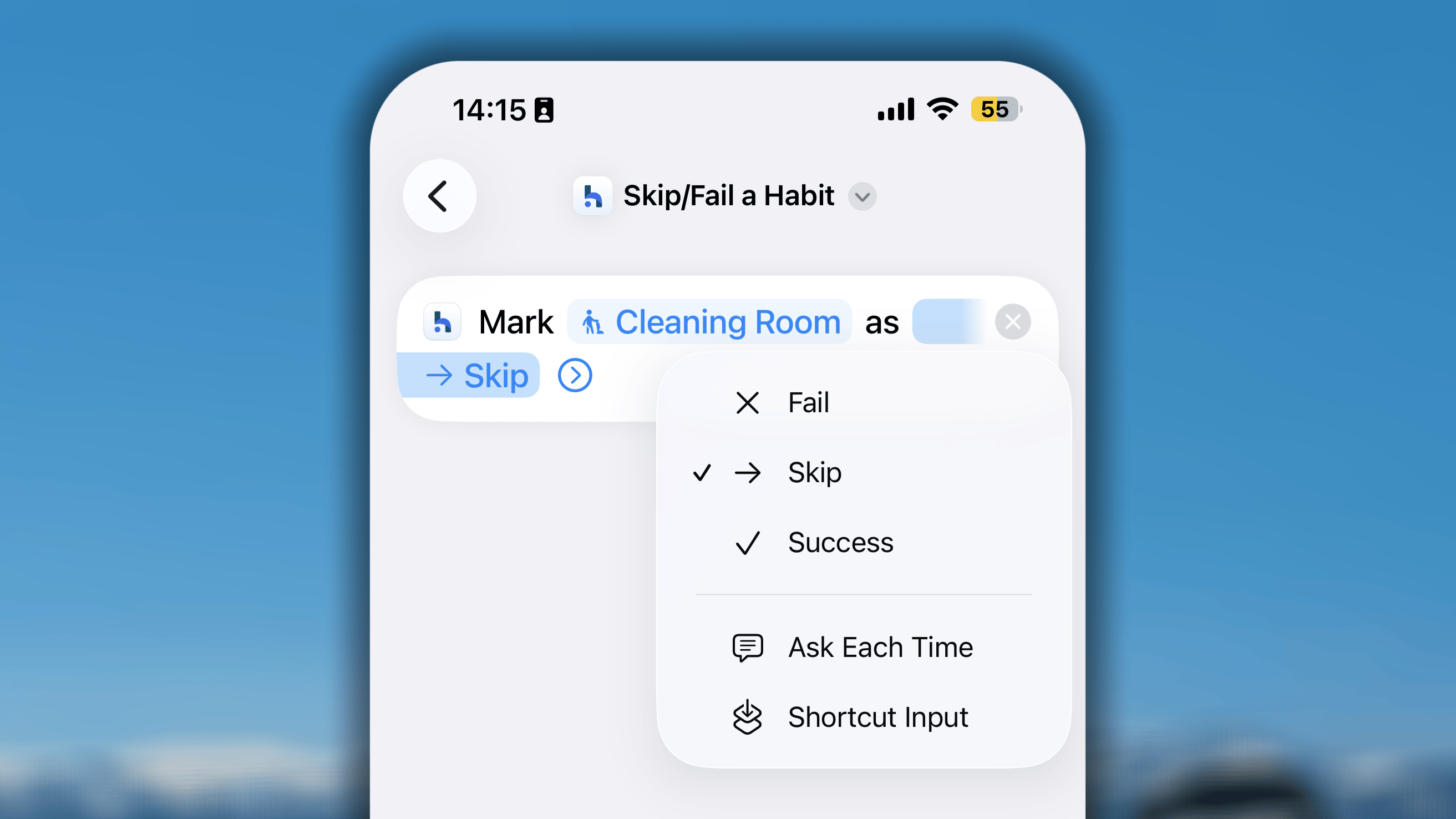 You can use this shortcut to update the status of a habit for the current day.
* In *Shortcuts*, search for Habitify and choose **Skip/Fail a Habit** shortcut.
* In the settings of shortcut, choose the habit you want to start timer session with the shortcut. You can leave this field empty and the shortcut will ask you each time you run it.
* Choose the **Action** you want the shortcut to execute (Skip, Fail, or Success). You can set "Ask each time" for the action.
### **Start Timer**
You can use this shortcut to update the status of a habit for the current day.
* In *Shortcuts*, search for Habitify and choose **Skip/Fail a Habit** shortcut.
* In the settings of shortcut, choose the habit you want to start timer session with the shortcut. You can leave this field empty and the shortcut will ask you each time you run it.
* Choose the **Action** you want the shortcut to execute (Skip, Fail, or Success). You can set "Ask each time" for the action.
### **Start Timer**
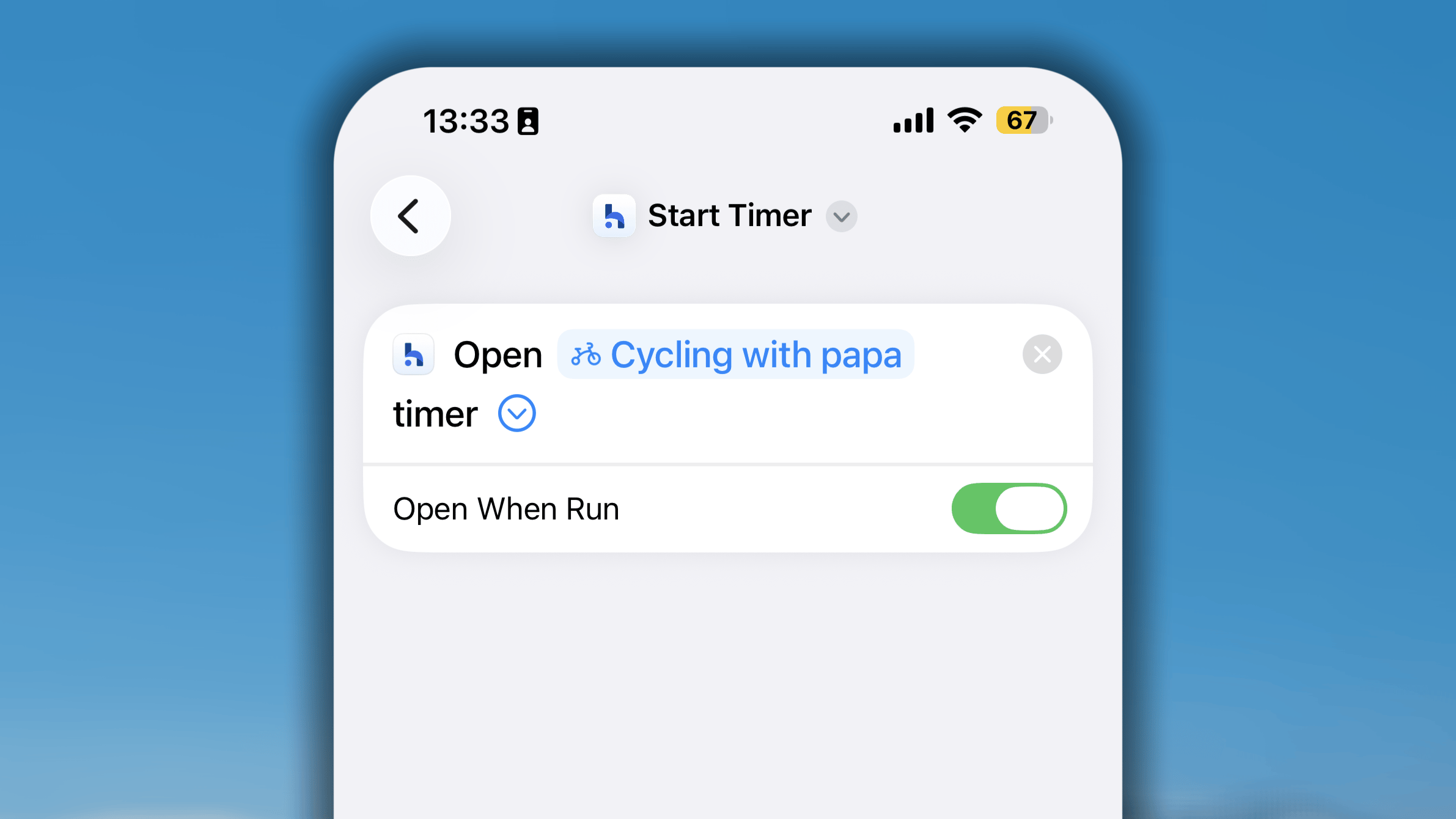 Use this shortcut to start a timer session on your habit conveniently. This shortcut is available to the habit with goal in unit minute and hour.
* In Shortcuts, search for Habitify and choose **Start Timer** shortcut.
* In the settings of shortcut, choose the habit you want to start timer session with the shortcut. You can leave this field empty and the shortcut will ask you each time you run it.
Running a timer still requires to open the app. Therefore, the result of this shortcut execution will open the app and lead to the timer session setting up.
### **View Journal**
Use this shortcut to start a timer session on your habit conveniently. This shortcut is available to the habit with goal in unit minute and hour.
* In Shortcuts, search for Habitify and choose **Start Timer** shortcut.
* In the settings of shortcut, choose the habit you want to start timer session with the shortcut. You can leave this field empty and the shortcut will ask you each time you run it.
Running a timer still requires to open the app. Therefore, the result of this shortcut execution will open the app and lead to the timer session setting up.
### **View Journal**
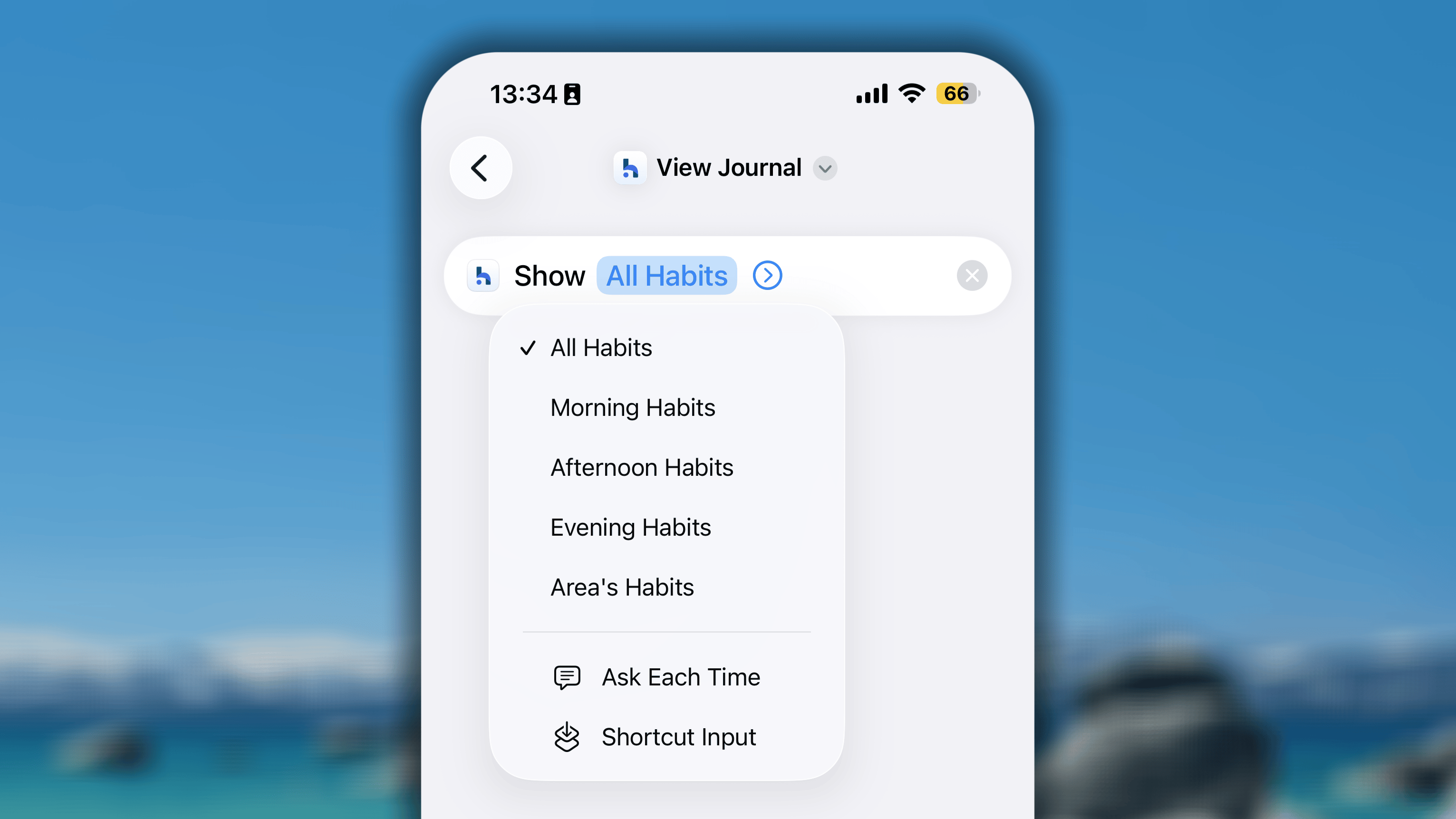 This shortcut allows you to open a quick view on the list of your habits.
* In Shortcuts, search for Habitify and choose **View Journal** shortcut.
* In the settings of shortcut, choose the list you want to view with the shortcut execution. You can choose between All Habits, a time of day (Morning, Afternoon, or Evening), or an Area. You can leave the field empty or choose "Ask each time" and the shortcut will ask you each time you run it.
## Habitify Shortcuts with Siri
Habitify does not support direct function to check in on your habit by voice. However, there is the integration with iOS shortcuts, so this is the work-around for you.
* Create the shortcuts with Habitify.
* Name your shortcuts as easy as for you to remember.
* Then just "Hey Siri!" and call out the name of your shortcuts
After running the shortcut, Siri tells you the result.
When your device is locked and you run a shortcut that opens Habitify, Siri asks to unlock your device before continuing.
Starting with iOS 27, Habitify can work with Siri AI directly without setting any native iOS shortcuts.
To check whether your devices is supported with Apple Intelligence and siri AI, you can check this guide by Apple: [**How to get Siri AI**](https://support.apple.com/en-us/127893?st_source=ai_mode)
## Habitify Shortcuts with iOS Automations
Beyond creating simple, manual shortcut buttons, the real power of iOS Shortcuts lies in its **Automations** feature. An Automation is a special type of shortcut that runs **automatically** in the background when a specific "trigger" event happens on your iPhone or Apple Watch.
### **The logic**
The most important thing to understand is that every automation has two parts:
* **The Trigger (The "When"):** This is the event that your iPhone's operating system (iOS) "listens for." **These triggers are built-in by Apple.**
This shortcut allows you to open a quick view on the list of your habits.
* In Shortcuts, search for Habitify and choose **View Journal** shortcut.
* In the settings of shortcut, choose the list you want to view with the shortcut execution. You can choose between All Habits, a time of day (Morning, Afternoon, or Evening), or an Area. You can leave the field empty or choose "Ask each time" and the shortcut will ask you each time you run it.
## Habitify Shortcuts with Siri
Habitify does not support direct function to check in on your habit by voice. However, there is the integration with iOS shortcuts, so this is the work-around for you.
* Create the shortcuts with Habitify.
* Name your shortcuts as easy as for you to remember.
* Then just "Hey Siri!" and call out the name of your shortcuts
After running the shortcut, Siri tells you the result.
When your device is locked and you run a shortcut that opens Habitify, Siri asks to unlock your device before continuing.
Starting with iOS 27, Habitify can work with Siri AI directly without setting any native iOS shortcuts.
To check whether your devices is supported with Apple Intelligence and siri AI, you can check this guide by Apple: [**How to get Siri AI**](https://support.apple.com/en-us/127893?st_source=ai_mode)
## Habitify Shortcuts with iOS Automations
Beyond creating simple, manual shortcut buttons, the real power of iOS Shortcuts lies in its **Automations** feature. An Automation is a special type of shortcut that runs **automatically** in the background when a specific "trigger" event happens on your iPhone or Apple Watch.
### **The logic**
The most important thing to understand is that every automation has two parts:
* **The Trigger (The "When"):** This is the event that your iPhone's operating system (iOS) "listens for." **These triggers are built-in by Apple.**
*Examples: "When my 'Wake Up' alarm is stopped," "When I arrive at the gym," or "When an Apple Watch workout ends."*
* **The Action (The "Do This"):** This is what you want Habitify *to do* when the trigger occurs. **These are the Habitify shortcuts** (like "Check-in," "Log Progress," etc.) that you've seen in the Shortcuts app.
Your goal is to connect these two things.
### **How to set it up**
It would be easer if you have the Habitify shortcuts ready.
1. Open the **Shortcuts** app on your iPhone.
2. Tap the **"Automation"** tab at the bottom center of the screen.
3. Tap the **'+'** icon to start a new automation.
4. You will first be asked to **Choose a Trigger** (e.g., "Alarm," "Arrive," "App").
5. After setting up your trigger, you will **Add an Action**. Find Habitify and choose among the action or shortcuts you created.
### **An example**
**Goal:** When you end a workout on your Apple Watch, add a note like "Workout completed!" to your "Active Calories" habit in Habitify.
Add a new Habitify's 'Add Note' shortcut:
* in 'Habit' field, select the 'Active Calories' habit.
* in 'Content' field, write "Workout completed!", or just leave it empty so you can write your own each time.
* Set 'Date' to 'Current Date' by default.
Name the shortcut for your easy search later.
1. In the "New Automation" screen, scroll down and tap on **"Apple Watch Workout"**.
2. Select **"Ends"**. (You can also choose a specific workout type, like "Running").
3. Make sure **"Run Immediately"** is selected.
4. Tap **"Next"**.
1. Tap **"Add Action"**.
2. Search for and select the shortcut you create in step 1.
**Some automation ideas to try:**
* **Trigger:** `Arrive` at `[Your Gym's Address]` → **Action:** `Start Timer` for your "Workout" habit.
* **Trigger:** `App` > `Kindle` > `Is Opened` → **Action:** `Start Timer` for your "Read a Book" habit.
* **Trigger:** `Bluetooth` > `Connects to [Your Car's Name]` → **Action:** `Log Progress` (1 time) for your "Commute" habit.
We hope this clears up the concept and helps you build powerful new automations!
## FAQs
We currently do not support this yet.
This documentation is built and hosted on [Mintlify](https://mintlify.com), a developer documentation platform.