> ## Documentation Index
> Fetch the complete documentation index at: https://docs.habitify.me/llms.txt
> Use this file to discover all available pages before exploring further.
# Challenge
A Challenge is a time-boxed way to build a habit alongside a group. Instead of tracking a habit alone, you commit to it together with others for a set stretch of time, competing (or just showing up together) toward the same shared goal.
This article will provides you all the details so you can start a challenge with other people.
## Comparing Challenge vs. Circle
 | | **Challenge** | **Circle** |
| :- | :- | :- |
| **Duration** | Time-boxed, runs for a set start and end date | Ongoing - no end date, stays until it is archived or deleted by the owner |
| **Habits tracked** | One shared habit goal per challenge | Multiple shared habits at once, habits are customized by each members. |
| **Statistics element** |
| | **Challenge** | **Circle** |
| :- | :- | :- |
| **Duration** | Time-boxed, runs for a set start and end date | Ongoing - no end date, stays until it is archived or deleted by the owner |
| **Habits tracked** | One shared habit goal per challenge | Multiple shared habits at once, habits are customized by each members. |
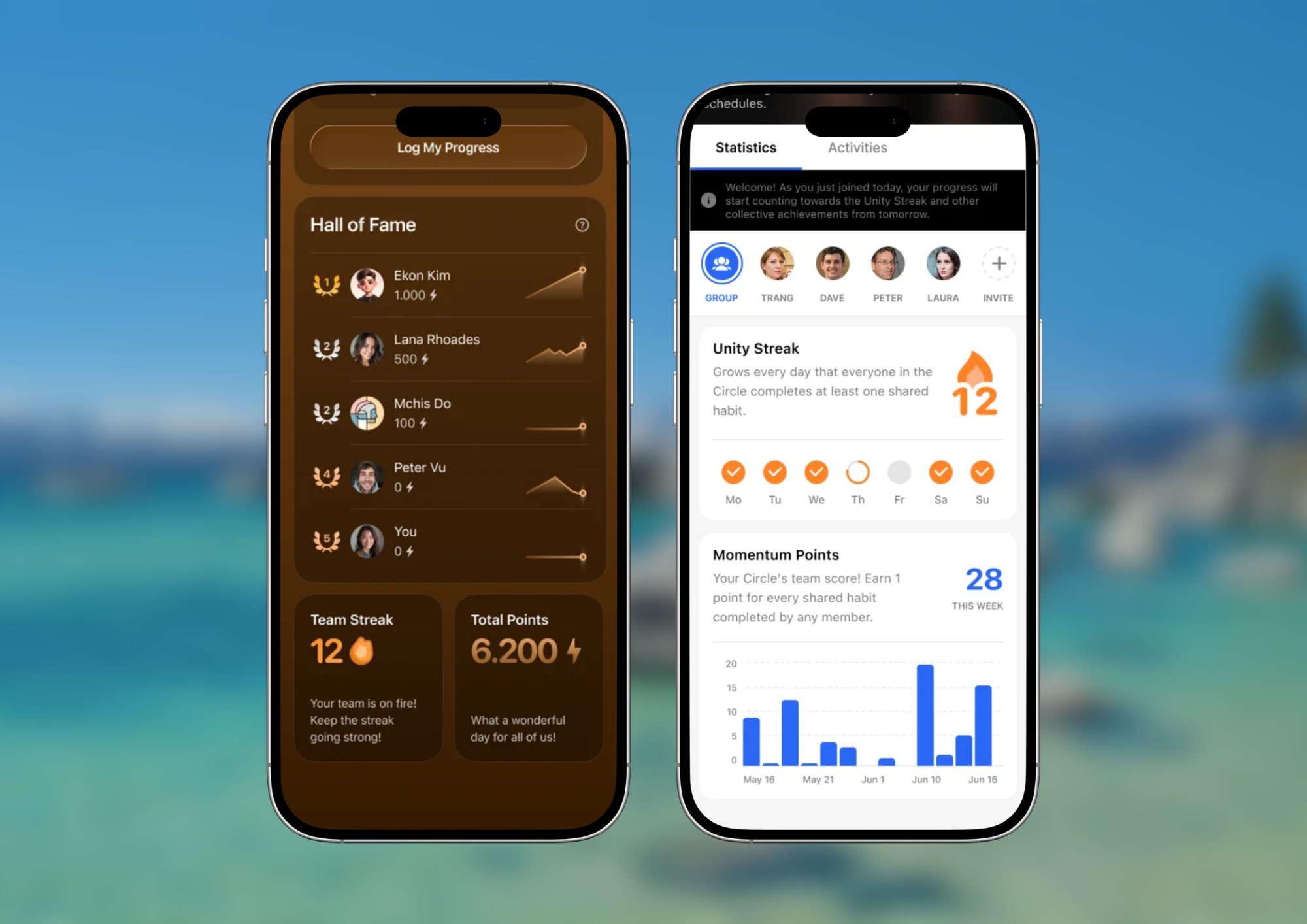
| **Statistics element** | - **Streakboard** ranks participants's point for each completed day with optional scoring penalties on missed day.
- **Team Streak** increases when all members complete the challenge's habit for the current day.
| - **Unity Streak** increases when every member completed at least 1 shared daily habit scheduled for the current day.
- **Momentum Point** increases when a shared habit is completed, optinally seeing the ranking by each member's momentum point.
|
| **Progress editing** | Locked once logged for the current day; no backfilling or changes for past days.
Unlimited skip, Off Mode supported | Reflects your habit's progress from Journal view, even later changes.
Limited skip, Off Mode supported |
| **Group size** | Unlimited | Unlimited |
| **Social interaction** | Activities Tab: reactions, comments, @ mentions, ongoing conversation | Activities Tab: reactions, comments, @ mentions, ongoing conversation |
| **Platform availability** | iOS, Android | iOS, Android |
## Hosting a challenge
### Creating a new challenge
1. In Habitify app, navigate to the '**Friends**' tab.
2. Tap the **'+ '** button, then select '**Challenge**.'
3. Customize your challenge details:
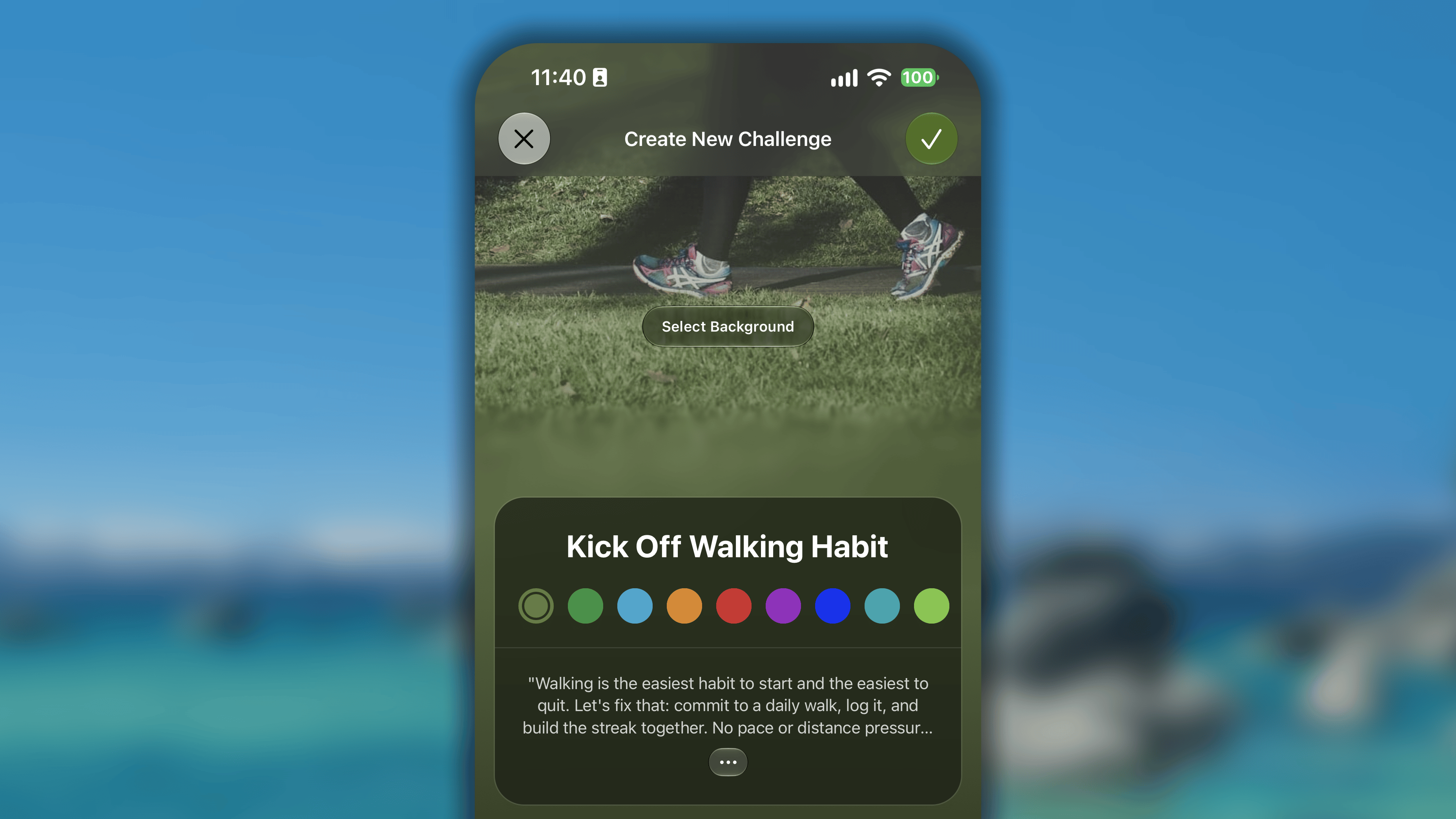 1. Tap '**Select Background**' button and choose an inspiring cover image from **Suggested** (our own collection), **Unsplash**, or **Photos** (your own photo library)
2. Tap on the '**Challenge Name**' input field, and give it a clear and motivating title (e.g., "30 Days of Mindfulness" or "Early Risers Club").
3. Pick a color below the challenge's name that will be applied on the buttons and interactive elements in the space of your challenge.
4. Tap **'+ Add Short Description'** to add an introduction or explanation what the challenge is about, letting participants know what to expect and why they should join.
4. Define the rules of your challenge:
1. Tap '**Select Background**' button and choose an inspiring cover image from **Suggested** (our own collection), **Unsplash**, or **Photos** (your own photo library)
2. Tap on the '**Challenge Name**' input field, and give it a clear and motivating title (e.g., "30 Days of Mindfulness" or "Early Risers Club").
3. Pick a color below the challenge's name that will be applied on the buttons and interactive elements in the space of your challenge.
4. Tap **'+ Add Short Description'** to add an introduction or explanation what the challenge is about, letting participants know what to expect and why they should join.
4. Define the rules of your challenge:
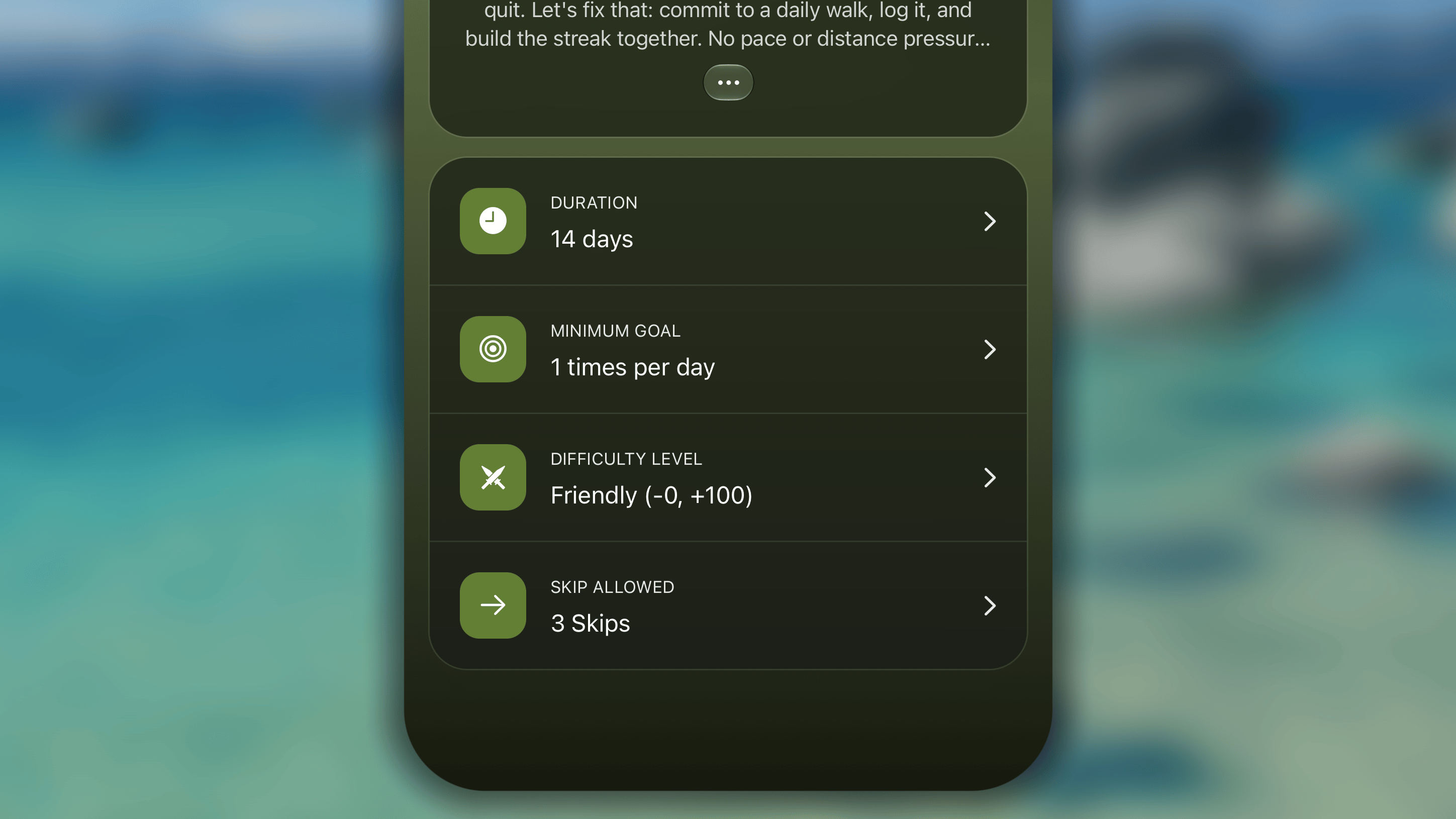 * **Duration:** Tap to open the field, then choose from *presets* like 7, 14, 21, 30, 45, 60, or 90 days, or select *'Custom'* to set your own timeframe.
* **Minimum Goal:** Tap to open the field, and configure the allowed logging method and the minimum value each members must commit to.
* **Allowed Logging Methods**: this includes the manual logging and the automatic logging from Health & Wellness apps (Apple Health, Fitbit, Strava, and Health Connect).
* **Duration:** Tap to open the field, then choose from *presets* like 7, 14, 21, 30, 45, 60, or 90 days, or select *'Custom'* to set your own timeframe.
* **Minimum Goal:** Tap to open the field, and configure the allowed logging method and the minimum value each members must commit to.
* **Allowed Logging Methods**: this includes the manual logging and the automatic logging from Health & Wellness apps (Apple Health, Fitbit, Strava, and Health Connect).
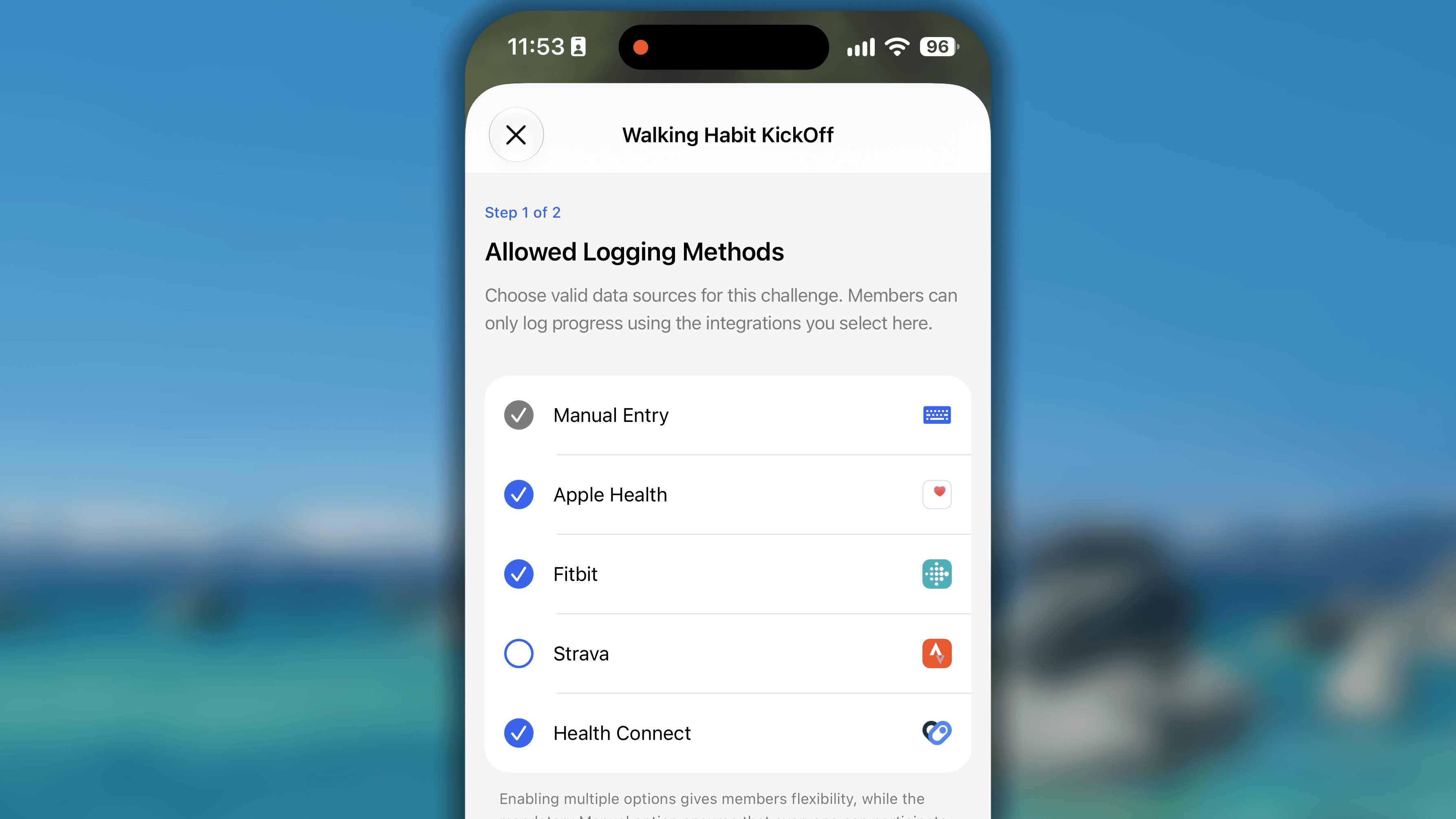 * **Target Activity**: Based on your selection of methods, below will list out the available activities you can pick.
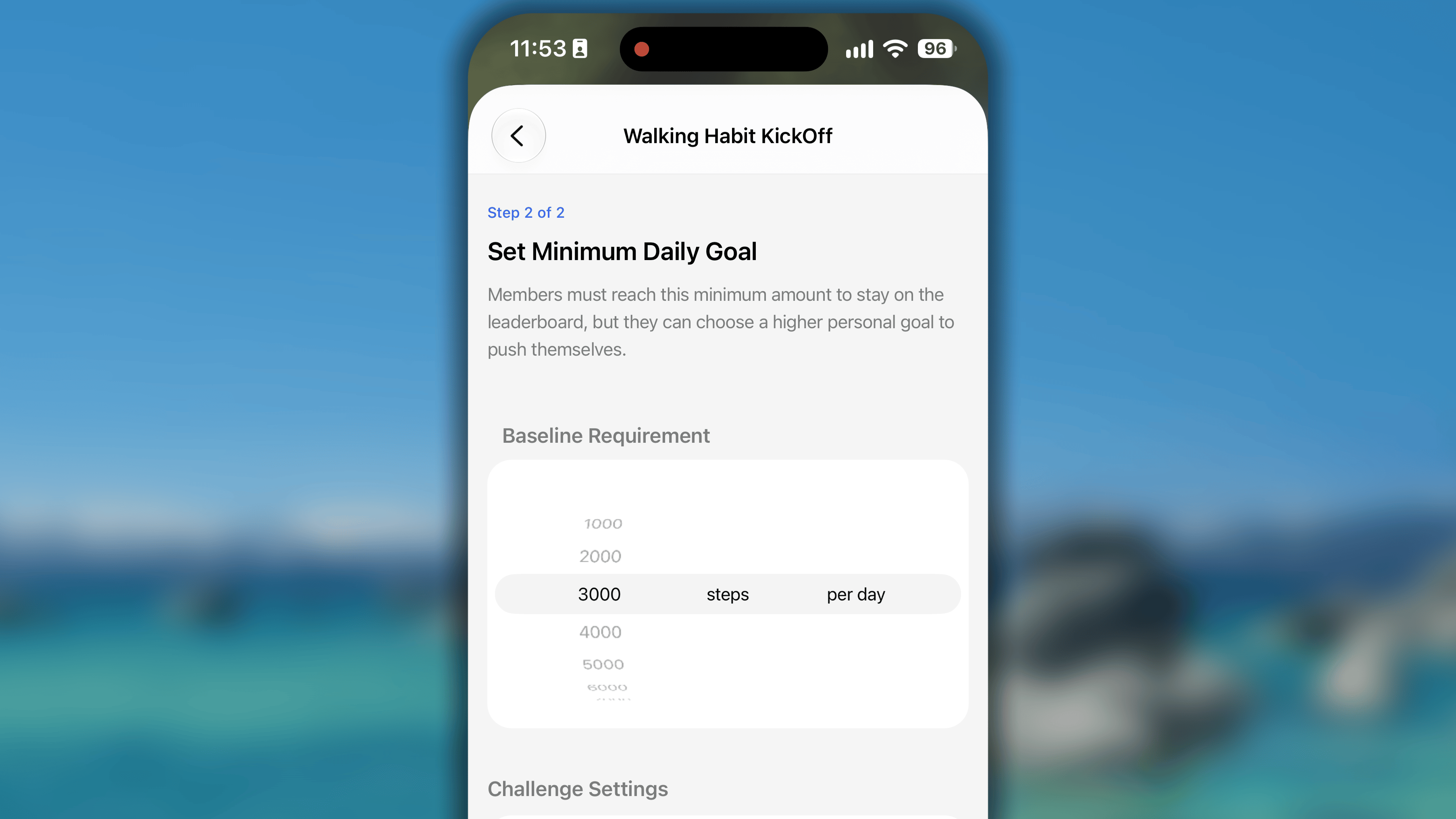
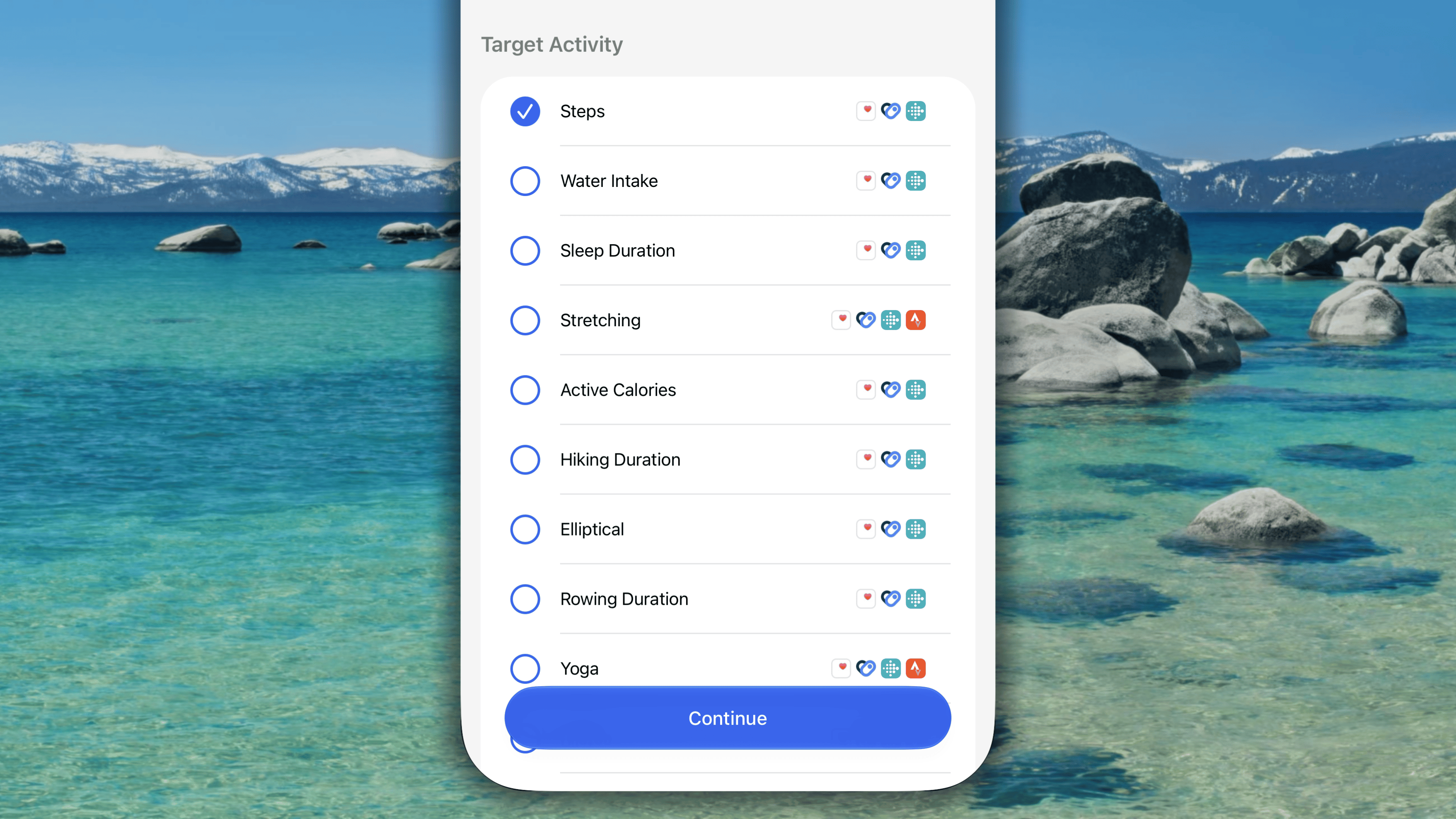 * **Set Minimum Daily Goal:** in this step you set the baseline requirement that each member must commit to. The supported unit to track the goal also depends on the logging methods you choose.
 * **Difficulty** **Level:** Tap to open the field, and define how strict the competition should be. These levels determine how points are calculate:
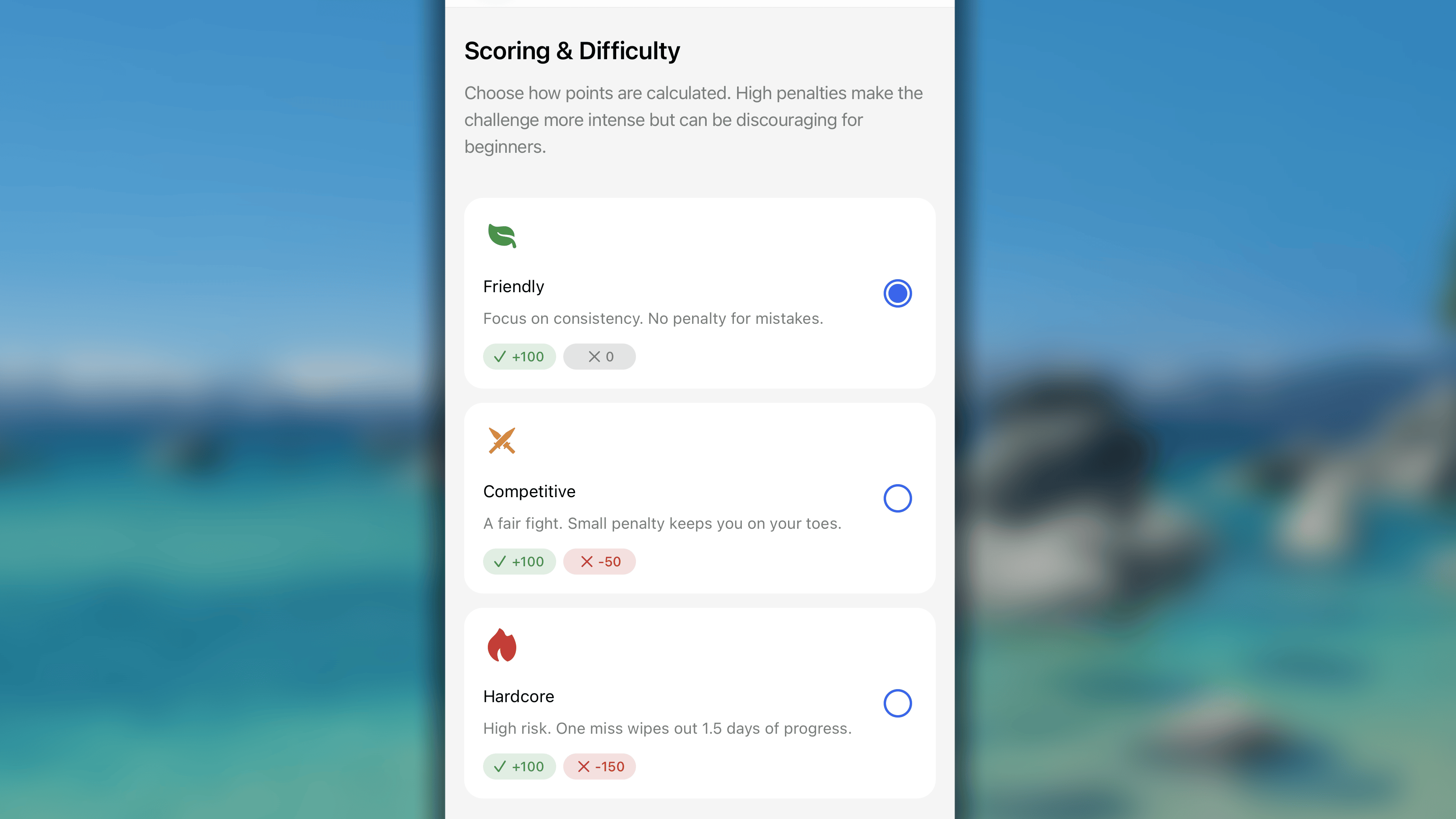 * **Friendly**: + 100 for Completion, + 0 for Skip, - 0 for Fail
* **Competitive**: + 100 for Completion, + 0 for Skip, - 50 for Fail
* **Hardcore**: + 100 for Completion, + 0 for Skip, - 150 for Fail
* **Skip Allowed:** Tap to open the field, and decide how many times a user can mark a day as 'Skipped' and freeze their streak.
5. Finally, tap the '**Done**' button in the top right corner to save your challenge.
### Commiting to your challenge
* **Friendly**: + 100 for Completion, + 0 for Skip, - 0 for Fail
* **Competitive**: + 100 for Completion, + 0 for Skip, - 50 for Fail
* **Hardcore**: + 100 for Completion, + 0 for Skip, - 150 for Fail
* **Skip Allowed:** Tap to open the field, and decide how many times a user can mark a day as 'Skipped' and freeze their streak.
5. Finally, tap the '**Done**' button in the top right corner to save your challenge.
### Commiting to your challenge
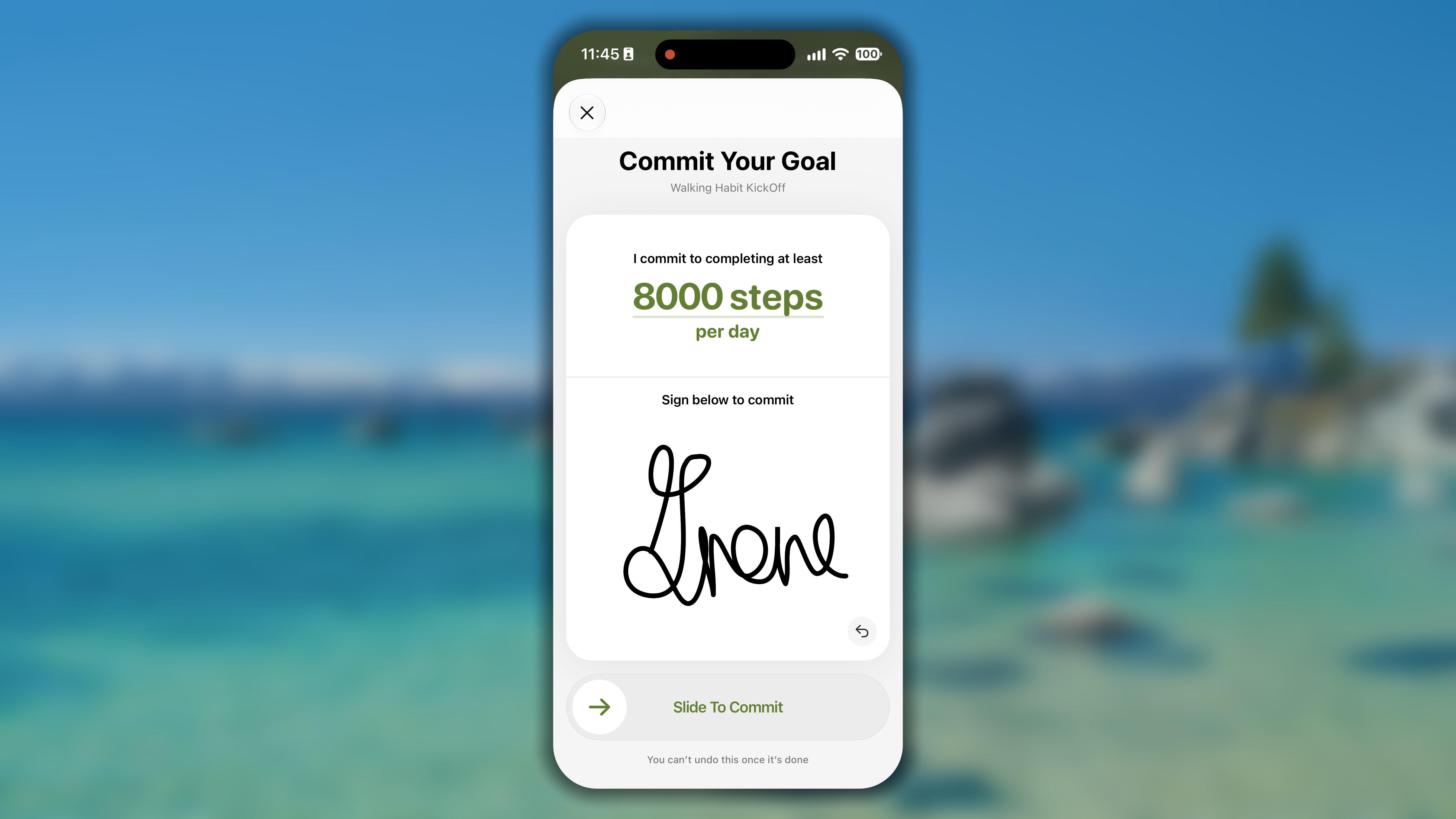 Since you are the host, be the first one to join and commit to the challenge:
1. In *Friends* tab, open the challenge you just created.
2. Scroll down, find and tap on the **'Commit my Daily Goals'** button.
3. Enter your personal daily goal which must be equal to or greater than the challenge's Minimum Goal
4. **Sign** and **slide the button** to officially confirm your commitment.
### Inviting people to your challenge
A challenge needs at least 2 members (including you, the owner) who have committed to their goals before it can officially start.
Since you are the host, be the first one to join and commit to the challenge:
1. In *Friends* tab, open the challenge you just created.
2. Scroll down, find and tap on the **'Commit my Daily Goals'** button.
3. Enter your personal daily goal which must be equal to or greater than the challenge's Minimum Goal
4. **Sign** and **slide the button** to officially confirm your commitment.
### Inviting people to your challenge
A challenge needs at least 2 members (including you, the owner) who have committed to their goals before it can officially start.
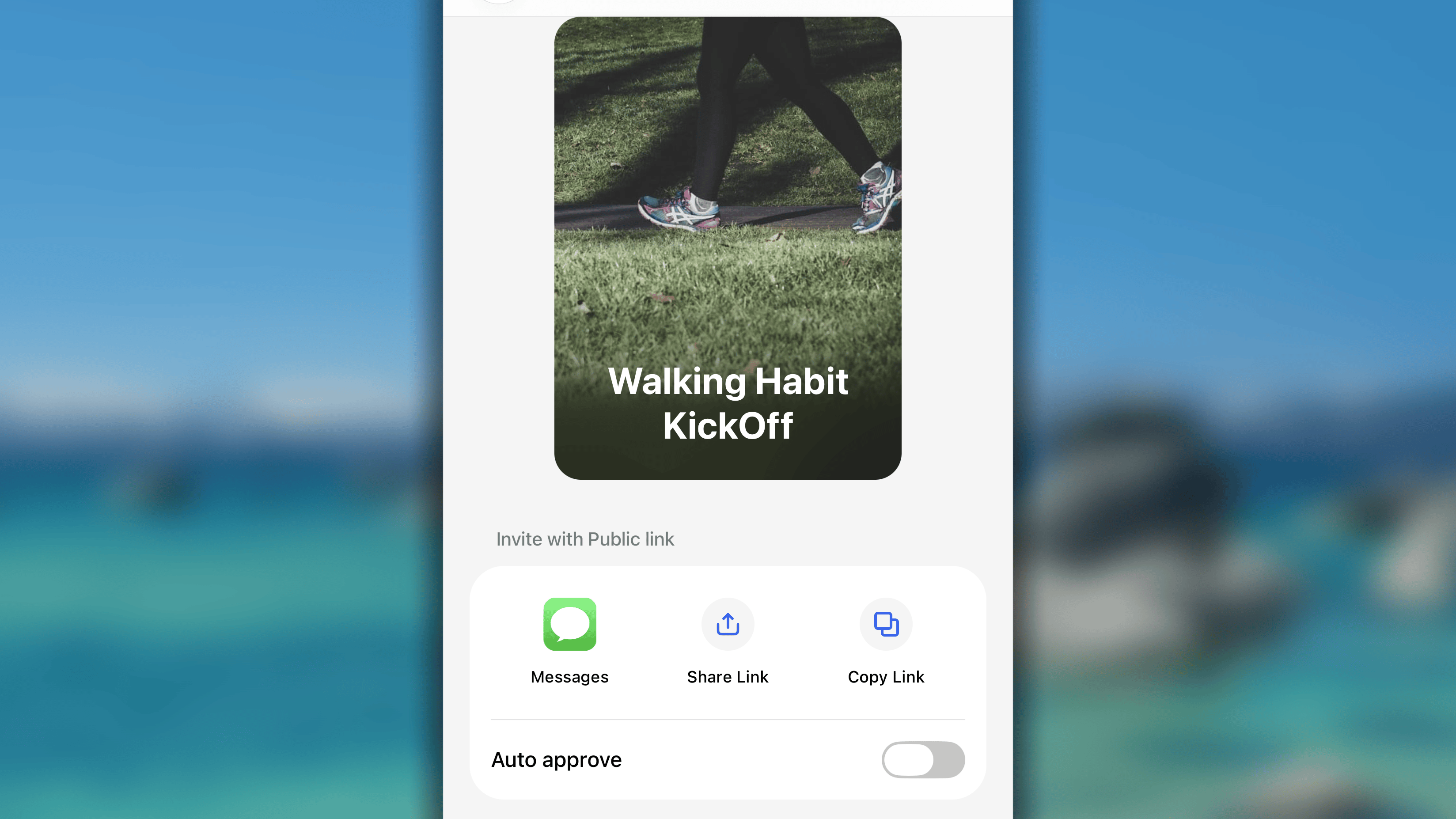 To invite other people to joỉn with you in your challenge:
1. Open your challenge, and tap the **'+ Invite Members'** button.
2. A sharing pop-up will appear with options to share your challenge:
* **Messages:** Send it directly through the Messages app.
* **Share Link:** Use the system share to directly send to a contact, to post it on social media, or send via email apps, etc.,.
* **Copy Link:** Copy the URL to your clipboard and paste it anywhere you like.\\
3. With the '**Auto Approve**' toggle button, as the host, you have control over who enters your challenge:
* **Switch ON**: if you want to let people join immediately without your approval.
* **Switch OFF**: if you want to control who can join, and who cannot.
### Managing people in your challenge
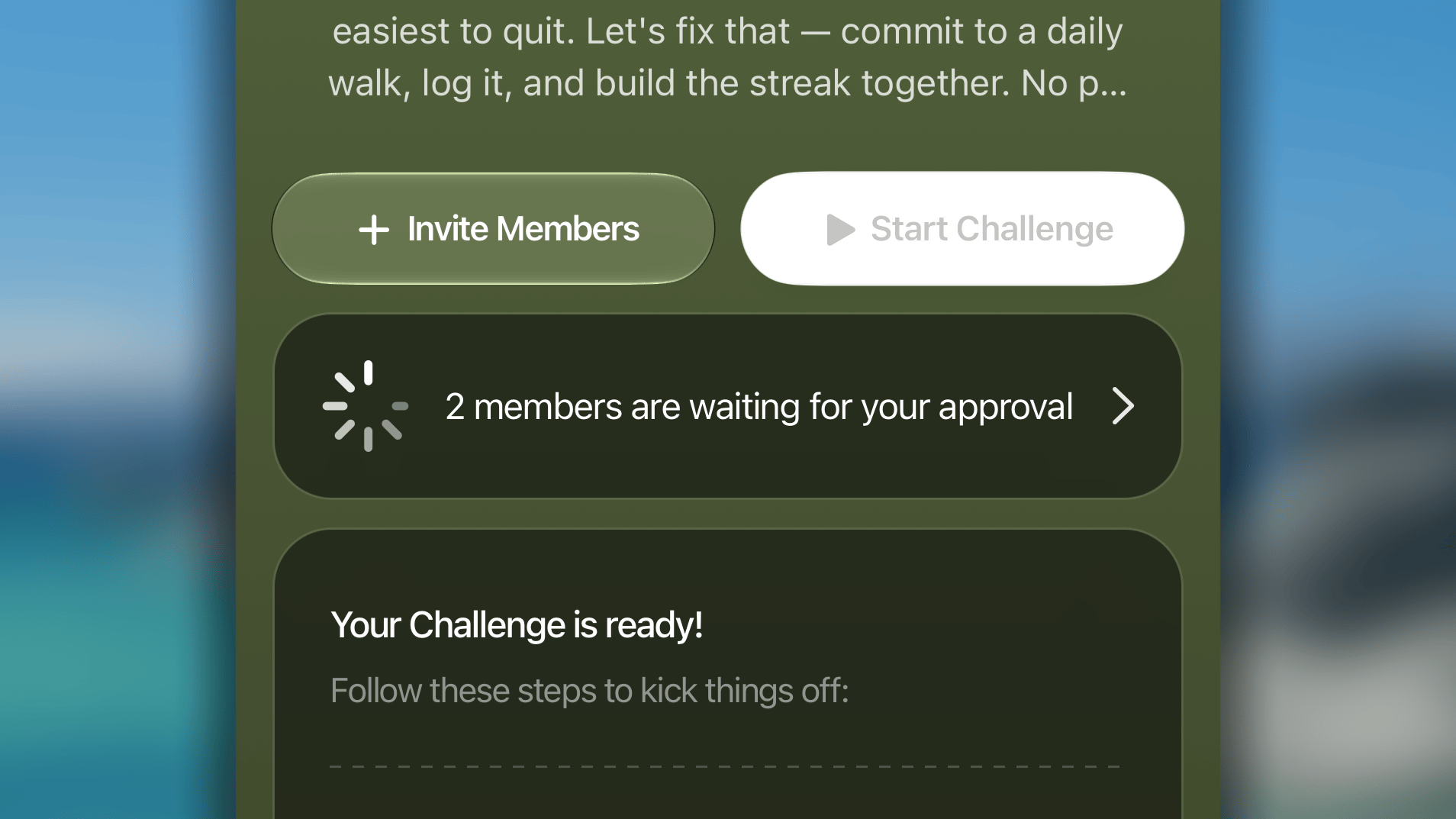
If you disable '**Auto Approve**' function, anyone who clicks your link must send a request to join. You can see all the request by:
* tap on the notification of new requests, or
* in *\[your challenge]*, tap on the banner showing that there's someone waiting for your approval.
To invite other people to joỉn with you in your challenge:
1. Open your challenge, and tap the **'+ Invite Members'** button.
2. A sharing pop-up will appear with options to share your challenge:
* **Messages:** Send it directly through the Messages app.
* **Share Link:** Use the system share to directly send to a contact, to post it on social media, or send via email apps, etc.,.
* **Copy Link:** Copy the URL to your clipboard and paste it anywhere you like.\\
3. With the '**Auto Approve**' toggle button, as the host, you have control over who enters your challenge:
* **Switch ON**: if you want to let people join immediately without your approval.
* **Switch OFF**: if you want to control who can join, and who cannot.
### Managing people in your challenge
If you disable '**Auto Approve**' function, anyone who clicks your link must send a request to join. You can see all the request by:
* tap on the notification of new requests, or
* in *\[your challenge]*, tap on the banner showing that there's someone waiting for your approval.
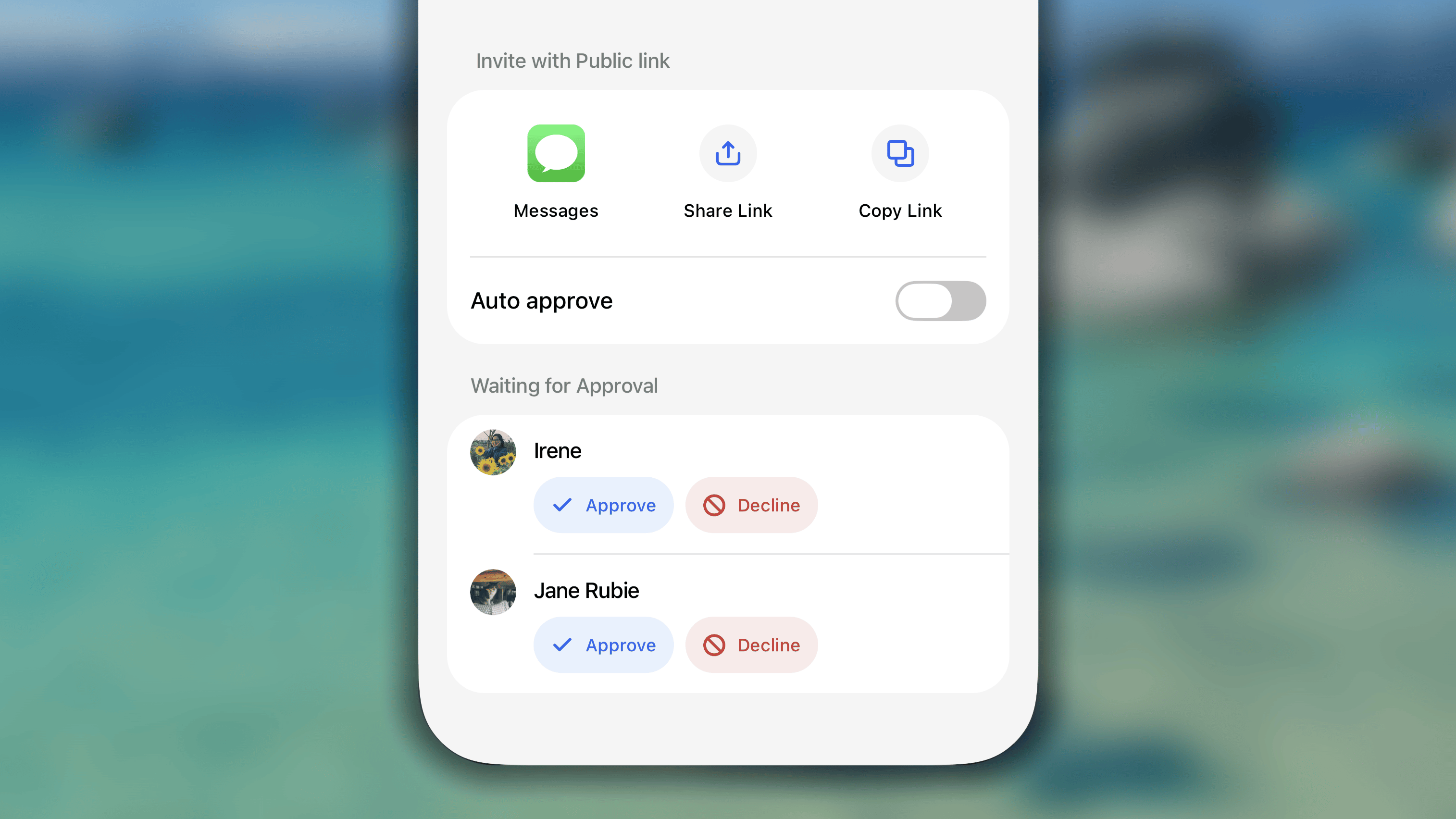
 Then, under sharing options, in *Waiting for Approval* section:
* Tap '**Approve**' if you accept their request.
* Tap '**Decline**' if you don't want the people to join.
Then, under sharing options, in *Waiting for Approval* section:
* Tap '**Approve**' if you accept their request.
* Tap '**Decline**' if you don't want the people to join.
 ### Letting your challenge start
As the challenge's owner, you have the honor of firing the starting pistol.
1. Open the challenge you've created but not started yet.
2. Tap the **'Start Challenge'** button located directly under the challenge name and description.
### Letting your challenge start
As the challenge's owner, you have the honor of firing the starting pistol.
1. Open the challenge you've created but not started yet.
2. Tap the **'Start Challenge'** button located directly under the challenge name and description.
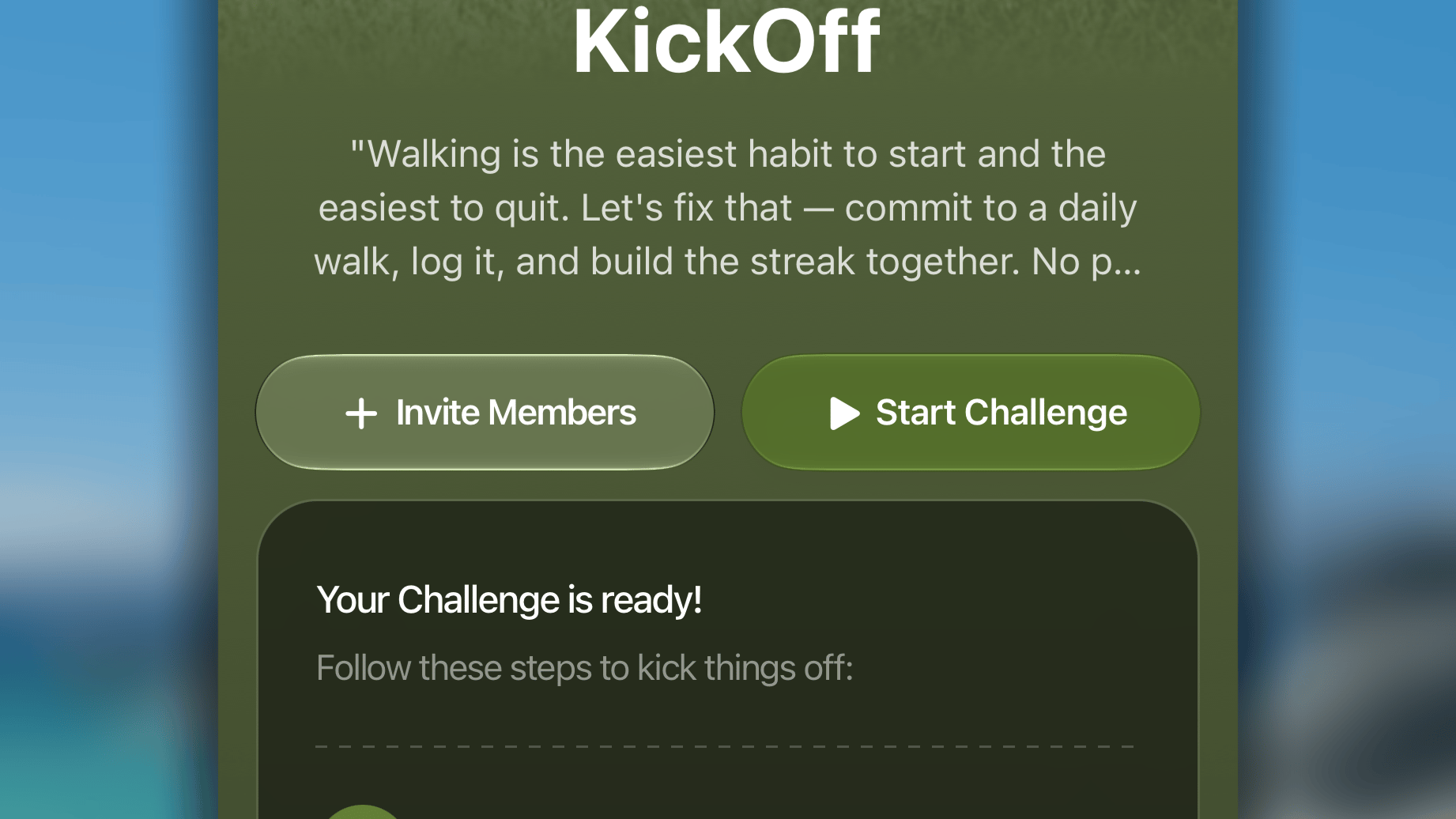 The challenge will immediately begin, and run until **23:59:59** on the end date determined by your duration setting.
Once you tap start, a push notification is sent to all members to let them know the race is on.
A challenge needs at least 2 members who've already joined and committed to begin.
## Joining a challenge
So, you've received an invitation link to join a Habitify Challenge? This is how you walk through the simple steps to accept the invite and get started.
1. Install Habitify app, and log into your Habitify account.
2. Tap on the invitation link you received, the link will open challenge in the app directly.
3. Take a moment to review the rules of the challenge:
The challenge will immediately begin, and run until **23:59:59** on the end date determined by your duration setting.
Once you tap start, a push notification is sent to all members to let them know the race is on.
A challenge needs at least 2 members who've already joined and committed to begin.
## Joining a challenge
So, you've received an invitation link to join a Habitify Challenge? This is how you walk through the simple steps to accept the invite and get started.
1. Install Habitify app, and log into your Habitify account.
2. Tap on the invitation link you received, the link will open challenge in the app directly.
3. Take a moment to review the rules of the challenge:
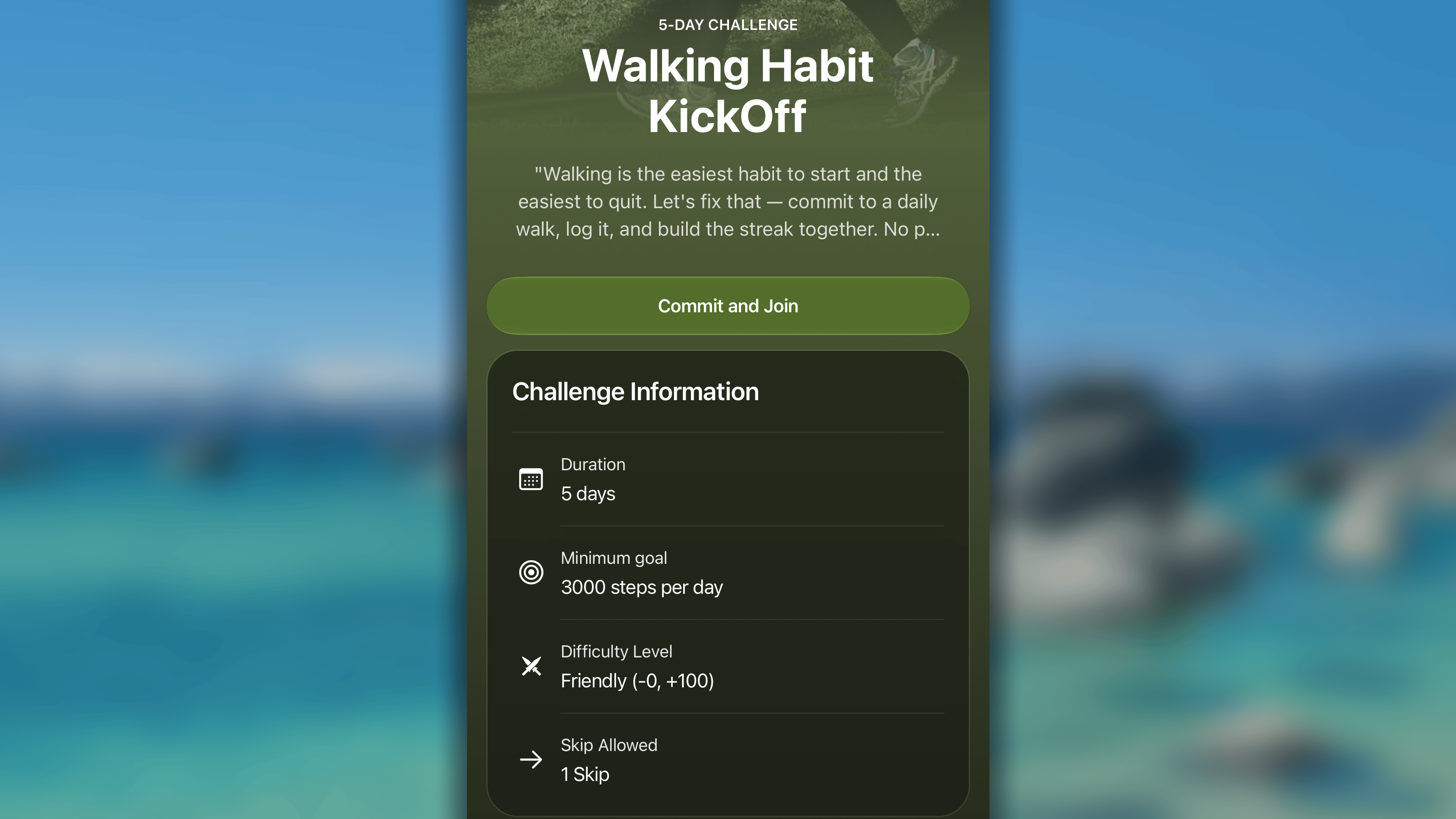 * **Challenge Name & Description:** Learn what the challenge is all about and what the host expects from participants.
* **Challenge Rules:**
* **Duration:** How long the challenge will last (e.g., 30 days).
* **Minimum Goal:** The daily target you must hit (e.g., "Read 20 pages").
* **Skip Allowed:** How many "off days" are permitted during the challenge.
* **Members:** See who else has already joined the group!
4. Tap '**Commit and Join'** button located right under the challenge name and description, then:
* **Challenge Name & Description:** Learn what the challenge is all about and what the host expects from participants.
* **Challenge Rules:**
* **Duration:** How long the challenge will last (e.g., 30 days).
* **Minimum Goal:** The daily target you must hit (e.g., "Read 20 pages").
* **Skip Allowed:** How many "off days" are permitted during the challenge.
* **Members:** See who else has already joined the group!
4. Tap '**Commit and Join'** button located right under the challenge name and description, then:
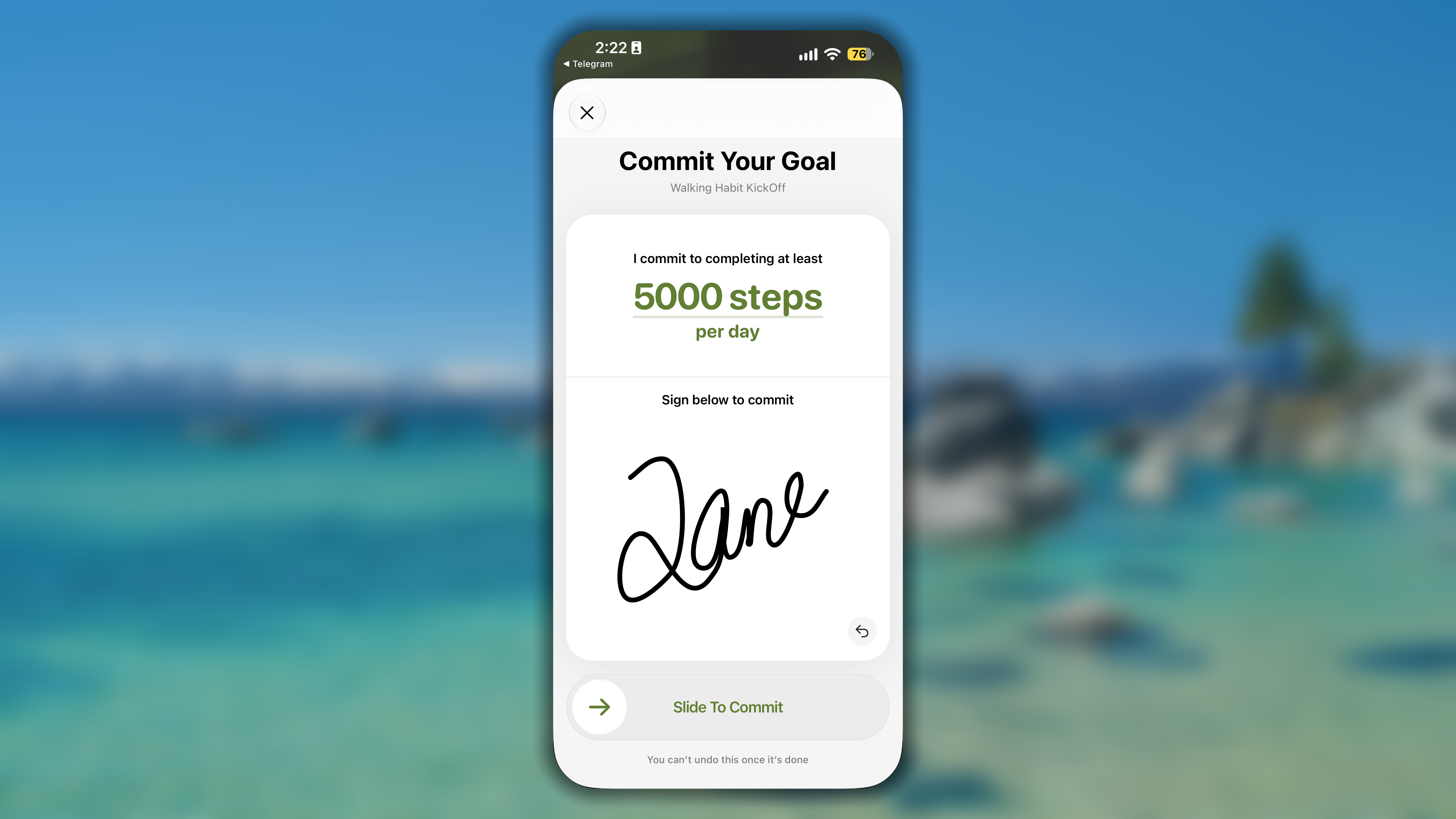 * **Set your daily goal:** You must commit to a personal daily goal which **must be equal to or greater than the Minimum Goal** set by the host.
* **Sign your commitment:** Sign your name at the bottom of the screen.
* **Slide to Confirm:** Slide the button across the screen to officially lock in your commitment.
You're all on set now. The next step is waiting for the host the start the challenge. You will receive a push notification when the challenge begins.
## Adding a habit connect to challenge
Once the challenge is live, every participant, including the host, needs to add a habit linked with the challenge to their daily list in Journal. This helps every member remember, stay on track, and log progress on the challenge easily.
1. Open the app and access the challenge.
2. In the challenge, under *Ready to join in?*, tap the '**Create Habit**' button.
* **Set your daily goal:** You must commit to a personal daily goal which **must be equal to or greater than the Minimum Goal** set by the host.
* **Sign your commitment:** Sign your name at the bottom of the screen.
* **Slide to Confirm:** Slide the button across the screen to officially lock in your commitment.
You're all on set now. The next step is waiting for the host the start the challenge. You will receive a push notification when the challenge begins.
## Adding a habit connect to challenge
Once the challenge is live, every participant, including the host, needs to add a habit linked with the challenge to their daily list in Journal. This helps every member remember, stay on track, and log progress on the challenge easily.
1. Open the app and access the challenge.
2. In the challenge, under *Ready to join in?*, tap the '**Create Habit**' button.
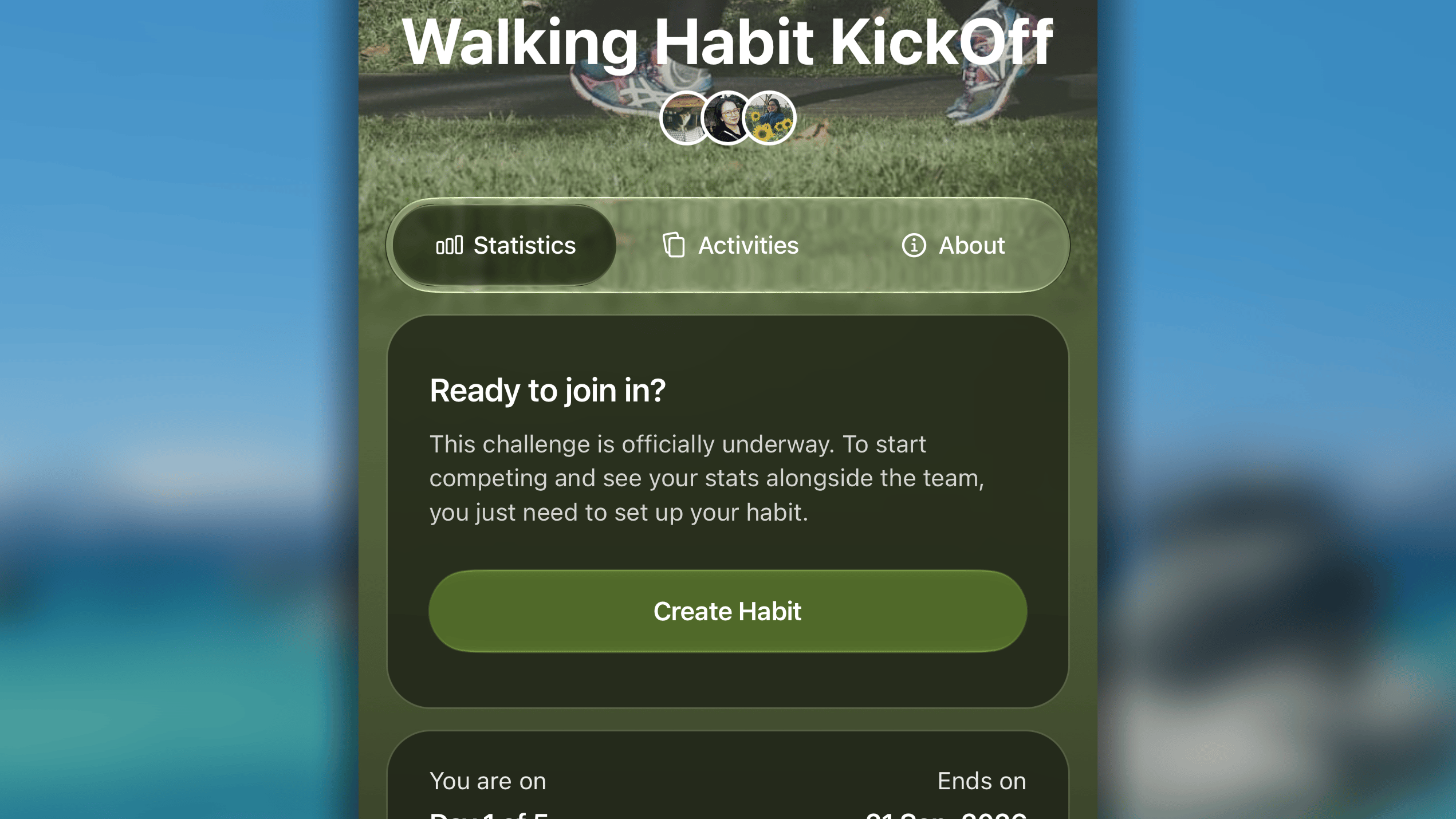 3. You will be taken to the habit creation screen to configure a new habit specifically for this challeng
1. Tap **Goal**, and choose the logging method you prefer. The available options are based on the settings by the challene's host.
3. You will be taken to the habit creation screen to configure a new habit specifically for this challeng
1. Tap **Goal**, and choose the logging method you prefer. The available options are based on the settings by the challene's host.
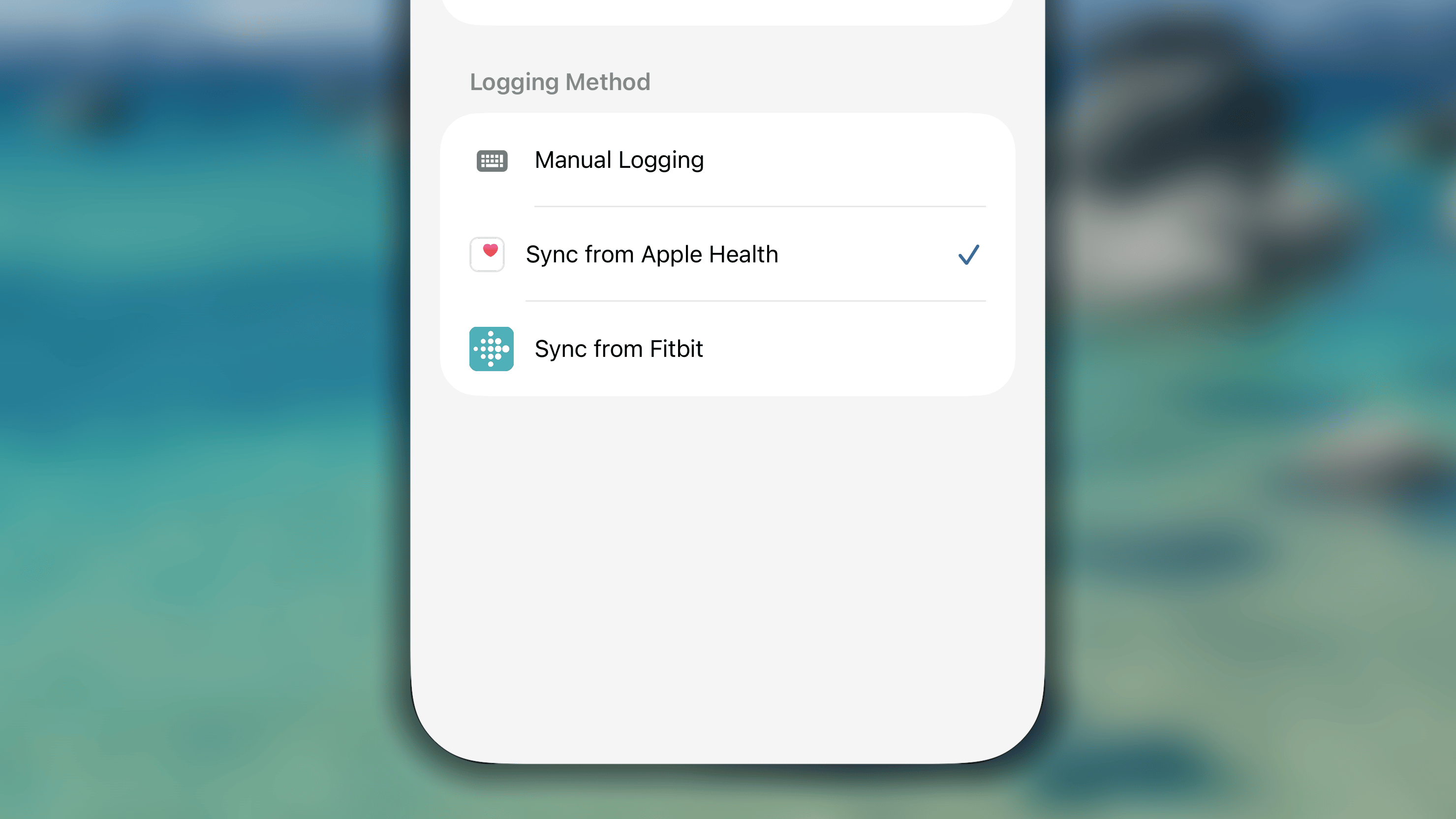 2. Tap the **'Save'** button to save the habit.
For the challenge's habit:
* **Repeat** is 'Daily', **Start Date** and **End Condition** follow the challenge's duration, by default.
* **Goal** can be changed but still needs to follow the rule of being equal or greater than the Minimum Goal of the challenge.
## Logging progress on challenge
There are two convenient ways to record your progress for a challenge habit.
### **From the list in Journal**
Challenge habits appear in your main **Journal** list alongside your personal habits. You can track them exactly the same way you track any other habit.
1. In *Journal*, find your challenge habit.
2. Tap the **'Save'** button to save the habit.
For the challenge's habit:
* **Repeat** is 'Daily', **Start Date** and **End Condition** follow the challenge's duration, by default.
* **Goal** can be changed but still needs to follow the rule of being equal or greater than the Minimum Goal of the challenge.
## Logging progress on challenge
There are two convenient ways to record your progress for a challenge habit.
### **From the list in Journal**
Challenge habits appear in your main **Journal** list alongside your personal habits. You can track them exactly the same way you track any other habit.
1. In *Journal*, find your challenge habit.
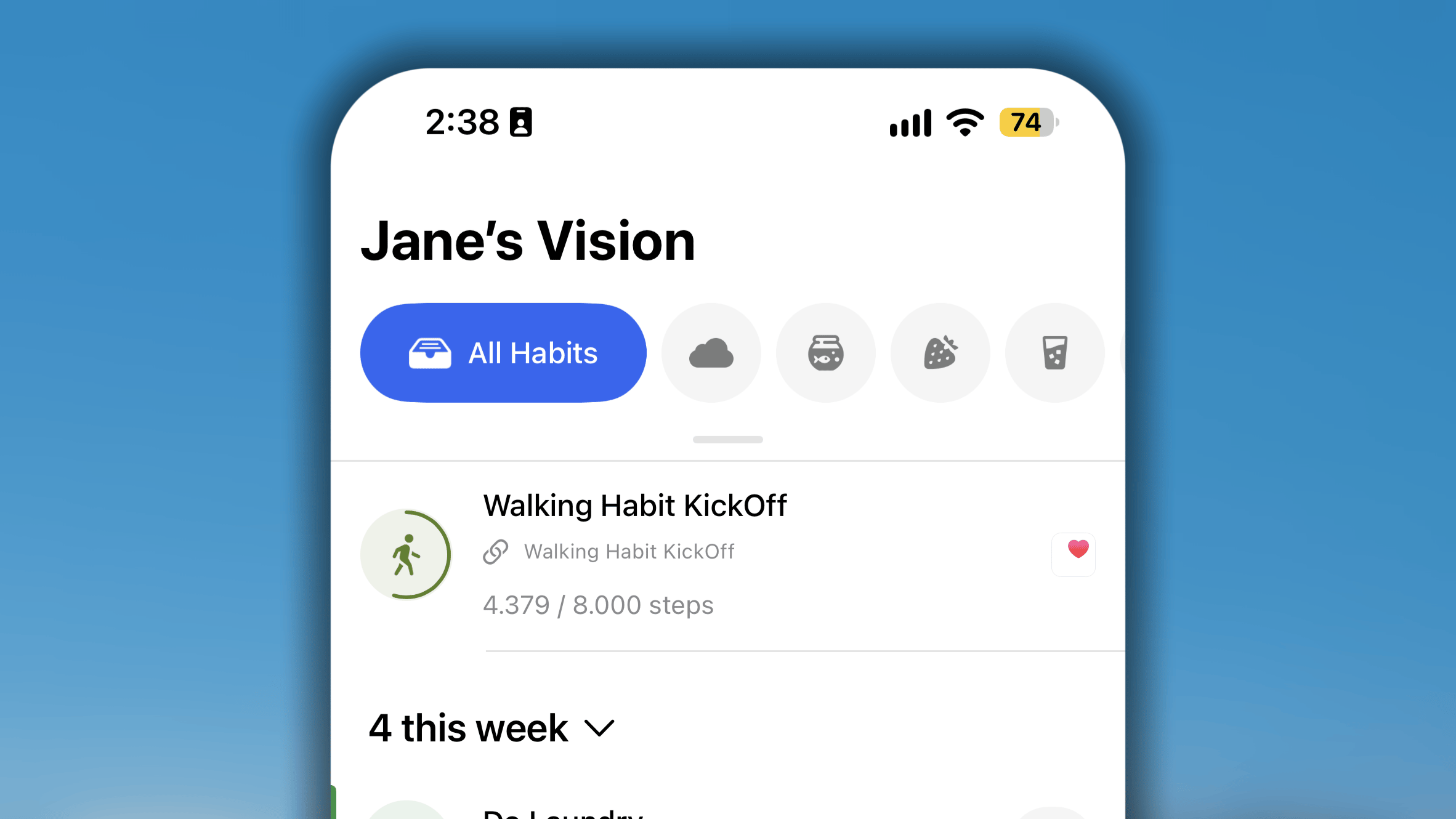 2. If you choose *manual logging* method, you can log your progress using your preferred method:
* **Swipe right** to mark Complete, or Log Progress.
* **Swipe left** to mark Skip or Fail.
* **Use smart button** next to the habit.
3. if you choose sync from another app method, your habit progress is automatically updated with the data recorded by your health app.
### **From the Statistics in challenge**
If you are already in the challenge, you can log your progress in **Statistics** tab.
* In *Statistics* tab, under *Today's Summary*, find and tap the '**Log My Progress**' button.
2. If you choose *manual logging* method, you can log your progress using your preferred method:
* **Swipe right** to mark Complete, or Log Progress.
* **Swipe left** to mark Skip or Fail.
* **Use smart button** next to the habit.
3. if you choose sync from another app method, your habit progress is automatically updated with the data recorded by your health app.
### **From the Statistics in challenge**
If you are already in the challenge, you can log your progress in **Statistics** tab.
* In *Statistics* tab, under *Today's Summary*, find and tap the '**Log My Progress**' button.
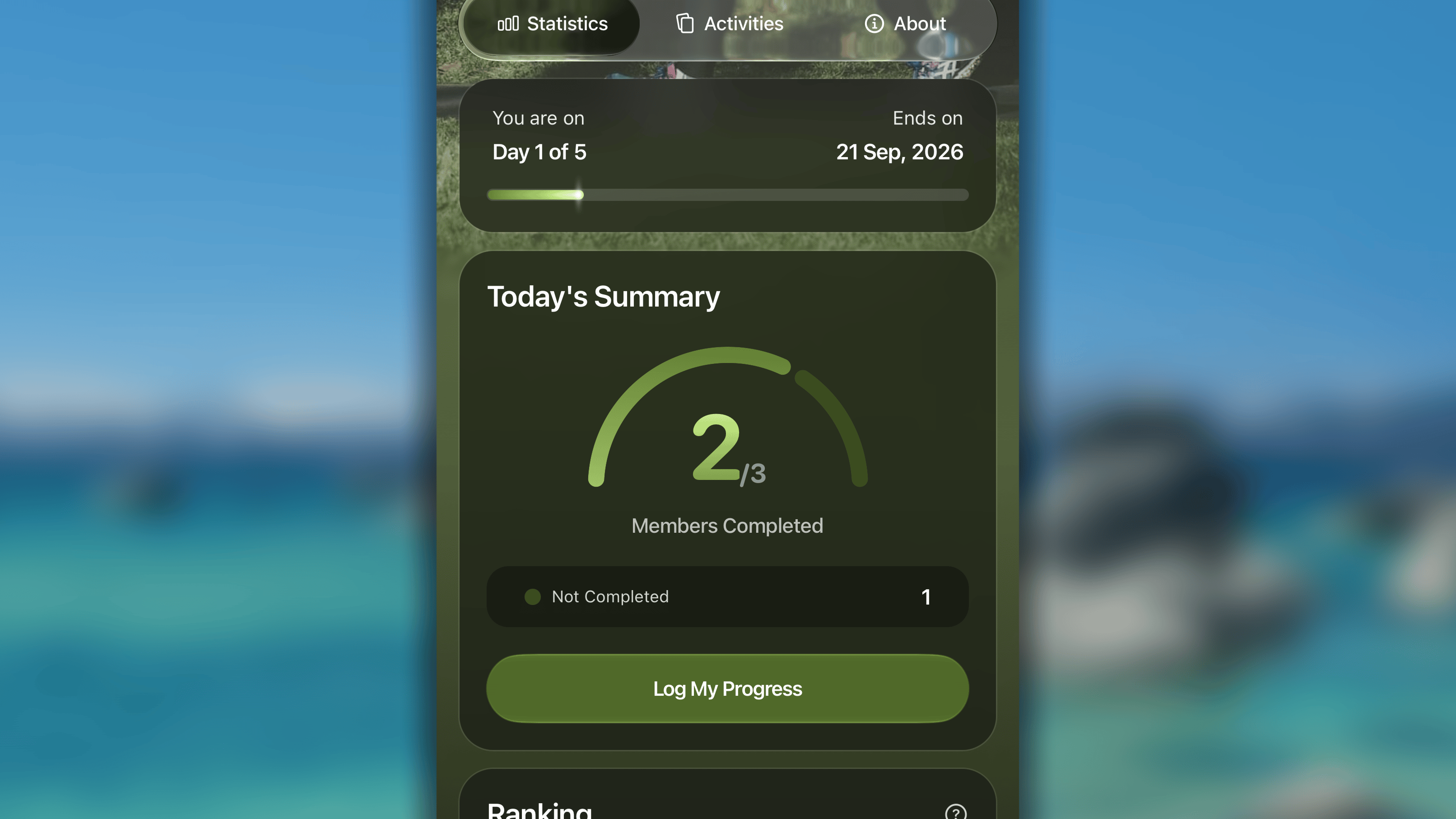 * Enter your progress value, or choose between 2 other options '**Skip**' and '**Fail**'.
* Finally, slide the save your log.
## Seeing Statistics of challenge
A Habitify Challenge isn't just about individual effort; it's about seeing how the whole group progresses together. In a challenge, the *Statistics* tab give you a challenge dashboard, letting you track every details, from a team streak to a competitive leaderboard.
### **Duration Progress**
First off all, you will see a progress bar. This visualizes the timeline of your journey, as well as the current day in relation to the total duration of the challenge.
**Example:** On the 15th day since the 30-day challenge starts, it will show 'Day 15 of 30', and displays the specific **End Date** (e.g., Jan 1, 2026), so you know exactly how much time is left to hit your goals.
### **Today's Summary**
This section gives you a real-time snapshot of the group's activity for the current day. It displays the number of members who have:
* **Completed** their daily goal.
* **Skipped** the day (used a 'Skip' allowance).
* **On Break** (currently using Off Mode).
* **Not Completed** the goal yet (including members who are 'In Progress' or 'Failed').
### **Ranking**
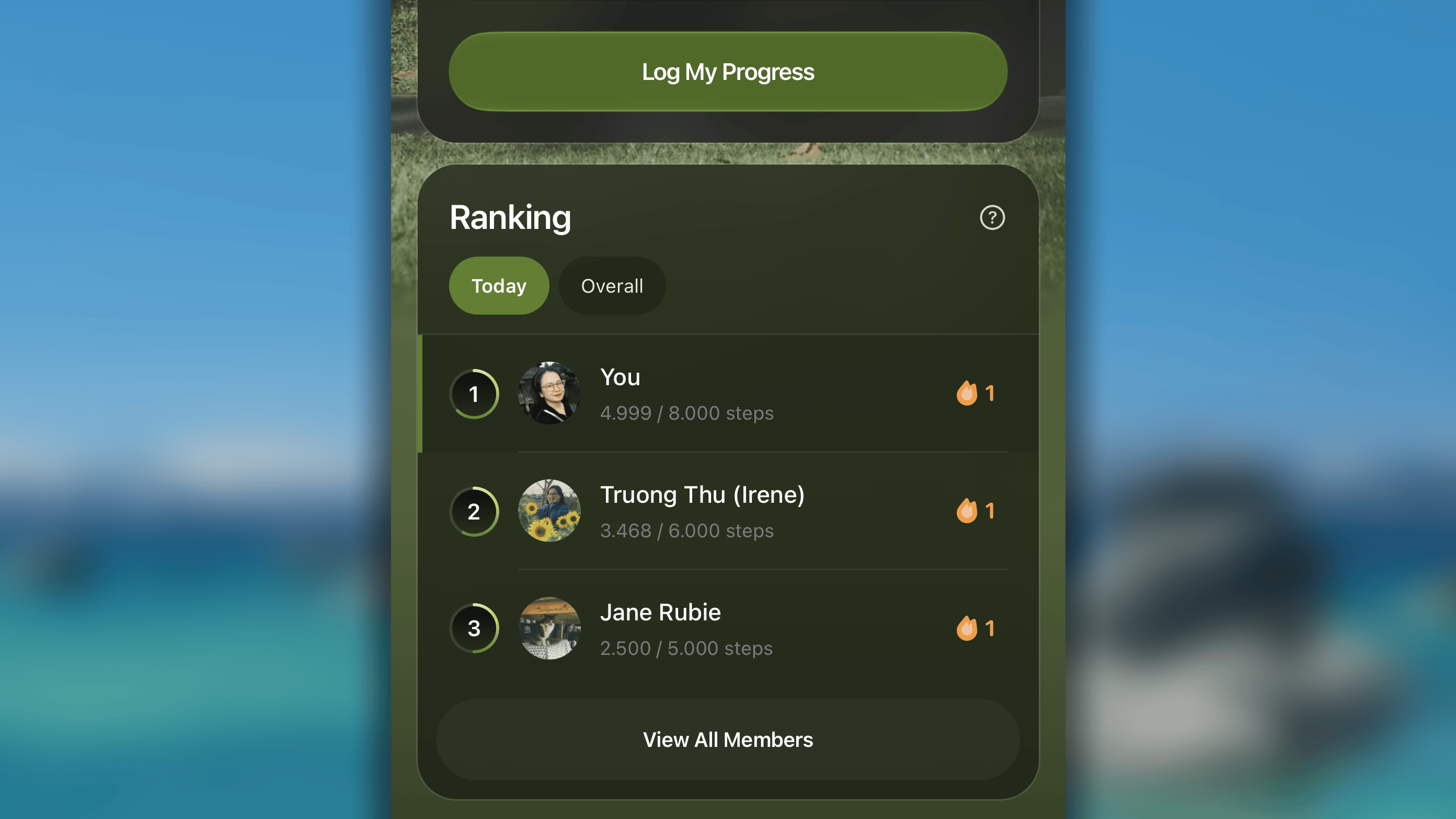
Ranking is where the friendly competition happens. Members are ranked based on their performance, either for 'Today' or 'Overall'.
**In the 'Today' View:**
* **Current Progress:** See exactly how much each member has logged for the current day (e.g., "15/30 mins").
* **Personal Streak:** See the current personal streak for each member, showing who is on a roll.
* Enter your progress value, or choose between 2 other options '**Skip**' and '**Fail**'.
* Finally, slide the save your log.
## Seeing Statistics of challenge
A Habitify Challenge isn't just about individual effort; it's about seeing how the whole group progresses together. In a challenge, the *Statistics* tab give you a challenge dashboard, letting you track every details, from a team streak to a competitive leaderboard.
### **Duration Progress**
First off all, you will see a progress bar. This visualizes the timeline of your journey, as well as the current day in relation to the total duration of the challenge.
**Example:** On the 15th day since the 30-day challenge starts, it will show 'Day 15 of 30', and displays the specific **End Date** (e.g., Jan 1, 2026), so you know exactly how much time is left to hit your goals.
### **Today's Summary**
This section gives you a real-time snapshot of the group's activity for the current day. It displays the number of members who have:
* **Completed** their daily goal.
* **Skipped** the day (used a 'Skip' allowance).
* **On Break** (currently using Off Mode).
* **Not Completed** the goal yet (including members who are 'In Progress' or 'Failed').
### **Ranking**
Ranking is where the friendly competition happens. Members are ranked based on their performance, either for 'Today' or 'Overall'.
**In the 'Today' View:**
* **Current Progress:** See exactly how much each member has logged for the current day (e.g., "15/30 mins").
* **Personal Streak:** See the current personal streak for each member, showing who is on a roll.
 **In the 'Overall' View:**
* **Total points:** The cumulative score earned since Day 1 of the challenge.
* **Total logged balue:** The grand total of all activity logged since Day 1 (e.g., "Total: 450 mins").
* **Projected medal:** See which medal (Gold, Silver, or Bronze) a member is currently on track to earn based on their all-time performance.
**In the 'Overall' View:**
* **Total points:** The cumulative score earned since Day 1 of the challenge.
* **Total logged balue:** The grand total of all activity logged since Day 1 (e.g., "Total: 450 mins").
* **Projected medal:** See which medal (Gold, Silver, or Bronze) a member is currently on track to earn based on their all-time performance.
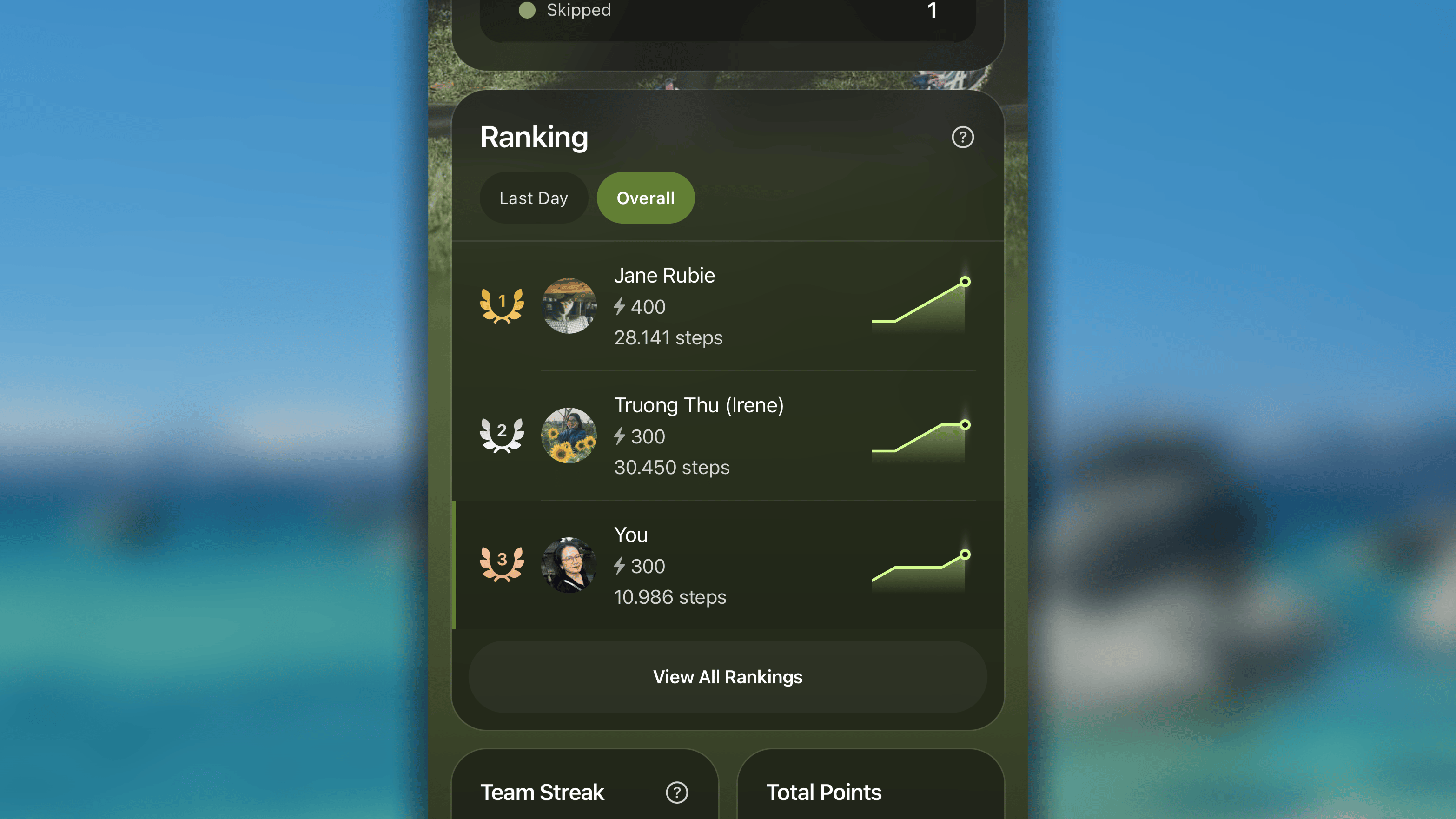 **In ranking the performance of all the members in a challenge**, we use a fair system to determine who takes the top spot:
1. **Primary factor: Total points.** The member with the highest score ranks first.
2. **Tie-Breaker 1: Total logged value.** If points are equal, the person who has logged a higher total amount (e.g., more minutes, more pages) ranks higher.
3. **Tie-Breaker 2: Time of last Log.** If points and logged values are still equal, the person who finished their habit **sooner** wins.
**The medals in 'Overall' ranking** is to recognize the efforts of the members who've made at progress on the challenge.
**In ranking the performance of all the members in a challenge**, we use a fair system to determine who takes the top spot:
1. **Primary factor: Total points.** The member with the highest score ranks first.
2. **Tie-Breaker 1: Total logged value.** If points are equal, the person who has logged a higher total amount (e.g., more minutes, more pages) ranks higher.
3. **Tie-Breaker 2: Time of last Log.** If points and logged values are still equal, the person who finished their habit **sooner** wins.
**The medals in 'Overall' ranking** is to recognize the efforts of the members who've made at progress on the challenge.
.png?fit=max&auto=format&n=R-NIvjzQ9dhrSBN7&q=85&s=5dc15674d2c51987c89ecdde09e8d1b2) The medal is given following the rules:
* 🥇 **Golden Medal:** Reserved for the **#1 Top Member**.
* 🥈 **Silver Medal:** Awarded to the next **40%** of members with the best performance.
* 🥉 **Bronze Medal:** Given to the remaining members.
### **Team Streak**
The medal is given following the rules:
* 🥇 **Golden Medal:** Reserved for the **#1 Top Member**.
* 🥈 **Silver Medal:** Awarded to the next **40%** of members with the best performance.
* 🥉 **Bronze Medal:** Given to the remaining members.
### **Team Streak**
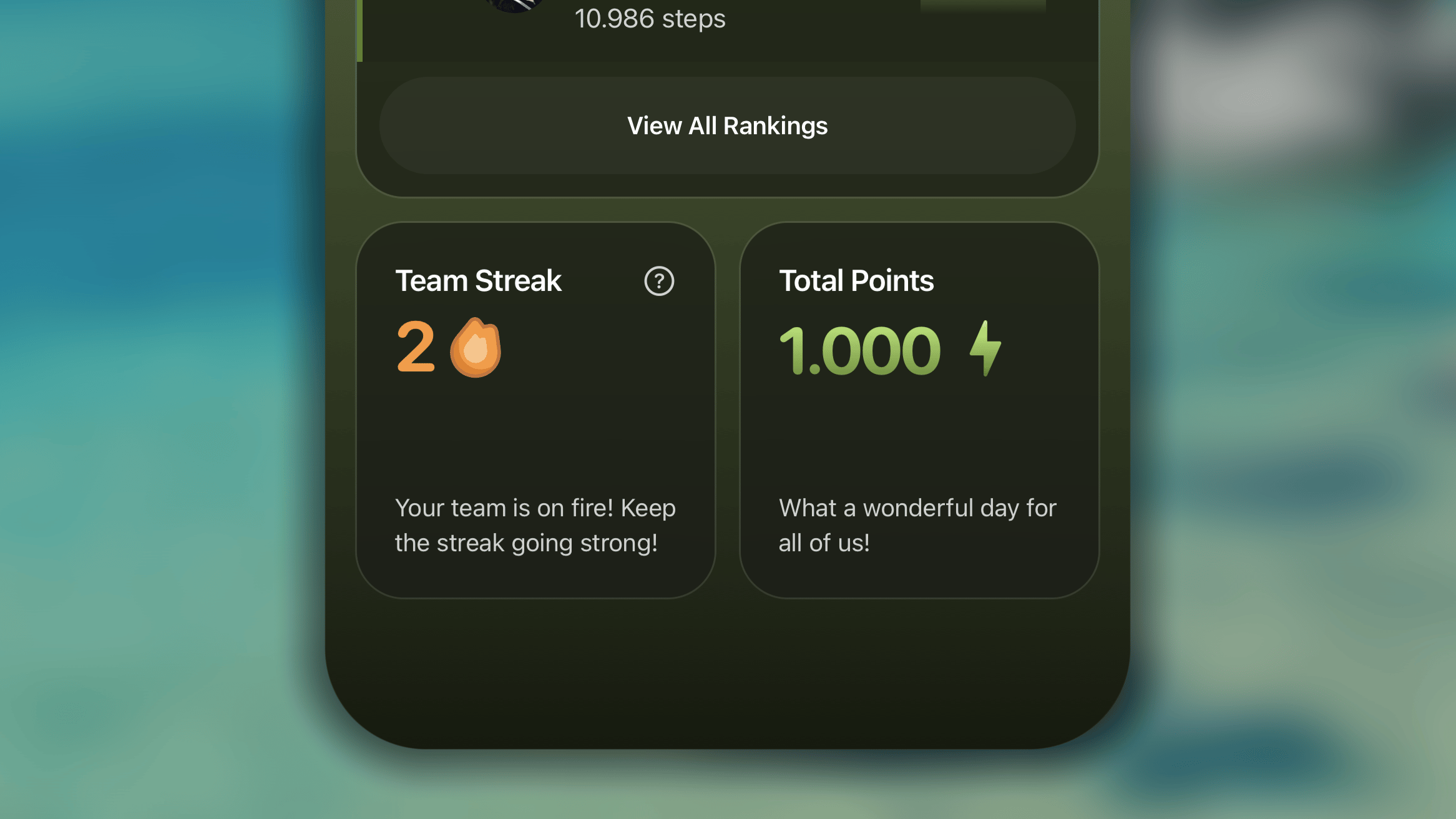 This is the ultimate measure of your group's collective consistency. The *Team Streak* counts how many days in a row the entire group has been successful.
**The Team Streak increases by 1 day when:**
* **Everyone completes:** Every single member completes their committed daily goal and mark the challenge habit as completed for the current day, on the current day.
* **Partial completion (no failures):** Some members complete the goal, while others use a "Skip" or are on "Off Mode," and **no one** leaves the habit incomplete or failed for the day.
**The Streak Resets to 0 when:**
* **Just one failure:** If even one member fails to complete their goal (and doesn't use a Skip or Off Mode), the entire Team Streak resets to zero.
### **Total Points**
This is the sum of all points earned by every member in the challenge. It represents the total effort and success of your entire group combined.
How points are calculated is set in the Difficulty Level of the challenge.
## Seeing progress of a member
Transparency helps keep the competition fair and motivating. Therefore, in a Habitify challenge, you can view the detailed progress of any participant to see their current standing, streak history, and daily logs.
To view a participant's details:
1. In a challenge, access the **Statistics** tab.
2. Scroll to the **Ranking** board, and tap on the name of a member you wish to view.
Once you tap on a member, you will see their personal progress view on the challenge, which is divided into three sections: **Today**, **Overall performance**, and **Progress history**.
### Today
This is the ultimate measure of your group's collective consistency. The *Team Streak* counts how many days in a row the entire group has been successful.
**The Team Streak increases by 1 day when:**
* **Everyone completes:** Every single member completes their committed daily goal and mark the challenge habit as completed for the current day, on the current day.
* **Partial completion (no failures):** Some members complete the goal, while others use a "Skip" or are on "Off Mode," and **no one** leaves the habit incomplete or failed for the day.
**The Streak Resets to 0 when:**
* **Just one failure:** If even one member fails to complete their goal (and doesn't use a Skip or Off Mode), the entire Team Streak resets to zero.
### **Total Points**
This is the sum of all points earned by every member in the challenge. It represents the total effort and success of your entire group combined.
How points are calculated is set in the Difficulty Level of the challenge.
## Seeing progress of a member
Transparency helps keep the competition fair and motivating. Therefore, in a Habitify challenge, you can view the detailed progress of any participant to see their current standing, streak history, and daily logs.
To view a participant's details:
1. In a challenge, access the **Statistics** tab.
2. Scroll to the **Ranking** board, and tap on the name of a member you wish to view.
Once you tap on a member, you will see their personal progress view on the challenge, which is divided into three sections: **Today**, **Overall performance**, and **Progress history**.
### Today
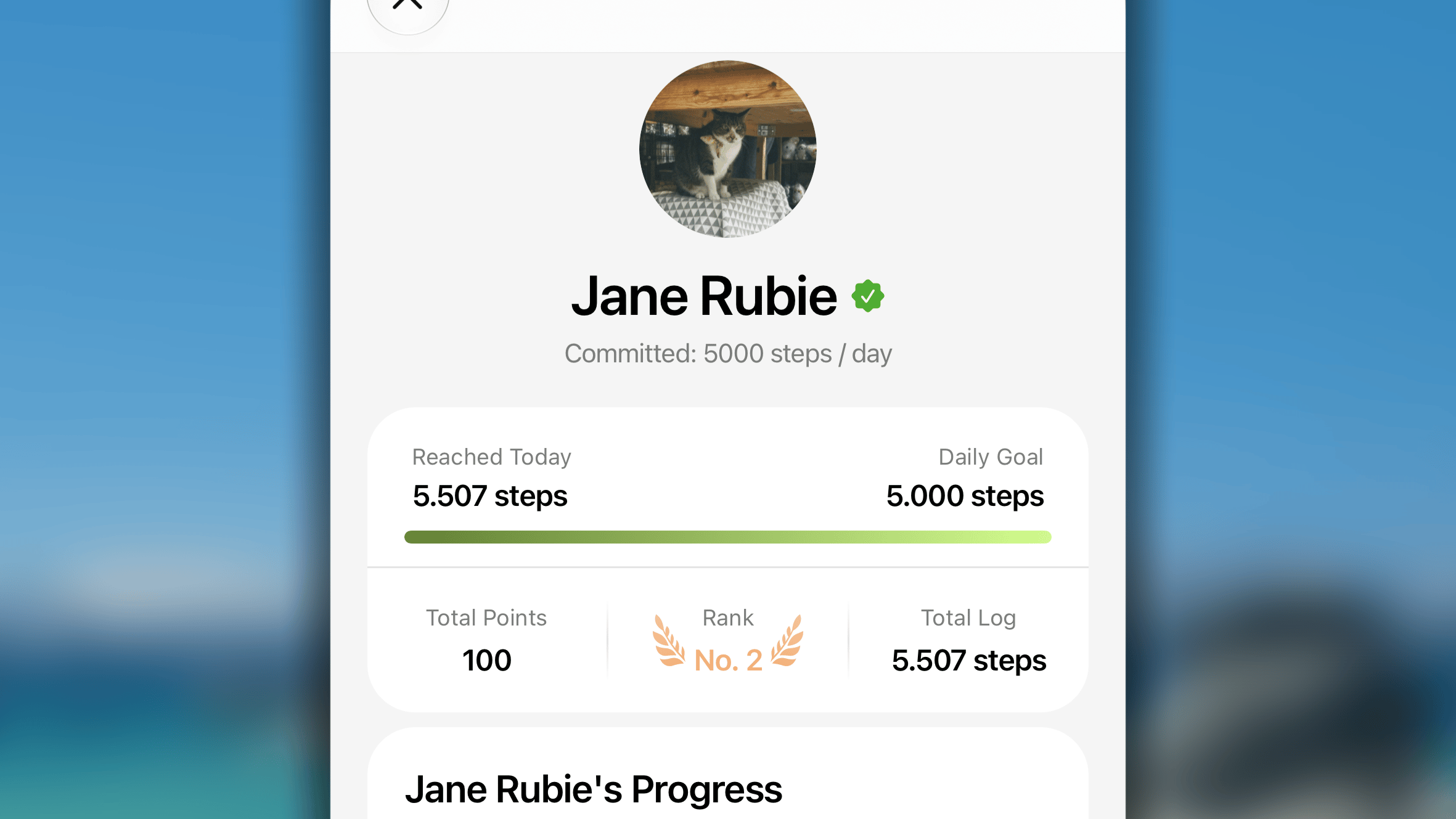 At the very top, you can see how the member is performing right now.
* **Today progress:** The progress bar shows their logs for the current day compared with their daily commitment (e.g., "5.000 / 10.000 m").
* **Current streak:** The fire icon displays their current streak count for this specific challenge habit.
### **Overall Performance**
Under 'Today' is a high-level summary of their standing in the challenge:
* **Total Points:** The accumulated score based on their completions and penalties.
* **Rank:** Their current position on the Ranking board.
* **Total Log:** The total volume or repetitions they have contributed since the challenge began.
### **Progress**
At the very top, you can see how the member is performing right now.
* **Today progress:** The progress bar shows their logs for the current day compared with their daily commitment (e.g., "5.000 / 10.000 m").
* **Current streak:** The fire icon displays their current streak count for this specific challenge habit.
### **Overall Performance**
Under 'Today' is a high-level summary of their standing in the challenge:
* **Total Points:** The accumulated score based on their completions and penalties.
* **Rank:** Their current position on the Ranking board.
* **Total Log:** The total volume or repetitions they have contributed since the challenge began.
### **Progress**
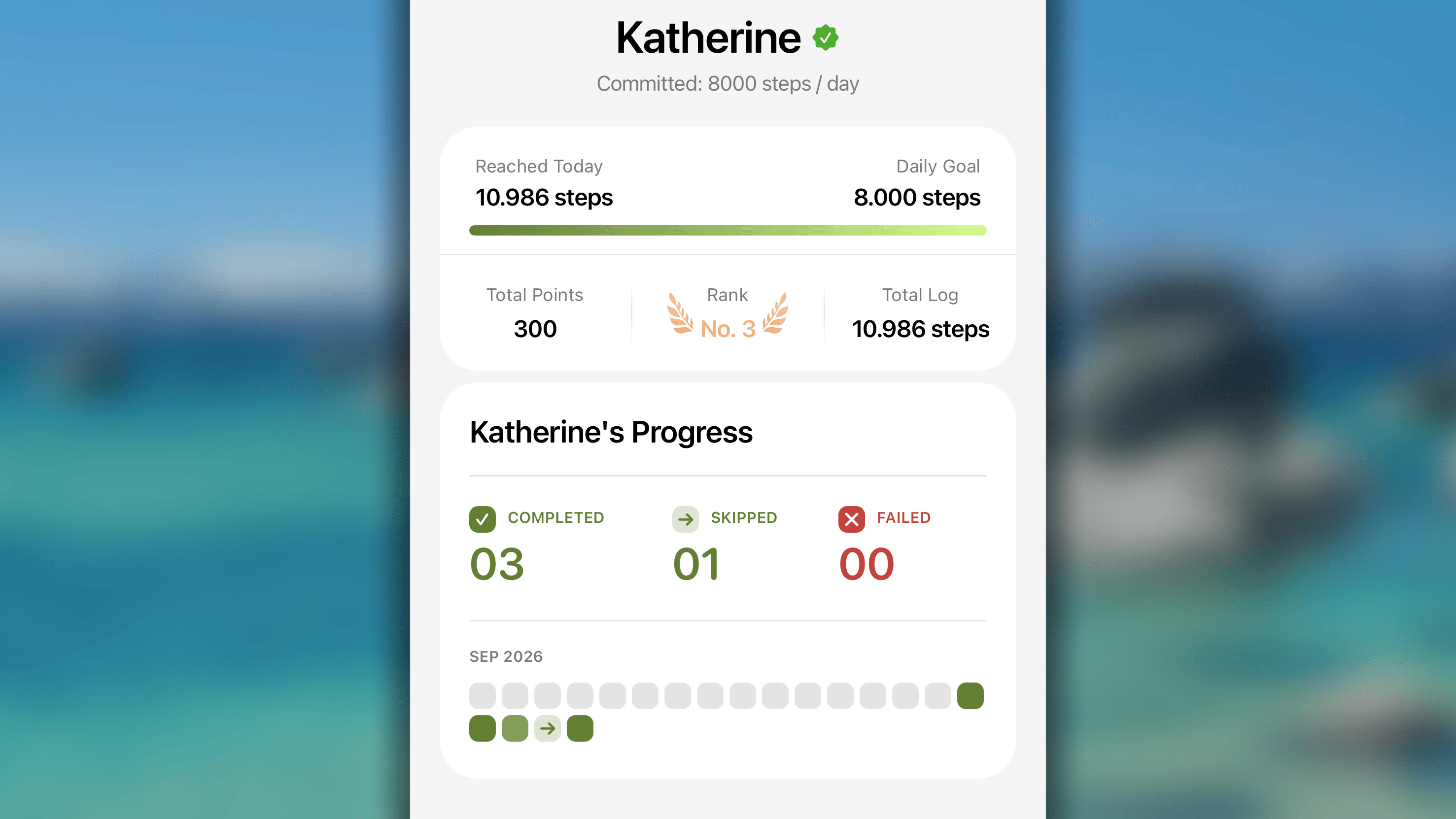 The *Progress* section offers a deep dive into their consistency in each month since the start date of the challenge.
* **Summary:** You will see a total count for three statuses:
* **Success:** Days the goal was fully met.
* **Skipped:** Days marked as skipped.
* **Failed:** Days where the goal was missed.
* **Blockmap:** The visual grid maps out their history month-by-month.
* **Solid Square:** Successful completion.
* **Red (x) Circle:** Failed day.
* **Arrow (→) Icon:** Skipped day.
* **Time-Off icon :** Indicates the user was on "[Off Mode"](https://intercom.help/habitify-app/en/articles/6095980-welcome-to-habitify-the-introduction) for that day.
## Seeing Activities of challenge
A challenge is not only a competition, butr it's also a living community. The very heart of that community is the **Activities** tab, think of it as a private social feed just for you and other members in the challenge.
The *Progress* section offers a deep dive into their consistency in each month since the start date of the challenge.
* **Summary:** You will see a total count for three statuses:
* **Success:** Days the goal was fully met.
* **Skipped:** Days marked as skipped.
* **Failed:** Days where the goal was missed.
* **Blockmap:** The visual grid maps out their history month-by-month.
* **Solid Square:** Successful completion.
* **Red (x) Circle:** Failed day.
* **Arrow (→) Icon:** Skipped day.
* **Time-Off icon :** Indicates the user was on "[Off Mode"](https://intercom.help/habitify-app/en/articles/6095980-welcome-to-habitify-the-introduction) for that day.
## Seeing Activities of challenge
A challenge is not only a competition, butr it's also a living community. The very heart of that community is the **Activities** tab, think of it as a private social feed just for you and other members in the challenge.
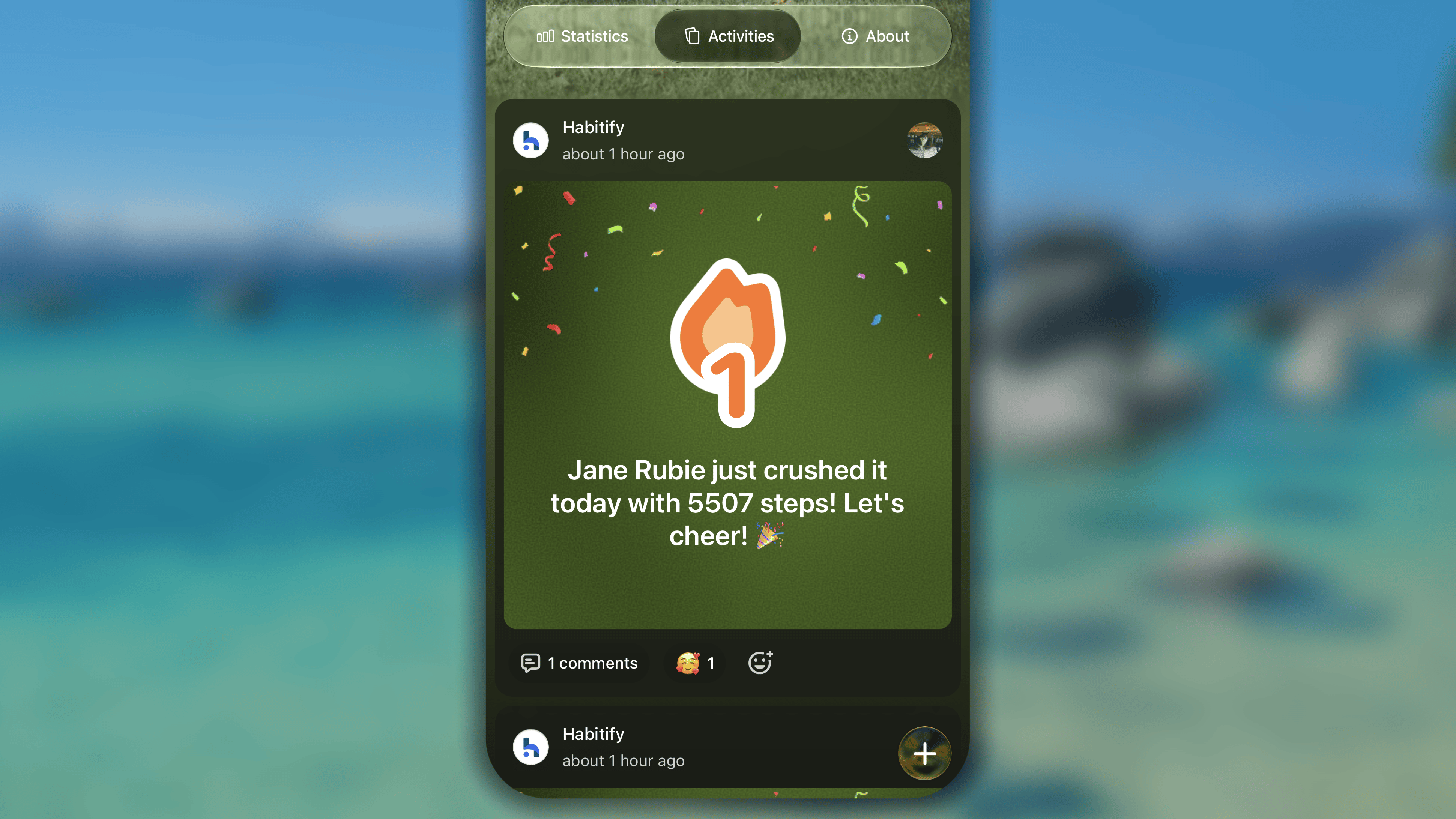 ### Getting updated
The *Activities* tab stays up-to-date with your challenge's important moments automatically. The system will create posts for you when key events happen:
* A new member joins the challenge
* A member completed their today and increase their current streak.
### Sharing your thoughts
Beyond the automated posts, you have the power to share your own thoughts, feelings, and updates with the group.
1. In the *Activities* tab, tap **the + button** in the bottom right corner.
2. In the post creating space, you can:
1. Write something you want to share
2. Tap 🏞️ to upload a picture, or 📷 to quickly take one with your phone's camera.
3. Finally, tap the '**Post**' button in the top right corner to share it on the feed.
### Interacting with others
For every post in the Activities feed, whether it’s automated or shared by a member, you can:
* **Send a reaction**: tap on the reaction button and choose the emoji that reflects your support, appreciation, or excitement the post.
* **Leave a Comment:** tap on the post, then tap on the '*Add your reply*' input field, write your message, and tap ↑ to post your comment under a post.
* **@ Mention Others:** in your comment, you can *@someone* who is also in the circle with you to get their attention or reply directly to them
## FAQs
You can freely check-in your challenge's habit in the same way of checking in your normal habits.
However, it is strictedly required that you must check-in habit's progress before the day ends to have your effort counting to your place in Ranking and in the overall performance in challenge.
When your challenge's habit is deleted, entire progress will be removed permanently and cannot be restored. If you still want to continue the challenge, you will need to create a new challenge's habit. Your progress is counting from the day you restart.
**If the challenge has not started yet**, you can change challenge's details and rules:
* Open the challenge, and tap the 🖊 button in the top right corner.
* In *Edit Challenge*, make your changes to the challenge's name, color, description, background, and rules.
* Finally, tap the '**Done**' button to save your changes.
**If the challenge has already started**, you only can edit the details of your challenge:
* Open the challenge, and switch to the '**About**' tab.
* Scroll down to the bottom, and tap '**Edit Challenge**'.
* In *Edit Challenge*, make your changes to the challenge's name, color, description, and background
* Finally, tap the '**Done**' button to save your changes.
Currently, there is no way to remove someone from a challenge. Therefore, please strictly consider the 'Auto Approve' permission before you share the invitation link to others or publicly.
While steps to set up and join a challenge must be executed on phone apps, you are still conveniently track your challenge-linked habit on website & desktop apps.
If your habit is linked with a challenge, the challenge's name will appear under the habit's name in the habit list.
### Getting updated
The *Activities* tab stays up-to-date with your challenge's important moments automatically. The system will create posts for you when key events happen:
* A new member joins the challenge
* A member completed their today and increase their current streak.
### Sharing your thoughts
Beyond the automated posts, you have the power to share your own thoughts, feelings, and updates with the group.
1. In the *Activities* tab, tap **the + button** in the bottom right corner.
2. In the post creating space, you can:
1. Write something you want to share
2. Tap 🏞️ to upload a picture, or 📷 to quickly take one with your phone's camera.
3. Finally, tap the '**Post**' button in the top right corner to share it on the feed.
### Interacting with others
For every post in the Activities feed, whether it’s automated or shared by a member, you can:
* **Send a reaction**: tap on the reaction button and choose the emoji that reflects your support, appreciation, or excitement the post.
* **Leave a Comment:** tap on the post, then tap on the '*Add your reply*' input field, write your message, and tap ↑ to post your comment under a post.
* **@ Mention Others:** in your comment, you can *@someone* who is also in the circle with you to get their attention or reply directly to them
## FAQs
You can freely check-in your challenge's habit in the same way of checking in your normal habits.
However, it is strictedly required that you must check-in habit's progress before the day ends to have your effort counting to your place in Ranking and in the overall performance in challenge.
When your challenge's habit is deleted, entire progress will be removed permanently and cannot be restored. If you still want to continue the challenge, you will need to create a new challenge's habit. Your progress is counting from the day you restart.
**If the challenge has not started yet**, you can change challenge's details and rules:
* Open the challenge, and tap the 🖊 button in the top right corner.
* In *Edit Challenge*, make your changes to the challenge's name, color, description, background, and rules.
* Finally, tap the '**Done**' button to save your changes.
**If the challenge has already started**, you only can edit the details of your challenge:
* Open the challenge, and switch to the '**About**' tab.
* Scroll down to the bottom, and tap '**Edit Challenge**'.
* In *Edit Challenge*, make your changes to the challenge's name, color, description, and background
* Finally, tap the '**Done**' button to save your changes.
Currently, there is no way to remove someone from a challenge. Therefore, please strictly consider the 'Auto Approve' permission before you share the invitation link to others or publicly.
While steps to set up and join a challenge must be executed on phone apps, you are still conveniently track your challenge-linked habit on website & desktop apps.
If your habit is linked with a challenge, the challenge's name will appear under the habit's name in the habit list.
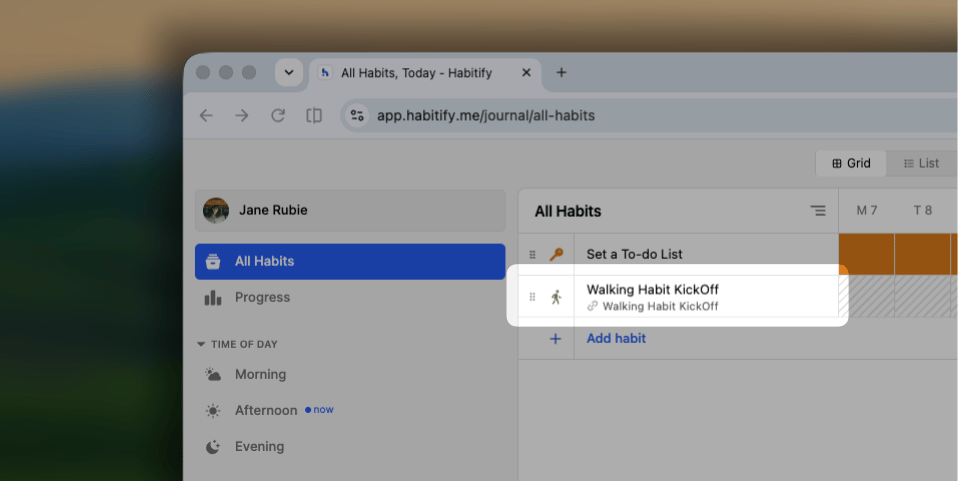 If your habit is linked with another healp app, the progress is automatically updated. No manual logging is needed.
If your habit has the manually logging method configured, you can log progress or update status of the habit like you do with the normal habit:
* **In Grid layout:**
* Select today's cell, and choose Complete, Skip, or Fail from the bottom action bar.
* Right-click the today's cell, and choose an action from the menu.
* **In List layout:**
* Select the challenge-linked habit, and choose Complete, Skip, or Fail from the bottom action bar.
* Right-click the challenge-linked habit, and choose an action from the menu.
Only the progress or status update for the current day is counted to challenge's accomplishment.
This documentation is built and hosted on [Mintlify](https://mintlify.com), a developer documentation platform.
If your habit is linked with another healp app, the progress is automatically updated. No manual logging is needed.
If your habit has the manually logging method configured, you can log progress or update status of the habit like you do with the normal habit:
* **In Grid layout:**
* Select today's cell, and choose Complete, Skip, or Fail from the bottom action bar.
* Right-click the today's cell, and choose an action from the menu.
* **In List layout:**
* Select the challenge-linked habit, and choose Complete, Skip, or Fail from the bottom action bar.
* Right-click the challenge-linked habit, and choose an action from the menu.
Only the progress or status update for the current day is counted to challenge's accomplishment.
This documentation is built and hosted on [Mintlify](https://mintlify.com), a developer documentation platform.