> ## Documentation Index
> Fetch the complete documentation index at: https://docs.habitify.me/llms.txt
> Use this file to discover all available pages before exploring further.
# Apple Health
Automating your tracking is one of the most powerful ways to stay consistent, and connecting Habitify to Apple Health does exactly that. Instead of manually checking off habits like steps, sleep, or water intake, you let your iPhone and Apple Watch handle the logging for you, so your progress stays accurate without you having to think about it.
The integration also works both ways: not only can Habitify read your health data automatically, it can push some of your manual habit logs back into Apple Health, so you're never stuck entering the same number twice.
## Adding a Apple Health-synced habit
1. From *Journal*, tap the + button in the bottom right corner
2. Choose either '**Build Good Habit**' or '**Break Bad Habit**'.
3. At the top of the creation screen, switch to the **"Health"** tab with the App Health's app icon.
4. Choose the data type you want to track from the list (e.g., "Steps").
5. In *Health Access*, **switch the toggle button ON** to enable to grant Habitify permission to read this data, then tap **'Allow' button** below.
6. Configure the details of your habit as normal.
7. Once everything is set, tap **the ✓ button** to save the newly created habit to your list.
Once created, a Apple Health-linked habit is easy to spot: it carries a small Apple Health icon right on the Journal view, distinguishing it from your manually tracked habits at a glance.
## How it works
Once a habit is linked, the day-to-day behavior is simple:
* Apple Health data syncs to Habitify automatically. Once your logged value reaches the habit's goal, Habitify marks it **Completed** for you — no manual check-in needed for a good habit.
* You can still manually mark the habit as **Skipped** or **Failed** for the day if you want to note something Apple Health wouldn't otherwise capture.
## Supported Health Dataz
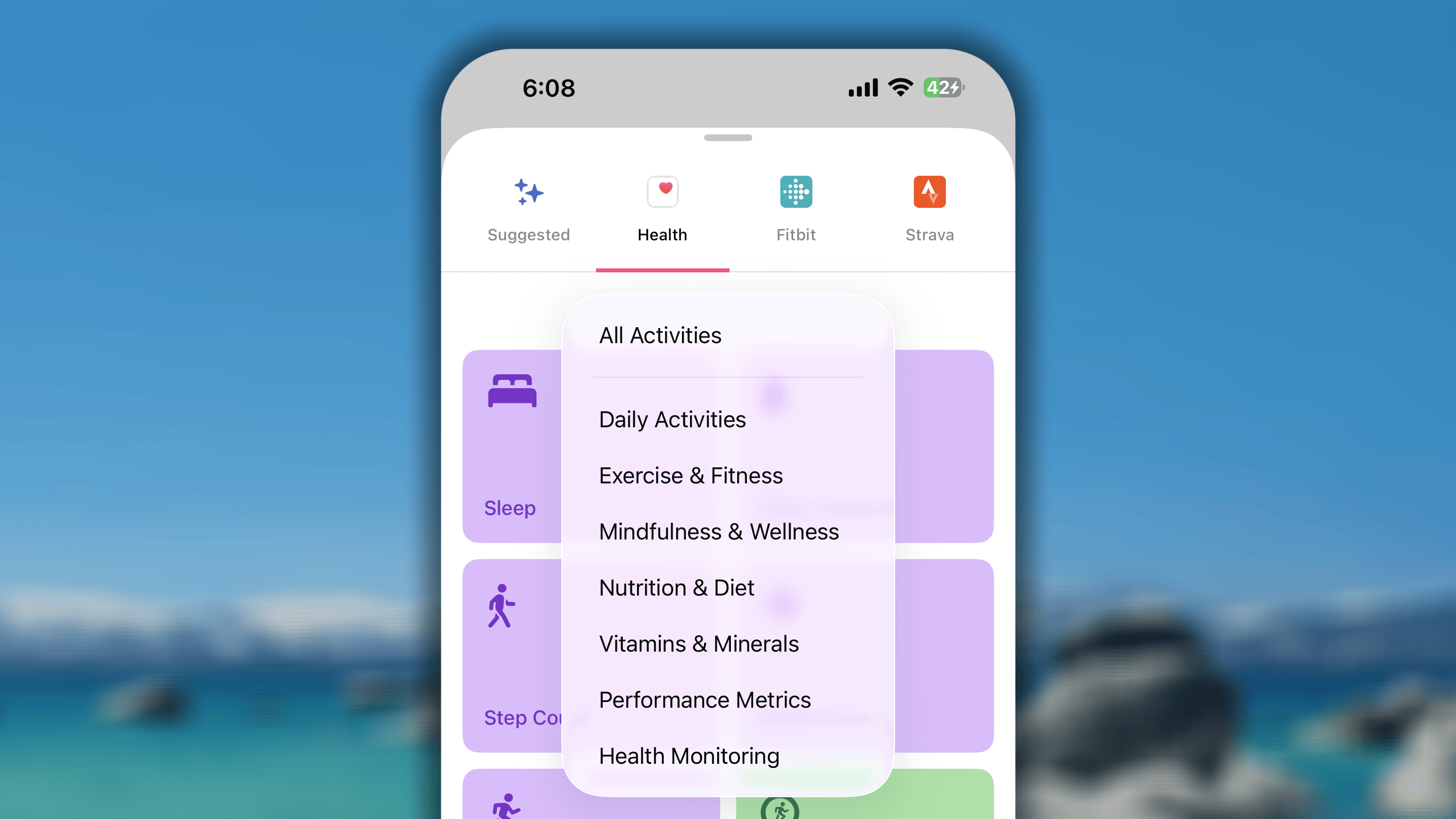 ### Daily Activities
These habits are perfect for tracking your general daily movement and are the core of the Apple Watch Activity Rings.
* **The supported activities includes**: Sleep, Water Intake, Hand Washing, Stand Hours, Step Count, Mindfulness, Move Time, Stand Minutes, Exercise Time, Tooth Brushing, Sexual Activity.
* **The supported units** for each activity are the same with the unit used to track the activity in Apple Health. *For examples*, *Sleep* tracked in hours or minutes, *Water Intake* tracked in liters or mL, and *Step Count* tracked in steps.
### Exercise and Fitness
This category focuses on your dedicated workouts and active periods.
* **The supported activities includes**: You can track the duration and the energy burnt of all types of workouts, such as Running, Walking, Cycling, Swimming, Strength Training, and more.
* **The supported units**: Duration unit (minutes, hours), and Energy unit (kcal)
**To track the workout time on all activities at once**, please use "Exercise Time" in the category "Daily Activities".
### Mindfulness & Wellness
This category is ideal for tracking your mental health and rest.
* **The supported activities includes**: Time in Daylight, UV Exposure
* **The supported units**: Minutes as default unit, and other duration units.
**For Mindful Minutes to track the Meditation habit**, please find it in the category "Daily Activity".
### Nutrition & Diet
Automate your dietary goals by syncing data logged in other nutrition apps (like MyFitnessPal) via Apple Health, including:
* Fiber Intake, Protein Intake, Carbonhydrates, Monounsaturated Fat, Total Fat, Saturated Fat, Sugar Intake, Fat Intake ( supported track in "gram" as default unit and other mass units)
* Calories Consumed (supported track in "kcal" as default unit and other energy units)
* Cholesterol, Sodium Intake, Caffeine Intake, Blood Alcohol Content (supported track in "miligram" as default unit and other mass units)
* Alcoholic Beverages ( supported track in "rep" default unit)
### Vitamins & Minerals
Track your intake of specific micronutrients that you log in Apple Health.
* **The supported data**: Vitamin A, Vitamin B6, Vitamin B12, Vitamin C, Vitamin D, Vitamin E, Vitamin K, Calcium, Iron, Folate, Magnesium, Zinc, Niacin, Thiamin, Ribòlavin, Biotin, Pantothenic Acid, Magnesium, Manganese, Cooper, Selenium, Iodine, Phosphorus, Chloride, Molybdenum.
* **The supported unit**: Micrograms (default) & other mass unit
### Performance Metrics
For users who are focused on improving their fitness performance, you can track:
* **Active Calories**: track all the calories burnt in your daily activites and workouts, using unit kcal.
* **Flights Climbed**: track the number of floors you climbed to using stairs, using unit "times". 1 floor = 1 time.
* **Swimming Strokes**: track the number of strokes you have completed, using unit "times". 1 strokes = 1 time.
* **Cycling Power**: track the actual, real-time energy output you are generating with your legs while cycling, using unit "Joules", and other Energy unit.
* **Rowing Distance**: track the total distance you rowed, as estimated by your watch or measured precisely by a connected rowing machine, using Distance unit such as km, feet, yards, miles.
* **Estimated Workout Effort**: track your personal, subjective rating of how difficult a workout felt to you. It's a way to track your perceived exertion, not your body's actual measured output, using unit "times". 1 score = 1 time.
* **Workout Effort Score**: track an objective, calculated score that quantifies the total strain or "load" of your workout on your body, using unit "times". 1 score = 1 time.
### Health Monitoring
This category is for tracking key body-wide health indicators.
* **Weight (Tracking the Action)**: This habit does not track your actual weight value (e.g., kg or lbs). Instead, it tracks whether you recorded your weight in Apple Health for the day. Once you save your weight, the habit will be marked done.
* **Medication Intake**: If your iPhone is *on iOS 26 or later*, you can now use Habitify to sync your "Medication" adherence directly from the Apple Health app, making it easier than ever to track that you've taken your medications, vitamins, and supplements.
### Daily Activities
These habits are perfect for tracking your general daily movement and are the core of the Apple Watch Activity Rings.
* **The supported activities includes**: Sleep, Water Intake, Hand Washing, Stand Hours, Step Count, Mindfulness, Move Time, Stand Minutes, Exercise Time, Tooth Brushing, Sexual Activity.
* **The supported units** for each activity are the same with the unit used to track the activity in Apple Health. *For examples*, *Sleep* tracked in hours or minutes, *Water Intake* tracked in liters or mL, and *Step Count* tracked in steps.
### Exercise and Fitness
This category focuses on your dedicated workouts and active periods.
* **The supported activities includes**: You can track the duration and the energy burnt of all types of workouts, such as Running, Walking, Cycling, Swimming, Strength Training, and more.
* **The supported units**: Duration unit (minutes, hours), and Energy unit (kcal)
**To track the workout time on all activities at once**, please use "Exercise Time" in the category "Daily Activities".
### Mindfulness & Wellness
This category is ideal for tracking your mental health and rest.
* **The supported activities includes**: Time in Daylight, UV Exposure
* **The supported units**: Minutes as default unit, and other duration units.
**For Mindful Minutes to track the Meditation habit**, please find it in the category "Daily Activity".
### Nutrition & Diet
Automate your dietary goals by syncing data logged in other nutrition apps (like MyFitnessPal) via Apple Health, including:
* Fiber Intake, Protein Intake, Carbonhydrates, Monounsaturated Fat, Total Fat, Saturated Fat, Sugar Intake, Fat Intake ( supported track in "gram" as default unit and other mass units)
* Calories Consumed (supported track in "kcal" as default unit and other energy units)
* Cholesterol, Sodium Intake, Caffeine Intake, Blood Alcohol Content (supported track in "miligram" as default unit and other mass units)
* Alcoholic Beverages ( supported track in "rep" default unit)
### Vitamins & Minerals
Track your intake of specific micronutrients that you log in Apple Health.
* **The supported data**: Vitamin A, Vitamin B6, Vitamin B12, Vitamin C, Vitamin D, Vitamin E, Vitamin K, Calcium, Iron, Folate, Magnesium, Zinc, Niacin, Thiamin, Ribòlavin, Biotin, Pantothenic Acid, Magnesium, Manganese, Cooper, Selenium, Iodine, Phosphorus, Chloride, Molybdenum.
* **The supported unit**: Micrograms (default) & other mass unit
### Performance Metrics
For users who are focused on improving their fitness performance, you can track:
* **Active Calories**: track all the calories burnt in your daily activites and workouts, using unit kcal.
* **Flights Climbed**: track the number of floors you climbed to using stairs, using unit "times". 1 floor = 1 time.
* **Swimming Strokes**: track the number of strokes you have completed, using unit "times". 1 strokes = 1 time.
* **Cycling Power**: track the actual, real-time energy output you are generating with your legs while cycling, using unit "Joules", and other Energy unit.
* **Rowing Distance**: track the total distance you rowed, as estimated by your watch or measured precisely by a connected rowing machine, using Distance unit such as km, feet, yards, miles.
* **Estimated Workout Effort**: track your personal, subjective rating of how difficult a workout felt to you. It's a way to track your perceived exertion, not your body's actual measured output, using unit "times". 1 score = 1 time.
* **Workout Effort Score**: track an objective, calculated score that quantifies the total strain or "load" of your workout on your body, using unit "times". 1 score = 1 time.
### Health Monitoring
This category is for tracking key body-wide health indicators.
* **Weight (Tracking the Action)**: This habit does not track your actual weight value (e.g., kg or lbs). Instead, it tracks whether you recorded your weight in Apple Health for the day. Once you save your weight, the habit will be marked done.
* **Medication Intake**: If your iPhone is *on iOS 26 or later*, you can now use Habitify to sync your "Medication" adherence directly from the Apple Health app, making it easier than ever to track that you've taken your medications, vitamins, and supplements.
Read [how to add your medication first](https://support.apple.com/en-vn/105064).
## Two-Way Sync: Log in Habitify, sync to Health
With Habitify's Two-Way Sync, you don't have to double-log data you enter manually. When you log progress for a supported habit in Habitify, that value can be pushed straight into Apple Health.
Take these steps:
1. In *Journal*, swipe right the habit you want to update.
2. Tap **Log Progress**.
3. Choose **'Add'** mode, and enter the value you want to add to your current progress.
4. Tap **the ✓ button** to save.
### **Unsupported data for 2-way Sync**
While Habitify can **read** almost any data from Apple Health, there are strict limitations on what it can **write** back to Apple Health.
Specifically, Habitify **cannot** write data to the Apple Activity Rings or the following automated metrics:
* **Exercise Time** (`.exerciseTime`, `.appleExerciseTime`)
* **Move Time** (`.appleMoveTime`)
* **Stand Time** (`.appleStandTime`)
* **Stand Hours** (`.appleStandHour`)
* **Medication**
These metrics are calculated automatically by Apple's algorithms using the raw sensor data from your Apple Watch and iPhone. Apple Health does not typically allow third-party apps to manually overwrite these specific "Ring" values, as it would break the accuracy of your daily Activity Rings.
## FAQs
For each habit, there is only one logging method allowed at a time.
If you do not want to lose your 30-day streak, you can first input the data of your last 30 days to your Apple Health. Then, create a new habit synced with the Apple Health app, which can sync those data as well.
When you move to a new iPhone, your Apple Health permissions are not transferred automatically for security reasons. You must re-authorize Habitify to access your health data.
Go into your new iPhone's **Settings > Health > Data Access & Devices > Habitify** and ensure all permissions are enabled. This is the most crucial step.
If the sync still doesn't work after enabling permissions, refresh the connection for each of your Apple Health-linked habits: **Edit habit > Goal > Switch to 'Manual Logging' > Switch back to 'Syncing with Apple Health'.**
By re-enabling permissions and then refreshing the connection, you can ensure a seamless transition for Habitify on your new device.
It can be disruptive when Habitify, which has been working perfectly, suddenly stops syncing data from the Apple Health app. This issue can sometimes occur after an iOS update, an app update, or when you switch to a new device.
If you find that your habits are no longer automatically updating with data from Apple Health, follow these simple troubleshooting steps to re-establish the connection and get everything running smoothly again.
**1/ Check Apple Health Permissions**
The most common reason for a sudden stop in data syncing is that Habitify's permission to read data has been disabled.
1. Open the **Settings** app on your iPhone.
2. Scroll down and tap on **Health**.
3. Tap on **Data Access & Devices**.
4. Select **Habitify**.
5. Make sure that the toggles for the health data you want to sync are **turned ON**. For example, if your "Workout" habit isn't syncing, ensure "Workouts" is enabled here.
**2/ Manually Trigger a Sync**
Sometimes, the connection between the apps just needs a little nudge. Manually adding a data point in Apple Health can force it to sync with connected apps like Habitify.
1. Open the **Health** app.
2. Navigate to the data type that isn't syncing (e.g., Browse > Activity > Steps, or Browse > Activity > Workouts).
3. Tap **Add Data** in the top-right corner.
4. Enter a new value (it can even be a small value like "1" step or a workout of "1 minute").
5. Tap **Add**.
This action can act as a trigger, prompting Apple Health to push the latest data to Habitify. Check Habitify after a minute to see if it has updated.
**3/ Refresh the Connection Within Habitify**
If the previous steps didn't work, the next step is to perform a full refresh of the connection for the specific habit that is causing issues. This process disconnects and then reconnects the habit to Apple Health, clearing out any bad data or connection errors.
***Important:***\_ This process will erase the existing logs for this specific habit within Habitify, so only proceed if the previous steps have failed.\_
1. In Habitify, find the habit that is not syncing.
2. **Long-press** on the habit until a menu appears, then tap **Edit**.
3. Tap on the **Goal** section.
4. Under "LOGGING METHOD," select **Manual Logging**. A confirmation pop-up will appear.
5. Tap **Erase Log** to confirm.
6. Now, immediately select **Sync with Apple Health** again.
7. You may see the confirmation pop-up again. Tap **Erase Log**.
8. Tap the **Save** button to finalize the changes.
This "reset" forces the habit to establish a fresh, clean connection to its data source in Apple Health.
If you're finding that Habitify isn't getting any data from Apple Health (HealthKit), the issue often comes down to one of two common reasons: a mismatch in the workout type or an incorrect unit for your goal.
**Reason 1: A mismatch in the workout type**
The name of the habit template you use in Habitify **must match** the workout type recorded in Apple Health.
**Example:** If you want to track your running distance, you must use the **"Running"** habit template in Habitify. This template is specifically designed to sync with data logs that have the workout type "Running" in Apple Health.
Here is how to check:
1. Open the **Health** app on your iPhone.
2. Tap on **Browse**, then select **Activity**.
3. Scroll down and tap on **Workouts**.
4. Tap on **Show All Data** at the top.
5. Select the specific workout that didn't sync. You will see the exact **Workout Type** listed in the details.
**Reason 2: an incorrect unit for your goal**
The goal you set for a habit in Habitify must be measured in a unit that is compatible with how Apple Health tracks that activity.
Apple Health generally tracks activities using three main types of measurement:
* **Distance:** Measured in kilometers (km), miles (mi), or meters (m).
* **Duration:** Measured in hours (hr), minutes (min), or seconds (sec).
* **Energy:** Measured in kilocalories (kcal) or calories (cal).
Your habit's goal in Habitify **must** have a unit that falls into one of these categories.To troubleshooting, please check your habit's goal unit in Habitify:
1. Open **Habitify** and navigate to the problematic habit.
2. Look at the goal you have set. For example, is it "Run 5 **km**" or "Meditate for 10 **minutes**"?
3. Ensure a specific, compatible unit is selected. A goal of just "5" without a unit like "km" or "min" will not work.
If the unit does not fall into any supported unit types, please create a new habit and make sure the goal's unit aligns with the data type from Apple Health.
* If you want to track **how far** you run, set the unit to the length type on like **km** or **mi**.
* If you want to track **how long** you work out, set the unit to the duration type like **hours** or **minutes**.
* If you want to track **calories burned**, set the unit to the energy type like **kcal** or **cal**.
**Example:** If Apple Health tracks your run in kilometers, your Habitify goal must be set in kilometers (e.g., "Run 3 km"), not just "Run 3 times".
You connected a calorie-burning habit (like your Apple Watch's "Move Goal") to Apple Health, only to see a massive, unexpected number appear in Habitify. *For example,* your goal of 500 Calories suddenly shows up as 500,000.
The source of the confusion is the difference between a "Calorie" and a "calorie."
1. **Apple Health uses kcal:** The Apple Health app, like most fitness trackers and nutritional labels, measures energy in **kilocalories (kcal)**. This is often written as **"Calories"** (with a capital C) as a shorthand.
2. **Habitify uses cal and kcal:** Our app offers both units. The smaller unit is the **"calorie" (cal)**, and the larger unit is the **"kilocalorie" (kcal)**.
The conversion rate between them is: **1 kcal (in Apple Health) = 1,000 cal (in Habitify)**
To ensure the numbers from Apple Health match what you see in Habitify, you simply need to select the correct unit when creating your habit. Go to edit your habit, then, in the unit selection, make sure to choose **kcal**, not "cal".
It's due to the important difference between two separate data types that Apple Health tracks: **"Workouts"** and **"Exercise Minutes."**
* **Workout time** is the total time of a Workout session which is recorded by your Apple Watch or any third-party app and then saved in Apple Health.
* **Exercise Minutes** is the total time recorded by Apple Watch based the intensity - you earn a minute for every full minute of activity at or above the intensity of a brisk walk, based on your heart rate and movement. It also includes the total time of a workout session tracked directly with your Apple Watch.
Habitify's **"Exercise Time"** habit template syncs data of Exercise Minutes specifically.
In case you want sync the duration of a workout session, you have 2 options:
* Create a habit with 'Exercise Time' template, and record your workout with your Apple Watch.
* Create a habit using the exact activity template that matches (e.g., "Running," "Swimming"), set a duration goal, and link it to Apple Health.
When your Apple Watch tracks your activity throughout the day, it doesn't just record the hours you stood up. It actually records two different types of data points in your data history:
* **Stand:** Hours where you successfully stood and moved around for at least one minute.
* **Idle:** Hours where you were wearing your watch but remained sitting or inactive.
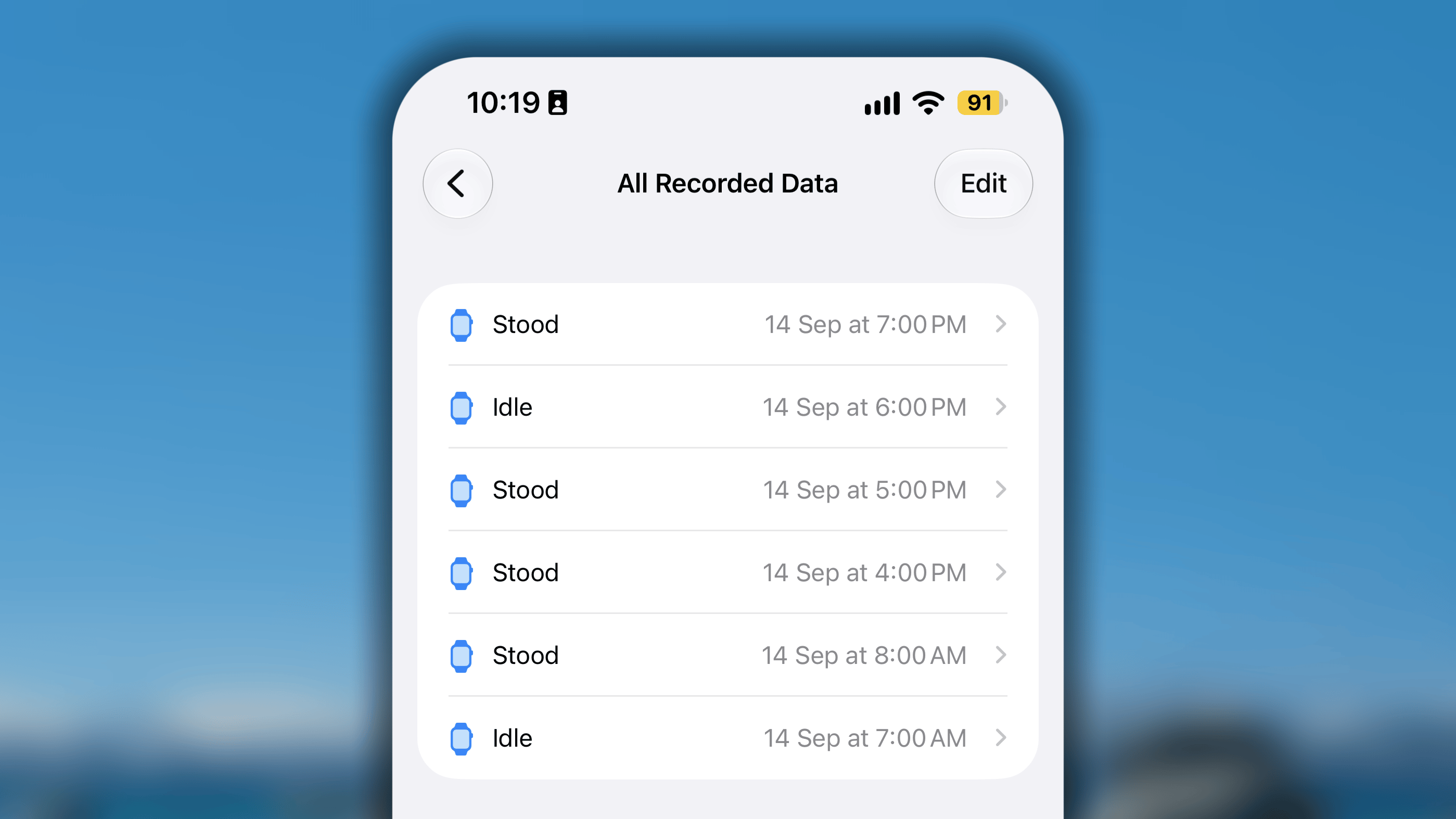 Both of these data points are saved into your Apple Health database under the "Stand Hours" category. The difference in your totals comes from how Apple Health and Habitify choose to read that database.
* **Apple Health only counts and displays the "Stand" data points**. It hides the "Idle" hours from your total score because you didn't meet the movement goal for that specific hour.
* **Habitify is counting both your "Stand" data and your "Idle" data**. Currently, when Habitify syncs with your Apple Health database, it pulls the total volume of records for that category
When syncing sleep from Apple Health, Habitify tracks both **Time in Bed** and **Time Asleep**.
Both of these data points are saved into your Apple Health database under the "Stand Hours" category. The difference in your totals comes from how Apple Health and Habitify choose to read that database.
* **Apple Health only counts and displays the "Stand" data points**. It hides the "Idle" hours from your total score because you didn't meet the movement goal for that specific hour.
* **Habitify is counting both your "Stand" data and your "Idle" data**. Currently, when Habitify syncs with your Apple Health database, it pulls the total volume of records for that category
When syncing sleep from Apple Health, Habitify tracks both **Time in Bed** and **Time Asleep**.
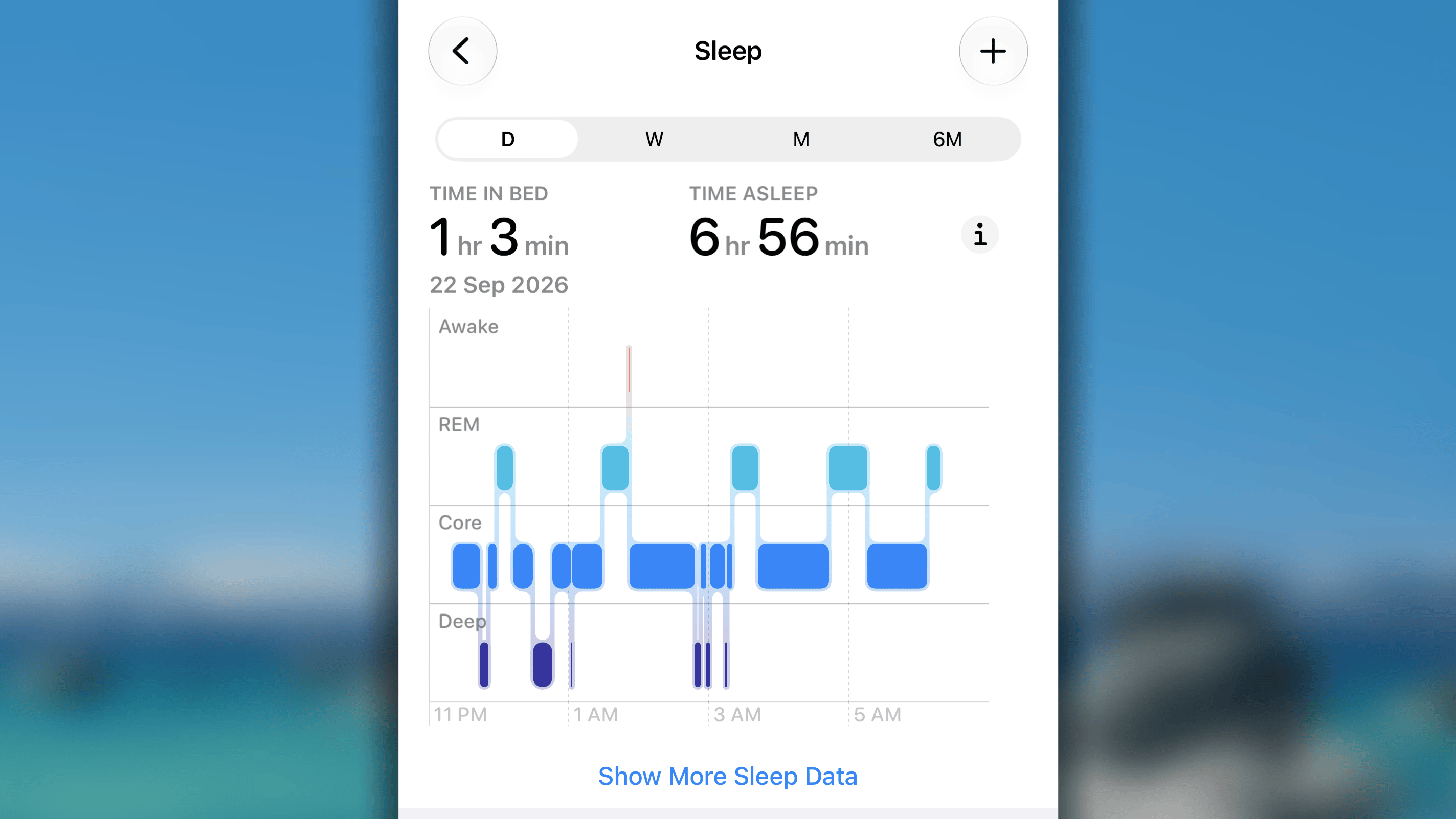 To give you an accurate reflection of your rest without artificially inflating your hours, Habitify evaluates the start and end times of your recorded intervals and calculates your total sleep using one rule: **No Double-Counting**
If your "Time in Bed" and "Time Asleep" periods overlap, Habitify merges them so you aren't credited twice for the same hour. If the intervals are completely separate, Habitify adds them together. Here's how specific scenarios are handled:
1. **Completely Separate Intervals:**
* *Scenario:* You log Time in Bed and Time Asleep as separate, non-overlapping blocks of time (for example, taking an afternoon nap versus nighttime sleep).
* *How it syncs:* Habitify counts both sessions and syncs the **sum of both durations**.
2. **One Period Inside the Other (Fully Covered):**
* *Scenario:* Your Time Asleep falls entirely within your Time in Bed window (or vice versa).
* *How it syncs:* Habitify syncs the **longer window** so the smaller duration inside it is not counted twice.
3. **Partially Overlapping Intervals:**
* *Scenario:* Your Time in Bed and Time Asleep intervals overlap, but one starts or ends before the other.
* *How it syncs:* Habitify merges them into a single continuous window, measuring from the **earliest start time** to the **latest end time**.
**Here's the Summary Table for your quick check:**
| **Sleep Data Logged in Apple Health** | **How Habitify Calculates It** | **Result** |
| :- | :- | :- |
| **Non-overlapping periods** (e.g., 2 hrs nap + 7 hrs night) | Sums both durations | **9 hours** total |
| **One covers the other** (e.g., In Bed 11 PM–7 AM, Asleep 11:30 PM–6:30 AM) | Uses the overall enclosing window | **8 hours** total (In Bed duration) |
| **Partial overlap** (e.g., In Bed 11 PM–6 AM, Asleep 11:30 PM–7 AM) | Merges earliest start (11 PM) to latest end (7 AM) | **8 hours** total |
This documentation is built and hosted on [Mintlify](https://mintlify.com), a developer documentation platform.
To give you an accurate reflection of your rest without artificially inflating your hours, Habitify evaluates the start and end times of your recorded intervals and calculates your total sleep using one rule: **No Double-Counting**
If your "Time in Bed" and "Time Asleep" periods overlap, Habitify merges them so you aren't credited twice for the same hour. If the intervals are completely separate, Habitify adds them together. Here's how specific scenarios are handled:
1. **Completely Separate Intervals:**
* *Scenario:* You log Time in Bed and Time Asleep as separate, non-overlapping blocks of time (for example, taking an afternoon nap versus nighttime sleep).
* *How it syncs:* Habitify counts both sessions and syncs the **sum of both durations**.
2. **One Period Inside the Other (Fully Covered):**
* *Scenario:* Your Time Asleep falls entirely within your Time in Bed window (or vice versa).
* *How it syncs:* Habitify syncs the **longer window** so the smaller duration inside it is not counted twice.
3. **Partially Overlapping Intervals:**
* *Scenario:* Your Time in Bed and Time Asleep intervals overlap, but one starts or ends before the other.
* *How it syncs:* Habitify merges them into a single continuous window, measuring from the **earliest start time** to the **latest end time**.
**Here's the Summary Table for your quick check:**
| **Sleep Data Logged in Apple Health** | **How Habitify Calculates It** | **Result** |
| :- | :- | :- |
| **Non-overlapping periods** (e.g., 2 hrs nap + 7 hrs night) | Sums both durations | **9 hours** total |
| **One covers the other** (e.g., In Bed 11 PM–7 AM, Asleep 11:30 PM–6:30 AM) | Uses the overall enclosing window | **8 hours** total (In Bed duration) |
| **Partial overlap** (e.g., In Bed 11 PM–6 AM, Asleep 11:30 PM–7 AM) | Merges earliest start (11 PM) to latest end (7 AM) | **8 hours** total |
This documentation is built and hosted on [Mintlify](https://mintlify.com), a developer documentation platform.